> ## Documentation Index
> Fetch the complete documentation index at: https://knowledge.bitbybit.studio/llms.txt
> Use this file to discover all available pages before exploring further.
# How to add chat widget to your store
> Install the bitChat Chat Widget on Shopify or a non-Shopify site, then continue to the current widget setup pages for appearance and advanced settings.
Use this page to install the **Chat Widget** on your storefront or website.
If you need to configure widget behavior after installation, use the focused setup pages linked at the end of this article.
## Prerequisites
* You can open **bitChat > Chat Widget**.
* You have access to your storefront theme or website code.
## Step 1: Open Chat Widget
* Go to **bitChat**.
* Open [**Chat Widget**](https://app.bitbybit.studio/bitchat/chat-widget).
## Step 2: Install the widget on Shopify
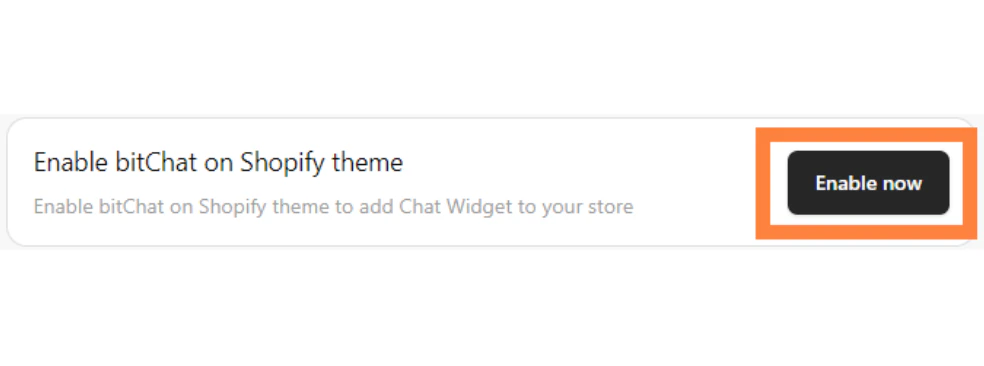
* Click **Enable Now**.
 * In the Shopify Theme Editor, search for **bitChat**.
* Enable **bitChat: Live Chat Widget app embed**.
* In the Shopify Theme Editor, search for **bitChat**.
* Enable **bitChat: Live Chat Widget app embed**.
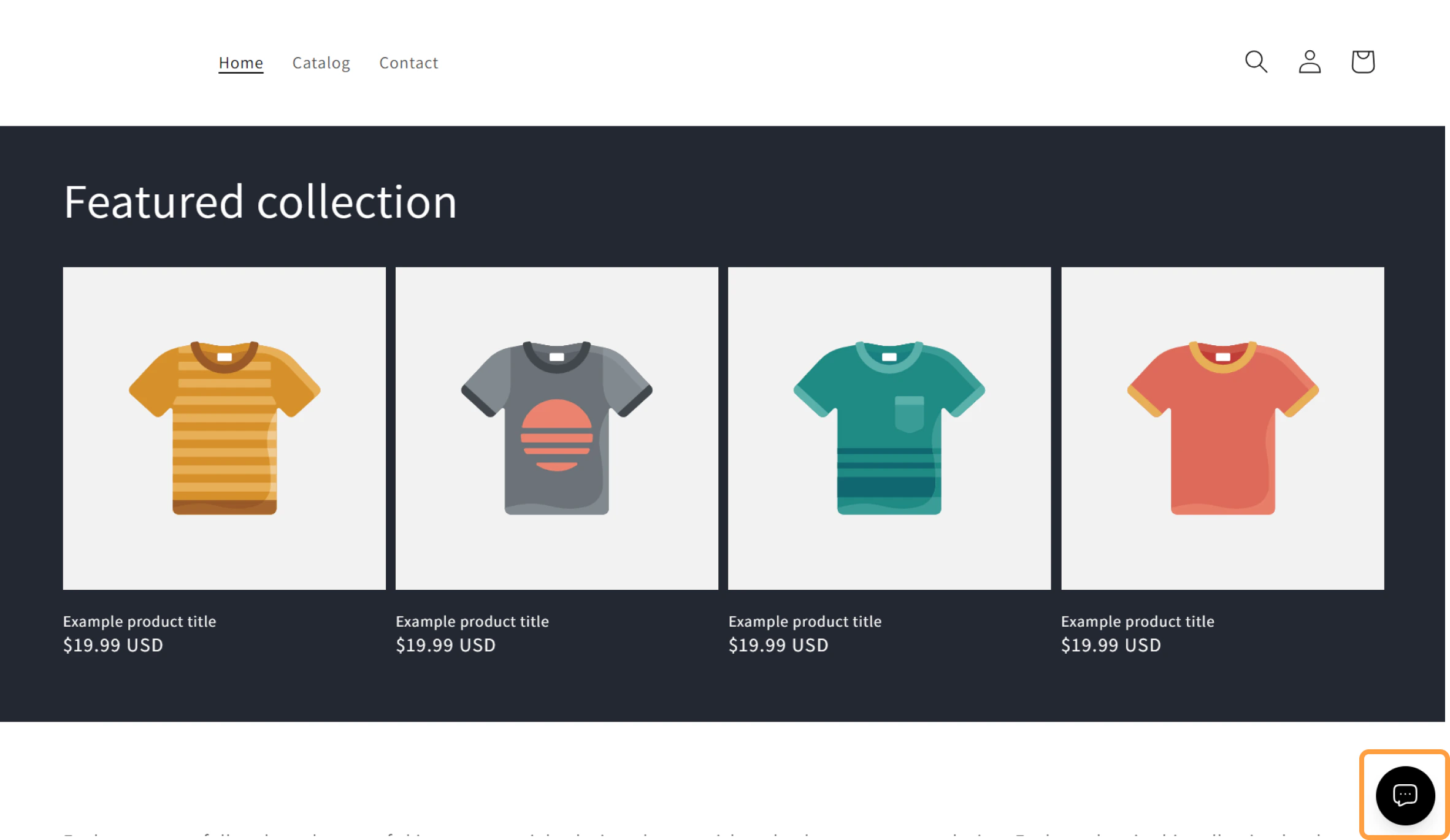
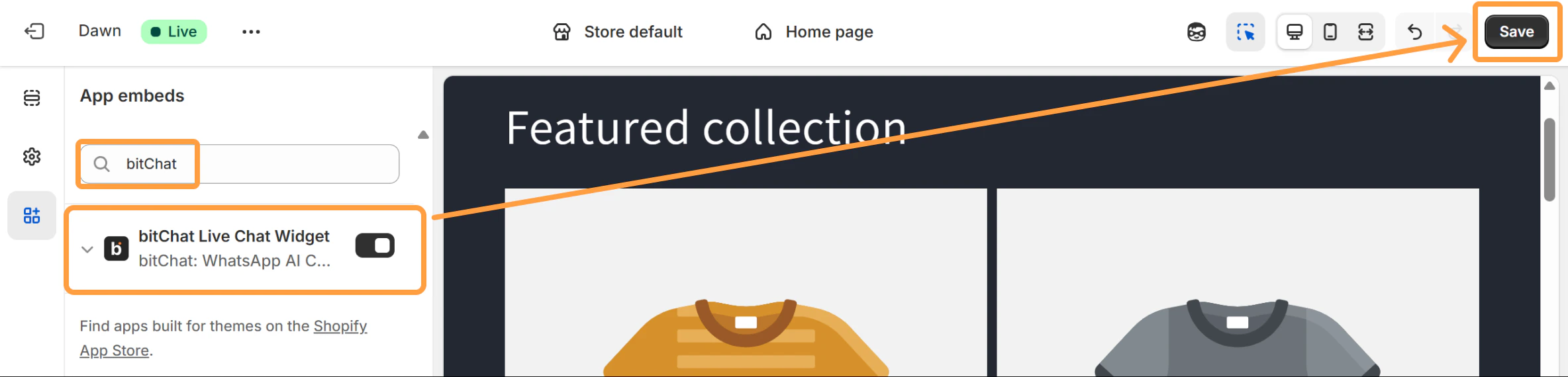 * Click **Save**.
 ## Step 3: Choose the widget style
The current Chat Widget setup includes these styles:
* **Floating Widget**
* **Sidebar Panel**
* **Redirect Widget**
## Step 3: Choose the widget style
The current Chat Widget setup includes these styles:
* **Floating Widget**
* **Sidebar Panel**
* **Redirect Widget**
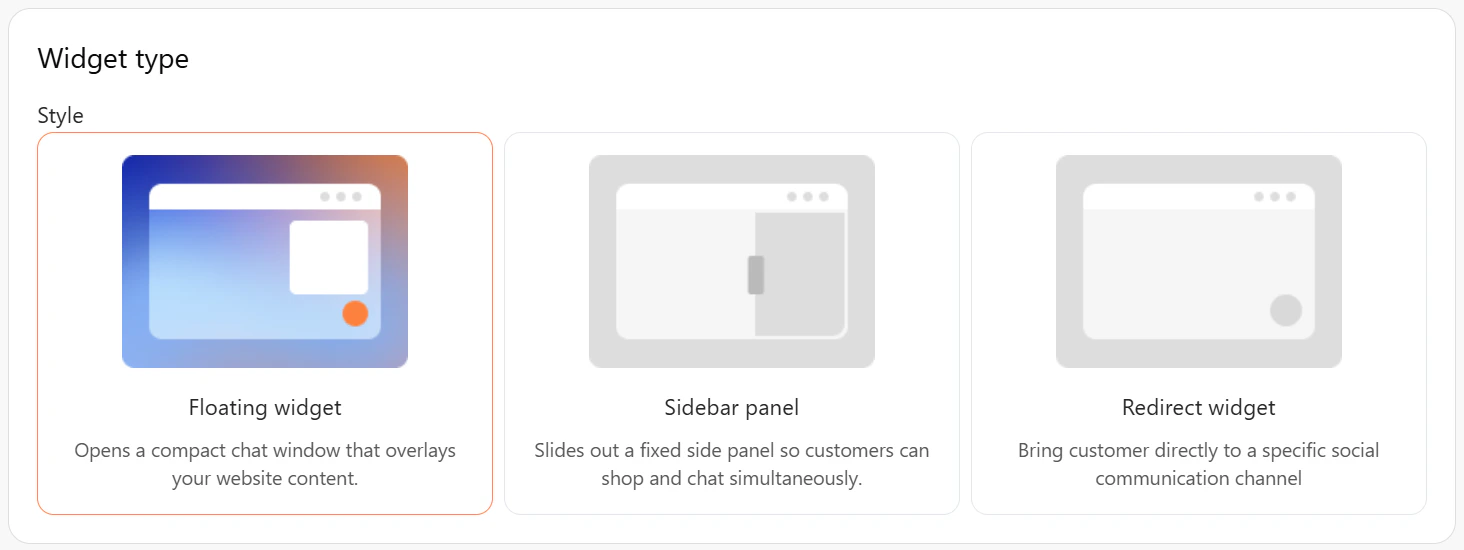 After installation, continue with the focused setup pages for the style and settings you want to configure.
## Step 4: Install the widget on a non-Shopify site
* Add the widget script before the closing `` tag of your website:
```text theme={null}
After installation, continue with the focused setup pages for the style and settings you want to configure.
## Step 4: Install the widget on a non-Shopify site
* Add the widget script before the closing `` tag of your website:
```text theme={null}