> ## Documentation Index
> Fetch the complete documentation index at: https://knowledge.bitbybit.studio/llms.txt
> Use this file to discover all available pages before exploring further.
# How to Integrate GoSend with bitbybit
> Connect a Gojek Corporate account to bitbybit with your Client ID and API Key to enable automated GoSend deliveries
Enable automated GoSend deliveries for your store by connecting your Gojek Corporate account. This integration requires a B2B enterprise account and cannot be linked using a personal Gojek app account. Follow the steps below to complete the setup.
***
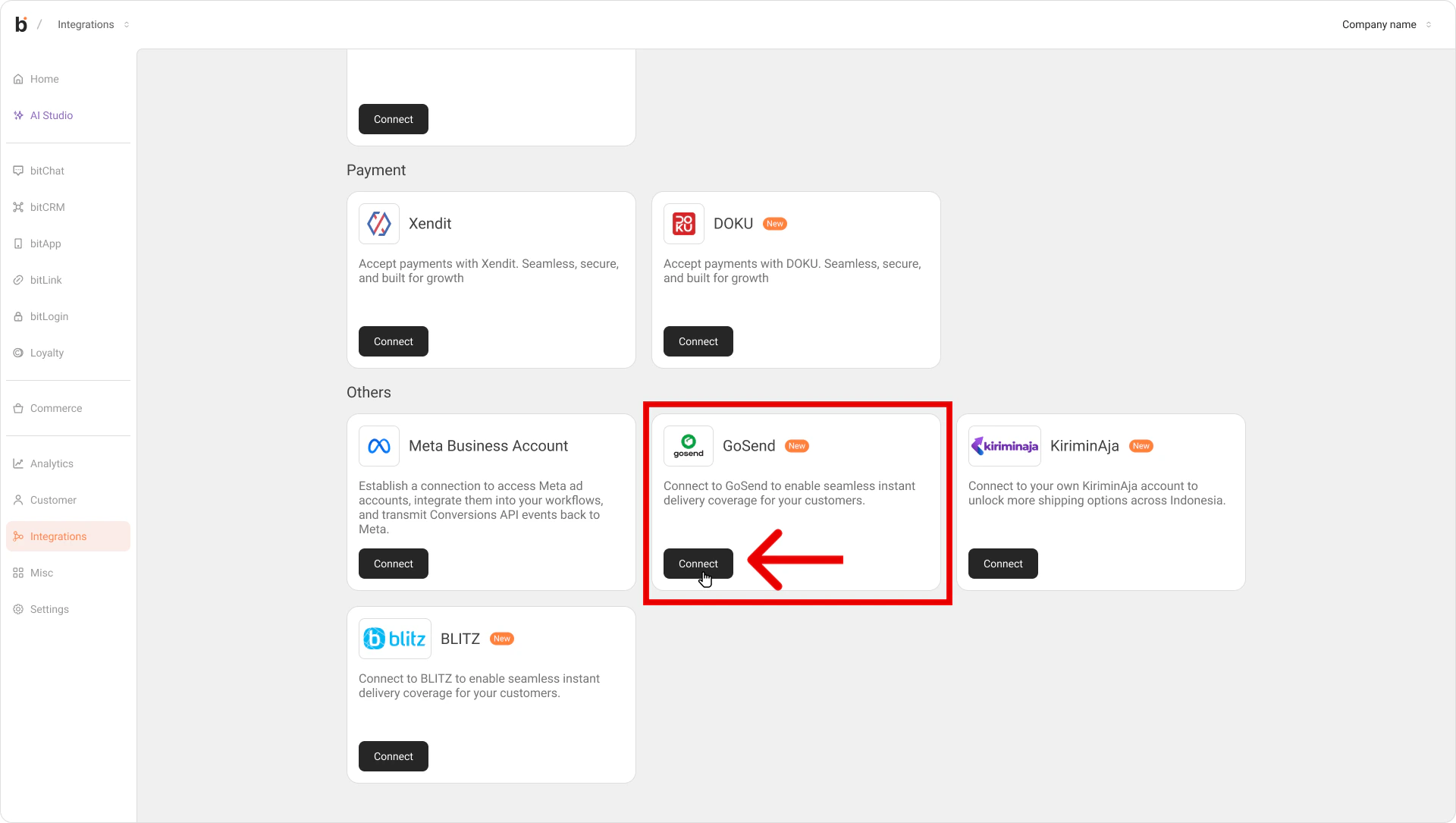
## Step 1: Open the bitbybit Integrations Menu & Locate GoSend Configuration
* Log in to **bitbybit**.
* Navigate to the **Integrations** page from the side menu.
* Locate the **GoSend** integration card.
* Click **Connect** to open the setup modal.
 ***
## Step 2: Register for a Gojek Corporate Account
* If you do not already have a Gojek Enterprise account, learn more here: \
[Gojek GoSend API](https://www.gojek.com/id-id/gosend/api)
* Complete Gojek's required verification steps and wait for them to approve your business account.
⚠️ **Integration cannot proceed until Gojek issues your official B2B API keys.**
***
## Step 3: Copy Your GoSend API Keys
* Once Gojek approves your corporate account, copy your unique **Client ID** and **API Key** (or Passkey).
***
## Step 4: Connect GoSend on bitbybit
* Return to the GoSend modal inside your bitbybit dashboard.
* Paste the **Client ID** and **API Key** into their respective fields.
***
## Step 2: Register for a Gojek Corporate Account
* If you do not already have a Gojek Enterprise account, learn more here: \
[Gojek GoSend API](https://www.gojek.com/id-id/gosend/api)
* Complete Gojek's required verification steps and wait for them to approve your business account.
⚠️ **Integration cannot proceed until Gojek issues your official B2B API keys.**
***
## Step 3: Copy Your GoSend API Keys
* Once Gojek approves your corporate account, copy your unique **Client ID** and **API Key** (or Passkey).
***
## Step 4: Connect GoSend on bitbybit
* Return to the GoSend modal inside your bitbybit dashboard.
* Paste the **Client ID** and **API Key** into their respective fields.
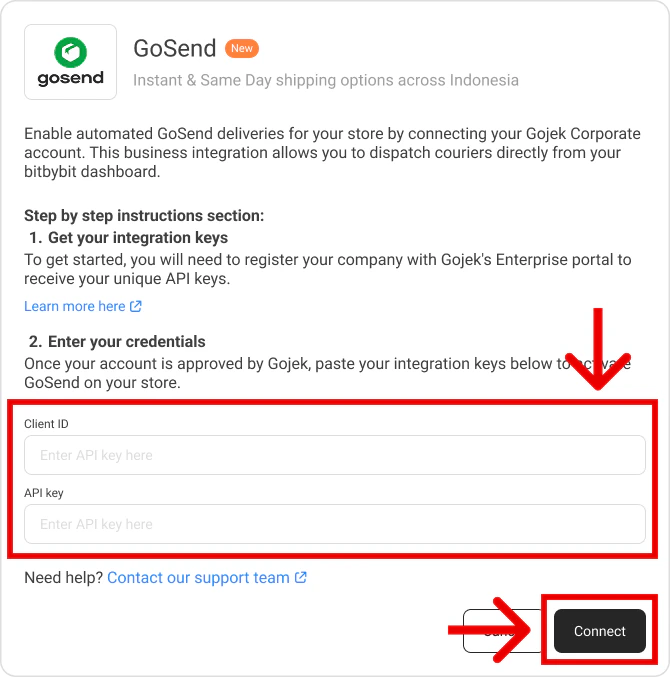 ***
## Step 5: Save and Complete the Connection
* Click the **Connect** button at the bottom of the modal.
* The system will validate your keys. Once successful, the GoSend card status will change to "Connected".
***
🎉 **Integration Complete!**
Your GoSend corporate account is now synced, and you can manage GoSend deliveries directly from bitbybit.
***
## Step 5: Save and Complete the Connection
* Click the **Connect** button at the bottom of the modal.
* The system will validate your keys. Once successful, the GoSend card status will change to "Connected".
***
🎉 **Integration Complete!**
Your GoSend corporate account is now synced, and you can manage GoSend deliveries directly from bitbybit.