> ## Documentation Index
> Fetch the complete documentation index at: https://knowledge.bitbybit.studio/llms.txt
> Use this file to discover all available pages before exploring further.
# How to manage WhatsApp forms with bulk actions
> Select several WhatsApp forms in bitChat to edit drafts in a queue, publish, duplicate, or delete them together, and check each form's Draft or Published status
The WhatsApp Form list shows each form's status in its own **Status** column. You can select several forms and use **Bulk actions** to edit draft forms one after another, publish them, duplicate them, or delete them together.
Some actions depend on status. **Edit selected** and **Publish selected** work only when every selected form is a Draft. **Duplicate selected** and **Delete selected** work for Draft and Published forms.
## Prerequisites
* You can open [**bitChat > WhatsApp Form**](https://app.bitbybit.studio/bitchat/whatsapp-form).
* At least one WhatsApp Form. See [How to create a WhatsApp form](/bitchat/how-to-create-a-whatsapp-form).
## Step 1: Check a form's status
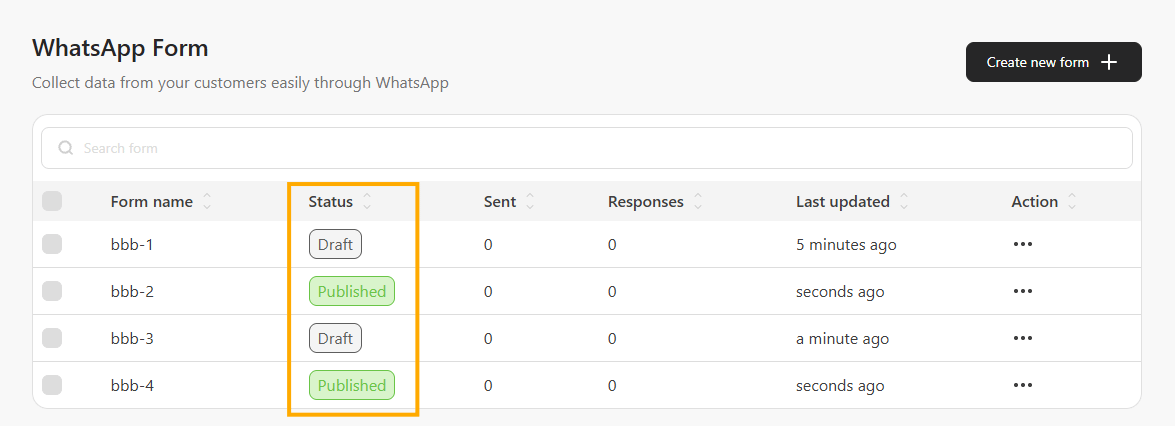
* Open the WhatsApp Form list. It shows **Form name**, **Status**, **Sent**, **Responses**, **Last updated**, and **Action** for each form.
* Read the **Status** column. Each form shows **Draft** or **Published**.
* Use the sort arrows in the **Status** column header to group drafts and published forms together.
The **Form name** column shows only the name you saved. If a name includes text such as "\[Draft]", that text is part of the name and doesn't change the **Status** column.
Click a Draft to open the editor. Click a Published form to open its responses.
 ## Step 2: Select forms
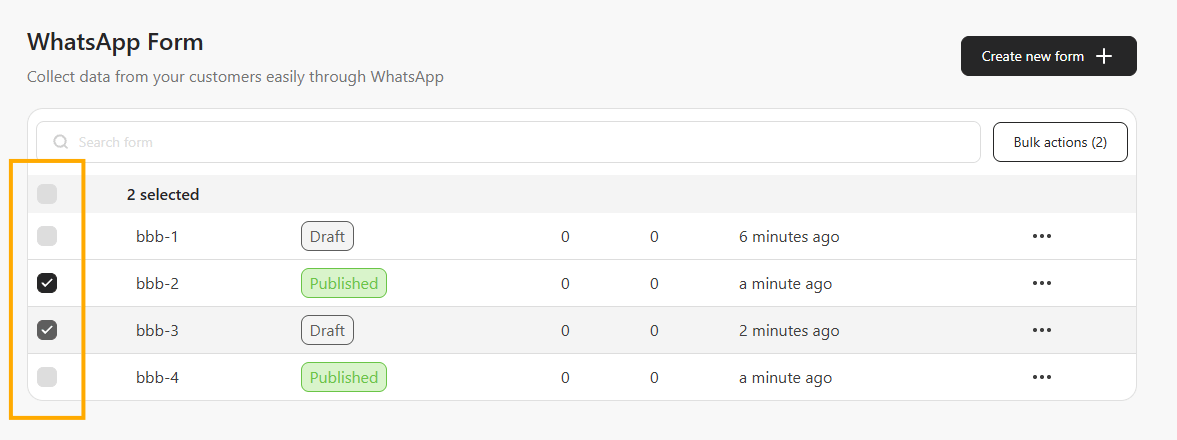
* Tick the checkbox on each form you want.
* Tick the select-all checkbox in the header to select every form in the current results.
* A **selected** count appears above the list, and the **Bulk actions** button next to **Search form** shows how many forms you selected, for example **Bulk actions (2)**.
## Step 2: Select forms
* Tick the checkbox on each form you want.
* Tick the select-all checkbox in the header to select every form in the current results.
* A **selected** count appears above the list, and the **Bulk actions** button next to **Search form** shows how many forms you selected, for example **Bulk actions (2)**.
 ## Step 3: Choose a bulk action
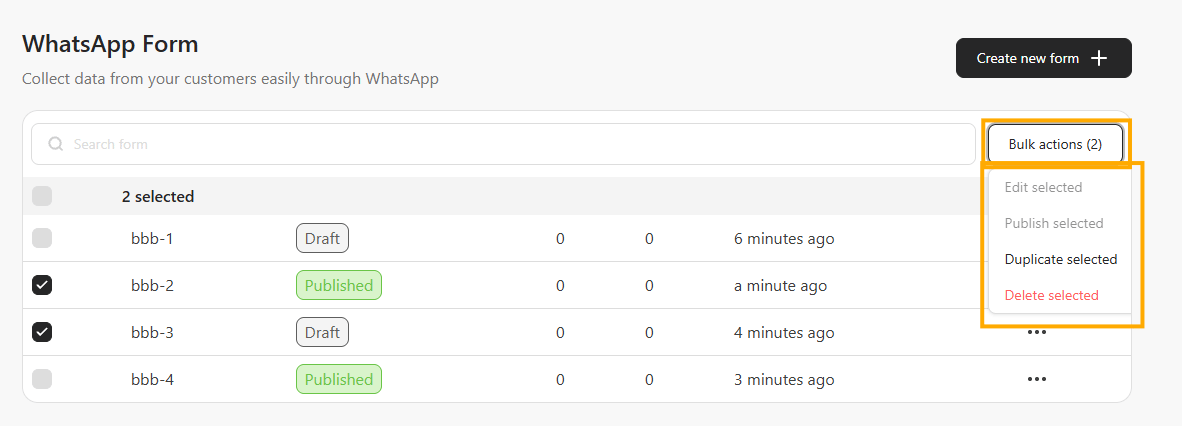
Click **Bulk actions** and choose one of the actions below.
| Action | Works on | What it does |
| - | - | - |
| **Edit selected** | Draft only | Opens the selected drafts one at a time in an editing queue. |
| **Publish selected** | Draft only | Publishes all selected drafts after you confirm. |
| **Duplicate selected** | Draft and Published | Copies each selected form into its own new Draft. |
| **Delete selected** | Draft and Published | Deletes all selected forms after you confirm. |
If your selection includes a Published form, **Edit selected** and **Publish selected** are greyed out. You can still duplicate or delete a mixed selection.
## Step 3: Choose a bulk action
Click **Bulk actions** and choose one of the actions below.
| Action | Works on | What it does |
| - | - | - |
| **Edit selected** | Draft only | Opens the selected drafts one at a time in an editing queue. |
| **Publish selected** | Draft only | Publishes all selected drafts after you confirm. |
| **Duplicate selected** | Draft and Published | Copies each selected form into its own new Draft. |
| **Delete selected** | Draft and Published | Deletes all selected forms after you confirm. |
If your selection includes a Published form, **Edit selected** and **Publish selected** are greyed out. You can still duplicate or delete a mixed selection.
 ### Edit selected drafts
* Choose **Bulk actions > Edit selected**.
* The first draft opens with your progress, for example **Editing 1 of 4**.
* Make your changes, then choose **Save & next** to continue. Choose **Skip** to move on without saving.
* Choose **Exit bulk edit** to stop at any time.
* After the last form, a result summary shows which drafts were saved, skipped, or couldn't be saved.
Each draft is edited on its own, because different forms have different questions and screens. A change you make in one draft isn't applied to the others. If you leave a draft with unsaved changes, you're asked whether to save or discard them.
### Publish selected drafts
* Choose **Bulk actions > Publish selected**.
* Read the confirmation. It reminds you that publishing locks each form's content from further edits.
* Confirm to publish.
### Duplicate selected forms
* Choose **Bulk actions > Duplicate selected**.
* Each selected form is copied into its own new Draft. The original forms stay untouched.
### Delete selected forms
* Choose **Bulk actions > Delete selected**.
* Read the confirmation. It lists how many forms will be deleted and warns that their saved responses and connected response destinations may no longer be available.
* Confirm to delete. If you cancel, nothing changes.
Deleted forms can't be restored from the WhatsApp Form list. Download any responses you need before you delete a published form.
## Step 4: Check the result
When a bulk action finishes, the list refreshes and a message shows how many forms succeeded and which forms, if any, couldn't be completed.
## One-form actions
The action menu on each row still works for a single form. It includes **Publish**, **See response**, **Save to Google Sheets** or **Open in Google Sheets**, **Download CSV**, **Duplicate**, and **Delete**.
## FAQ
### Why is Edit selected greyed out?
At least one selected form is Published. Published forms can't be edited, so deselect them to edit the drafts.
### Can I change the same question in several forms at once?
No. Bulk edit opens each draft one at a time so you can change its own content.
### Can I bulk edit a published form?
No. Duplicate the published form, then edit the new Draft copy.
## Related articles
* [How to create a WhatsApp form](/bitchat/how-to-create-a-whatsapp-form)
* [How to review WhatsApp form responses](/bitchat/how-to-review-whatsapp-form-responses)
* [Save WhatsApp form responses to Google Sheets](/bitcrm/save-whatsapp-form-responses-to-google-sheets)
### Edit selected drafts
* Choose **Bulk actions > Edit selected**.
* The first draft opens with your progress, for example **Editing 1 of 4**.
* Make your changes, then choose **Save & next** to continue. Choose **Skip** to move on without saving.
* Choose **Exit bulk edit** to stop at any time.
* After the last form, a result summary shows which drafts were saved, skipped, or couldn't be saved.
Each draft is edited on its own, because different forms have different questions and screens. A change you make in one draft isn't applied to the others. If you leave a draft with unsaved changes, you're asked whether to save or discard them.
### Publish selected drafts
* Choose **Bulk actions > Publish selected**.
* Read the confirmation. It reminds you that publishing locks each form's content from further edits.
* Confirm to publish.
### Duplicate selected forms
* Choose **Bulk actions > Duplicate selected**.
* Each selected form is copied into its own new Draft. The original forms stay untouched.
### Delete selected forms
* Choose **Bulk actions > Delete selected**.
* Read the confirmation. It lists how many forms will be deleted and warns that their saved responses and connected response destinations may no longer be available.
* Confirm to delete. If you cancel, nothing changes.
Deleted forms can't be restored from the WhatsApp Form list. Download any responses you need before you delete a published form.
## Step 4: Check the result
When a bulk action finishes, the list refreshes and a message shows how many forms succeeded and which forms, if any, couldn't be completed.
## One-form actions
The action menu on each row still works for a single form. It includes **Publish**, **See response**, **Save to Google Sheets** or **Open in Google Sheets**, **Download CSV**, **Duplicate**, and **Delete**.
## FAQ
### Why is Edit selected greyed out?
At least one selected form is Published. Published forms can't be edited, so deselect them to edit the drafts.
### Can I change the same question in several forms at once?
No. Bulk edit opens each draft one at a time so you can change its own content.
### Can I bulk edit a published form?
No. Duplicate the published form, then edit the new Draft copy.
## Related articles
* [How to create a WhatsApp form](/bitchat/how-to-create-a-whatsapp-form)
* [How to review WhatsApp form responses](/bitchat/how-to-review-whatsapp-form-responses)
* [Save WhatsApp form responses to Google Sheets](/bitcrm/save-whatsapp-form-responses-to-google-sheets)