> ## Documentation Index
> Fetch the complete documentation index at: https://knowledge.bitbybit.studio/llms.txt
> Use this file to discover all available pages before exploring further.
# How to show loyalty points in the chat widget
> Display a shopper's loyalty points balance in the chat widget welcome screen and set a pre-filled question that starts a rewards conversation with your AI agent.
Add a **Loyalty points** display to your chat widget so shoppers see their points balance the moment the widget opens, with a single tap to start a rewards conversation with your AI agent. The loyalty display is additive — the regular chat entry point stays on every screen.
## Prerequisites
* You can open **bitChat > Chat Widget**.
* Your widget uses the **Live chat**, **Sidebar**, or **Full page** style. The **Redirect** style does not support the loyalty display.
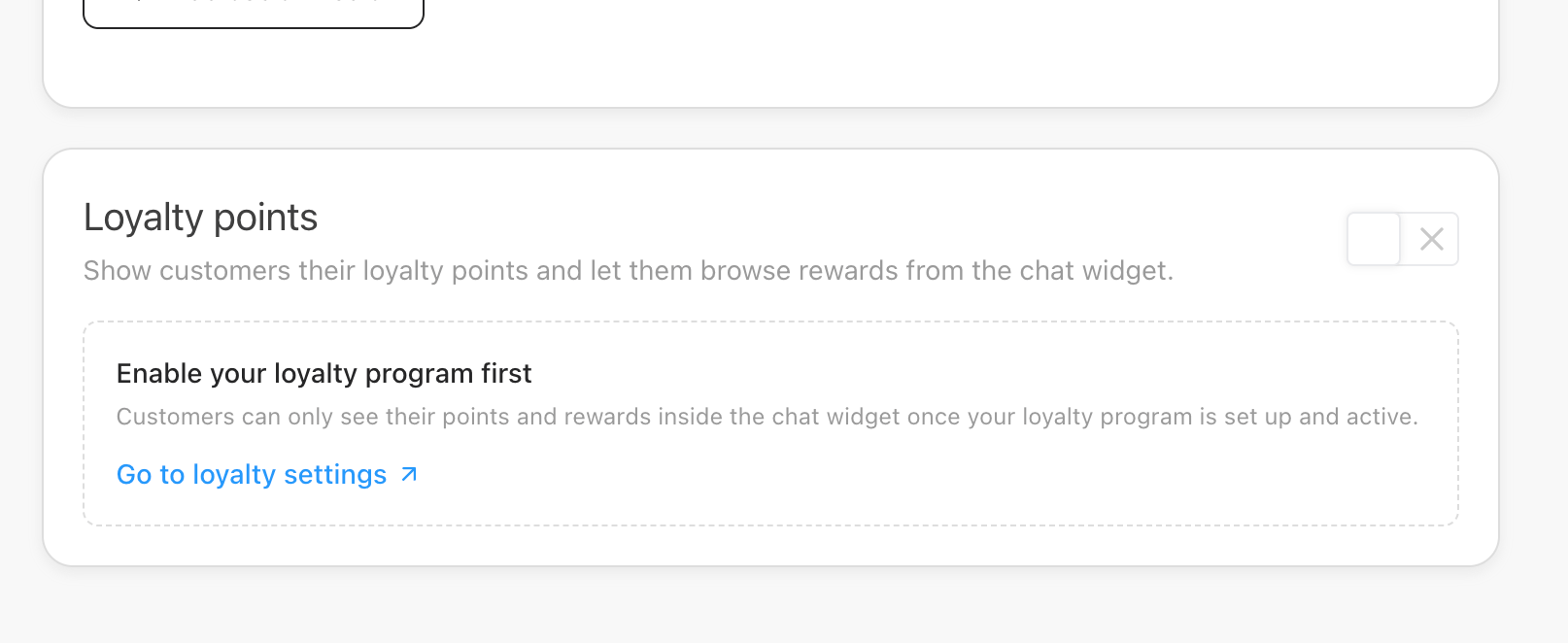
* You have a loyalty program set up. If you don't, the settings show an empty state with a **Go to loyalty settings** link.
## Step 1: Open the Loyalty points settings
1. Go to **bitChat > Chat Widget**.
2. Choose the widget style you want to configure (**Live chat**, **Sidebar**, or **Full page**).
3. Scroll past **Welcome Screen** to the **Loyalty points** card.
If you don't have a loyalty program yet, the **Loyalty points** card shows an empty state titled **Enable your loyalty program first** with a **Go to loyalty settings** link. Set up your program there first, then come back.
 ## Step 2: Turn on the loyalty display
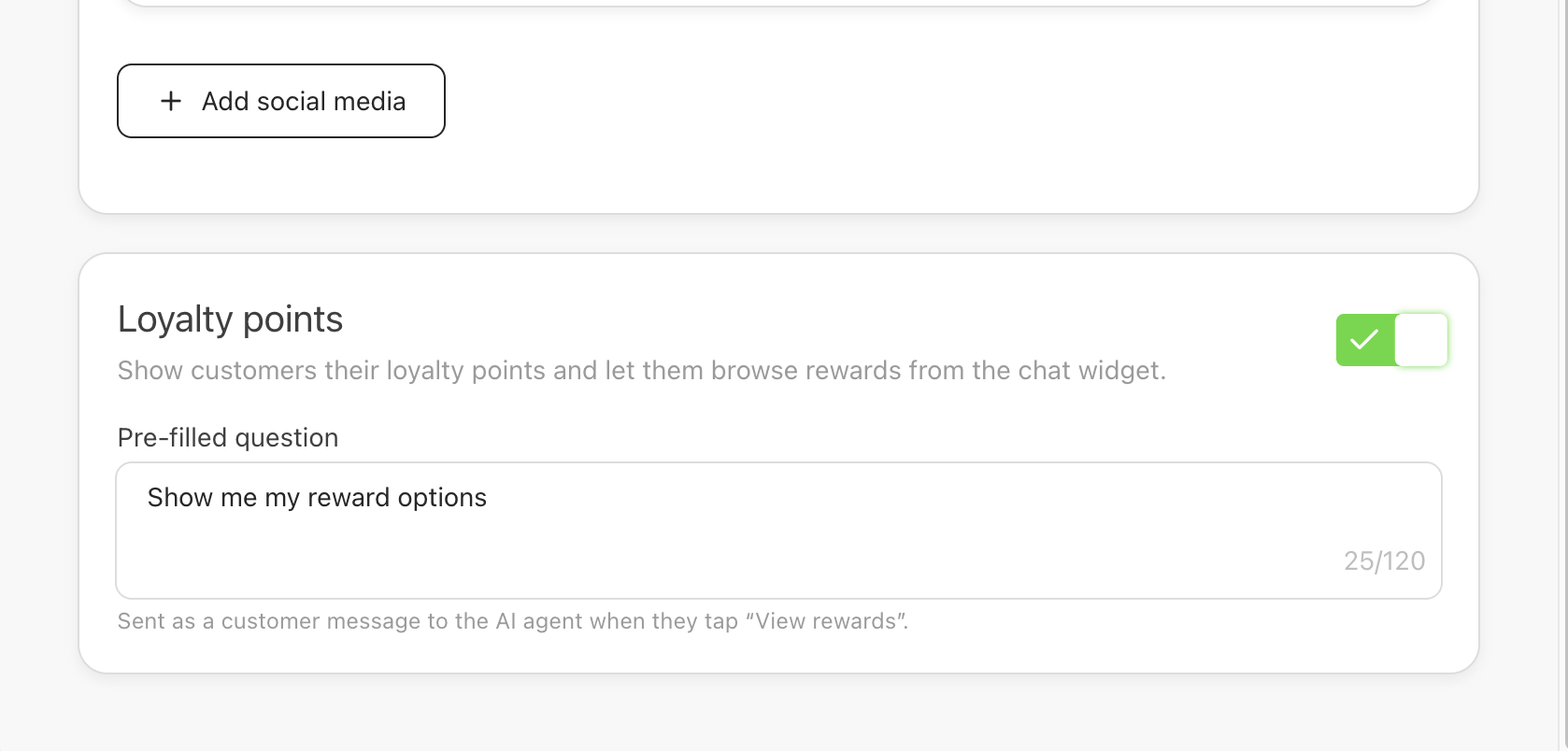
Switch on the **Loyalty points** display. The pre-filled question field appears once the display is on.
## Step 3: Set the pre-filled question
Enter the question that is sent on the shopper's behalf when they tap the rewards call-to-action. You can use up to **120 characters**. The default is *"Show me my reward options"*.
When a shopper taps the CTA, this question is sent as if they typed it, and the AI agent replies with the redemption options available at their points level.
## Step 2: Turn on the loyalty display
Switch on the **Loyalty points** display. The pre-filled question field appears once the display is on.
## Step 3: Set the pre-filled question
Enter the question that is sent on the shopper's behalf when they tap the rewards call-to-action. You can use up to **120 characters**. The default is *"Show me my reward options"*.
When a shopper taps the CTA, this question is sent as if they typed it, and the AI agent replies with the redemption options available at their points level.
 ## Step 4: Preview and save
1. Check the widget preview, which updates live to show the loyalty display.
2. Save the widget configuration.
## What shoppers see
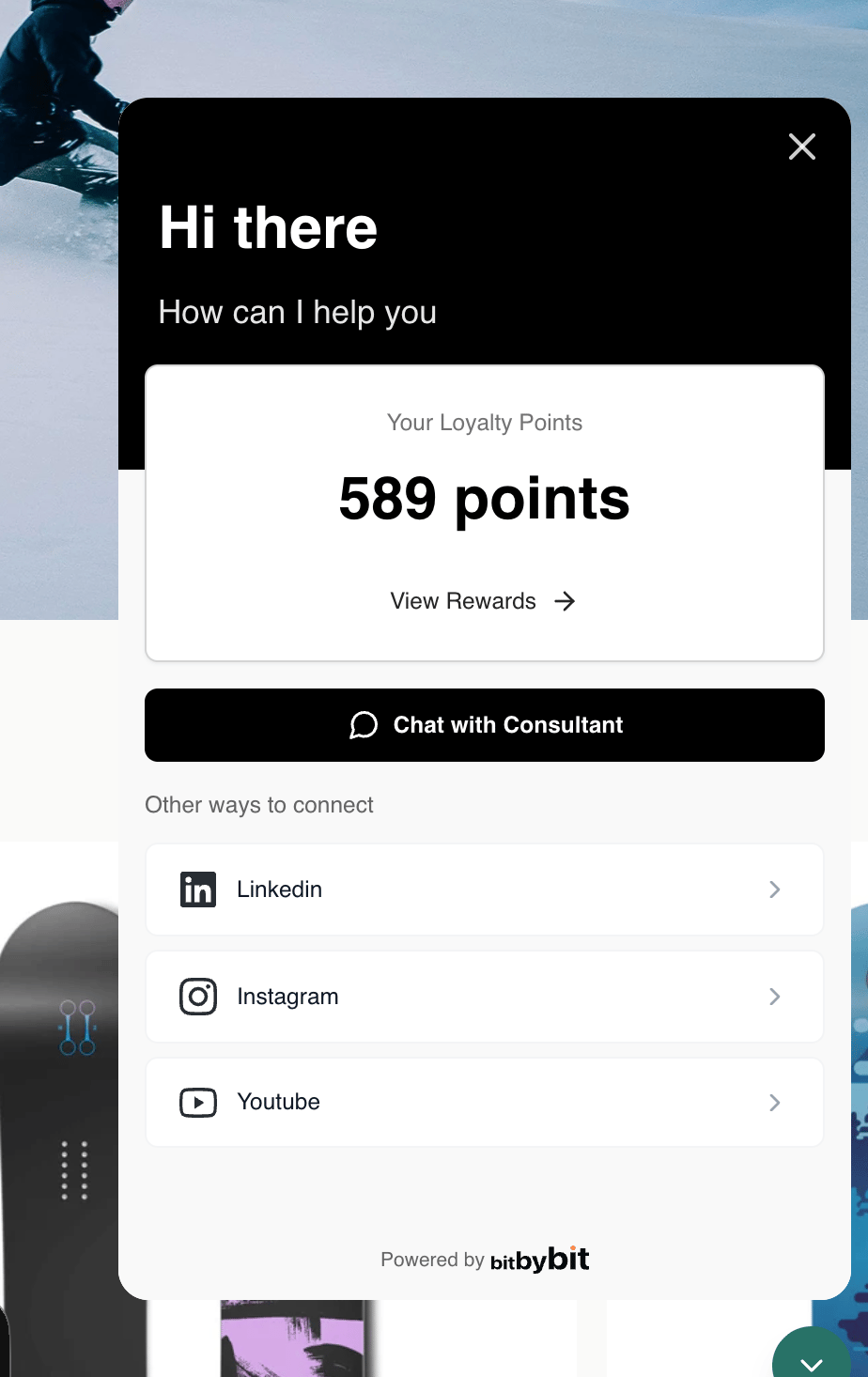
* **Live chat and Sidebar widgets** — the home screen leads with the points balance and a **View Rewards** link, with the **Chat with {agentName}** button below it.
## Step 4: Preview and save
1. Check the widget preview, which updates live to show the loyalty display.
2. Save the widget configuration.
## What shoppers see
* **Live chat and Sidebar widgets** — the home screen leads with the points balance and a **View Rewards** link, with the **Chat with {agentName}** button below it.
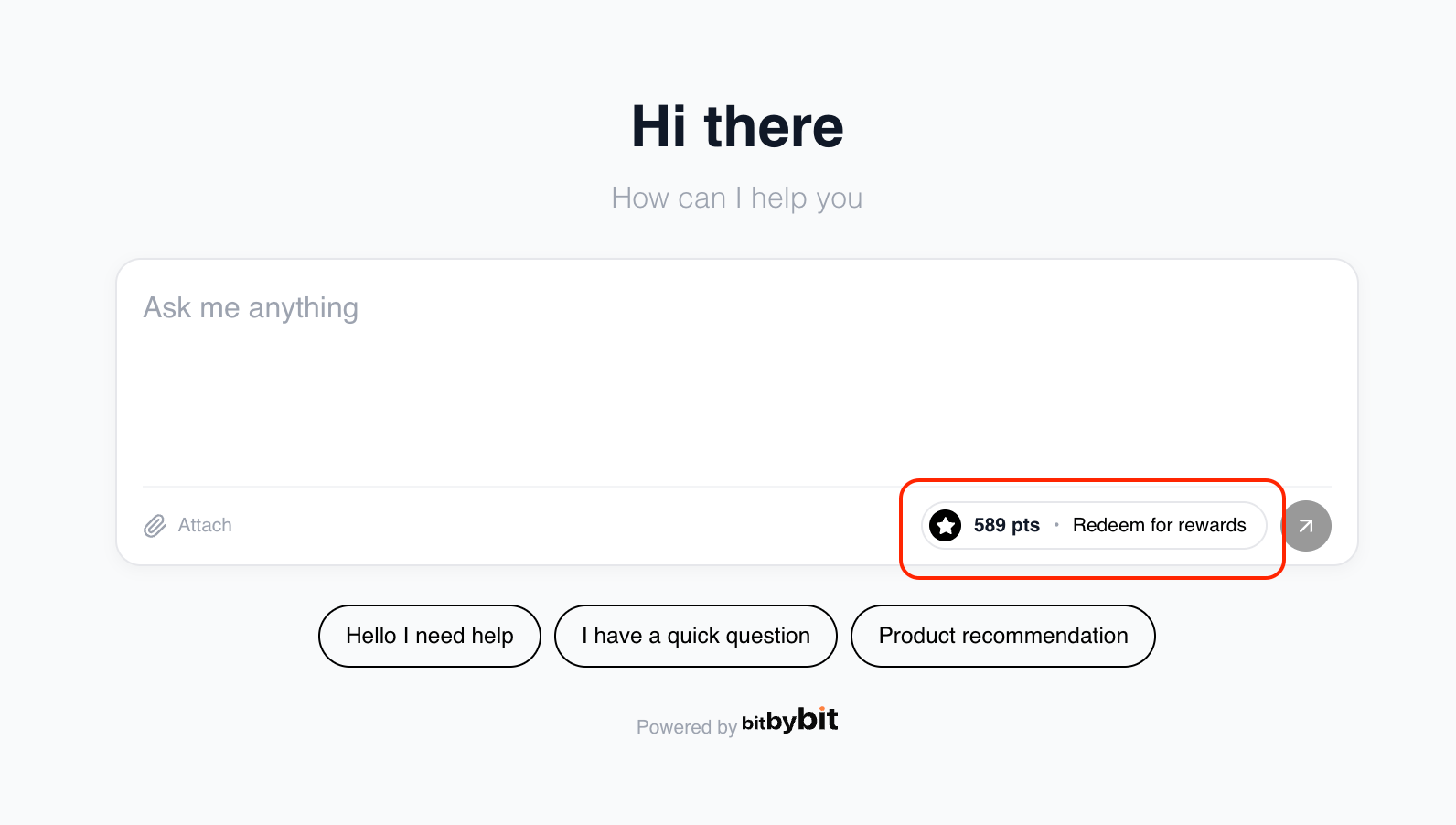
 * **Full page widget** — the welcome composer shows a **"{points} pts • Redeem for rewards"** pill next to the message input.
 Tapping either call-to-action opens the chat with the pre-filled question already sent. Shoppers can still start a normal conversation with the **Chat with {agentName}** button instead.
In this version, the points-card copy ("View Rewards", "Redeem for rewards") and its layout are fixed and cannot be customized.
## Related articles
* [How to set up conversation starters in chat widget](/bitchat/how-to-set-up-conversation-starters-in-chat-widget)
* [How to set up chat widget appearance](/bitchat/how-to-set-up-chat-widget-appearance)
* [Chat Widget overview](/bitchat/chat-widget-overview)
Tapping either call-to-action opens the chat with the pre-filled question already sent. Shoppers can still start a normal conversation with the **Chat with {agentName}** button instead.
In this version, the points-card copy ("View Rewards", "Redeem for rewards") and its layout are fixed and cannot be customized.
## Related articles
* [How to set up conversation starters in chat widget](/bitchat/how-to-set-up-conversation-starters-in-chat-widget)
* [How to set up chat widget appearance](/bitchat/how-to-set-up-chat-widget-appearance)
* [Chat Widget overview](/bitchat/chat-widget-overview)