> ## Documentation Index
> Fetch the complete documentation index at: https://knowledge.bitbybit.studio/llms.txt
> Use this file to discover all available pages before exploring further.
# How to Set Up and Customize Unsubscribe Keywords
> Enable the unsubscribe feature in bitChat and customize the opt-out keywords your customers can use.
Enabling the unsubscribe option in bitChat lets customers opt out of messages at any time. You can now fully customize the keywords that trigger an opt-out — so instead of being limited to "STOP", you can set words that feel natural to your customers, including keywords in Bahasa Indonesia or any other language.
## Prerequisites
* You can access **Settings** in bitbybit.
* You can open the **bitChat** settings group.
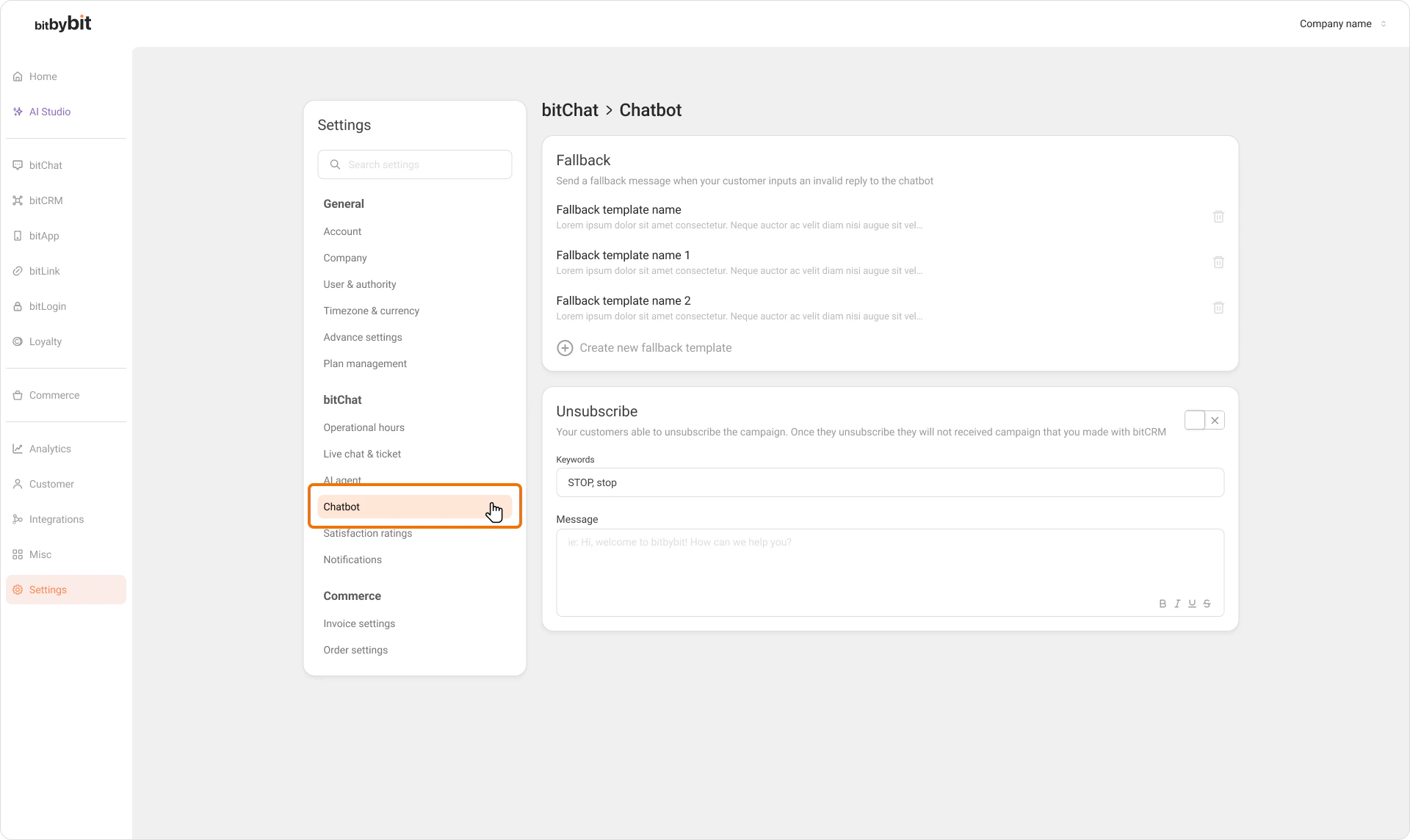
## **Step 1: Open the Agent settings**
* Go to **Settings**.
* In the **bitChat** section, click **Agent**.
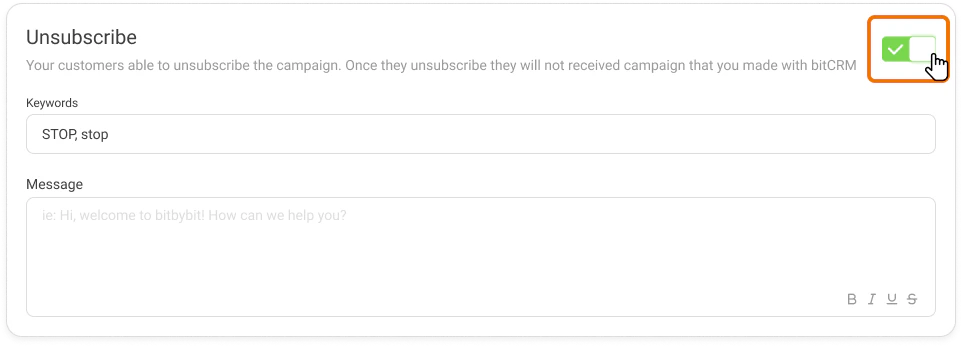
 ## **Step 2: Enable the Unsubscribe toggle**
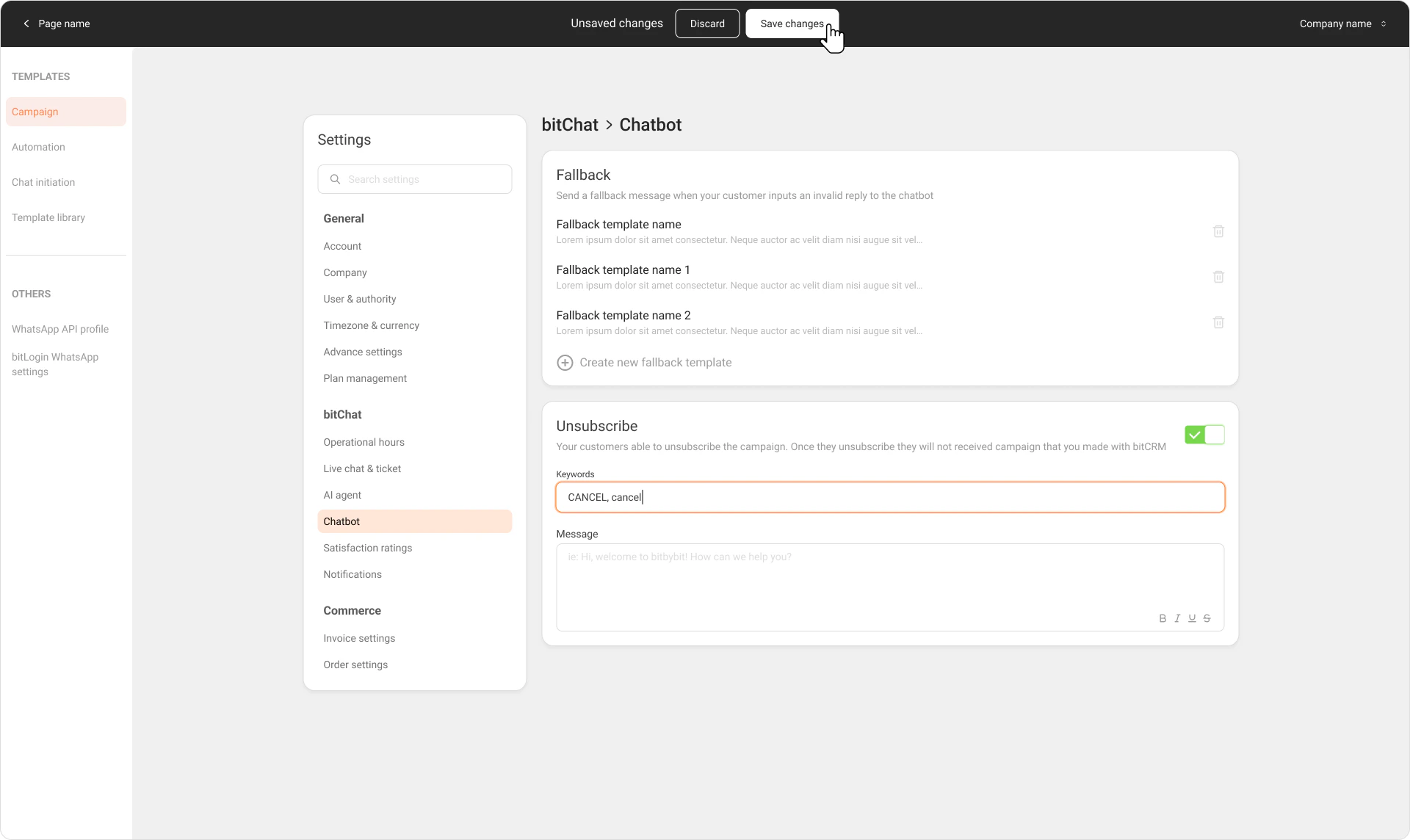
* Scroll down to the **Unsubscribe** section.
* Click the toggle to turn it **on** (green).
## **Step 2: Enable the Unsubscribe toggle**
* Scroll down to the **Unsubscribe** section.
* Click the toggle to turn it **on** (green).
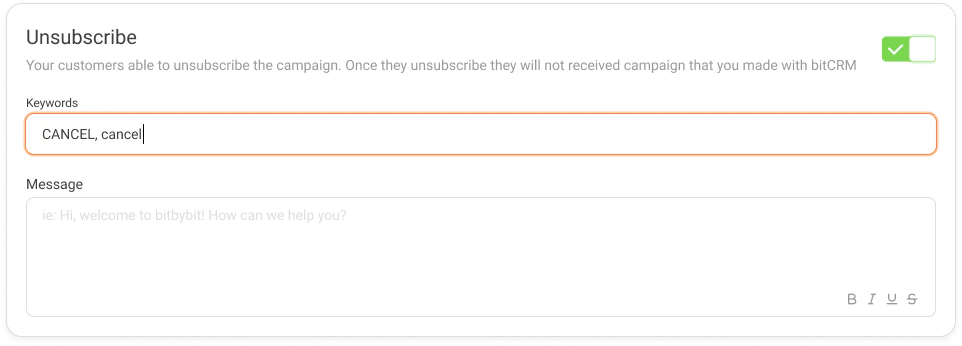
 ## **Step 3: Enter your unsubscribe keywords**
* In the **Keywords** field, type the word or phrase your customers should send to opt out.
* You can use any language — for example, `BERHENTI`, `STOP`, or `TIDAK`.
> **Note:** Once you have saved a keyword, the field cannot be left empty. Always keep at least one keyword set.
## **Step 3: Enter your unsubscribe keywords**
* In the **Keywords** field, type the word or phrase your customers should send to opt out.
* You can use any language — for example, `BERHENTI`, `STOP`, or `TIDAK`.
> **Note:** Once you have saved a keyword, the field cannot be left empty. Always keep at least one keyword set.
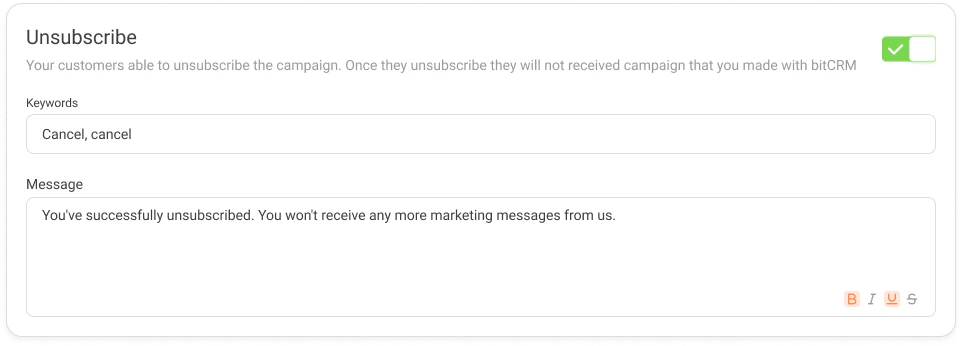
 ## **Step 4: Set the opt-out reply message**
* Select the **Message type** for the confirmation your customers will receive after opting out.
* Enter your reply message in the text field, or upload media if you selected a media message type.
## **Step 4: Set the opt-out reply message**
* Select the **Message type** for the confirmation your customers will receive after opting out.
* Enter your reply message in the text field, or upload media if you selected a media message type.
 ## **Step 5: Save your changes**
* Click **Save changes**.
* A confirmation toast will appear to let you know the settings have been updated successfully.
## **Step 5: Save your changes**
* Click **Save changes**.
* A confirmation toast will appear to let you know the settings have been updated successfully.
 ## Related articles
* [How to Create and Activate Away Message](/bitchat/how-to-create-and-activate-away-message)
* [How to Set a Fallback Template](/bitchat/how-to-set-a-fallback-template)
## Related articles
* [How to Create and Activate Away Message](/bitchat/how-to-create-and-activate-away-message)
* [How to Set a Fallback Template](/bitchat/how-to-set-a-fallback-template)