> ## Documentation Index
> Fetch the complete documentation index at: https://knowledge.bitbybit.studio/llms.txt
> Use this file to discover all available pages before exploring further.
# Add conditions to an automation
> The Condition feature in bitCRM's Flow Builder allows you to set specific criteria that must be met before an automation continues. This gives you precise control over which contacts or orders trigger subsequent actions in your flow.
## Shopify condition: Custom field matches
**Custom field matches** allows you to create flexible conditions using data from your Shopify order payload.
### What Is Custom Field Matches?
**Custom Field Matches** is a condition type exclusive to Shopify-triggered automations. Instead of relying solely on predefined fields, it lets you define your own condition by specifying three things:
* **Field Path** — the specific data point from the Shopify order you want to check
* **Operator** — how the value should be compared
* **Value** — what the field should be compared against
This is particularly useful when your automation logic requires checks that go beyond standard condition options.
> **Note:** The Custom Field Matches condition type will only appear when the selected automation trigger is a Shopify trigger.
### How to Set Up a Custom Field Matches Condition
#### Prerequisites
* Your automation must use one of the following Shopify triggers: **Order Created**, **Order Paid**, or **Order Fulfilled**.
#### Steps
1. In your automation flow, select a Shopify trigger such as **Order Created**, **Order Paid**, or **Order Fulfilled**.
2. Open the **Condition** modal and select a field from the **Data field** dropdown.
3. In the **Run if this matches** field, select **Custom field matches** from the list of available option
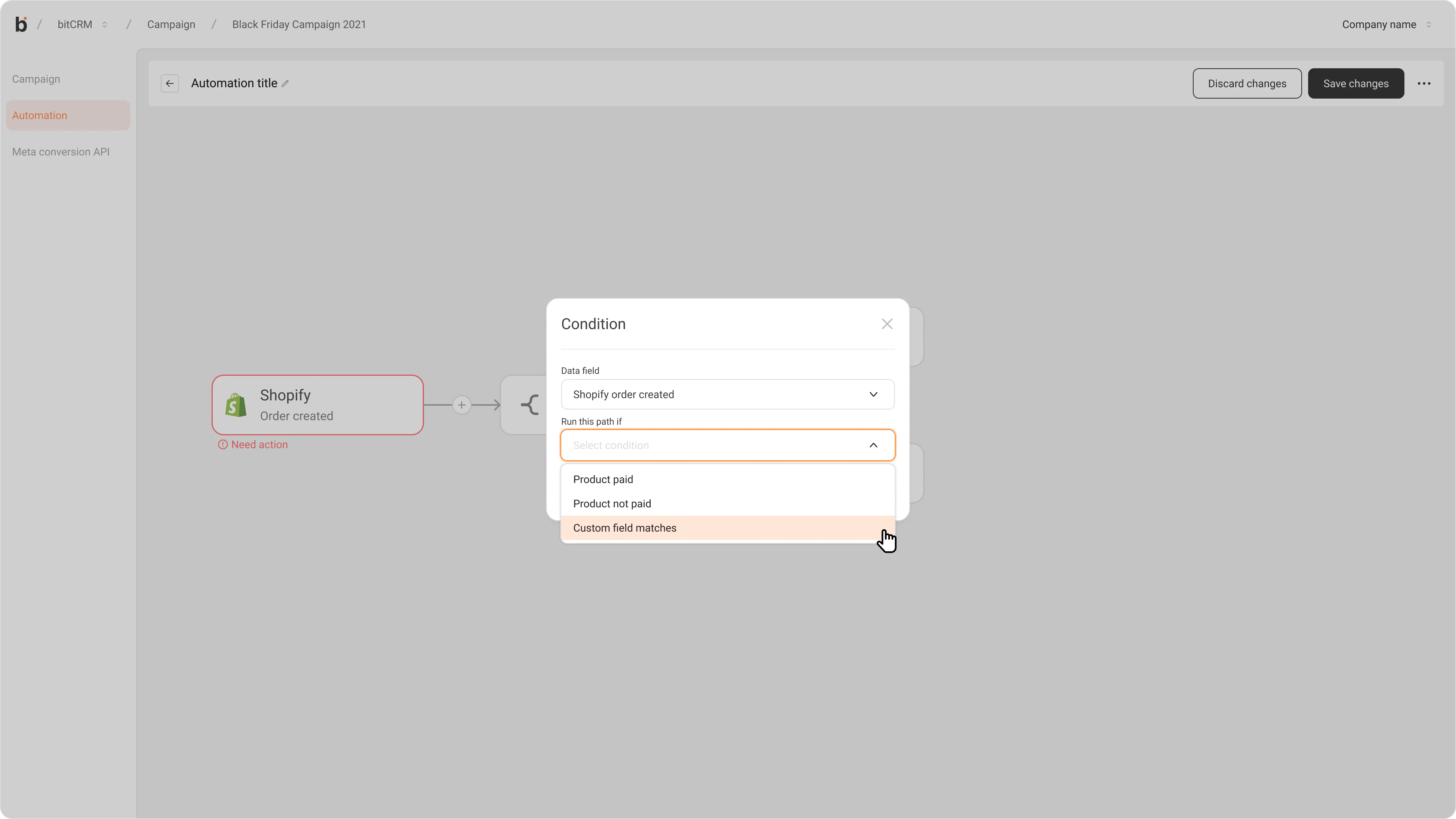 4. In the **Field Path** field, type the field you want to evaluate (e.g., `customer.email`, `customer.tags`). Refer to the [Supported Field Paths](#supported-field-paths) section for the full list of available values.
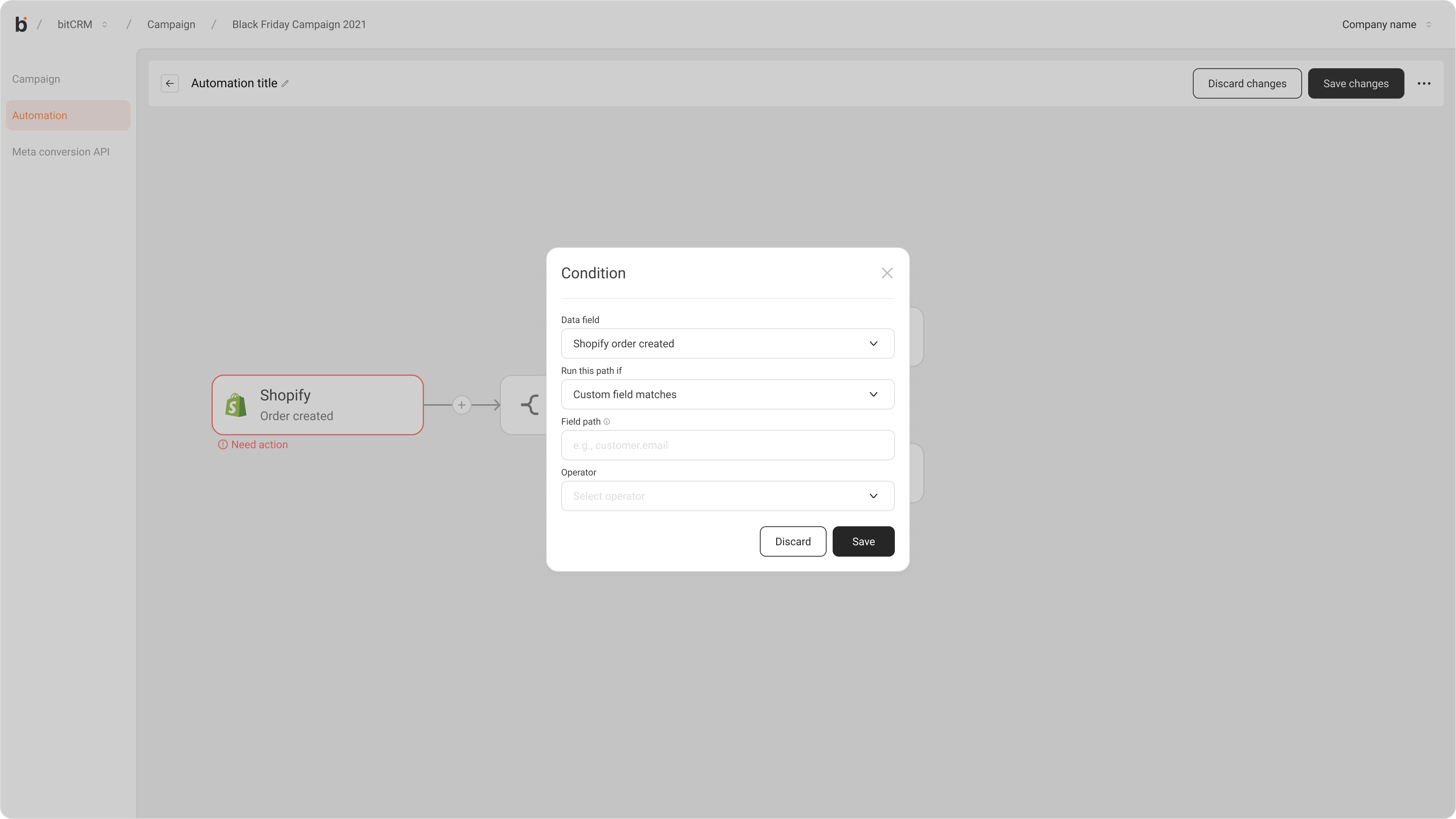 5. Open the **Operator** dropdown and select how the field should be evaluated — **Equals**, **Contains**, **Does not equal**, or **Exists**.
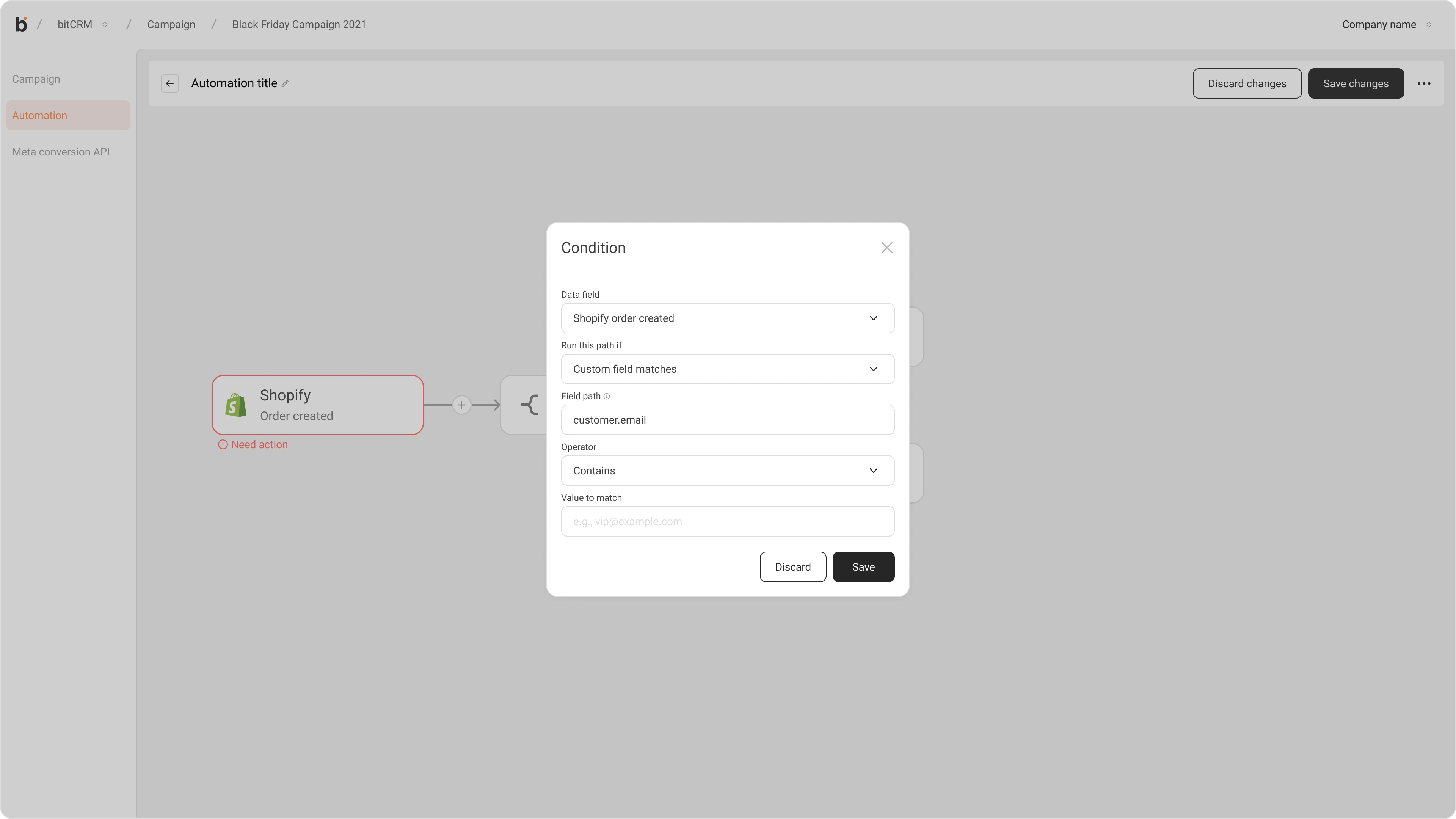 6. Enter a value in the **Value to match** field.
* If you selected **Exists**, this field is not required and will be hidden automatically.
6. Enter a value in the **Value to match** field.
* If you selected **Exists**, this field is not required and will be hidden automatically.
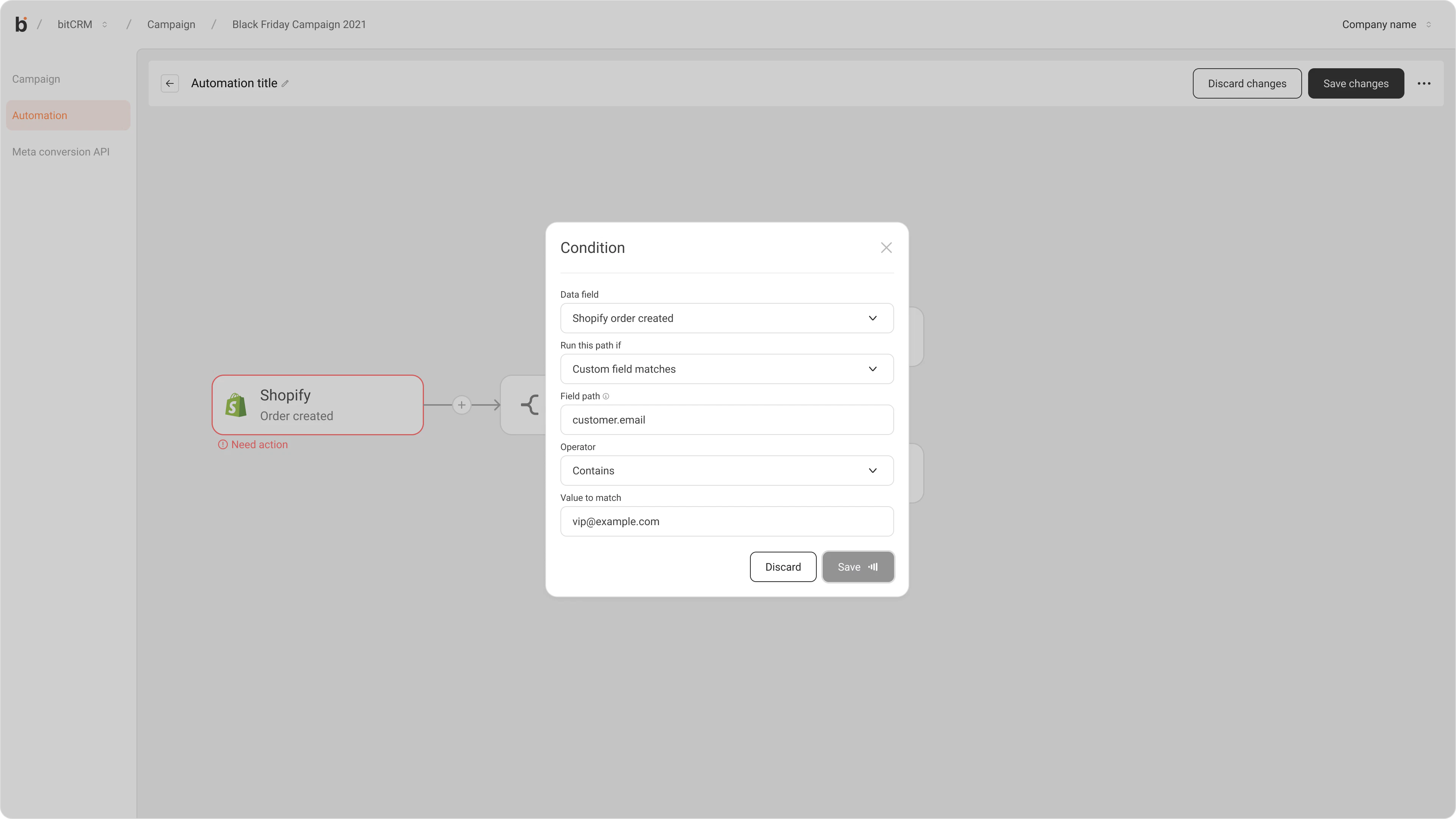 7. Click **Save**. The system will validate the field path and save the condition if it is valid.
#### Result
Once saved, your automation will only proceed past this condition when the specified field meets the criteria you defined.
### Supported field paths
The following values are supported in **Field path**:
| Category | Field paths |
| ---------------- | ------------------------------------------------------------------------------------------------------------------------------------------------------------------------------------------------------------------------------------------------------------------------------------------------------------------------------------------------------------------ |
| Order (root) | `id`, `name`, `email`, `phone`, `note`, `tags`, `currency`, `created_at`, `processed_at`, `financial_status`, `fulfillment_status`, `order_number`, `number`, `source_name`, `confirmation_number`, `total_price`, `subtotal_price`, `total_tax`, `total_discounts`, `total_outstanding`, `current_total_price`, `current_subtotal_price`, `payment_gateway_names` |
| Customer | `customer.id`, `customer.email`, `customer.phone`, `customer.first_name`, `customer.last_name`, `customer.tags`, `customer.note`, `customer.state`, `customer.currency`, `customer.created_at`, `customer.updated_at` |
| Line item | `line_item.sku`, `line_item.title`, `line_item.quantity`, `line_item.vendor`, `line_item.price`, `line_item.variant_title`, `line_item.fulfillment_status` |
| Fulfillment | `fulfillment.tracking_company`, `fulfillment.tracking_number`, `fulfillment.tracking_url`, `fulfillment.status`, `fulfillment.shipment_status`, `fulfillment.name`, `fulfillment.service` |
| Address fields | `shipping_address.city`, `shipping_address.country`, `shipping_address.zip`, `shipping_address.province`, `billing_address.city`, `billing_address.country`, `shippingAddress.city`, `shippingAddress.country`, `billingAddress.city` |
| Notes/attributes | `notes` |
### Operator definitions
Here is what each operator means:
> **Note:** When you use `Exists`, **Value to match** is not required.
| Operator | Definition | Example |
| ---------------- | ---------------------------------------------------- | ------------------------------ |
| `Equals` | The value must match exactly and is case-sensitive. | `customer.tags = VIP` |
| `Contains` | The value must include the text you entered. | `customer.tags` contains `VIP` |
| `Does not equal` | The value must be different from what you entered. | `customer.tags != VIP` |
| `Exists` | The field must have any value and must not be empty. | `order.note` exists |
### Important Notes
* Custom Field Matches is only available when the automation trigger is a **Shopify trigger**. It will not appear for other trigger types.
* The **Equals** operator is **case-sensitive**. Ensure that the value you enter matches the exact casing used in your Shopify data.
* When using **Exists**, the condition will be met as long as the field is present and contains any value — even a single character.
* Field paths must be entered exactly as listed. Unsupported or misspelled paths may cause the condition to behave unexpectedly.
7. Click **Save**. The system will validate the field path and save the condition if it is valid.
#### Result
Once saved, your automation will only proceed past this condition when the specified field meets the criteria you defined.
### Supported field paths
The following values are supported in **Field path**:
| Category | Field paths |
| ---------------- | ------------------------------------------------------------------------------------------------------------------------------------------------------------------------------------------------------------------------------------------------------------------------------------------------------------------------------------------------------------------ |
| Order (root) | `id`, `name`, `email`, `phone`, `note`, `tags`, `currency`, `created_at`, `processed_at`, `financial_status`, `fulfillment_status`, `order_number`, `number`, `source_name`, `confirmation_number`, `total_price`, `subtotal_price`, `total_tax`, `total_discounts`, `total_outstanding`, `current_total_price`, `current_subtotal_price`, `payment_gateway_names` |
| Customer | `customer.id`, `customer.email`, `customer.phone`, `customer.first_name`, `customer.last_name`, `customer.tags`, `customer.note`, `customer.state`, `customer.currency`, `customer.created_at`, `customer.updated_at` |
| Line item | `line_item.sku`, `line_item.title`, `line_item.quantity`, `line_item.vendor`, `line_item.price`, `line_item.variant_title`, `line_item.fulfillment_status` |
| Fulfillment | `fulfillment.tracking_company`, `fulfillment.tracking_number`, `fulfillment.tracking_url`, `fulfillment.status`, `fulfillment.shipment_status`, `fulfillment.name`, `fulfillment.service` |
| Address fields | `shipping_address.city`, `shipping_address.country`, `shipping_address.zip`, `shipping_address.province`, `billing_address.city`, `billing_address.country`, `shippingAddress.city`, `shippingAddress.country`, `billingAddress.city` |
| Notes/attributes | `notes` |
### Operator definitions
Here is what each operator means:
> **Note:** When you use `Exists`, **Value to match** is not required.
| Operator | Definition | Example |
| ---------------- | ---------------------------------------------------- | ------------------------------ |
| `Equals` | The value must match exactly and is case-sensitive. | `customer.tags = VIP` |
| `Contains` | The value must include the text you entered. | `customer.tags` contains `VIP` |
| `Does not equal` | The value must be different from what you entered. | `customer.tags != VIP` |
| `Exists` | The field must have any value and must not be empty. | `order.note` exists |
### Important Notes
* Custom Field Matches is only available when the automation trigger is a **Shopify trigger**. It will not appear for other trigger types.
* The **Equals** operator is **case-sensitive**. Ensure that the value you enter matches the exact casing used in your Shopify data.
* When using **Exists**, the condition will be met as long as the field is present and contains any value — even a single character.
* Field paths must be entered exactly as listed. Unsupported or misspelled paths may cause the condition to behave unexpectedly.