> ## Documentation Index
> Fetch the complete documentation index at: https://knowledge.bitbybit.studio/llms.txt
> Use this file to discover all available pages before exploring further.
# How to create a Message Template Campaign for WhatsApp API
> Create a WhatsApp API message template with the two-step builder: set up the template, choose a type (Standard, Carousel, or Catalog), add your content, and submit to Meta.
For a step-by-step guide on how to complete this process, please visit [our YouTube Channel.](https://www.youtube.com/@bitbybit.studio/videos)
Craft reusable message templates with dynamic variables to simplify communication and personalize your WhatsApp API campaigns. Perfect for reminders, promotions, or updates, templates ensure consistency and save time.
The template builder is a **two-step wizard**: first **Template setup**, then **Message content**.
## Step 1: Open the template dashboard
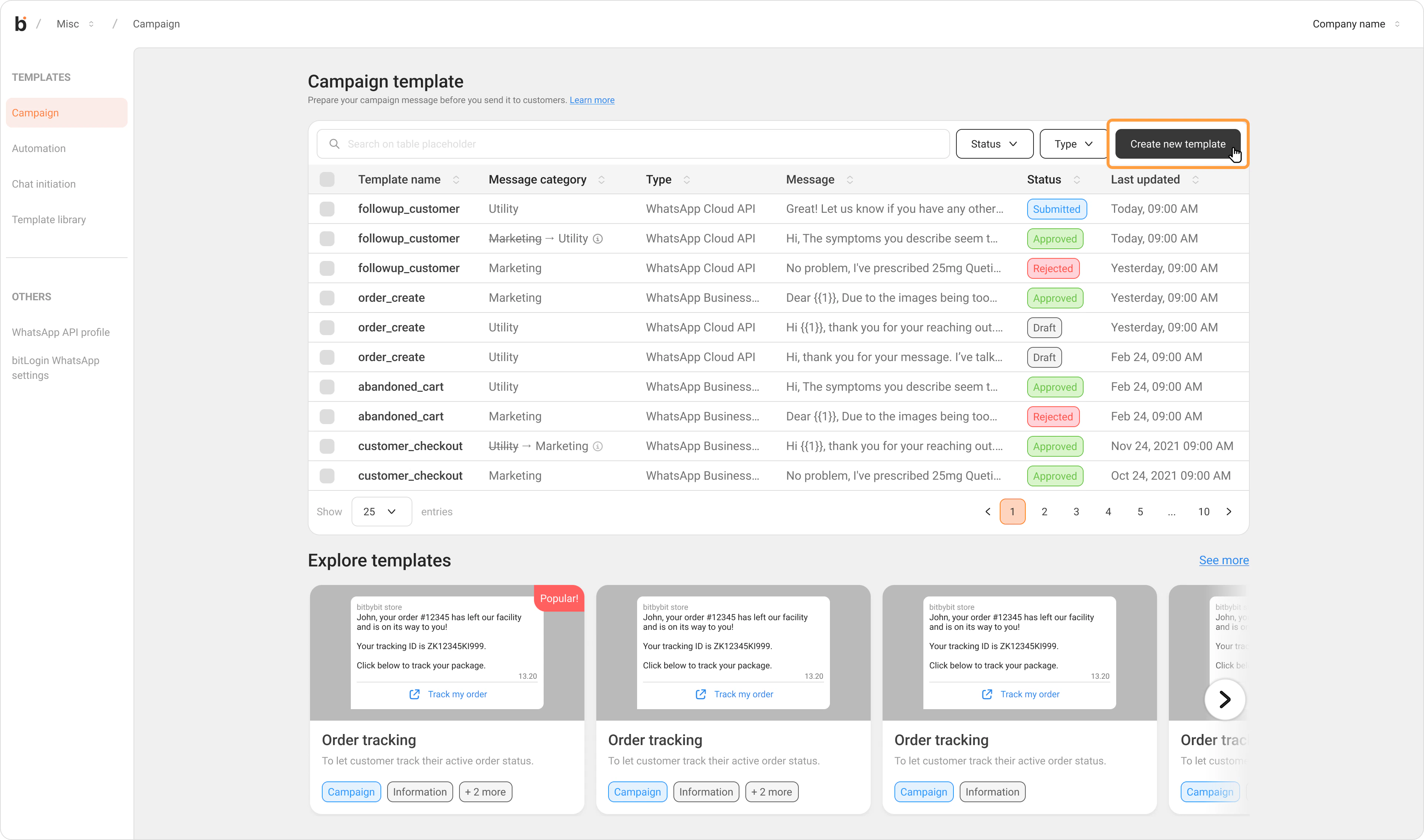
Go to the [**WhatsApp API Campaign**](https://app.bitbybit.studio/misc/whatsapp-api-settings) template dashboard, then click **Create new template**.
## Step 2: Complete Template setup
The first step of the wizard is **Template setup**. Fill in:
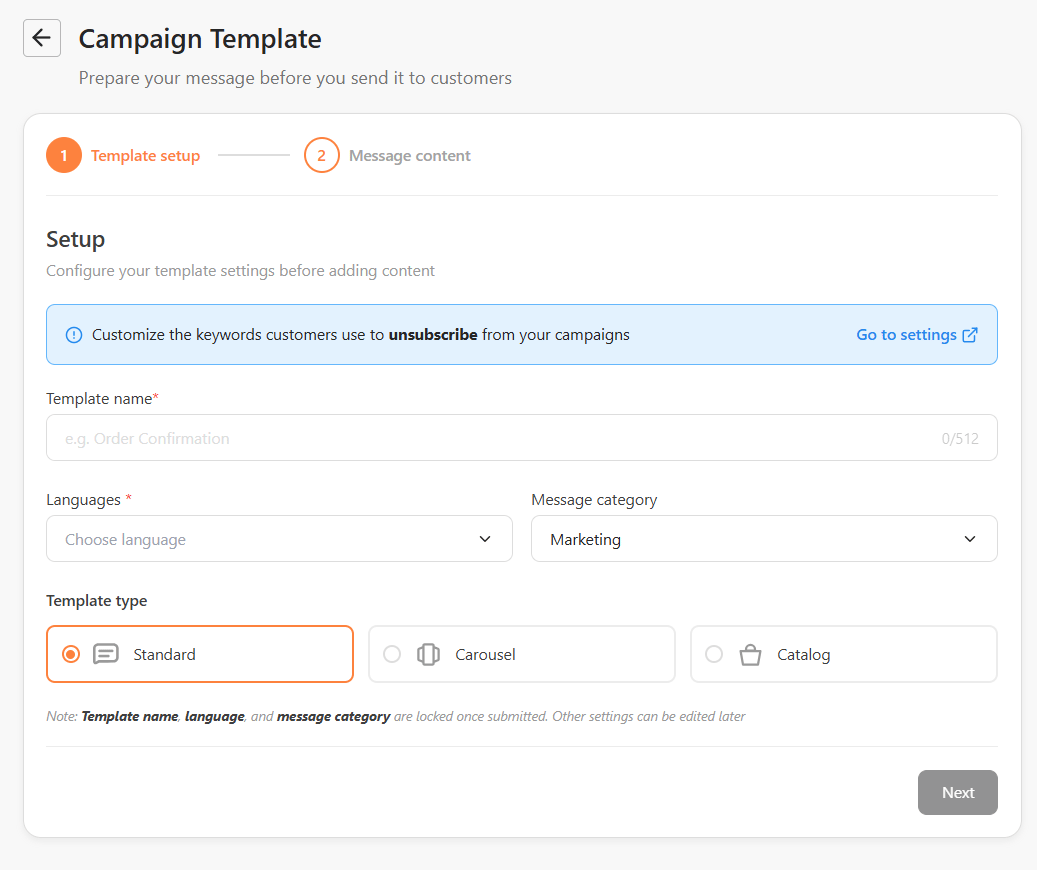
* **Template name** — required. The **Next** button stays disabled until you enter a name.
* **Languages**
* **Message category** — see below.
* **Template type** — see below.
### Select a Message category
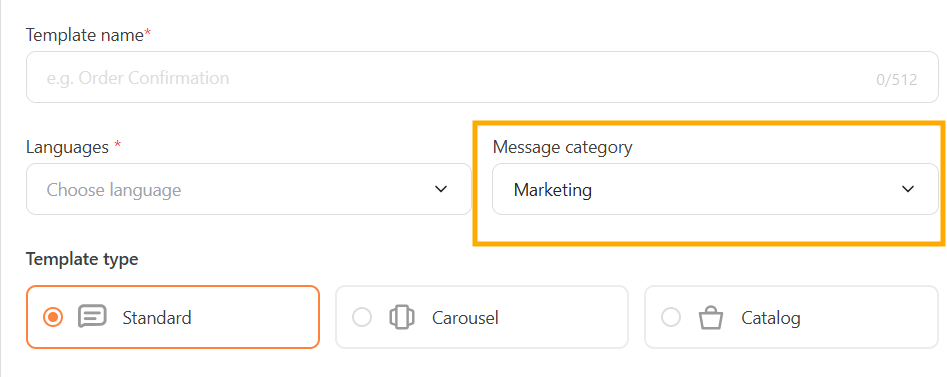
In the **Message Category** dropdown, choose the category that best describes your template:
* **Marketing** (default) — Promotional messages such as offers, announcements, or product updates.
* **Utility** — Transactional messages such as order confirmations, shipping updates, or account alerts.
If Meta has already reviewed and reclassified your template's category, the **Message Category** field is disabled and shows the helper text: *"Category set by Meta. Cannot be changed."* To change it, you must appeal through [Meta Business Support](https://business.facebook.com/latest/whatsapp_manager/message_templates/).
### Choose a Template type
Pick one of three template types. The phone preview updates to match your choice.
* **Standard** — a text-based template, with optional header, footer, and buttons.
* **Carousel** — a scrollable set of cards, each with its own media and buttons.
* **Catalog** — showcases products from your catalog.
If you set the **Message category** to **Utility**, the template type is locked to **Standard** and the type options are hidden.
The **unsubscribe info panel** appears in this **Template setup** step, so you can review opt-out behavior before adding your content. For details on how unsubscribe works, see [Understanding the Unsubscribe Option for Messages](/bitchat/understanding-the-unsubscribe-option-for-messages).
When you're done, click **Next** to move to **Message content**.
## Step 3: Add your Message content
The second step of the wizard is **Message content**. The fields available here depend on the template type you chose.
### Message body and variables
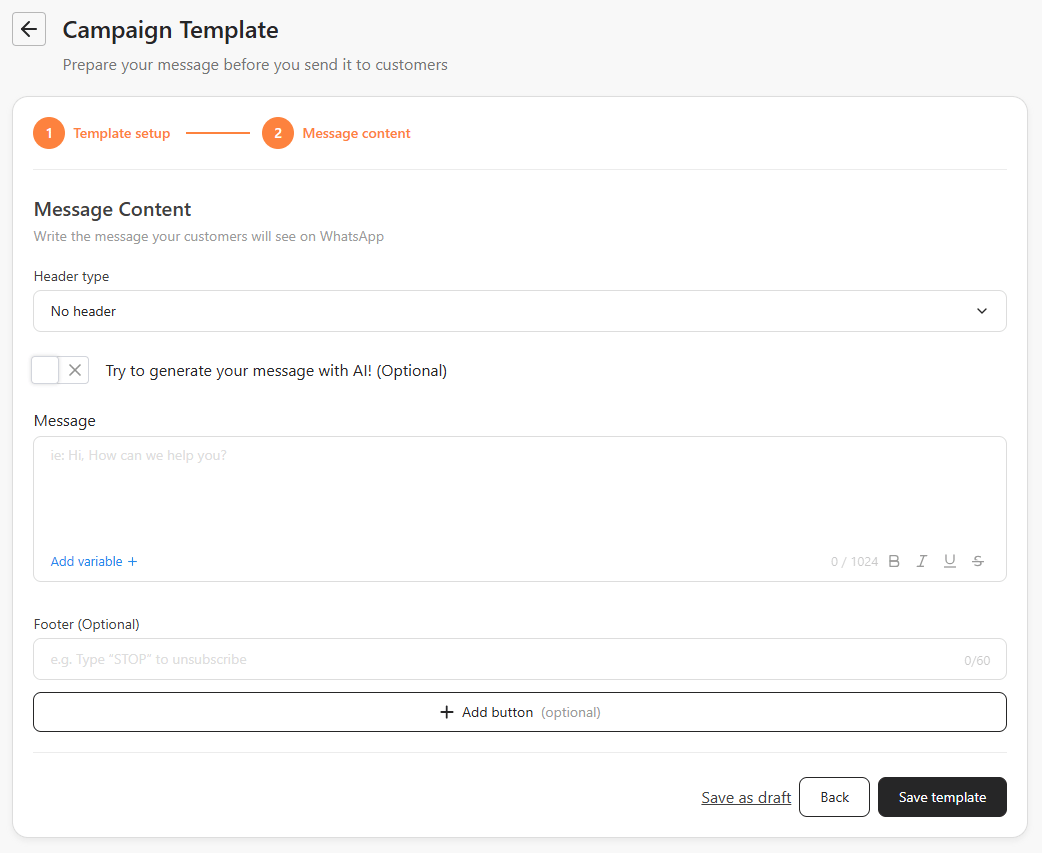
Enter your message content, then add dynamic variables by clicking **"Add Variable +"** and selecting **"Variable"** from the dropdown. Read [How to Use Dynamic Variables in Automation Messages](https://knowledge.bitbybit.studio/bitcrm/how-to-use-dynamic-variables-in-automation-messages) for more details about using variables.
### Header and Footer (optional)
You can add a **Header** and **Footer** to give your message more structure. Both fields are optional.
#### Header
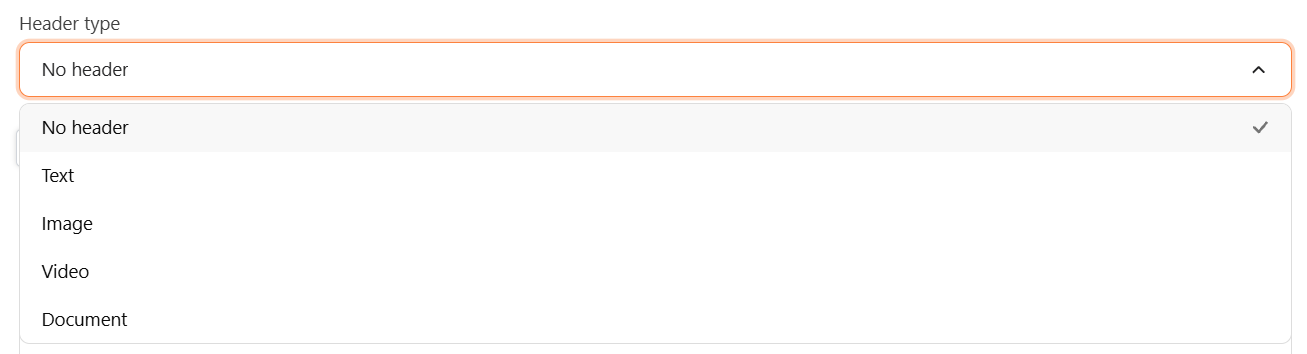
Choose one of four header types from the **Header** dropdown:
| Header type | Format | Max size |
| ------------ | ----------- | ------------- |
| **Text** | Plain text | 60 characters |
| **Image** | JPEG or PNG | 10 MB |
| **Video** | MP4 | 10 MB |
| **Document** | PDF | 10 MB |
#### Footer
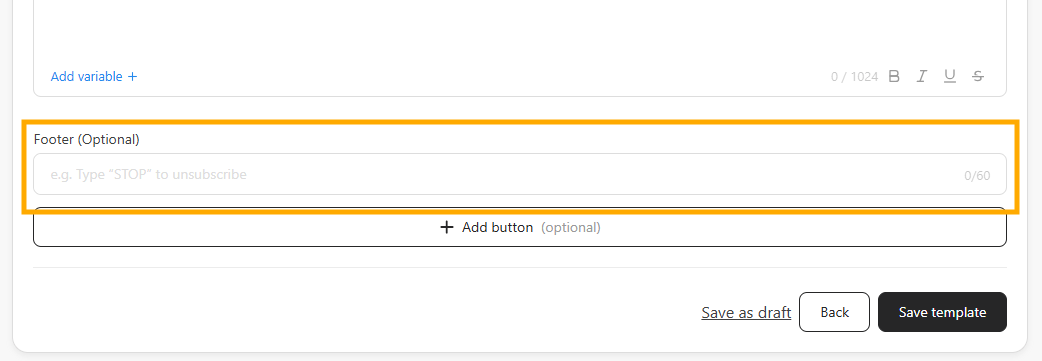
Enter a short line of text to appear below the message body. Maximum **60 characters**.
If you are on the **Free plan**, the footer is locked and shows **"Powered by bitbybit studio"** branding. Upgrade to a Basic plan or above to remove the branding and fully customize your footer.
#### Availability by template type
| Template type | Header | Footer |
| --------------------------------------- | ------ | ------ |
| WhatsApp Standard (Marketing & Utility) | ✓ | ✓ |
| WhatsApp Catalog | Hidden | ✓ |
| WhatsApp Carousel | Hidden | Hidden |
**Buttons:** If your template includes a reply button, WhatsApp Form, or call-to-action button, the header and footer remain visible.
### Buttons (optional)
Add interactive buttons to your message by clicking **Add button**. Buttons are now added directly through this action — there is no separate switcher to enable them.
You can add:
* **Reply button** — lets recipients respond with a quick, predefined reply.
* **Call-to-action** — links to a web URL, product, or collection.
* **WhatsApp Form** — collects structured responses from recipients.
For a full walkthrough of each button kind and its settings, see [How to Create a Campaign with Button Options](https://knowledge.bitbybit.studio/bitcrm/how-to-create-a-campaign-with-button-options).
### Carousel cards
For a **Carousel** template, add and arrange cards in the card settings:
* **Reorder cards** by dragging them into the order you want.
* Set each card's **media type** to **Image** (JPEG or PNG) or **Video** (MP4).
### Catalog
A **Catalog** template showcases products directly from your connected WhatsApp catalog, so recipients can browse your items inside the message. Configure the catalog content in the Message content step. To set which catalog your products come from, see [How to Choose Your WhatsApp Catalog Source](https://knowledge.bitbybit.studio/whatsapp-commerce/how-to-choose-your-whatsapp-catalog-source).
## Step 4: Preview your message
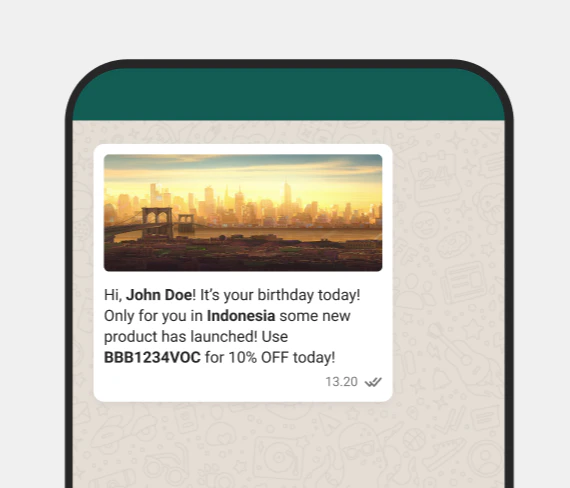
Preview your message on the right sidebar as you build it.
## Step 5: Submit to Meta
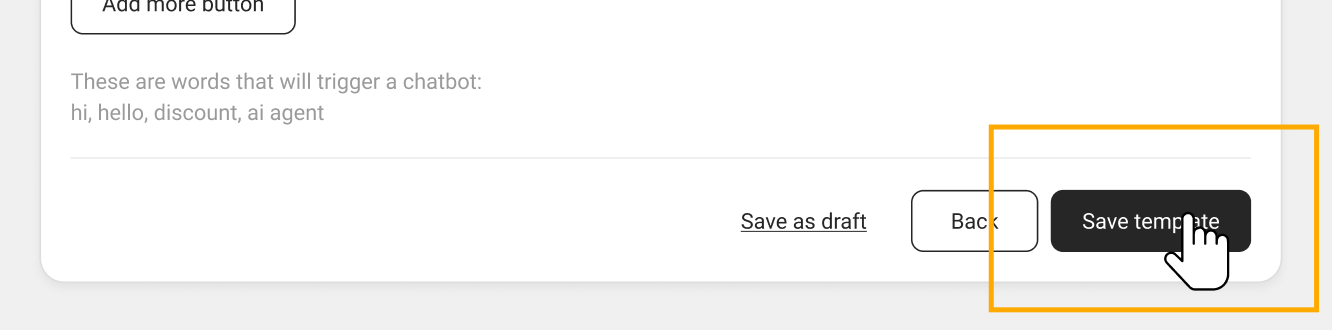
Click **Save template** to submit it to Meta for review.
Once your message template is created, test your campaign to ensure it succeeds, or see [How to Create a New WhatsApp API Campaign](https://knowledge.bitbybit.studio/bitcrm/how-to-create-a-new-whatsapp-cloud-api-campaign-with-bitbybit) to learn more.
 ## Step 2: Complete Template setup
The first step of the wizard is **Template setup**. Fill in:
* **Template name** — required. The **Next** button stays disabled until you enter a name.
* **Languages**
* **Message category** — see below.
* **Template type** — see below.
## Step 2: Complete Template setup
The first step of the wizard is **Template setup**. Fill in:
* **Template name** — required. The **Next** button stays disabled until you enter a name.
* **Languages**
* **Message category** — see below.
* **Template type** — see below.
 ### Select a Message category
In the **Message Category** dropdown, choose the category that best describes your template:
* **Marketing** (default) — Promotional messages such as offers, announcements, or product updates.
* **Utility** — Transactional messages such as order confirmations, shipping updates, or account alerts.
### Select a Message category
In the **Message Category** dropdown, choose the category that best describes your template:
* **Marketing** (default) — Promotional messages such as offers, announcements, or product updates.
* **Utility** — Transactional messages such as order confirmations, shipping updates, or account alerts.

 ### Message body and variables
Enter your message content, then add dynamic variables by clicking **"Add Variable +"** and selecting **"Variable"** from the dropdown. Read [How to Use Dynamic Variables in Automation Messages](https://knowledge.bitbybit.studio/bitcrm/how-to-use-dynamic-variables-in-automation-messages) for more details about using variables.
### Header and Footer (optional)
You can add a **Header** and **Footer** to give your message more structure. Both fields are optional.
#### Header
Choose one of four header types from the **Header** dropdown:
| Header type | Format | Max size |
| ------------ | ----------- | ------------- |
| **Text** | Plain text | 60 characters |
| **Image** | JPEG or PNG | 10 MB |
| **Video** | MP4 | 10 MB |
| **Document** | PDF | 10 MB |
### Message body and variables
Enter your message content, then add dynamic variables by clicking **"Add Variable +"** and selecting **"Variable"** from the dropdown. Read [How to Use Dynamic Variables in Automation Messages](https://knowledge.bitbybit.studio/bitcrm/how-to-use-dynamic-variables-in-automation-messages) for more details about using variables.
### Header and Footer (optional)
You can add a **Header** and **Footer** to give your message more structure. Both fields are optional.
#### Header
Choose one of four header types from the **Header** dropdown:
| Header type | Format | Max size |
| ------------ | ----------- | ------------- |
| **Text** | Plain text | 60 characters |
| **Image** | JPEG or PNG | 10 MB |
| **Video** | MP4 | 10 MB |
| **Document** | PDF | 10 MB |
 #### Footer
Enter a short line of text to appear below the message body. Maximum **60 characters**.
#### Footer
Enter a short line of text to appear below the message body. Maximum **60 characters**.
 #### Availability by template type
| Template type | Header | Footer |
| --------------------------------------- | ------ | ------ |
| WhatsApp Standard (Marketing & Utility) | ✓ | ✓ |
| WhatsApp Catalog | Hidden | ✓ |
| WhatsApp Carousel | Hidden | Hidden |
**Buttons:** If your template includes a reply button, WhatsApp Form, or call-to-action button, the header and footer remain visible.
### Buttons (optional)
Add interactive buttons to your message by clicking **Add button**. Buttons are now added directly through this action — there is no separate switcher to enable them.
You can add:
* **Reply button** — lets recipients respond with a quick, predefined reply.
* **Call-to-action** — links to a web URL, product, or collection.
* **WhatsApp Form** — collects structured responses from recipients.
For a full walkthrough of each button kind and its settings, see [How to Create a Campaign with Button Options](https://knowledge.bitbybit.studio/bitcrm/how-to-create-a-campaign-with-button-options).
### Carousel cards
For a **Carousel** template, add and arrange cards in the card settings:
* **Reorder cards** by dragging them into the order you want.
* Set each card's **media type** to **Image** (JPEG or PNG) or **Video** (MP4).
### Catalog
A **Catalog** template showcases products directly from your connected WhatsApp catalog, so recipients can browse your items inside the message. Configure the catalog content in the Message content step. To set which catalog your products come from, see [How to Choose Your WhatsApp Catalog Source](https://knowledge.bitbybit.studio/whatsapp-commerce/how-to-choose-your-whatsapp-catalog-source).
## Step 4: Preview your message
Preview your message on the right sidebar as you build it.
#### Availability by template type
| Template type | Header | Footer |
| --------------------------------------- | ------ | ------ |
| WhatsApp Standard (Marketing & Utility) | ✓ | ✓ |
| WhatsApp Catalog | Hidden | ✓ |
| WhatsApp Carousel | Hidden | Hidden |
**Buttons:** If your template includes a reply button, WhatsApp Form, or call-to-action button, the header and footer remain visible.
### Buttons (optional)
Add interactive buttons to your message by clicking **Add button**. Buttons are now added directly through this action — there is no separate switcher to enable them.
You can add:
* **Reply button** — lets recipients respond with a quick, predefined reply.
* **Call-to-action** — links to a web URL, product, or collection.
* **WhatsApp Form** — collects structured responses from recipients.
For a full walkthrough of each button kind and its settings, see [How to Create a Campaign with Button Options](https://knowledge.bitbybit.studio/bitcrm/how-to-create-a-campaign-with-button-options).
### Carousel cards
For a **Carousel** template, add and arrange cards in the card settings:
* **Reorder cards** by dragging them into the order you want.
* Set each card's **media type** to **Image** (JPEG or PNG) or **Video** (MP4).
### Catalog
A **Catalog** template showcases products directly from your connected WhatsApp catalog, so recipients can browse your items inside the message. Configure the catalog content in the Message content step. To set which catalog your products come from, see [How to Choose Your WhatsApp Catalog Source](https://knowledge.bitbybit.studio/whatsapp-commerce/how-to-choose-your-whatsapp-catalog-source).
## Step 4: Preview your message
Preview your message on the right sidebar as you build it.
 ## Step 5: Submit to Meta
Click **Save template** to submit it to Meta for review.
## Step 5: Submit to Meta
Click **Save template** to submit it to Meta for review.
 Once your message template is created, test your campaign to ensure it succeeds, or see [How to Create a New WhatsApp API Campaign](https://knowledge.bitbybit.studio/bitcrm/how-to-create-a-new-whatsapp-cloud-api-campaign-with-bitbybit) to learn more.