> ## Documentation Index
> Fetch the complete documentation index at: https://knowledge.bitbybit.studio/llms.txt
> Use this file to discover all available pages before exploring further.
# How to send a voucher code with a Copy code button
> Add a Copy voucher action to a bitCRM WhatsApp campaign template so customers can copy one shared promo code from bitbybit Commerce, Shopify, or your own system.
A **Copy voucher action** adds a **Copy offer code** button to your WhatsApp campaign template, so customers can copy your promo code with one tap instead of typing it. You pick the code when you create the template in **Misc → Campaign**, then use that template in a campaign like any other.
Each template carries **one code**. All campaigns that use the template send the same code.
**Copy voucher action** is only available on **Campaign** templates. It does not appear for Automation or Chat initiation templates.
## Before you begin
Choose where your code comes from:
| Code source | Use it when | Does bitbybit track usage? | Maximum length |
| - | - | - | - |
| **bitbybit Commerce** | The voucher already exists in Commerce → Voucher | Yes | 20 characters |
| **Shopify Vouchers** | The discount code already exists in your connected Shopify store | Yes, when Shopify provides it | 20 characters |
| **Custom Code** | Your code lives in a POS, website, or another system | No. You manage it yourself | 15 characters |
* For **bitbybit Commerce**, create the voucher in Commerce first.
* For **Shopify Vouchers**, connect Shopify and create the discount code in Shopify first.
* For **Custom Code**, make sure the code already works in your own system.
## Step 1: Add the Copy voucher action to a template
* Go to **Misc → Campaign** and create a new Campaign template, or open an existing one to edit.
* In the **Message content** step, click **Add button (optional)**.
* Select **Copy voucher action**.

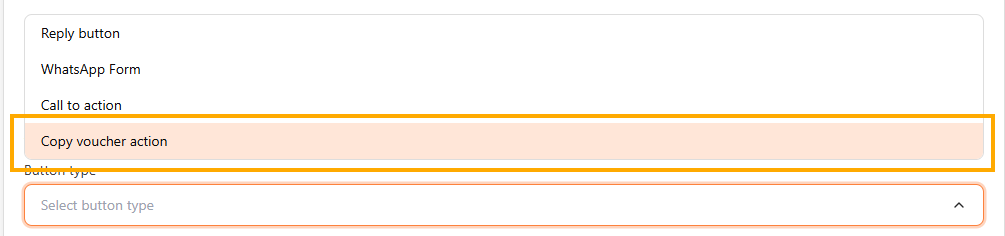 A **Voucher action** container appears. There is no **Button text** field, because WhatsApp labels the button **Copy offer code** and translates it into your template's language.
## Step 2: Choose a code source and code
Select a **Code source**, then follow the option that matches.
A **Voucher action** container appears. There is no **Button text** field, because WhatsApp labels the button **Copy offer code** and translates it into your template's language.
## Step 2: Choose a code source and code
Select a **Code source**, then follow the option that matches.
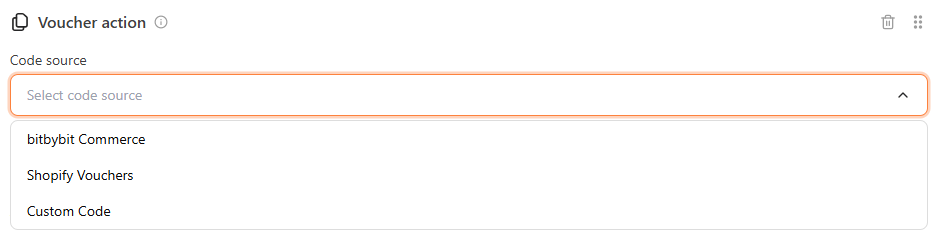 ### bitbybit Commerce or Shopify Vouchers
* Select **bitbybit Commerce** or **Shopify Vouchers**. If you choose Shopify and it isn't connected yet, you'll see the Connect Shopify flow instead.
* Open the menu and choose one code. The menu groups codes into **Active**, **Out of usage**, and **Over character limit**. You can only select codes in the **Active** group.
* To add a code without losing your draft, click **Create new voucher** (Commerce) or **Create discount in Shopify** (Shopify). The link opens in a new tab.
### bitbybit Commerce or Shopify Vouchers
* Select **bitbybit Commerce** or **Shopify Vouchers**. If you choose Shopify and it isn't connected yet, you'll see the Connect Shopify flow instead.
* Open the menu and choose one code. The menu groups codes into **Active**, **Out of usage**, and **Over character limit**. You can only select codes in the **Active** group.
* To add a code without losing your draft, click **Create new voucher** (Commerce) or **Create discount in Shopify** (Shopify). The link opens in a new tab.
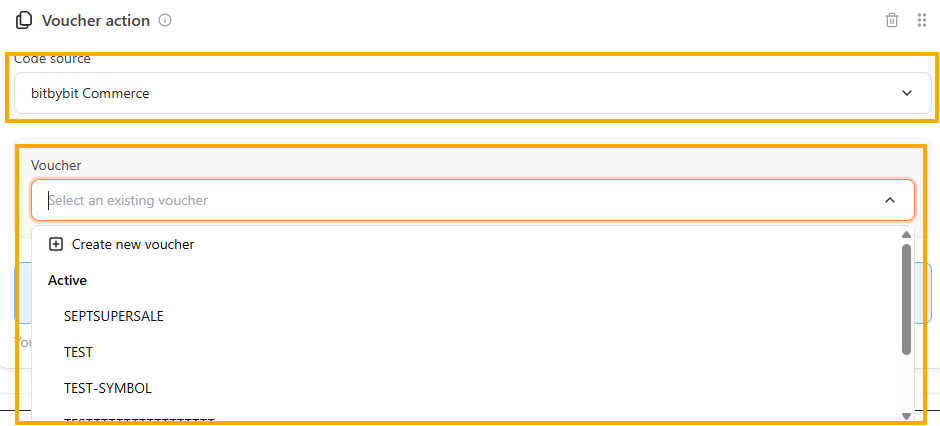
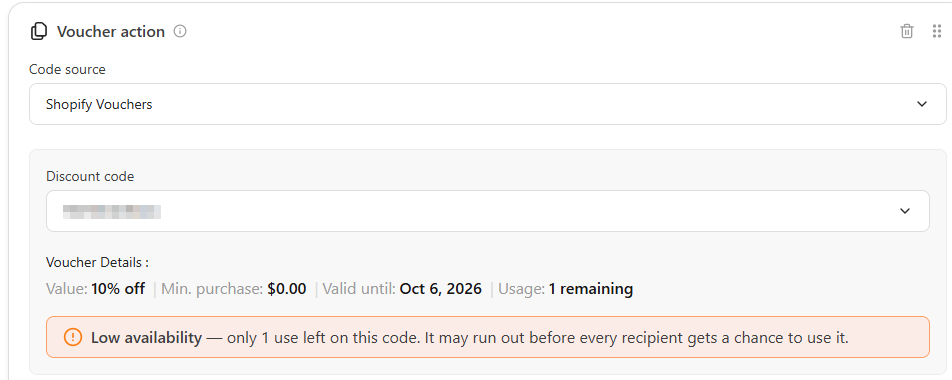
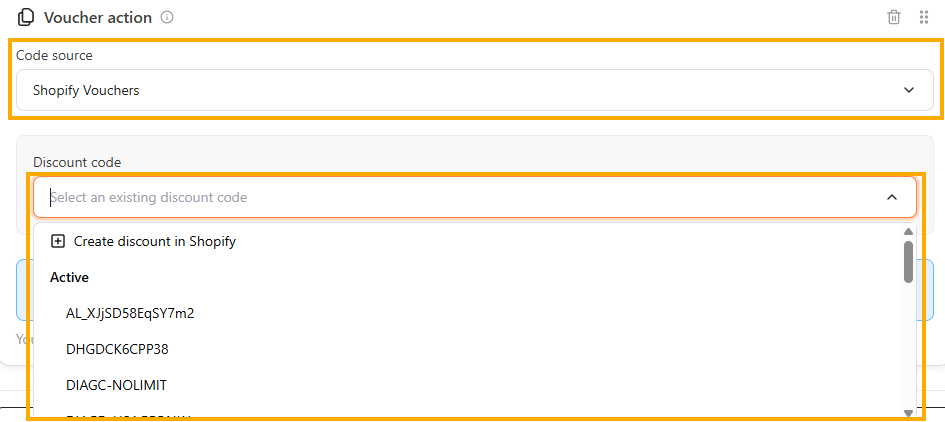 After you choose a code, the container shows its details, such as the value, minimum purchase, valid-until date, and remaining usage. If only a few uses are left, a **Low availability** card appears.
 ### Custom Code
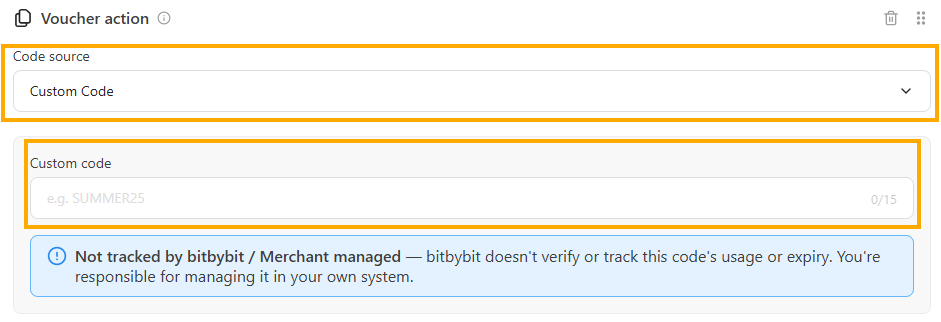
* Select **Custom Code**.
* Enter your code in the **Custom code** field.
* A banner confirms the code is **Not tracked by bitbybit / Merchant managed**.
### Custom Code
* Select **Custom Code**.
* Enter your code in the **Custom code** field.
* A banner confirms the code is **Not tracked by bitbybit / Merchant managed**.
 ### Code rules
Codes can contain letters and numbers only, up to 20 characters, or 15 for Custom Code. For example, `PROMO20` works, but `PROMO-20` doesn't, because WhatsApp doesn't support special characters such as hyphens.
If a code breaks these rules, the field explains the problem and you can't save the template until you choose another code, fix it at the source, or edit your Custom Code.
## Step 3: Save the template and submit it to Meta
* Finish your message body and any other settings.
* Click **Save template** to submit it to Meta for review.
### Code rules
Codes can contain letters and numbers only, up to 20 characters, or 15 for Custom Code. For example, `PROMO20` works, but `PROMO-20` doesn't, because WhatsApp doesn't support special characters such as hyphens.
If a code breaks these rules, the field explains the problem and you can't save the template until you choose another code, fix it at the source, or edit your Custom Code.
## Step 3: Save the template and submit it to Meta
* Finish your message body and any other settings.
* Click **Save template** to submit it to Meta for review.
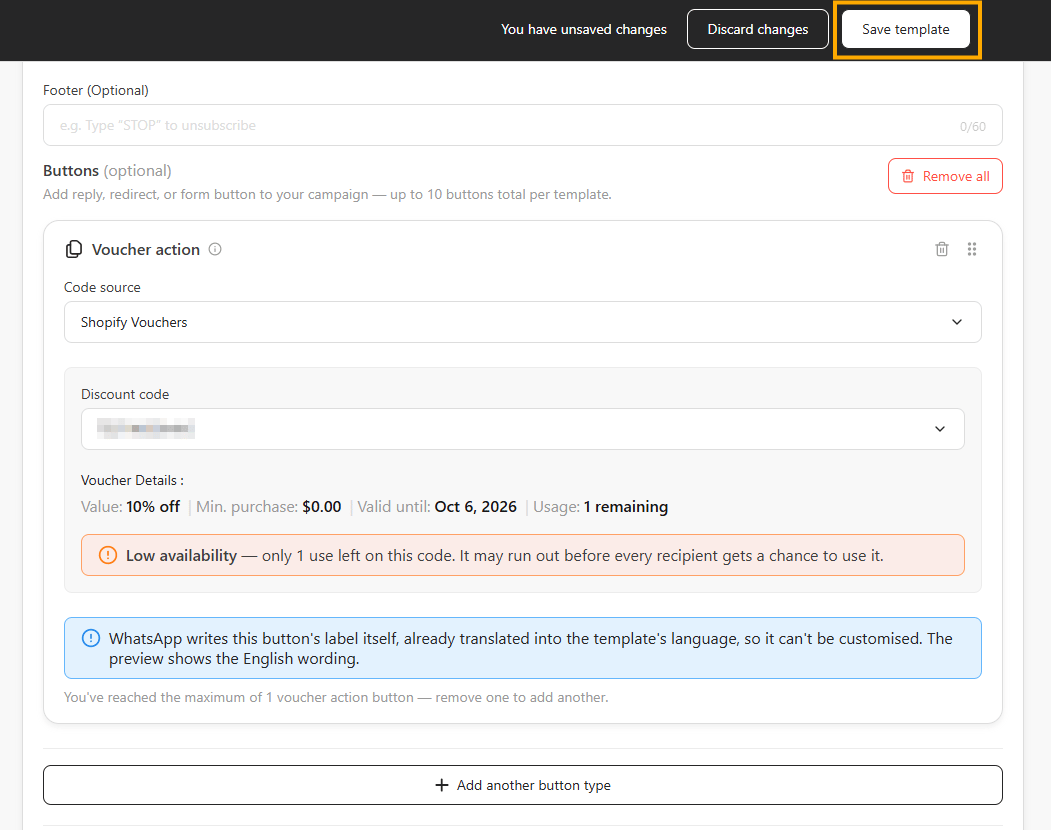 **Save template** stays unavailable until you choose a source and a valid code. Empty fields show an error, for example **Please select a promo code source** or **Please input a custom code**.
For review timing, see [Understanding WhatsApp template approval time](/bitcrm/understanding-whatsapp-template-approval-time).
## Step 4: Use the template in a campaign
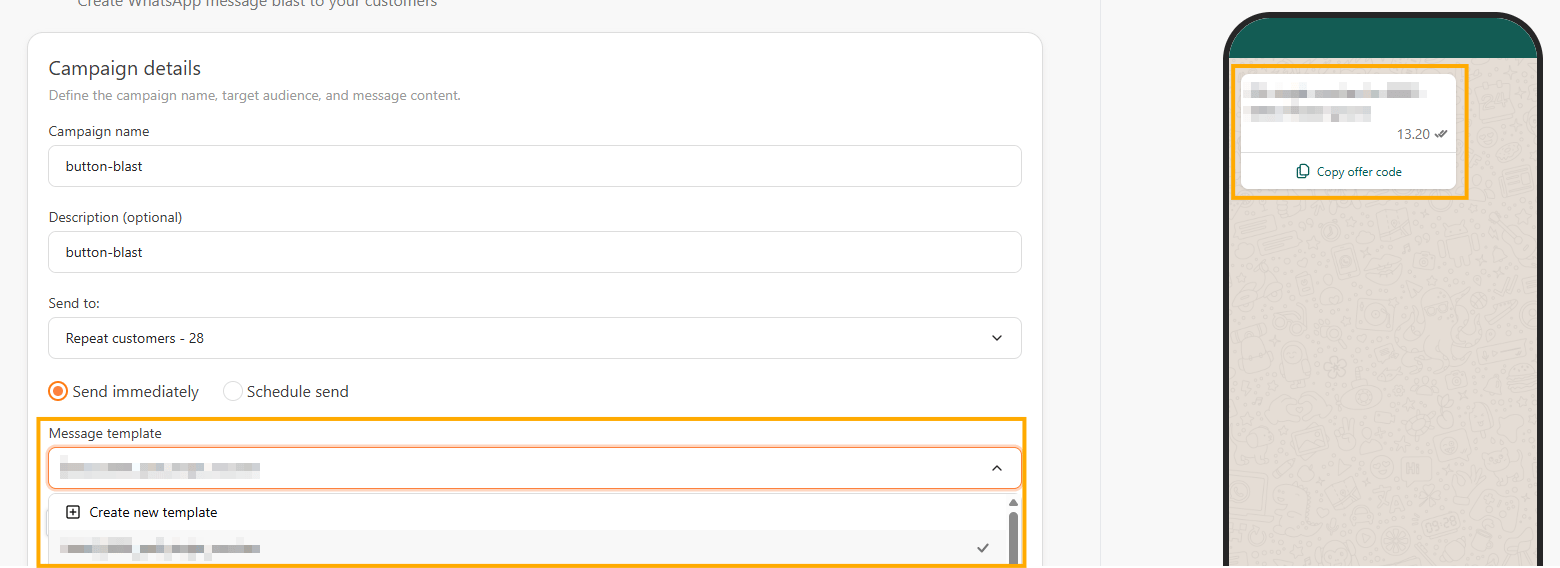
* Create your campaign and choose the approved template under **Message template**. The Campaign Composer doesn't ask you to pick a code, because the template already has one. The preview shows the **Copy offer code** button.
**Save template** stays unavailable until you choose a source and a valid code. Empty fields show an error, for example **Please select a promo code source** or **Please input a custom code**.
For review timing, see [Understanding WhatsApp template approval time](/bitcrm/understanding-whatsapp-template-approval-time).
## Step 4: Use the template in a campaign
* Create your campaign and choose the approved template under **Message template**. The Campaign Composer doesn't ask you to pick a code, because the template already has one. The preview shows the **Copy offer code** button.
 * Review the campaign, then choose **Send immediately** or **Schedule send**.
For the full campaign flow, see [How to create a new WhatsApp Cloud API campaign with bitbybit](/bitcrm/how-to-create-a-new-whatsapp-cloud-api-campaign-with-bitbybit).
## What happens when a code can't be used
For Commerce and Shopify codes, bitbybit checks the code before you send.
| Situation | What happens |
| - | - |
| Remaining usage is lower than your audience, but above 0 | A warning appears in the Composer. On the Review page, you tick **I understand some recipients may not be able to use this promo code** to continue. |
| The code is out of usage, expired, inactive, deleted, or Shopify is disconnected | Send and Schedule are blocked. A **Needs attention** banner appears and the **Review** button is disabled until you replace the code. |
| You schedule the campaign after the code's expiry date | Schedule is blocked with a **Needs attention** banner. Choose another template, pick another code on the template, or move your schedule earlier. |
| You use Custom Code | bitbybit doesn't check usage or expiry, so you can always send. |
A low-availability warning doesn't stop your message from reaching everyone. Your message is delivered to the whole audience. Codes are used first come, first served at checkout, so some recipients may find the code has run out.
### If a scheduled campaign is held
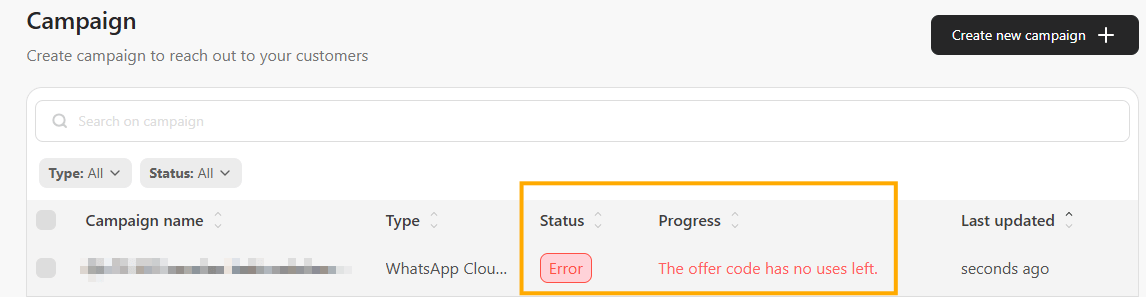
Before a scheduled campaign sends, bitbybit checks the code again. If the code can no longer be used, the campaign is not sent and stays **Scheduled**. In the campaign list, it shows a red **Error** badge, and the **Progress** column shows the reason, for example **The offer code has no uses left.**
* Review the campaign, then choose **Send immediately** or **Schedule send**.
For the full campaign flow, see [How to create a new WhatsApp Cloud API campaign with bitbybit](/bitcrm/how-to-create-a-new-whatsapp-cloud-api-campaign-with-bitbybit).
## What happens when a code can't be used
For Commerce and Shopify codes, bitbybit checks the code before you send.
| Situation | What happens |
| - | - |
| Remaining usage is lower than your audience, but above 0 | A warning appears in the Composer. On the Review page, you tick **I understand some recipients may not be able to use this promo code** to continue. |
| The code is out of usage, expired, inactive, deleted, or Shopify is disconnected | Send and Schedule are blocked. A **Needs attention** banner appears and the **Review** button is disabled until you replace the code. |
| You schedule the campaign after the code's expiry date | Schedule is blocked with a **Needs attention** banner. Choose another template, pick another code on the template, or move your schedule earlier. |
| You use Custom Code | bitbybit doesn't check usage or expiry, so you can always send. |
A low-availability warning doesn't stop your message from reaching everyone. Your message is delivered to the whole audience. Codes are used first come, first served at checkout, so some recipients may find the code has run out.
### If a scheduled campaign is held
Before a scheduled campaign sends, bitbybit checks the code again. If the code can no longer be used, the campaign is not sent and stays **Scheduled**. In the campaign list, it shows a red **Error** badge, and the **Progress** column shows the reason, for example **The offer code has no uses left.**
 To fix it, go to **Misc → Campaign**, open the template, and replace the code with a valid one or remove the Voucher action.
## Change the code on a template
* **Edit the template.** Go to **Misc → Campaign**, open the template, choose another code in the **Voucher action** container, then click **Update template**. Once Meta approves the update, the template uses the new code.
* **Create a new template** if you want to keep the current code for other campaigns.
The template page only lets you update an approved template once every 24 hours. Plan code changes ahead of your send time.
## FAQ
Not with this button. To send a different code to each customer, see [Data management & voucher messaging via bitbybit](/bitcrm/data-management-and-voucher-messaging-via-bitbybit).
No. Sent, delivered, read, and Copy code taps aren't voucher uses. Usage goes up only when a customer successfully uses the code at checkout, in your POS, or in your own system.
Use **Custom Code** instead, because bitbybit can only track Shopify codes used in Shopify checkout.
## Related articles
* [How to create a Campaign with button options](/bitcrm/how-to-create-a-campaign-with-button-options)
* [How to create a Message Template Campaign for WhatsApp Cloud API](/bitcrm/how-to-create-a-message-template-campaign-for-whatsapp-cloud-api)
* [Data management & voucher messaging via bitbybit](/bitcrm/data-management-and-voucher-messaging-via-bitbybit)
This documentation is built and hosted on [Mintlify](https://mintlify.com), a developer documentation platform.
To fix it, go to **Misc → Campaign**, open the template, and replace the code with a valid one or remove the Voucher action.
## Change the code on a template
* **Edit the template.** Go to **Misc → Campaign**, open the template, choose another code in the **Voucher action** container, then click **Update template**. Once Meta approves the update, the template uses the new code.
* **Create a new template** if you want to keep the current code for other campaigns.
The template page only lets you update an approved template once every 24 hours. Plan code changes ahead of your send time.
## FAQ
Not with this button. To send a different code to each customer, see [Data management & voucher messaging via bitbybit](/bitcrm/data-management-and-voucher-messaging-via-bitbybit).
No. Sent, delivered, read, and Copy code taps aren't voucher uses. Usage goes up only when a customer successfully uses the code at checkout, in your POS, or in your own system.
Use **Custom Code** instead, because bitbybit can only track Shopify codes used in Shopify checkout.
## Related articles
* [How to create a Campaign with button options](/bitcrm/how-to-create-a-campaign-with-button-options)
* [How to create a Message Template Campaign for WhatsApp Cloud API](/bitcrm/how-to-create-a-message-template-campaign-for-whatsapp-cloud-api)
* [Data management & voucher messaging via bitbybit](/bitcrm/data-management-and-voucher-messaging-via-bitbybit)
This documentation is built and hosted on [Mintlify](https://mintlify.com), a developer documentation platform.