> ## Documentation Index
> Fetch the complete documentation index at: https://knowledge.bitbybit.studio/llms.txt
> Use this file to discover all available pages before exploring further.
# Set up AI Custom Event triggers in automation
> Use the AI Custom Event trigger so your AI agent can run a bitCRM automation during a conversation, based on a custom skill in AI Studio.
The **AI Custom Event** trigger lets your AI agent start a bitCRM automation in the middle of a conversation. You add the trigger in bitCRM, then tell the AI agent when to run it with a custom skill in AI Studio.
## Before you start
* Open [Automation](https://app.bitbybit.studio/bitcrm/automation-new).
* Make sure you have an AI agent set up in **AI Studio**.
## Step 1: Add the AI Custom Event trigger
* Click **Create new automation**, or open an existing automation.
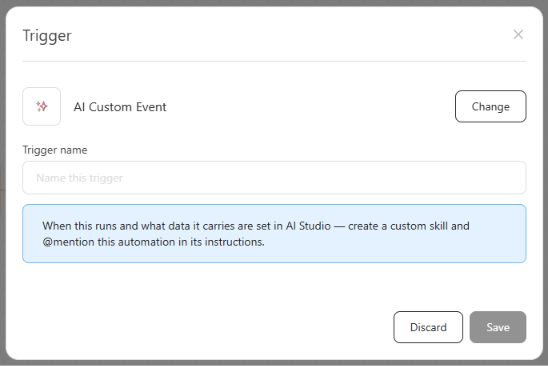
* Click **Trigger** and choose **AI Custom Event**.
* Enter a **Trigger name** (required). Use a name that says what the automation does, for example "Product interest detected".
* Click **Save**.
 ## Step 2: Build and activate the automation
* Add the steps the automation should run after the trigger.
## Step 2: Build and activate the automation
* Add the steps the automation should run after the trigger.
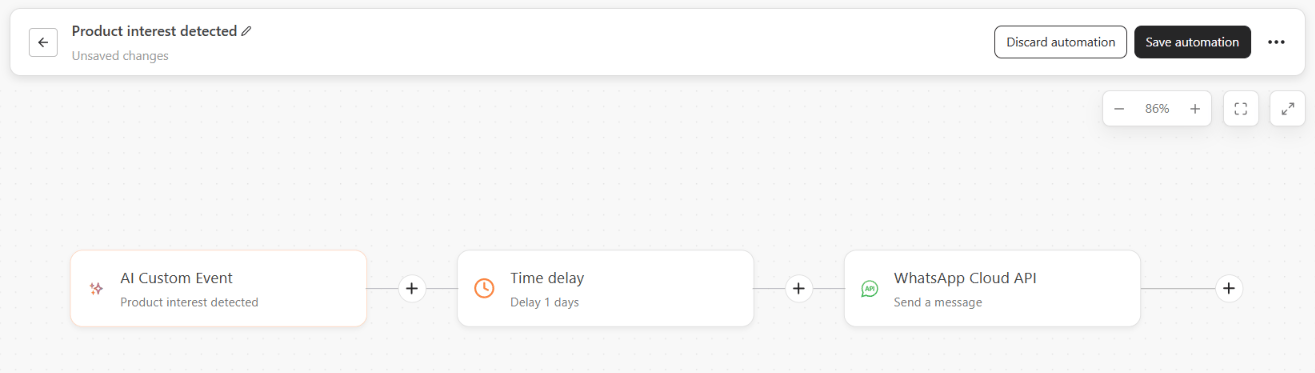 * Click **Save automation**.
* In the **Automation** list, make sure the automation's switch is on.
* Click **Save automation**.
* In the **Automation** list, make sure the automation's switch is on.
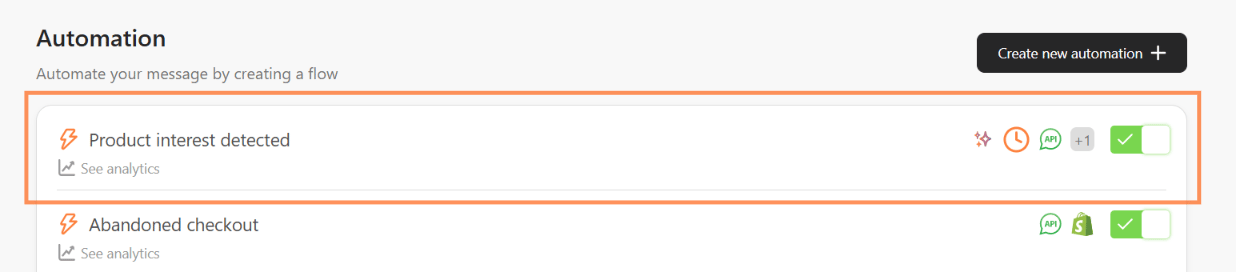 Only active automations with an AI Custom Event trigger can be picked by the AI agent.
## Step 3: Connect the automation to your AI agent
* Go to **AI Studio** and open your AI agent.
* Open the **Skills** tab and click **Add skill**.
Only active automations with an AI Custom Event trigger can be picked by the AI agent.
## Step 3: Connect the automation to your AI agent
* Go to **AI Studio** and open your AI agent.
* Open the **Skills** tab and click **Add skill**.
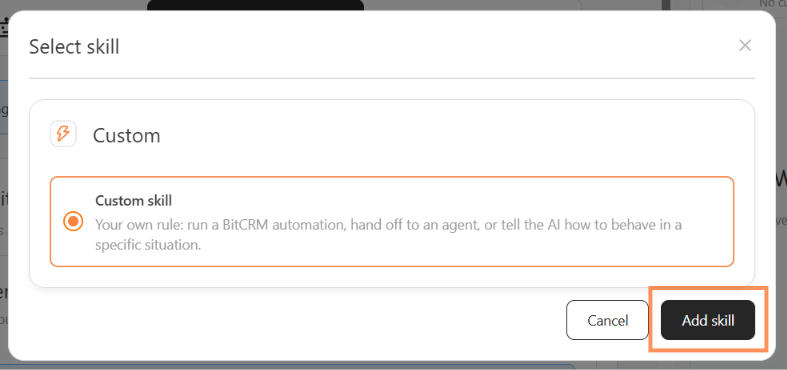
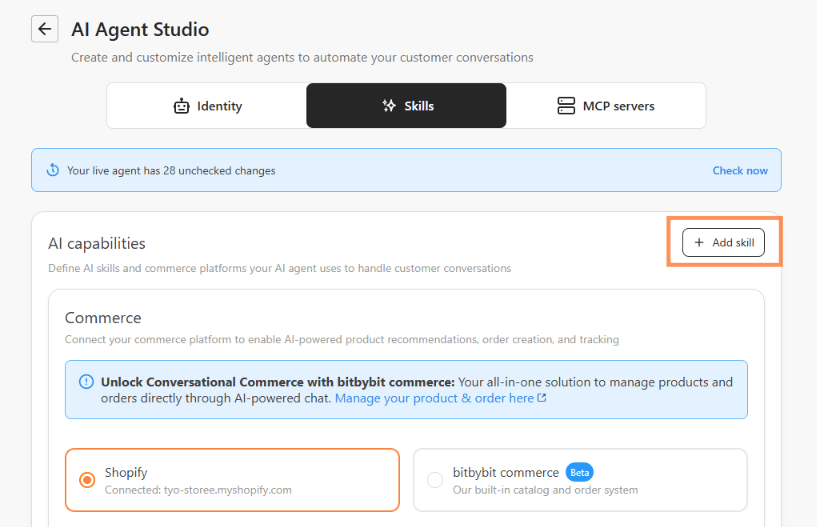 * Select **Custom skill** and click **Add skill**.
 * Fill in the skill's **Name** and **Description**.
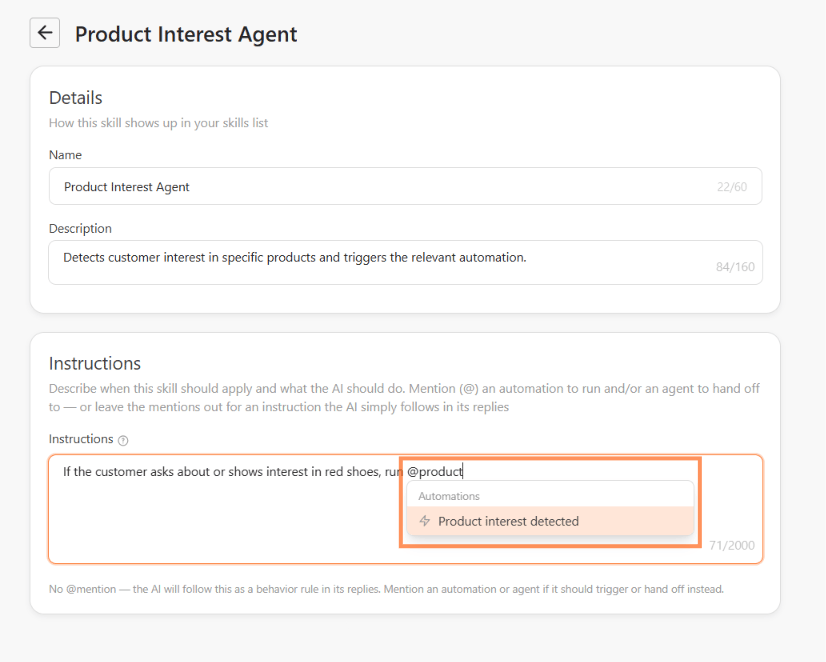
* In **Instructions**, describe when the AI agent should run the automation, and type **@** to mention it. For example: "If the customer asks about or shows interest in red shoes, run @Product interest detected".
* Fill in the skill's **Name** and **Description**.
* In **Instructions**, describe when the AI agent should run the automation, and type **@** to mention it. For example: "If the customer asks about or shows interest in red shoes, run @Product interest detected".
 For the full custom skill setup, see [Add and manage skills in AI agent studio](/ai-studio/how-to-setup-skillset-in-ai-studio).
## When the automation runs
The automation runs when the AI agent decides the situation in your custom skill has happened. It does not run when:
* No active custom skill mentions the automation.
* The automation is inactive.
* The customer has no valid phone number or email.
If you delete an automation that a custom skill mentions, your AI agent can no longer run it. The custom skill shows **Needs attention — part of this skill no longer works** until you mention another automation.
## Related articles
* [Add and manage skills in AI agent studio](/ai-studio/how-to-setup-skillset-in-ai-studio)
* [How to set up a trigger](/bitcrm/how-to-set-up-a-trigger)
* [How to create an automation](/bitcrm/how-to-create-an-automation)
For the full custom skill setup, see [Add and manage skills in AI agent studio](/ai-studio/how-to-setup-skillset-in-ai-studio).
## When the automation runs
The automation runs when the AI agent decides the situation in your custom skill has happened. It does not run when:
* No active custom skill mentions the automation.
* The automation is inactive.
* The customer has no valid phone number or email.
If you delete an automation that a custom skill mentions, your AI agent can no longer run it. The custom skill shows **Needs attention — part of this skill no longer works** until you mention another automation.
## Related articles
* [Add and manage skills in AI agent studio](/ai-studio/how-to-setup-skillset-in-ai-studio)
* [How to set up a trigger](/bitcrm/how-to-set-up-a-trigger)
* [How to create an automation](/bitcrm/how-to-create-an-automation)