> ## Documentation Index
> Fetch the complete documentation index at: https://knowledge.bitbybit.studio/llms.txt
> Use this file to discover all available pages before exploring further.
# Use Shopify customer metafields in bitbybit
> See Shopify customer metafields on the bitbybit customer profile, sync the latest values, and use them for segments, automations, and personalization.
Use this page if you already keep extra customer details in Shopify — loyalty tier, date of birth, preferences, store credit — and want to see and use that data inside bitbybit.
## Overview
**Metafields** are the custom fields Shopify lets you add to a customer record for anything beyond Shopify's built-in fields. If your team maintains them in the Shopify admin, bitbybit can read them and show them on the customer profile.
Once synced, Shopify metafields behave like bitbybit's own additional data in most of the product — you can segment on them, anchor a scheduled automation to them, and drop them into message copy. The one difference is **ownership**: Shopify metafields are read-only in bitbybit. Shopify stays the source of truth, and all edits happen in the Shopify admin.
The **Additional data** card on a customer profile therefore has two sources:
| | bitbybit | Shopify |
| ------------------------ | ------------------- | ------------------- |
| Where fields are created | bitbybit | Shopify admin |
| Editable in bitbybit | Yes | No — read-only |
| How values arrive | Entered in bitbybit | Synced from Shopify |
## Before you start
* Connect Shopify to bitCRM. See [How to integrate bitCRM with Shopify](/bitcrm/how-to-integrate-bitcrm-with-shopify). The **Shopify** source only appears when a Shopify integration is connected.
* Add the customer metafields you want in your Shopify admin, and make sure the customers you care about have values saved.
## View Shopify metafields on a customer
1. Go to **Customers** and open a customer profile.
2. Find the **Additional data** card.
3. Use the source selector in the top-right of the card to switch from **bitbybit** to **Shopify**.
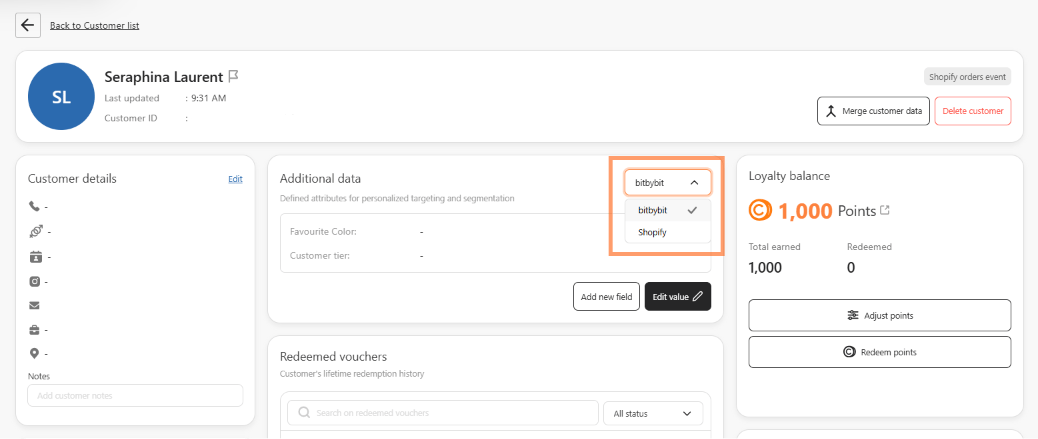 4. The card now lists that customer's Shopify metafields with a banner reading **"This data syncs directly from your Shopify customer metafields and can only be updated via your Shopify admin."**
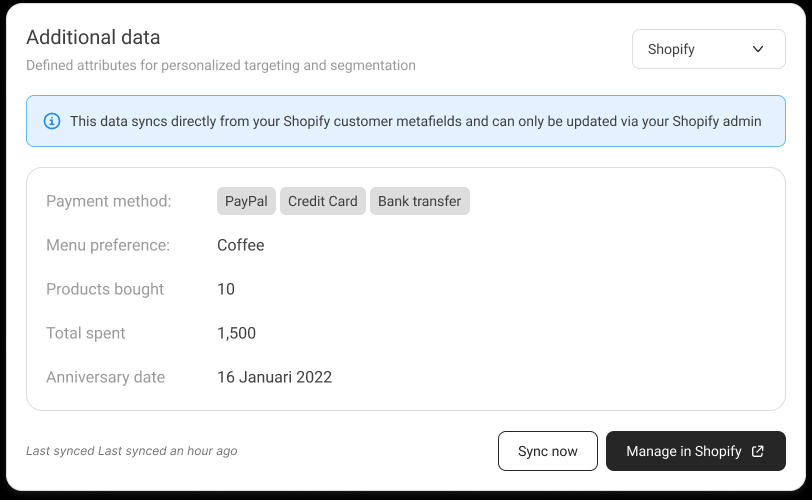 The source selector only appears when Shopify is connected. If the integration is removed, the card automatically switches back to **bitbybit**.
## Sync the latest values
bitbybit reads Shopify metafields on a sync rather than instantly on every change in Shopify. If you've just updated a value in Shopify and don't see it yet, pull it manually.
1. On the **Shopify** source, check the indicator next to the buttons — it reads **Last synced** followed by how long ago the last sync ran, or **Not synced yet** if the customer has never been synced.
2. Click **Sync now**. The button shows a spinner and the indicator changes to **Syncing…**.
3. On success, a **"Customer data synced from Shopify"** message appears and the indicator reads **Last synced just now**.
If the sync fails, a **"Couldn't sync from Shopify. Please try again."** message appears and the indicator reads **Last sync failed — try again** in red. Click **Sync now** again to retry.
## Edit the data in Shopify
Because Shopify owns these fields, the **Add new field** and **Edit value** buttons are replaced by **Sync now** and **Manage in Shopify** on this source.
Click **Manage in Shopify** to open that customer's record in your Shopify admin in a new tab. Make your edits there, come back, and click **Sync now** to pull them in.
If bitbybit doesn't have a Shopify customer ID for this person — for example, they were added in bitbybit rather than created from a Shopify order — **Manage in Shopify** opens your Shopify customers list instead of that specific customer.
## How values are displayed
Shopify metafield values are formatted by type when they reach bitbybit:
* **Text** — shown as-is.
* **Date** — formatted as `D MMMM YYYY`, for example `4 March 1990`.
* **Number** — formatted with thousands separators.
* **Multiple choice** — shown as separate tags.
* **Money** and **rating** — shown as text, for example `150500 IDR` and `4.5`.
* **List** — shown as a comma-separated line, for example `Electronics, Books`.
Two values look different on purpose:
* A value in grey italics with a **"This field type isn't supported yet"** tooltip is a Shopify field type bitbybit can't format yet. The raw value is still shown.
* A value reading **Hidden** in grey italics is a protected field Shopify is withholding. Hover it for the explanation.
## Where you can use Shopify metafields
Once synced, Shopify metafields flow into the same places as bitbybit's own additional data — you don't configure anything per feature:
* **Customer segments** — filter on a Shopify metafield in [Customer segmentation](/bitcrm/how-to-create-a-customer-segment). Shopify fields appear alongside bitbybit ones in the field list.
* **Scheduled automations** — a Shopify metafield with the **Date** type can anchor a **Yearly on custom date** schedule. See [Set up schedule Triggers in Automation](/bitcrm/how-to-set-up-schedule-triggers-in-automation).
* **Message personalization** — insert a value with the `{{customer.metafields.}}` variable in campaign and automation messages, under the **Additional data** variable group.
* **AI agent** — expose the field to your AI agent's additional-data skillset so it can use the value when answering customers.
Two places do **not** read metafields of any source yet: the **Customers list columns** and **Automation conditions**. You can segment on a metafield and then trigger an automation for that segment, but you can't branch on a metafield value inside a condition step.
## Frequently asked questions
**Can I edit a Shopify metafield from bitbybit?**
No. Shopify metafields are read-only in bitbybit by design, so the two systems can't disagree. Edit in Shopify, then click **Sync now**.
**Why is a value showing as "Hidden"?**
Shopify classifies some customer information as protected data and withholds it until it has approved bitbybit's access to that data. The field syncs, but the value is masked until then.
**Why don't I see the Shopify option on the Additional data card?**
Shopify isn't connected to bitCRM for this company. Connect it from **Integrations** first.
**Do my bitbybit custom fields change?**
No. Switching source only changes what the card displays. Your bitbybit fields keep their full add, edit, reorder, and delete behavior on the **bitbybit** source.
## Related
* [How to integrate bitCRM with Shopify](/bitcrm/how-to-integrate-bitcrm-with-shopify)
* [Set up schedule Triggers in Automation](/bitcrm/how-to-set-up-schedule-triggers-in-automation)
* [Create a customer segment](/bitcrm/how-to-create-a-customer-segment)
* [Manage customer details in live chat](/bitchat/how-to-manage-customer-details-in-live-chat)
The source selector only appears when Shopify is connected. If the integration is removed, the card automatically switches back to **bitbybit**.
## Sync the latest values
bitbybit reads Shopify metafields on a sync rather than instantly on every change in Shopify. If you've just updated a value in Shopify and don't see it yet, pull it manually.
1. On the **Shopify** source, check the indicator next to the buttons — it reads **Last synced** followed by how long ago the last sync ran, or **Not synced yet** if the customer has never been synced.
2. Click **Sync now**. The button shows a spinner and the indicator changes to **Syncing…**.
3. On success, a **"Customer data synced from Shopify"** message appears and the indicator reads **Last synced just now**.
If the sync fails, a **"Couldn't sync from Shopify. Please try again."** message appears and the indicator reads **Last sync failed — try again** in red. Click **Sync now** again to retry.
## Edit the data in Shopify
Because Shopify owns these fields, the **Add new field** and **Edit value** buttons are replaced by **Sync now** and **Manage in Shopify** on this source.
Click **Manage in Shopify** to open that customer's record in your Shopify admin in a new tab. Make your edits there, come back, and click **Sync now** to pull them in.
If bitbybit doesn't have a Shopify customer ID for this person — for example, they were added in bitbybit rather than created from a Shopify order — **Manage in Shopify** opens your Shopify customers list instead of that specific customer.
## How values are displayed
Shopify metafield values are formatted by type when they reach bitbybit:
* **Text** — shown as-is.
* **Date** — formatted as `D MMMM YYYY`, for example `4 March 1990`.
* **Number** — formatted with thousands separators.
* **Multiple choice** — shown as separate tags.
* **Money** and **rating** — shown as text, for example `150500 IDR` and `4.5`.
* **List** — shown as a comma-separated line, for example `Electronics, Books`.
Two values look different on purpose:
* A value in grey italics with a **"This field type isn't supported yet"** tooltip is a Shopify field type bitbybit can't format yet. The raw value is still shown.
* A value reading **Hidden** in grey italics is a protected field Shopify is withholding. Hover it for the explanation.
## Where you can use Shopify metafields
Once synced, Shopify metafields flow into the same places as bitbybit's own additional data — you don't configure anything per feature:
* **Customer segments** — filter on a Shopify metafield in [Customer segmentation](/bitcrm/how-to-create-a-customer-segment). Shopify fields appear alongside bitbybit ones in the field list.
* **Scheduled automations** — a Shopify metafield with the **Date** type can anchor a **Yearly on custom date** schedule. See [Set up schedule Triggers in Automation](/bitcrm/how-to-set-up-schedule-triggers-in-automation).
* **Message personalization** — insert a value with the `{{customer.metafields.}}` variable in campaign and automation messages, under the **Additional data** variable group.
* **AI agent** — expose the field to your AI agent's additional-data skillset so it can use the value when answering customers.
Two places do **not** read metafields of any source yet: the **Customers list columns** and **Automation conditions**. You can segment on a metafield and then trigger an automation for that segment, but you can't branch on a metafield value inside a condition step.
## Frequently asked questions
**Can I edit a Shopify metafield from bitbybit?**
No. Shopify metafields are read-only in bitbybit by design, so the two systems can't disagree. Edit in Shopify, then click **Sync now**.
**Why is a value showing as "Hidden"?**
Shopify classifies some customer information as protected data and withholds it until it has approved bitbybit's access to that data. The field syncs, but the value is masked until then.
**Why don't I see the Shopify option on the Additional data card?**
Shopify isn't connected to bitCRM for this company. Connect it from **Integrations** first.
**Do my bitbybit custom fields change?**
No. Switching source only changes what the card displays. Your bitbybit fields keep their full add, edit, reorder, and delete behavior on the **bitbybit** source.
## Related
* [How to integrate bitCRM with Shopify](/bitcrm/how-to-integrate-bitcrm-with-shopify)
* [Set up schedule Triggers in Automation](/bitcrm/how-to-set-up-schedule-triggers-in-automation)
* [Create a customer segment](/bitcrm/how-to-create-a-customer-segment)
* [Manage customer details in live chat](/bitchat/how-to-manage-customer-details-in-live-chat)