> ## Documentation Index
> Fetch the complete documentation index at: https://knowledge.bitbybit.studio/llms.txt
> Use this file to discover all available pages before exploring further.
# Use the prebuilt birthday automation template
> Launch bitCRM's ready-made template to send an automatic birthday message or offer to every customer without building a trigger from scratch.
Use this page to launch bitCRM's prebuilt birthday automation instead of building a Schedule trigger from scratch.
## Overview
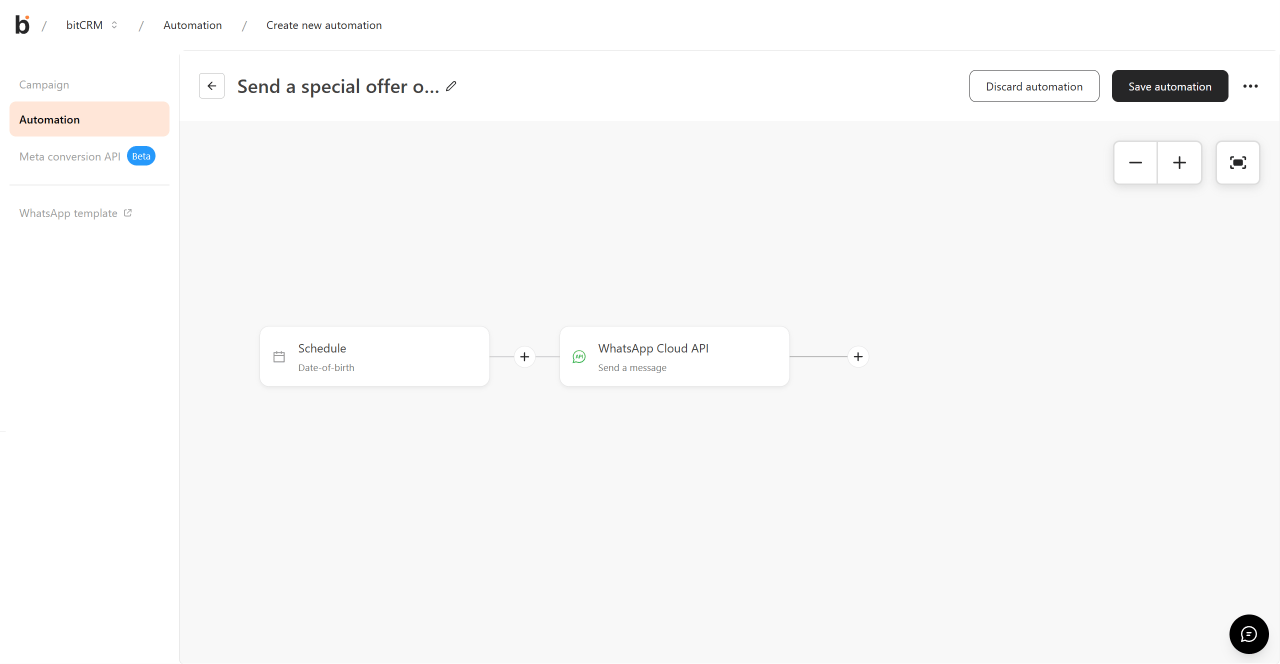
The **Automation** page includes a ready-made template, **"Send a special offer on a customer's birthday,"** in its **Explore templates** section. Using it opens the automation builder with a **Schedule** trigger and a **WhatsApp Cloud API** message step already connected — you only need to review each step and save.
## Before you start
* Open [Automation](https://app.bitbybit.studio/bitcrm/automation-new).
* Have a messaging channel connected (WhatsApp Cloud API, WhatsApp Business Coexistence, WhatsApp Business App, Instagram, or Facebook) if you want the message step ready to send right away. The template auto-selects a channel from whichever you have connected, in that priority order.
## Steps
1. Go to **Automation**.
2. In **Explore templates**, find the card titled **"Send a special offer on a customer's birthday."**
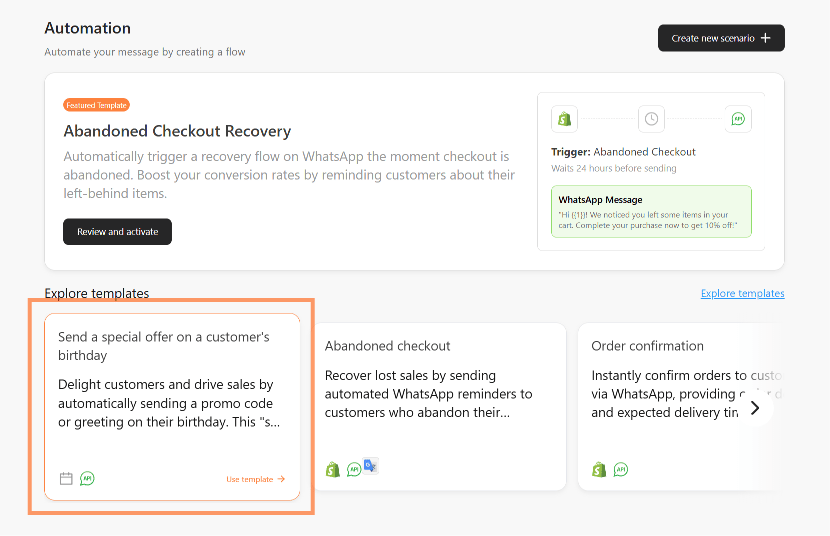 3. Click **Use template**. The builder opens with two steps already placed and connected: a **Schedule** trigger (**Date-of-birth**) and a **WhatsApp Cloud API** action (**Send a message**).
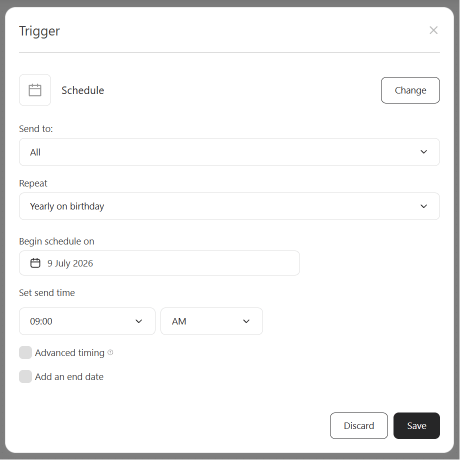
 4. Click the **Schedule** node to review the pre-filled trigger:
* **Send to:** All
* **Repeat:** Yearly on birthday — fires once a year on each customer's date of birth
* **Begin schedule on:** today's date
* **Set send time:** 09:00 AM
* **Advanced timing** and **Add an end date** are unchecked by default
4. Click the **Schedule** node to review the pre-filled trigger:
* **Send to:** All
* **Repeat:** Yearly on birthday — fires once a year on each customer's date of birth
* **Begin schedule on:** today's date
* **Set send time:** 09:00 AM
* **Advanced timing** and **Add an end date** are unchecked by default
 5. Click **Save** to close the trigger, then click the **WhatsApp Cloud API** node to review the pre-filled action:
* **Action:** Send a message
* **Message template:** the field tries to auto-select an approved WhatsApp template whose name starts with `birthday_`, and shows a **Message preview** of that template's content
* **Variable 1:** mapped to **Customer name**
5. Click **Save** to close the trigger, then click the **WhatsApp Cloud API** node to review the pre-filled action:
* **Action:** Send a message
* **Message template:** the field tries to auto-select an approved WhatsApp template whose name starts with `birthday_`, and shows a **Message preview** of that template's content
* **Variable 1:** mapped to **Customer name**
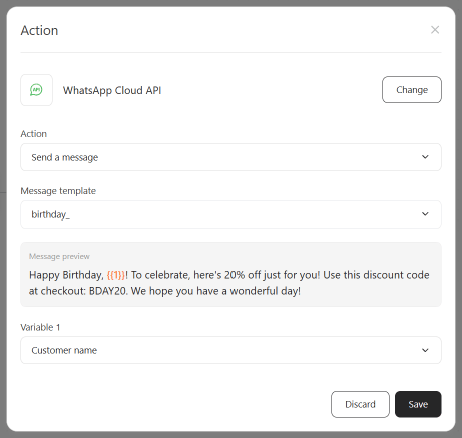 If you don't have an approved `birthday_` template yet, the **Message template** field won't auto-select one. Choose or create one from the same field — see [Choose a message template for WhatsApp API automation](/bitcrm/how-to-create-a-message-template-for-whatsapp-api-automation).
6. Click **Save**, then click **Save automation** in the top right of the builder.
## If no channel is connected
If you use the template before connecting any messaging channel, the action step can't auto-select a channel and shows a warning until you connect one from **Integrations**.
## Customize the template
* To send the message before or after the birthday instead of on the day, check **Advanced timing** and set the number of days, weeks, or months and the direction (before or after).
* To limit which customers receive the message, change **Send to** from **All** to a specific customer segment.
* To stop the automation after a certain date, check **Add an end date**.
* If your connected channel is WhatsApp Business App, Instagram, or Facebook instead of WhatsApp Cloud API or Coexistence, the action step uses an editable free-text message instead of an approved template — edit it to add your discount code or offer.
## Related
* [Set up Schedule triggers in automation](/bitcrm/how-to-set-up-schedule-triggers-in-automation)
* [Choose a message template for WhatsApp API automation](/bitcrm/how-to-create-a-message-template-for-whatsapp-api-automation)
* [Get started with automation in bitCRM](/bitcrm/how-to-create-an-automation)
* [Add steps to an automation](/bitcrm/how-to-add-steps-to-an-automation)
* [Edit, duplicate, or delete an automation](/bitcrm/how-to-edit-or-delete-an-automation)
If you don't have an approved `birthday_` template yet, the **Message template** field won't auto-select one. Choose or create one from the same field — see [Choose a message template for WhatsApp API automation](/bitcrm/how-to-create-a-message-template-for-whatsapp-api-automation).
6. Click **Save**, then click **Save automation** in the top right of the builder.
## If no channel is connected
If you use the template before connecting any messaging channel, the action step can't auto-select a channel and shows a warning until you connect one from **Integrations**.
## Customize the template
* To send the message before or after the birthday instead of on the day, check **Advanced timing** and set the number of days, weeks, or months and the direction (before or after).
* To limit which customers receive the message, change **Send to** from **All** to a specific customer segment.
* To stop the automation after a certain date, check **Add an end date**.
* If your connected channel is WhatsApp Business App, Instagram, or Facebook instead of WhatsApp Cloud API or Coexistence, the action step uses an editable free-text message instead of an approved template — edit it to add your discount code or offer.
## Related
* [Set up Schedule triggers in automation](/bitcrm/how-to-set-up-schedule-triggers-in-automation)
* [Choose a message template for WhatsApp API automation](/bitcrm/how-to-create-a-message-template-for-whatsapp-api-automation)
* [Get started with automation in bitCRM](/bitcrm/how-to-create-an-automation)
* [Add steps to an automation](/bitcrm/how-to-add-steps-to-an-automation)
* [Edit, duplicate, or delete an automation](/bitcrm/how-to-edit-or-delete-an-automation)