> ## Documentation Index
> Fetch the complete documentation index at: https://knowledge.bitbybit.studio/llms.txt
> Use this file to discover all available pages before exploring further.
# How to create a TikTok.me link
> Generate a TikTok.me link and QR code that routes shoppers into your TikTok business chat, then track each link's performance from the history table.
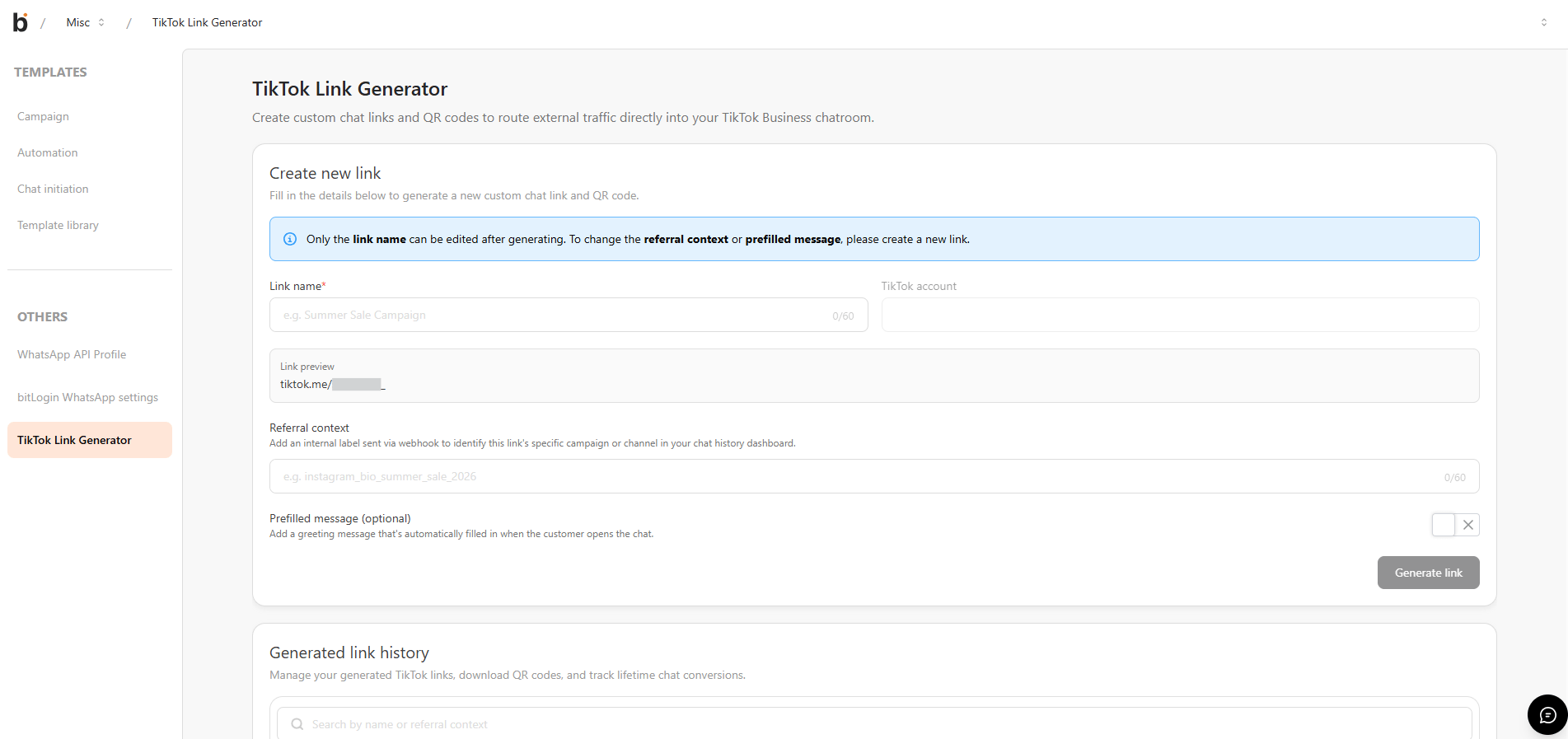 Use the **TikTok.me link generator** to create a short link that redirects shoppers straight into your TikTok business chat. Each link comes with a QR code you can share on bios, websites, or printed materials, and the link history tracks how much chat traffic it drives.
## Prerequisites
* You can open the **Miscellaneous** menu.
* Your TikTok business account is connected to bitbybit. If it is not, the generator is disabled and a **Connect to TikTok** banner appears — connect your account first, then return to this page.
## Step 1: Open the TikTok.me link generator
1. Open the **Miscellaneous** menu.
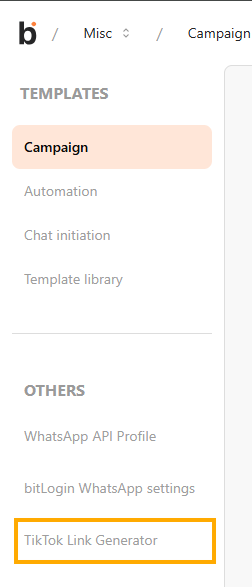
2. In the **Others** section, open **TikTok.me link generator**.
Use the **TikTok.me link generator** to create a short link that redirects shoppers straight into your TikTok business chat. Each link comes with a QR code you can share on bios, websites, or printed materials, and the link history tracks how much chat traffic it drives.
## Prerequisites
* You can open the **Miscellaneous** menu.
* Your TikTok business account is connected to bitbybit. If it is not, the generator is disabled and a **Connect to TikTok** banner appears — connect your account first, then return to this page.
## Step 1: Open the TikTok.me link generator
1. Open the **Miscellaneous** menu.
2. In the **Others** section, open **TikTok.me link generator**.
 ## Step 2: Generate a link
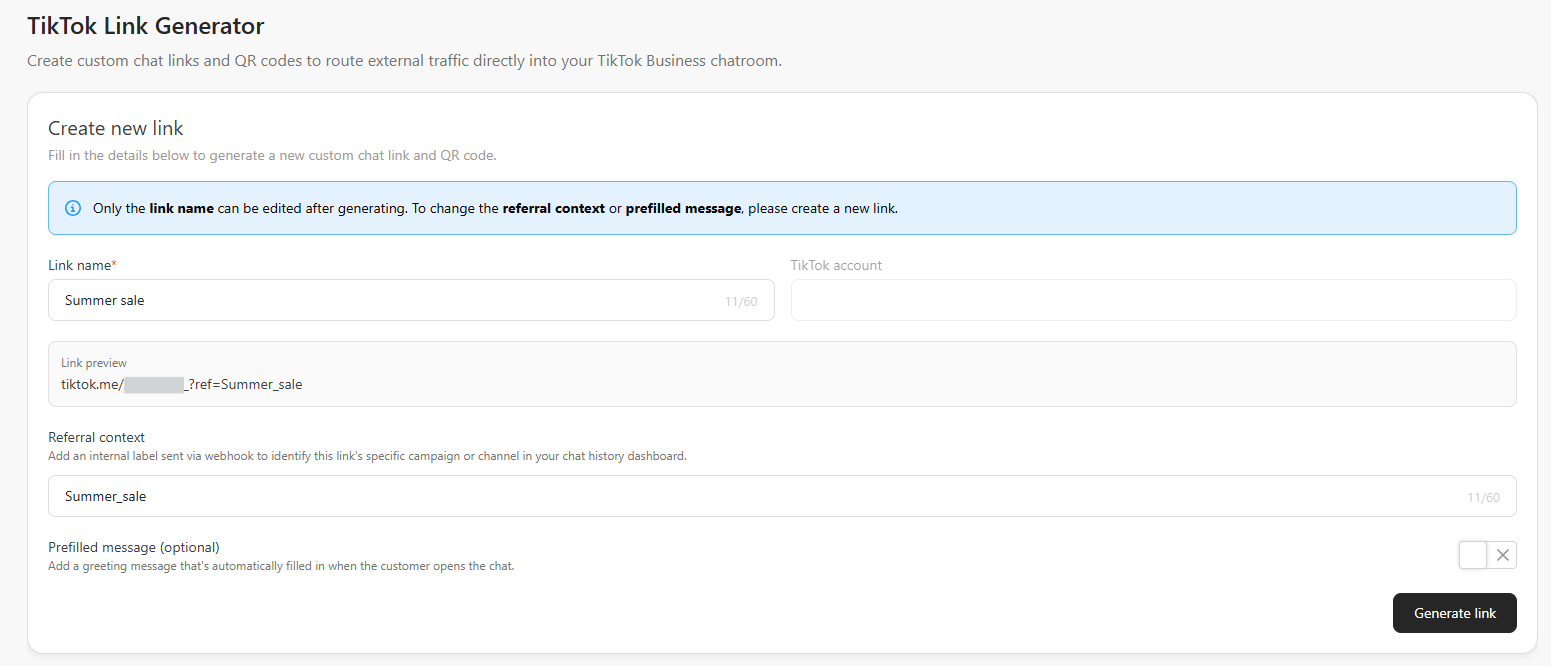
1. Fill in the required fields:
* **Link name** — a label that helps you find the link in the history table.
* **Referral context** — the tracking value appended to the link.
* **Prefilled message** — the message that opens in the TikTok chat.
## Step 2: Generate a link
1. Fill in the required fields:
* **Link name** — a label that helps you find the link in the history table.
* **Referral context** — the tracking value appended to the link.
* **Prefilled message** — the message that opens in the TikTok chat.
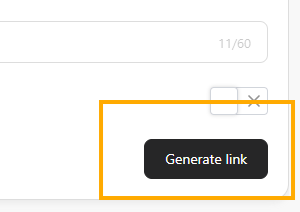
 2. Click **Generate link**.
 The system merges your inputs into a single TikTok.me link, generates a QR code, and shows a success modal with the new link. The link then appears in the history table.
Input limits:
* **Link name** accepts letters, numbers, `-`, `_`, and `.`
* **Referral context** accepts letters, numbers, `-`, `_`, and `=`
* Both fields have a maximum of **60 characters**.
After a link is generated, you can edit the **Link name**, but you cannot edit the **Referral context** or **Prefilled message**. Generate a new link if you need to change those values.
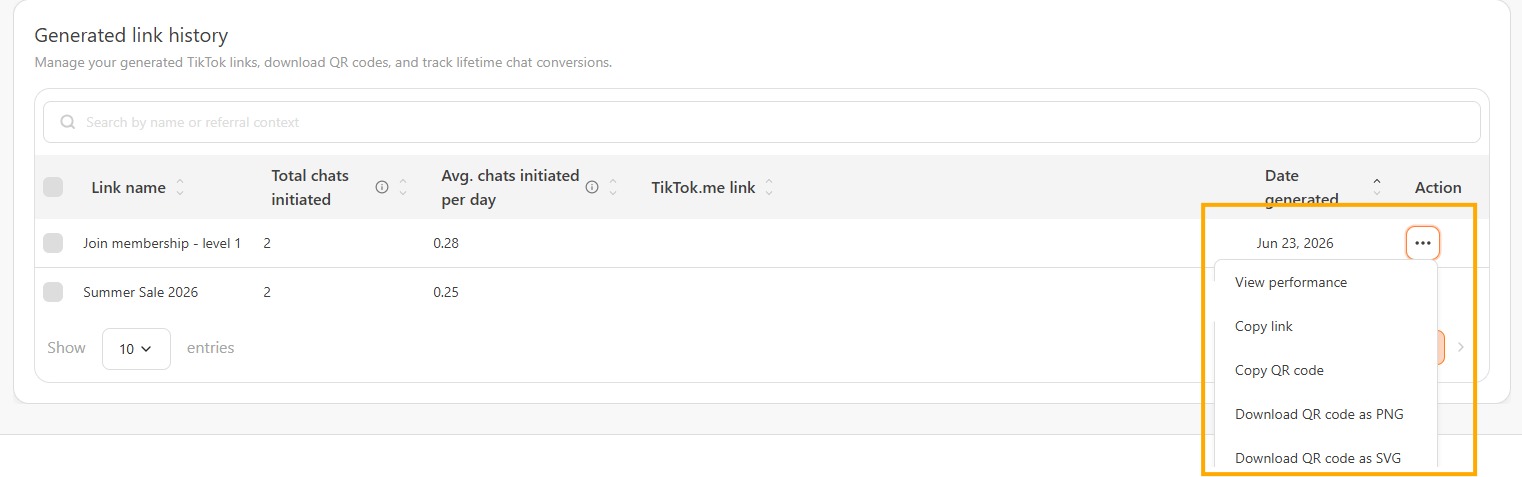
## Step 3: Copy or download the QR code
1. In the history table, find the link you want.
2. Open the **Action** menu.
3. Copy the QR code, or download it as **PNG** or **SVG**.
The system merges your inputs into a single TikTok.me link, generates a QR code, and shows a success modal with the new link. The link then appears in the history table.
Input limits:
* **Link name** accepts letters, numbers, `-`, `_`, and `.`
* **Referral context** accepts letters, numbers, `-`, `_`, and `=`
* Both fields have a maximum of **60 characters**.
After a link is generated, you can edit the **Link name**, but you cannot edit the **Referral context** or **Prefilled message**. Generate a new link if you need to change those values.
## Step 3: Copy or download the QR code
1. In the history table, find the link you want.
2. Open the **Action** menu.
3. Copy the QR code, or download it as **PNG** or **SVG**.
 ## Step 4: View link details and performance
Select a link in the history table to open its details, which include the link name, the TikTok.me link, the QR code, and the link's analytics.
## Step 4: View link details and performance
Select a link in the history table to open its details, which include the link name, the TikTok.me link, the QR code, and the link's analytics.
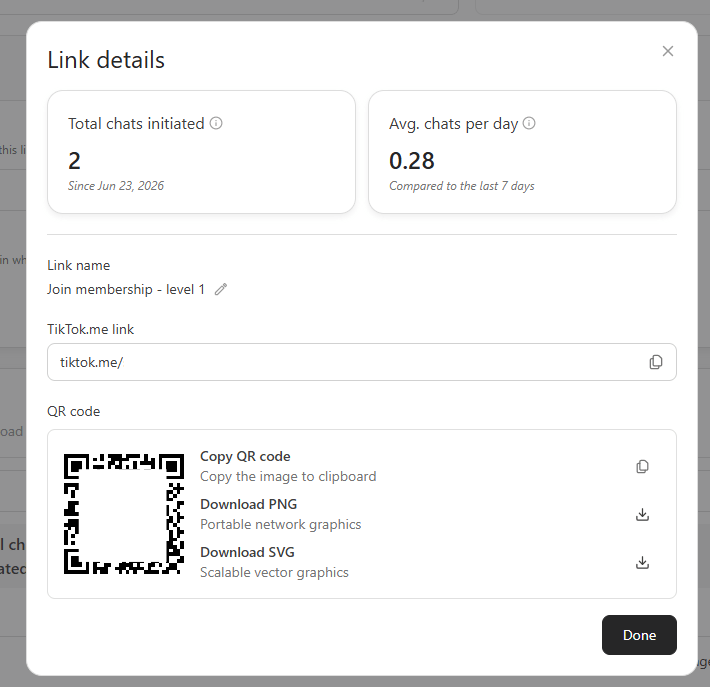 The history table tracks performance for every active link:
* **Link name** — your label for the link (edit it with the inline edit icon).
* **Total chats initiated** — the number of chat sessions started through that link.
* **Average chats per day** — total chats initiated divided by the number of days since the link was generated.
## Delete a link
1. In the history table, select the link you want to remove.
2. Click **Delete**.
3. Confirm the action in the modal.
Deleting a link removes it only from bitbybit. The TikTok.me link itself stays accessible, but bitbybit can no longer track its performance.
## Related articles
* [How to add a WhatsApp section](/bitlink/how-to-add-a-whatsapp-section)
* [How to share your bitLink to social media](/bitlink/how-to-share-your-bitlink-to-social-media)
The history table tracks performance for every active link:
* **Link name** — your label for the link (edit it with the inline edit icon).
* **Total chats initiated** — the number of chat sessions started through that link.
* **Average chats per day** — total chats initiated divided by the number of days since the link was generated.
## Delete a link
1. In the history table, select the link you want to remove.
2. Click **Delete**.
3. Confirm the action in the modal.
Deleting a link removes it only from bitbybit. The TikTok.me link itself stays accessible, but bitbybit can no longer track its performance.
## Related articles
* [How to add a WhatsApp section](/bitlink/how-to-add-a-whatsapp-section)
* [How to share your bitLink to social media](/bitlink/how-to-share-your-bitlink-to-social-media)