> ## Documentation Index
> Fetch the complete documentation index at: https://knowledge.bitbybit.studio/llms.txt
> Use this file to discover all available pages before exploring further.
# KiriminAja
> Connect your KiriminAja account with bitbybit to automate shipping and fulfillment workflows.
Connect KiriminAja to sync shipping and manage deliveries directly from bitbybit.
## Before you start: find your Company ID
1. Create your company account at [bitbybit.studio](https://bitbybit.studio/).
2. After logging in, go to **Settings**.
3. Find your **Company ID**. See [How to get your Company ID](/settings/how-to-get-company-id) if you need help locating it.
You'll need this Company ID during the KiriminAja integration request.
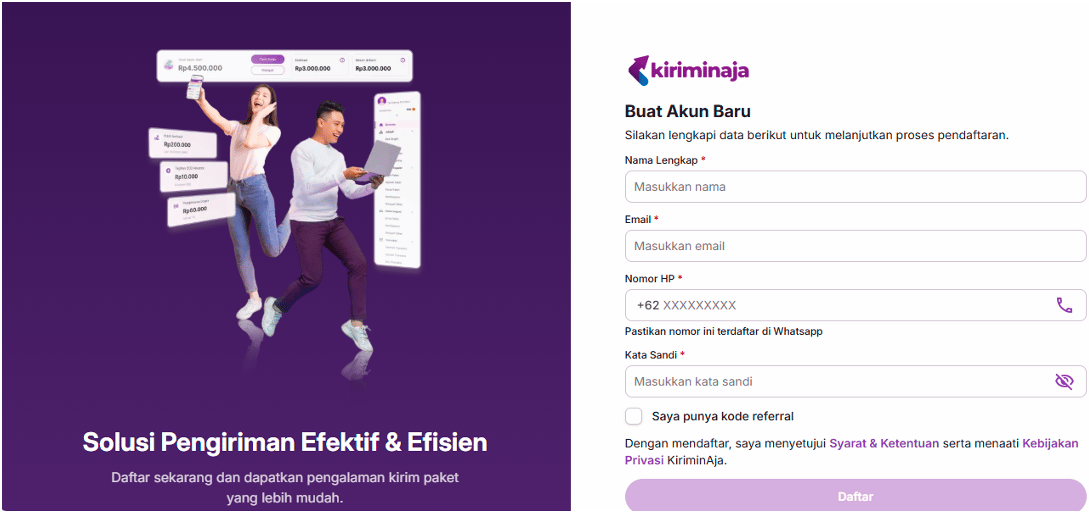
## Step 1: Sign up for KiriminAja
Visit the KiriminAja platform and sign up for a new account.
 ## Step 2: Verify your KiriminAja account
Before requesting integration, you must verify your KiriminAja account. Go to the [KiriminAja verification page](https://app.kiriminaja.com/verify) and complete all required verification steps.
## Step 2: Verify your KiriminAja account
Before requesting integration, you must verify your KiriminAja account. Go to the [KiriminAja verification page](https://app.kiriminaja.com/verify) and complete all required verification steps.
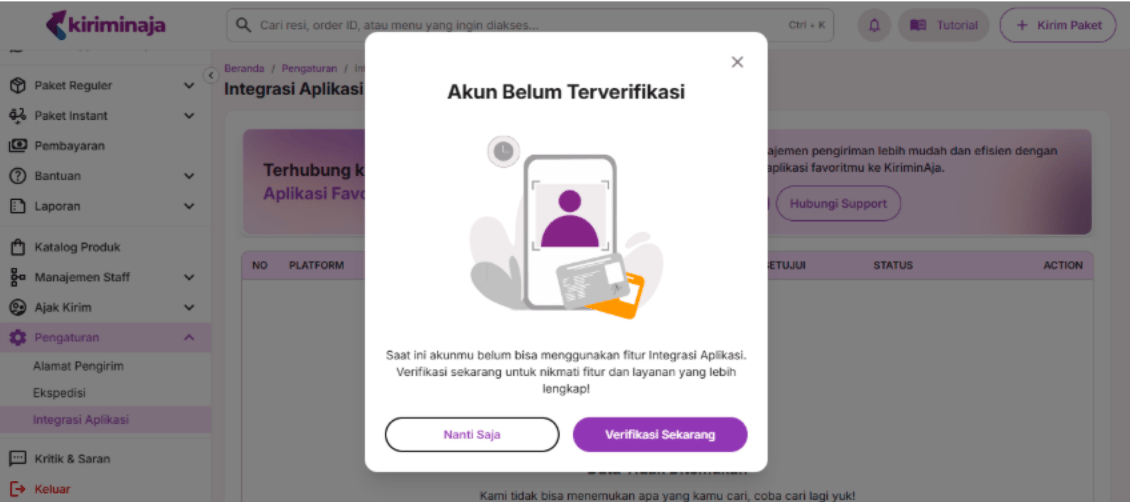 Integration requests cannot be processed if your KiriminAja account is not fully verified.
## Step 3: Access the Integrations menu on KiriminAja
From the KiriminAja dashboard, go to **Pengaturan → Integrasi Aplikasi**.
Integration requests cannot be processed if your KiriminAja account is not fully verified.
## Step 3: Access the Integrations menu on KiriminAja
From the KiriminAja dashboard, go to **Pengaturan → Integrasi Aplikasi**.
 ## Step 4: Submit an integration request for bitbybit
Choose **bitbybit** as the integration partner.
## Step 4: Submit an integration request for bitbybit
Choose **bitbybit** as the integration partner.
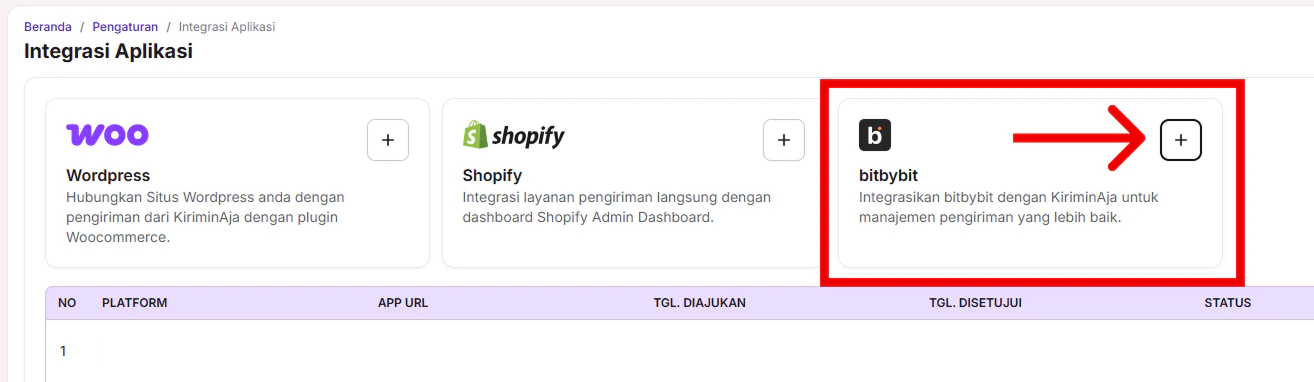
 Input your **Company ID from bitbybit**, then click **Hubungkan**.
## Step 5: Wait for KiriminAja approval
KiriminAja reviews your request. Approval typically completes in as fast as 2 hours.
## Step 6: Copy the setup key from KiriminAja
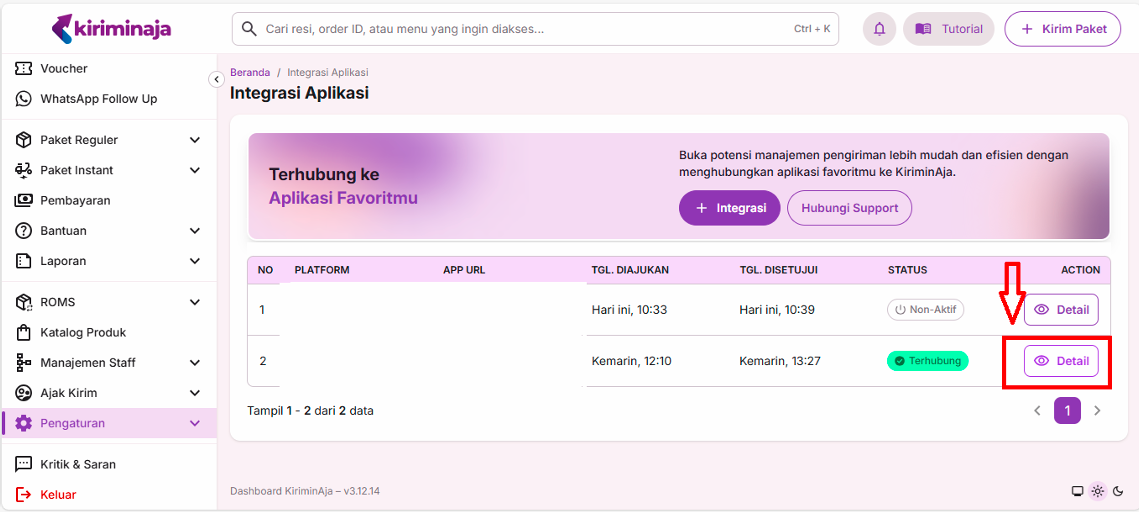
Once approved, open the **Integrasi Aplikasi** menu again and copy the **Setup Key** provided by KiriminAja.
Input your **Company ID from bitbybit**, then click **Hubungkan**.
## Step 5: Wait for KiriminAja approval
KiriminAja reviews your request. Approval typically completes in as fast as 2 hours.
## Step 6: Copy the setup key from KiriminAja
Once approved, open the **Integrasi Aplikasi** menu again and copy the **Setup Key** provided by KiriminAja.
 ## Step 7: Connect KiriminAja on bitbybit
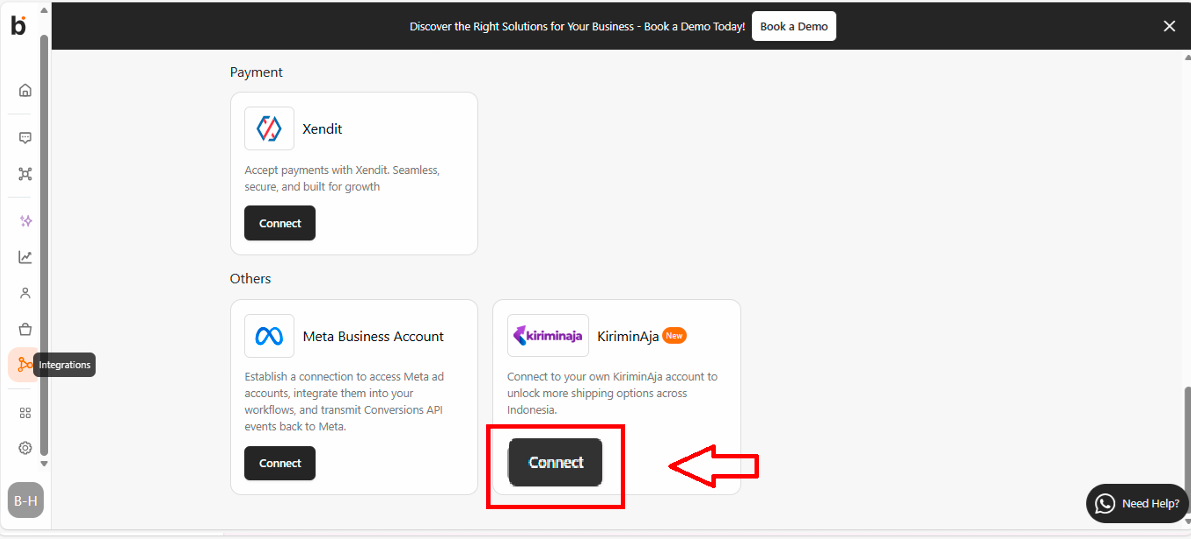
Go to [Integrations](https://app.bitbybit.studio/integrations) in bitbybit and click **Connect to KiriminAja**.
## Step 7: Connect KiriminAja on bitbybit
Go to [Integrations](https://app.bitbybit.studio/integrations) in bitbybit and click **Connect to KiriminAja**.
 ## Step 8: Paste the setup key
Paste the **Setup Key** copied from KiriminAja into the integration request field on bitbybit.
## Step 8: Paste the setup key
Paste the **Setup Key** copied from KiriminAja into the integration request field on bitbybit.
.png?fit=max&auto=format&n=WlT_6AuzhITpdgTf&q=85&s=d5ed7ff824dd3fac307ba34732718c1a) ## Step 9: Save and complete the connection
Click **Save**. Your KiriminAja account is now connected to bitbybit.
You can now start using KiriminAja shipping services directly from the bitbybit platform.
## Related
* [Ship an order with KiriminAja](/whatsapp-commerce/how-to-ship-an-order-with-kiriminaja)
* [GoSend](/integrations/gosend)
* [RideBlitz](/integrations/rideblitz)
## Step 9: Save and complete the connection
Click **Save**. Your KiriminAja account is now connected to bitbybit.
You can now start using KiriminAja shipping services directly from the bitbybit platform.
## Related
* [Ship an order with KiriminAja](/whatsapp-commerce/how-to-ship-an-order-with-kiriminaja)
* [GoSend](/integrations/gosend)
* [RideBlitz](/integrations/rideblitz)