> ## Documentation Index
> Fetch the complete documentation index at: https://knowledge.bitbybit.studio/llms.txt
> Use this file to discover all available pages before exploring further.
# bitLoyalty analytics reference
> Look up every KPI, chart, ranking, Activity Log column, and drawer in the bitLoyalty tab of Analytics, and how each number is calculated.
The **bitLoyalty** tab in **Analytics** shows whether your loyalty program is working. See how many points customers earn, how many they use, and which rewards perform best. It covers Shopify and Commerce in one view and uses the same date range picker as the other Analytics tabs.
Select **Analytics** in the sidebar.
The default range is **Last 7 Days**.
 ## Exchanged and used mean different things
Analytics separates two steps:
* **Exchanged:** a customer trades points for a reward and receives a voucher code. The reward may not be used yet. The **Activity Log** labels this action **Redeemed**.
* **Used:** the customer uses the reward code at checkout. Cancelled and refunded orders are not counted.
Metrics with **used** in the name count only rewards used on orders. **Redeemed** in the **Activity Log** and on a customer's profile counts the points trade, as on [Reward options](/loyalty/reward-options).
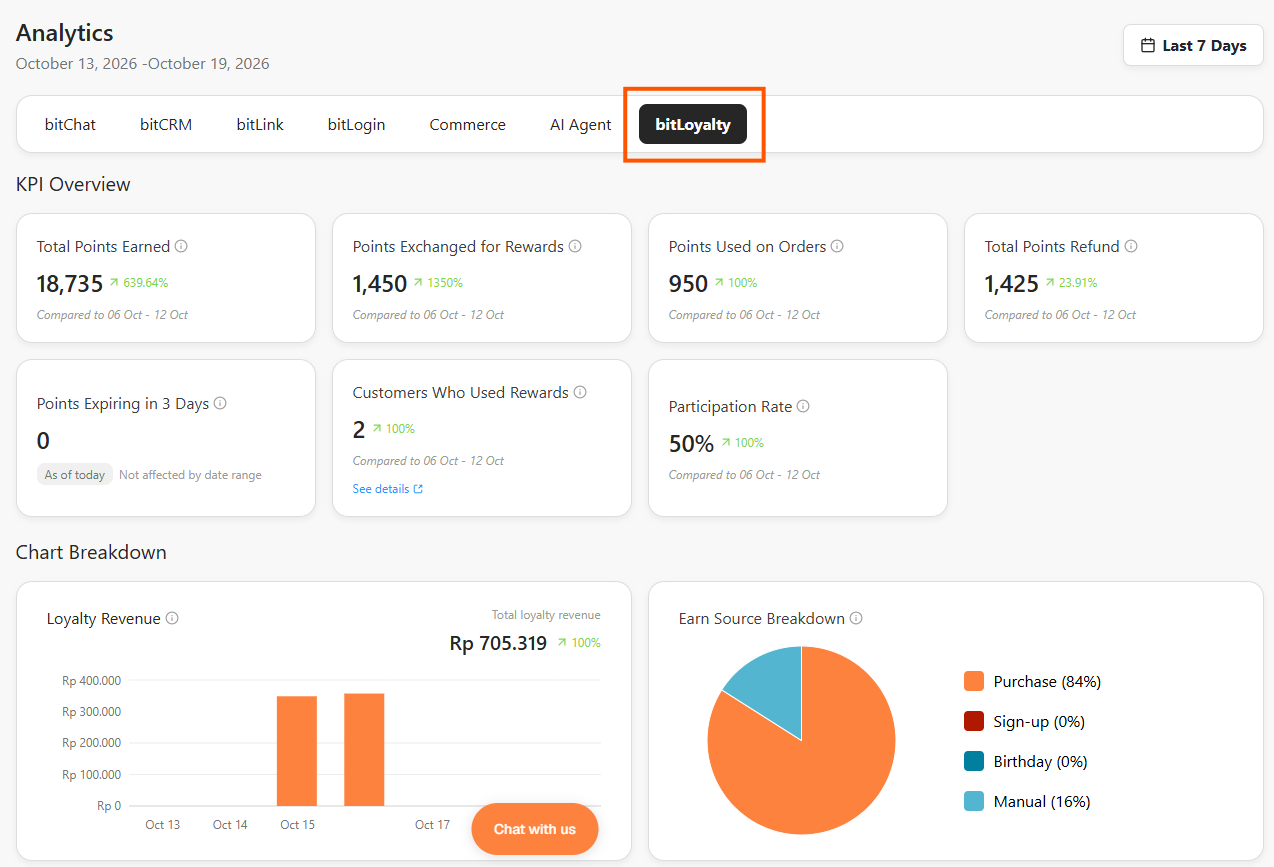
## KPI overview
Each card shows the value for the selected date range. It also shows the change from the previous period of the same length, for example **Compared to 06 Oct - 12 Oct**.
| KPI | What it shows |
| - | - |
| **Total Points Earned** | Points issued to members in the selected range. |
| **Points Exchanged for Rewards** | Points members exchanged for rewards in the selected range. The reward may not be used yet. |
| **Points Used on Orders** | Points from rewards exchanged and used on orders, counted by the date the code was used. The gap with **Points Exchanged for Rewards** is points exchanged but not used yet. |
| **Total Points Refund** | Points taken back from refunded or cancelled orders, or deducted manually, in the selected range. |
| **Points Expiring in N Days** | Points that will expire in the next N days, as of today. Not affected by the date range. |
| **Customers Who Used Rewards** | Unique customers who used a reward on an order in the selected range. |
| **Participation Rate** | Share of customers with points activity in the selected range who used a reward. Points activity includes earning, exchanging, using, refunding, and points expiring. |
### Points expiring in N days
The number of days follows your [points expiry](/loyalty/how-to-set-points-expiry) period:
| Points expire after | Card title |
| - | - |
| 7 days | **Points Expiring in 3 Days** |
| 30 days | **Points Expiring in 14 Days** |
| 90 days | **Points Expiring in 30 Days** |
| 1 year | **Points Expiring in 30 Days** |
The card is marked **As of today** and **Not affected by date range**. Changing the date range does not change its value.
If you use bitLoyalty but have not turned on points expiry, the card shows `-` and the message **Points expiry is not turned on yet.** Select **Manage expiry** to open **bitLoyalty > Earn points**, then [set points expiry](/loyalty/how-to-set-points-expiry).
## Charts
## Exchanged and used mean different things
Analytics separates two steps:
* **Exchanged:** a customer trades points for a reward and receives a voucher code. The reward may not be used yet. The **Activity Log** labels this action **Redeemed**.
* **Used:** the customer uses the reward code at checkout. Cancelled and refunded orders are not counted.
Metrics with **used** in the name count only rewards used on orders. **Redeemed** in the **Activity Log** and on a customer's profile counts the points trade, as on [Reward options](/loyalty/reward-options).
## KPI overview
Each card shows the value for the selected date range. It also shows the change from the previous period of the same length, for example **Compared to 06 Oct - 12 Oct**.
| KPI | What it shows |
| - | - |
| **Total Points Earned** | Points issued to members in the selected range. |
| **Points Exchanged for Rewards** | Points members exchanged for rewards in the selected range. The reward may not be used yet. |
| **Points Used on Orders** | Points from rewards exchanged and used on orders, counted by the date the code was used. The gap with **Points Exchanged for Rewards** is points exchanged but not used yet. |
| **Total Points Refund** | Points taken back from refunded or cancelled orders, or deducted manually, in the selected range. |
| **Points Expiring in N Days** | Points that will expire in the next N days, as of today. Not affected by the date range. |
| **Customers Who Used Rewards** | Unique customers who used a reward on an order in the selected range. |
| **Participation Rate** | Share of customers with points activity in the selected range who used a reward. Points activity includes earning, exchanging, using, refunding, and points expiring. |
### Points expiring in N days
The number of days follows your [points expiry](/loyalty/how-to-set-points-expiry) period:
| Points expire after | Card title |
| - | - |
| 7 days | **Points Expiring in 3 Days** |
| 30 days | **Points Expiring in 14 Days** |
| 90 days | **Points Expiring in 30 Days** |
| 1 year | **Points Expiring in 30 Days** |
The card is marked **As of today** and **Not affected by date range**. Changing the date range does not change its value.
If you use bitLoyalty but have not turned on points expiry, the card shows `-` and the message **Points expiry is not turned on yet.** Select **Manage expiry** to open **bitLoyalty > Earn points**, then [set points expiry](/loyalty/how-to-set-points-expiry).
## Charts
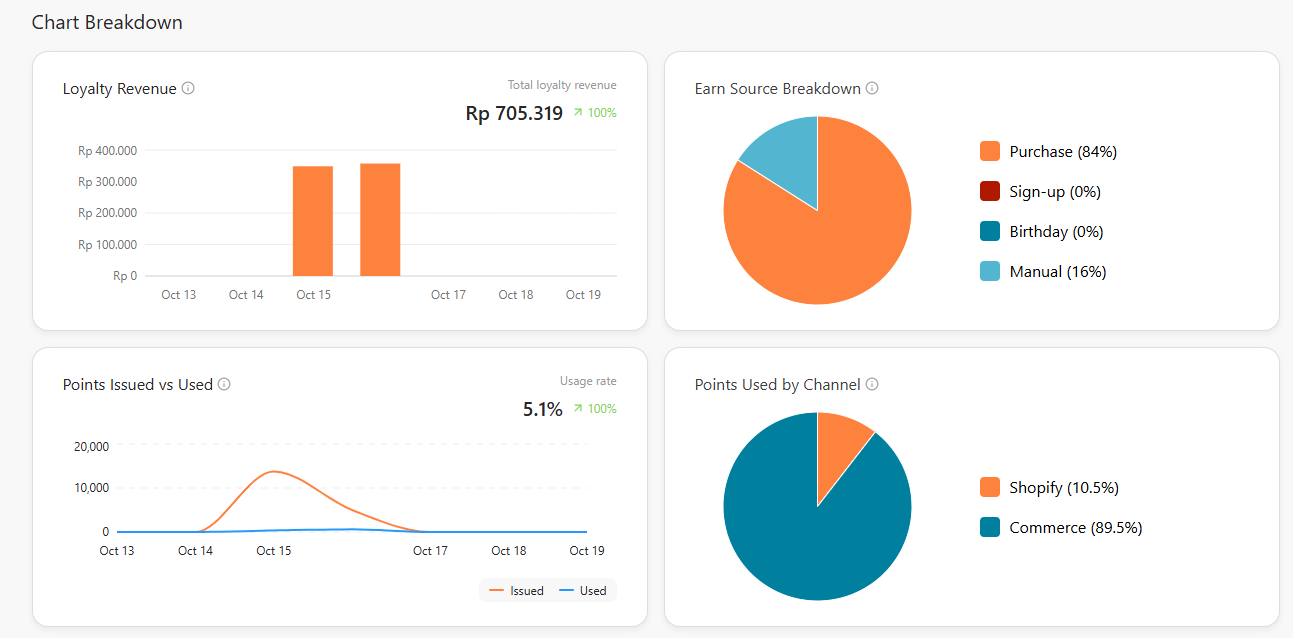 Revenue from orders that used a loyalty reward code. It is shown per day, week, or month, depending on the date range.
* A member who earned points but never exchanged them is not counted, so the number is intentionally conservative.
* An order with more than one loyalty code is counted once.
* Test orders and cancelled orders are excluded.
The share of points earned from each source: **Purchase**, **Sign-up**, **Birthday**, and **Manual**. Points from any other automation appear as **Other automations**.
When Sign-up and Birthday are not active and Shopify is not connected, only **Purchase** and **Manual** are shown. The percentages are recalculated from those two.
A line chart with two series:
* **Issued:** points issued to members.
* **Used:** points from rewards that were used, plotted on the day the code was used.
The **Usage rate** in the corner is **Points Used on Orders ÷ Points Issued × 100**.
The share of points from used rewards in each channel, **Shopify** or **Commerce**.
The chart is hidden when your workspace has only one channel. When no rewards have been used yet, it shows **No rewards used yet**.
The vertical axis of **Loyalty Revenue** and **Points Issued vs Used** adjusts to the data in the selected range. It always has 5 ticks and shows full numbers, such as `Rp 20.000.000` or `1,000`.
## Ranked lists
* **Top 5 Loyalty Customers:** the 5 customers who used the most loyalty points on orders in the selected range. The number on the right is their total points used.
* **Reward Performance Ranking:** rewards ranked by their share of all rewards used at checkout. **Total reward performance** shows the combined value in Rp. The list scrolls when you have many rewards.
## Activity Log
The **Activity Log** lists points transactions across all customers. Your team can check a customer's history without leaving Analytics. The balances match the **Points history** on each customer's profile.
Revenue from orders that used a loyalty reward code. It is shown per day, week, or month, depending on the date range.
* A member who earned points but never exchanged them is not counted, so the number is intentionally conservative.
* An order with more than one loyalty code is counted once.
* Test orders and cancelled orders are excluded.
The share of points earned from each source: **Purchase**, **Sign-up**, **Birthday**, and **Manual**. Points from any other automation appear as **Other automations**.
When Sign-up and Birthday are not active and Shopify is not connected, only **Purchase** and **Manual** are shown. The percentages are recalculated from those two.
A line chart with two series:
* **Issued:** points issued to members.
* **Used:** points from rewards that were used, plotted on the day the code was used.
The **Usage rate** in the corner is **Points Used on Orders ÷ Points Issued × 100**.
The share of points from used rewards in each channel, **Shopify** or **Commerce**.
The chart is hidden when your workspace has only one channel. When no rewards have been used yet, it shows **No rewards used yet**.
The vertical axis of **Loyalty Revenue** and **Points Issued vs Used** adjusts to the data in the selected range. It always has 5 ticks and shows full numbers, such as `Rp 20.000.000` or `1,000`.
## Ranked lists
* **Top 5 Loyalty Customers:** the 5 customers who used the most loyalty points on orders in the selected range. The number on the right is their total points used.
* **Reward Performance Ranking:** rewards ranked by their share of all rewards used at checkout. **Total reward performance** shows the combined value in Rp. The list scrolls when you have many rewards.
## Activity Log
The **Activity Log** lists points transactions across all customers. Your team can check a customer's history without leaving Analytics. The balances match the **Points history** on each customer's profile.
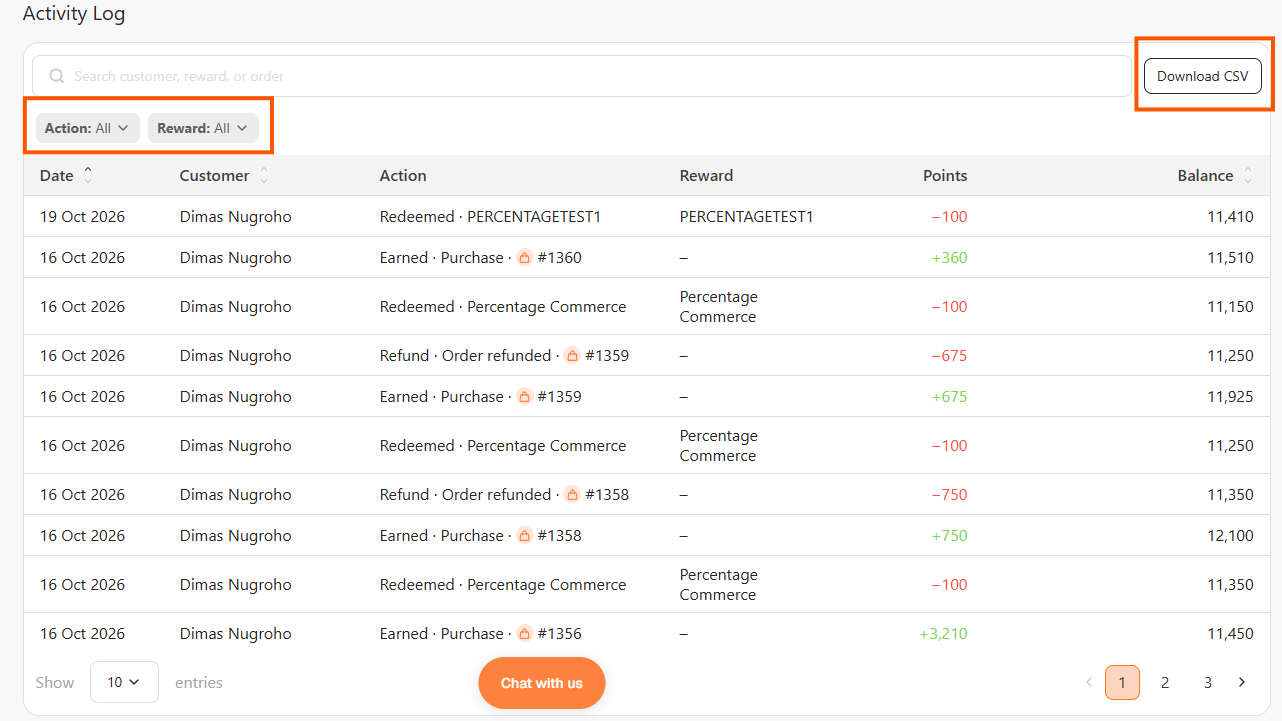 | Column | What it shows |
| - | - |
| **Date** | When the transaction happened. |
| **Customer** | The customer's name. |
| **Action** | The type of transaction and its detail, for example `Earned · Purchase`, `Redeemed` (points exchanged for a reward), or `Expired · Inactivity`. |
| **Reward** | The reward name for an exchange. Shows `–` for other actions. |
| **Points** | Points added (`+`) or removed (`−`). |
| **Balance** | The customer's points balance after the transaction. |
* **Search customer, reward, or order:** find rows by customer name, reward name, or order number.
* **Action** and **Reward** filters: show only the actions or rewards you pick.
* **Download CSV:** export the log.
* Column headings **Date**, **Customer**, and **Balance** sort the table.
* **Show entries:** choose how many rows appear per page. The default is 10.
## Drawers
Select **See details** on a KPI card to open a drawer with the customers behind the number.
Open it from the **Points Expiring** card to see which customers are about to lose points.
| Column | What it shows |
| - | - |
| **Date** | When the transaction happened. |
| **Customer** | The customer's name. |
| **Action** | The type of transaction and its detail, for example `Earned · Purchase`, `Redeemed` (points exchanged for a reward), or `Expired · Inactivity`. |
| **Reward** | The reward name for an exchange. Shows `–` for other actions. |
| **Points** | Points added (`+`) or removed (`−`). |
| **Balance** | The customer's points balance after the transaction. |
* **Search customer, reward, or order:** find rows by customer name, reward name, or order number.
* **Action** and **Reward** filters: show only the actions or rewards you pick.
* **Download CSV:** export the log.
* Column headings **Date**, **Customer**, and **Balance** sort the table.
* **Show entries:** choose how many rows appear per page. The default is 10.
## Drawers
Select **See details** on a KPI card to open a drawer with the customers behind the number.
Open it from the **Points Expiring** card to see which customers are about to lose points.

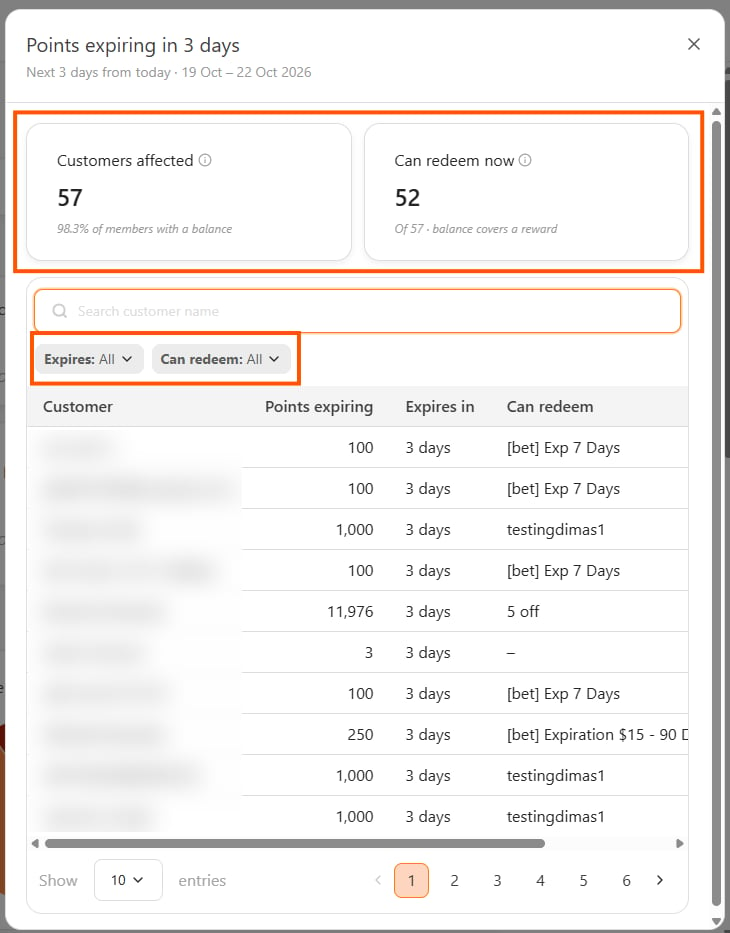 * **Customers affected:** how many customers have points expiring in the window.
* **Can redeem now:** how many of them have enough points to exchange for at least one reward.
* **Table:** lists **Customer**, **Points expiring**, **Expires in** (in days), **Can redeem**, and **Last activity**. The soonest expiry comes first.
**Can redeem** shows the most expensive reward the customer's balance still covers. If two rewards cost the same, it shows the one used most often. It shows `–` when the balance does not cover any reward.
Open it from the **Customers Who Used Rewards** card. It covers the selected date range.
* **Customers affected:** how many customers have points expiring in the window.
* **Can redeem now:** how many of them have enough points to exchange for at least one reward.
* **Table:** lists **Customer**, **Points expiring**, **Expires in** (in days), **Can redeem**, and **Last activity**. The soonest expiry comes first.
**Can redeem** shows the most expensive reward the customer's balance still covers. If two rewards cost the same, it shows the one used most often. It shows `–` when the balance does not cover any reward.
Open it from the **Customers Who Used Rewards** card. It covers the selected date range.

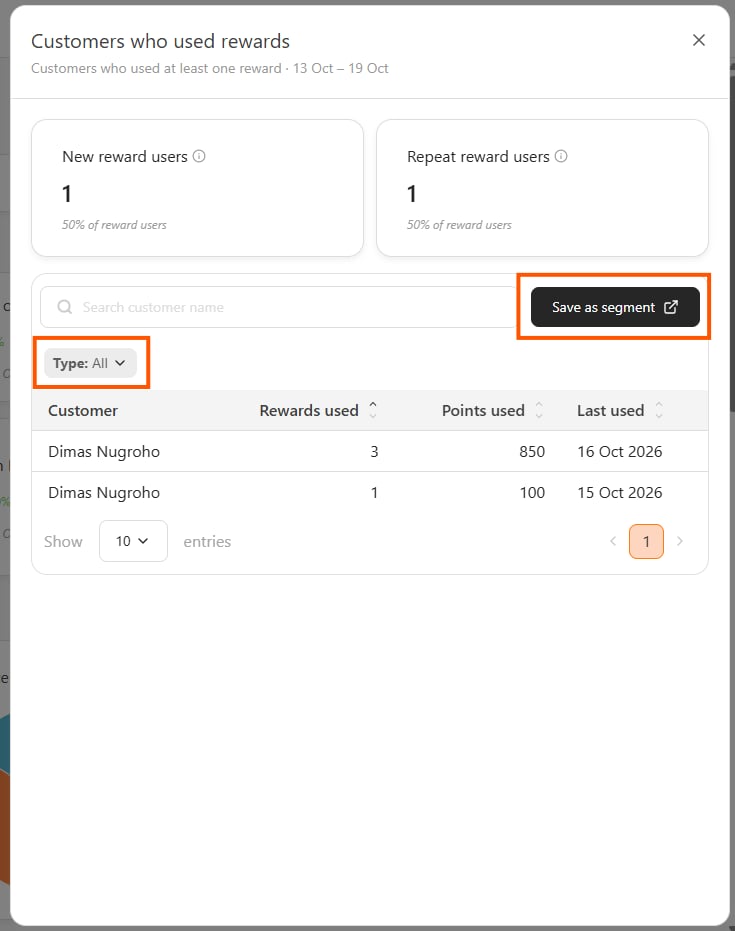 * **New reward users:** customers who used a reward once.
* **Repeat reward users:** customers who used rewards more than once.
* Each card shows the count and its share of all reward users.
* The table lists **Customer**, **Rewards used**, **Points used**, and **Last used**. Use **Search customer name** to find a customer.
* The **Type** filter has three options: **All**, **One-time reward user**, and **Repeat reward user**.
## Save a segment from the drawer
Turn the customers in the **Customers who used rewards** drawer into a segment.
In the drawer, set the **Type** filter to **One-time reward user** or **Repeat reward user**.
The new segment page opens with a loyalty condition already filled in:
| Type | Condition filled in |
| - | - |
| **One-time reward user** | **Lifetime redeemed loyalty points** **Exactly** 1 |
| **Repeat reward user** | **Lifetime redeemed loyalty points** **At least** 2 |
Adjust the conditions if needed, then save. See [Create a customer segment](/bitcrm/how-to-create-a-customer-segment).
The **Lifetime redeemed loyalty points** condition counts points, not the number of redemptions. A segment saved this way can include different customers than the drawer list.
## Frequently asked questions
**Points Exchanged for Rewards** counts points when a customer trades them for a reward. **Points Used on Orders** counts them only after the reward code is used at checkout. The difference is points exchanged for rewards that customers have not used yet.
The card looks ahead from today, not back over a past period. It always shows points that will expire in the next few days.
The rate divides customers who used a reward by all customers with points activity in the range. Any new points activity adds a customer to that count. This includes a purchase that earns points or points that expire from inactivity. The rate can fall even when the number of reward users stays the same.
The chart compares Shopify and Commerce. If your workspace uses only one of them, there is nothing to compare, so the chart is hidden.
## Related
* [bitLoyalty overview](/loyalty/overview)
* [Reward options](/loyalty/reward-options)
* [Set points expiry](/loyalty/how-to-set-points-expiry)
* [Create a customer segment](/bitcrm/how-to-create-a-customer-segment)
This documentation is built and hosted on [Mintlify](https://mintlify.com), a developer documentation platform.
* **New reward users:** customers who used a reward once.
* **Repeat reward users:** customers who used rewards more than once.
* Each card shows the count and its share of all reward users.
* The table lists **Customer**, **Rewards used**, **Points used**, and **Last used**. Use **Search customer name** to find a customer.
* The **Type** filter has three options: **All**, **One-time reward user**, and **Repeat reward user**.
## Save a segment from the drawer
Turn the customers in the **Customers who used rewards** drawer into a segment.
In the drawer, set the **Type** filter to **One-time reward user** or **Repeat reward user**.
The new segment page opens with a loyalty condition already filled in:
| Type | Condition filled in |
| - | - |
| **One-time reward user** | **Lifetime redeemed loyalty points** **Exactly** 1 |
| **Repeat reward user** | **Lifetime redeemed loyalty points** **At least** 2 |
Adjust the conditions if needed, then save. See [Create a customer segment](/bitcrm/how-to-create-a-customer-segment).
The **Lifetime redeemed loyalty points** condition counts points, not the number of redemptions. A segment saved this way can include different customers than the drawer list.
## Frequently asked questions
**Points Exchanged for Rewards** counts points when a customer trades them for a reward. **Points Used on Orders** counts them only after the reward code is used at checkout. The difference is points exchanged for rewards that customers have not used yet.
The card looks ahead from today, not back over a past period. It always shows points that will expire in the next few days.
The rate divides customers who used a reward by all customers with points activity in the range. Any new points activity adds a customer to that count. This includes a purchase that earns points or points that expire from inactivity. The rate can fall even when the number of reward users stays the same.
The chart compares Shopify and Commerce. If your workspace uses only one of them, there is nothing to compare, so the chart is hidden.
## Related
* [bitLoyalty overview](/loyalty/overview)
* [Reward options](/loyalty/reward-options)
* [Set points expiry](/loyalty/how-to-set-points-expiry)
* [Create a customer segment](/bitcrm/how-to-create-a-customer-segment)
This documentation is built and hosted on [Mintlify](https://mintlify.com), a developer documentation platform.