> ## Documentation Index
> Fetch the complete documentation index at: https://knowledge.bitbybit.studio/llms.txt
> Use this file to discover all available pages before exploring further.
# Review and manage draft orders
> Review a draft order, then approve/reject an AI-created draft or save/discard a manually parked one.
Use this page to review a draft order, edit it if needed, and decide what happens to it next.
## Overview
A **draft order** is an order with **no payment link generated and nothing sent to the customer yet**. Drafts exist so a person can check an order before it goes any further — useful when your AI agent takes orders over WhatsApp and you want a human check before a payment link goes out.
A draft can come from two places, and each has different actions available:
* **Your AI agent**, if you turn on **Draft-first review** for the Create order skill in AI Studio — see [Set up your AI agent to create draft orders](/ai-studio/how-to-setup-skillset-in-ai-studio#create-order). These drafts are **Approved** or **Rejected**.
* **A CS agent**, by choosing **Save as draft** instead of **Create order** on the order form. These drafts are **saved as an actual order** or **discarded**.
## Before you start
* Open [Orders](https://app.bitbybit.studio/commerce/orders) under **Commerce**.
* Make sure the products, customer, and shipping details you need are already available, the same as for a regular order.
## Create a draft manually
1. Start a new order from **Commerce > Orders**.
2. Fill in items, customer, address, shipping, payment method, notes, and tags, the same as [creating a regular order](/whatsapp-commerce/how-to-create-an-order).
3. Click **Save as draft** instead of **Create order**.
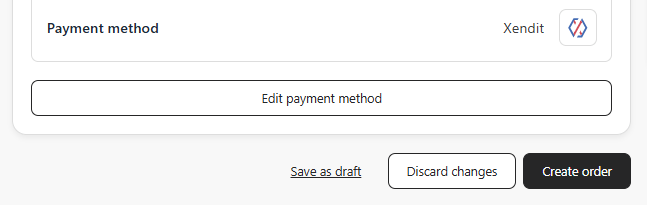 You're taken to the draft's detail page after it saves.
## Find your drafts
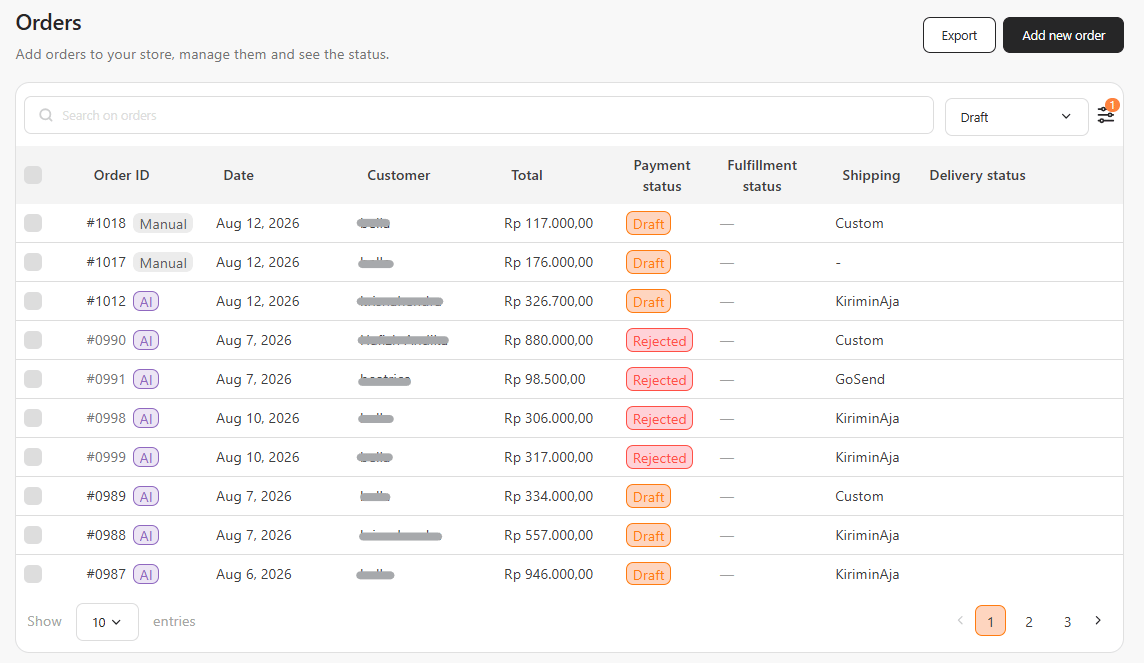
Open **Commerce > Orders** and select the **Draft** tab. It lists both draft and rejected orders. Each row shows a **Draft** or **Rejected** status badge, plus an origin chip — **AI** or **Manual** — showing who created it and which actions you'll see on that draft.
You're taken to the draft's detail page after it saves.
## Find your drafts
Open **Commerce > Orders** and select the **Draft** tab. It lists both draft and rejected orders. Each row shows a **Draft** or **Rejected** status badge, plus an origin chip — **AI** or **Manual** — showing who created it and which actions you'll see on that draft.
 ## Review and edit a draft
Open a draft from the **Draft** tab. Unlike a placed order, a draft's items, customer, address, shipping, payment method, notes, and tags are all still editable directly on the page — update anything that needs correcting before you act on it.
A **Rejected** draft is read-only — once rejected, its items, customer, address, and notes can no longer be edited, since there's nothing left to act on.
## AI-created drafts: approve or reject
Drafts your AI agent created (origin chip **AI**) are reviewed with **Approve** or **Reject**.
### Approve
1. Click **Approve order**.
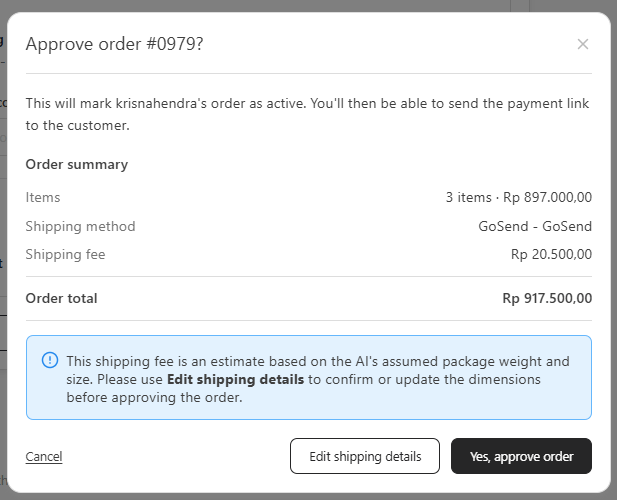
2. Confirm in the **Approve order** dialog. If the order uses a real-time courier — GoSend or Blitz — the shipping fee is re-quoted here before you confirm.
## Review and edit a draft
Open a draft from the **Draft** tab. Unlike a placed order, a draft's items, customer, address, shipping, payment method, notes, and tags are all still editable directly on the page — update anything that needs correcting before you act on it.
A **Rejected** draft is read-only — once rejected, its items, customer, address, and notes can no longer be edited, since there's nothing left to act on.
## AI-created drafts: approve or reject
Drafts your AI agent created (origin chip **AI**) are reviewed with **Approve** or **Reject**.
### Approve
1. Click **Approve order**.
2. Confirm in the **Approve order** dialog. If the order uses a real-time courier — GoSend or Blitz — the shipping fee is re-quoted here before you confirm.
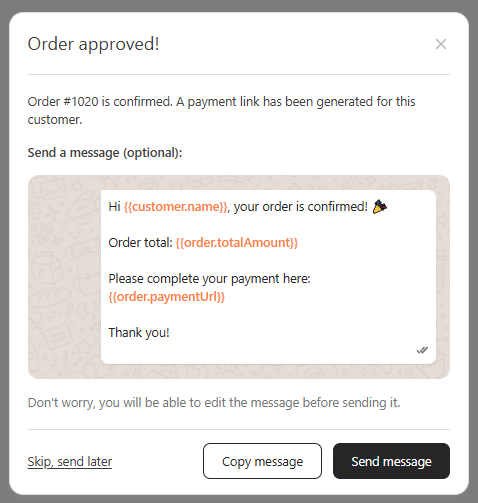
 3. If the order uses a payment method that needs a link (for example Xendit or DOKU), an **Order approved!** screen opens with an editable WhatsApp message that includes the payment link — edit it if needed, then **Copy message**, **Skip, send later**, or **Send message** to open the conversation with the customer. Otherwise you're taken straight to the order, and you can send the payment link from there.
 ### Reject
1. Click **Reject**.
2. Optionally enter a reason (for example, "Item is out of stock").
3. Click **Reject draft** to confirm.
### Reject
1. Click **Reject**.
2. Optionally enter a reason (for example, "Item is out of stock").
3. Click **Reject draft** to confirm.
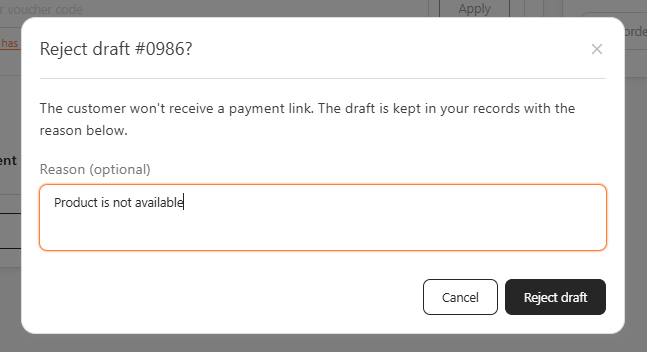 The draft is kept for your records with a **Rejected** badge. You'll get the same option to send (or skip) a WhatsApp message letting the customer know, but no payment link is generated.
## Manual drafts: save as an actual order or discard
Drafts a CS agent parked (origin chip **Manual**) are handled with **Save as actual order** or **Discard**.
### Save as actual order
1. Click **Save as actual order**.
2. Confirm in the **Save this as an actual order?** dialog. As with Approve, the shipping fee is re-quoted here for real-time couriers (GoSend, Blitz).
3. If a payment method needing a link is used, an **Order created!** screen opens with the same editable WhatsApp message options (**Copy message**, **Skip, send later**, **Send message**) as approving an AI draft. Otherwise you're taken straight to the new order.
### Discard
1. Click **Discard**.
2. Confirm in the **Discard this draft?** dialog.
Discarding removes the draft entirely — unlike rejecting an AI draft, it isn't kept afterward.
## What happens next
* **Approved** or **saved-as-actual** drafts become real orders — track them like any other order, including payment and fulfillment status.
* **Rejected** AI drafts stay visible under the **Draft** tab with a **Rejected** badge, for reference.
* **Discarded** manual drafts are removed and won't appear anywhere.
## Related
* [Create an order](/whatsapp-commerce/how-to-create-an-order)
* [Understand order statuses in Commerce](/whatsapp-commerce/understanding-your-order-statuses-on-commerce)
* [Set up your AI agent to create draft orders](/ai-studio/how-to-setup-skillset-in-ai-studio#create-order)
The draft is kept for your records with a **Rejected** badge. You'll get the same option to send (or skip) a WhatsApp message letting the customer know, but no payment link is generated.
## Manual drafts: save as an actual order or discard
Drafts a CS agent parked (origin chip **Manual**) are handled with **Save as actual order** or **Discard**.
### Save as actual order
1. Click **Save as actual order**.
2. Confirm in the **Save this as an actual order?** dialog. As with Approve, the shipping fee is re-quoted here for real-time couriers (GoSend, Blitz).
3. If a payment method needing a link is used, an **Order created!** screen opens with the same editable WhatsApp message options (**Copy message**, **Skip, send later**, **Send message**) as approving an AI draft. Otherwise you're taken straight to the new order.
### Discard
1. Click **Discard**.
2. Confirm in the **Discard this draft?** dialog.
Discarding removes the draft entirely — unlike rejecting an AI draft, it isn't kept afterward.
## What happens next
* **Approved** or **saved-as-actual** drafts become real orders — track them like any other order, including payment and fulfillment status.
* **Rejected** AI drafts stay visible under the **Draft** tab with a **Rejected** badge, for reference.
* **Discarded** manual drafts are removed and won't appear anywhere.
## Related
* [Create an order](/whatsapp-commerce/how-to-create-an-order)
* [Understand order statuses in Commerce](/whatsapp-commerce/understanding-your-order-statuses-on-commerce)
* [Set up your AI agent to create draft orders](/ai-studio/how-to-setup-skillset-in-ai-studio#create-order)