> ## Documentation Index
> Fetch the complete documentation index at: https://knowledge.bitbybit.studio/llms.txt
> Use this file to discover all available pages before exploring further.
# How to ship an order with KiriminAja
> Create and pay for a KiriminAja shipment inside a bitbybit Commerce order: fill in the shipping form, add insurance, choose handover, and pay through KiriminAja.
Once your KiriminAja account is connected, you can book a shipment for a Commerce order while you create the order in bitbybit. This guide walks through selecting KiriminAja, filling in the shipping form, paying for the shipment through KiriminAja, and tracking it from the order.
This page covers **using** KiriminAja to ship an order. To connect your KiriminAja account first, see [How to integrate KiriminAja with bitbybit](/whatsapp-commerce/how-to-integrate-kiriminaja-with-bitbybit).
## Before you start
* Your KiriminAja account is connected to bitbybit. See [How to integrate KiriminAja with bitbybit](/whatsapp-commerce/how-to-integrate-kiriminaja-with-bitbybit).
* At least one **store location** is set up, so it can be used as the pickup (sender) address.
* You are creating a Commerce order. See [How to create an order](/whatsapp-commerce/how-to-create-an-order).
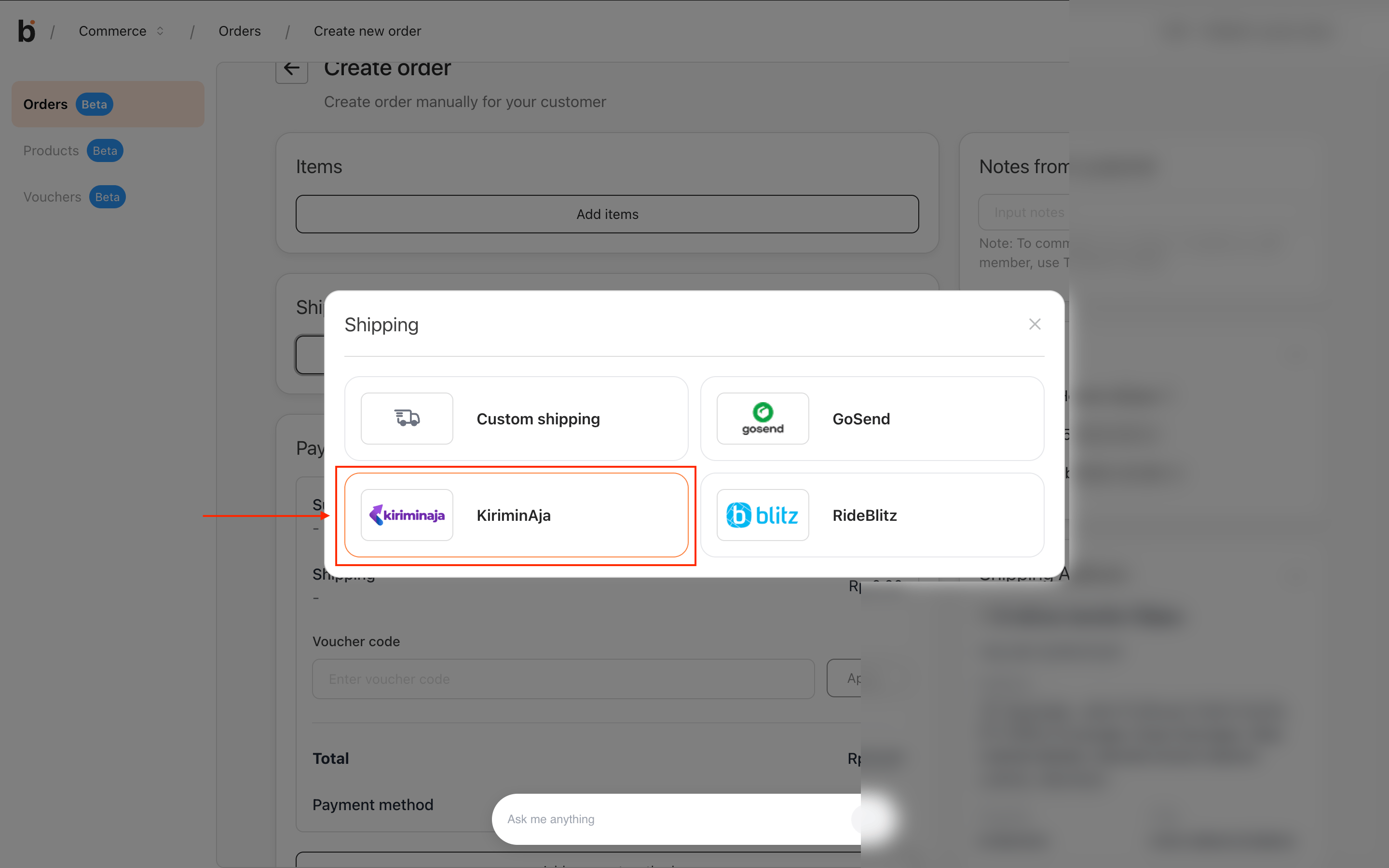
## Step 1: Select KiriminAja as the shipping provider
While creating the order, open the **Shipping** picker and choose **KiriminAja**.
 ## Step 2: Choose a delivery service
KiriminAja offers two delivery services:
* **Kirim Paket Regular** — standard delivery, 2–5 working days.
* **Kirim Paket Instant** — express delivery, 3–8 hours.
Select **Kirim Paket Regular**, then click **Next step**.
## Step 2: Choose a delivery service
KiriminAja offers two delivery services:
* **Kirim Paket Regular** — standard delivery, 2–5 working days.
* **Kirim Paket Instant** — express delivery, 3–8 hours.
Select **Kirim Paket Regular**, then click **Next step**.
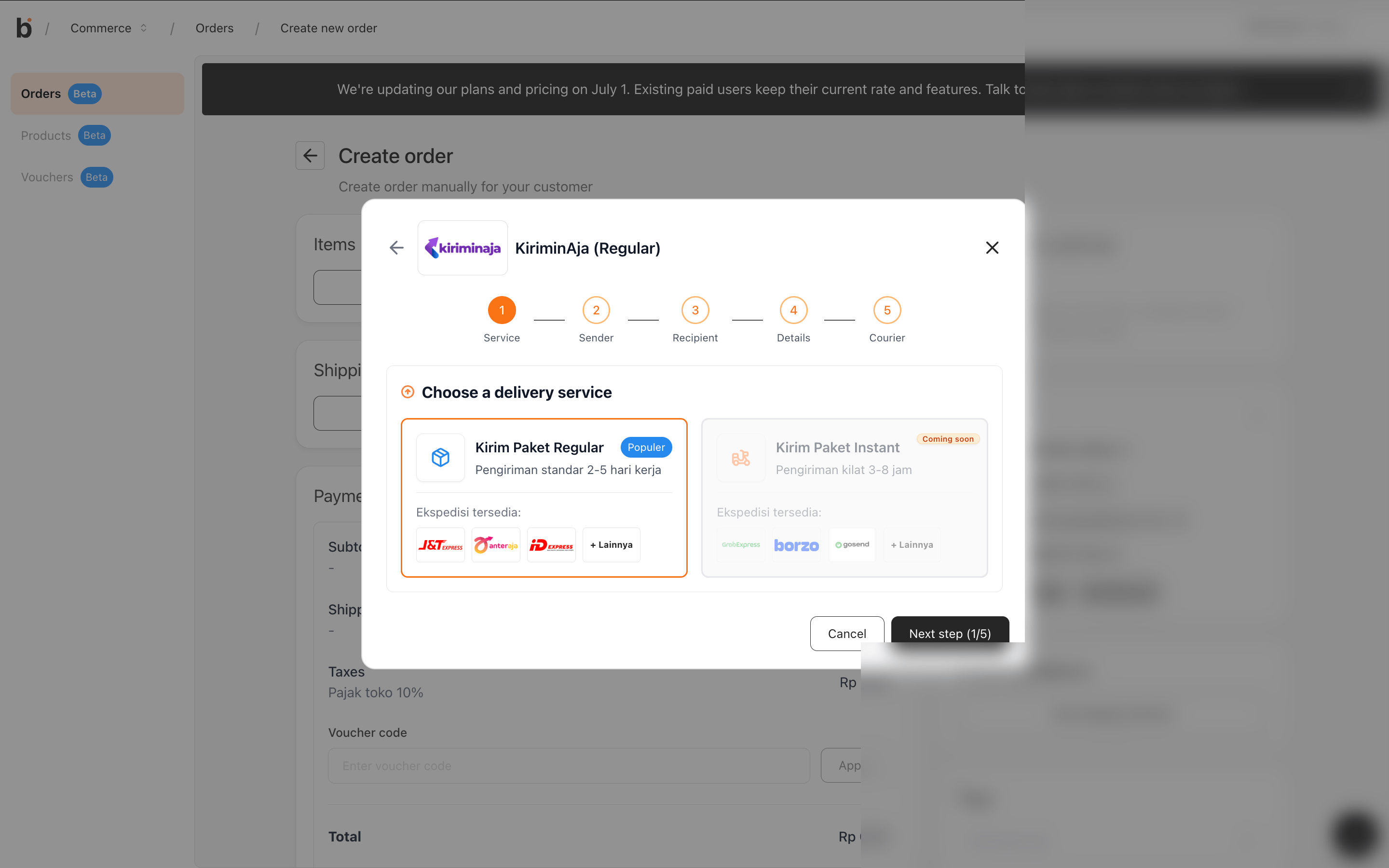 **Kirim Paket Instant** may show a **Coming soon** label and not be selectable yet. When it is available, the steps are slightly different — see [Instant delivery](#instant-delivery-coming-soon) below.
## Step 3: Fill in the shipping form
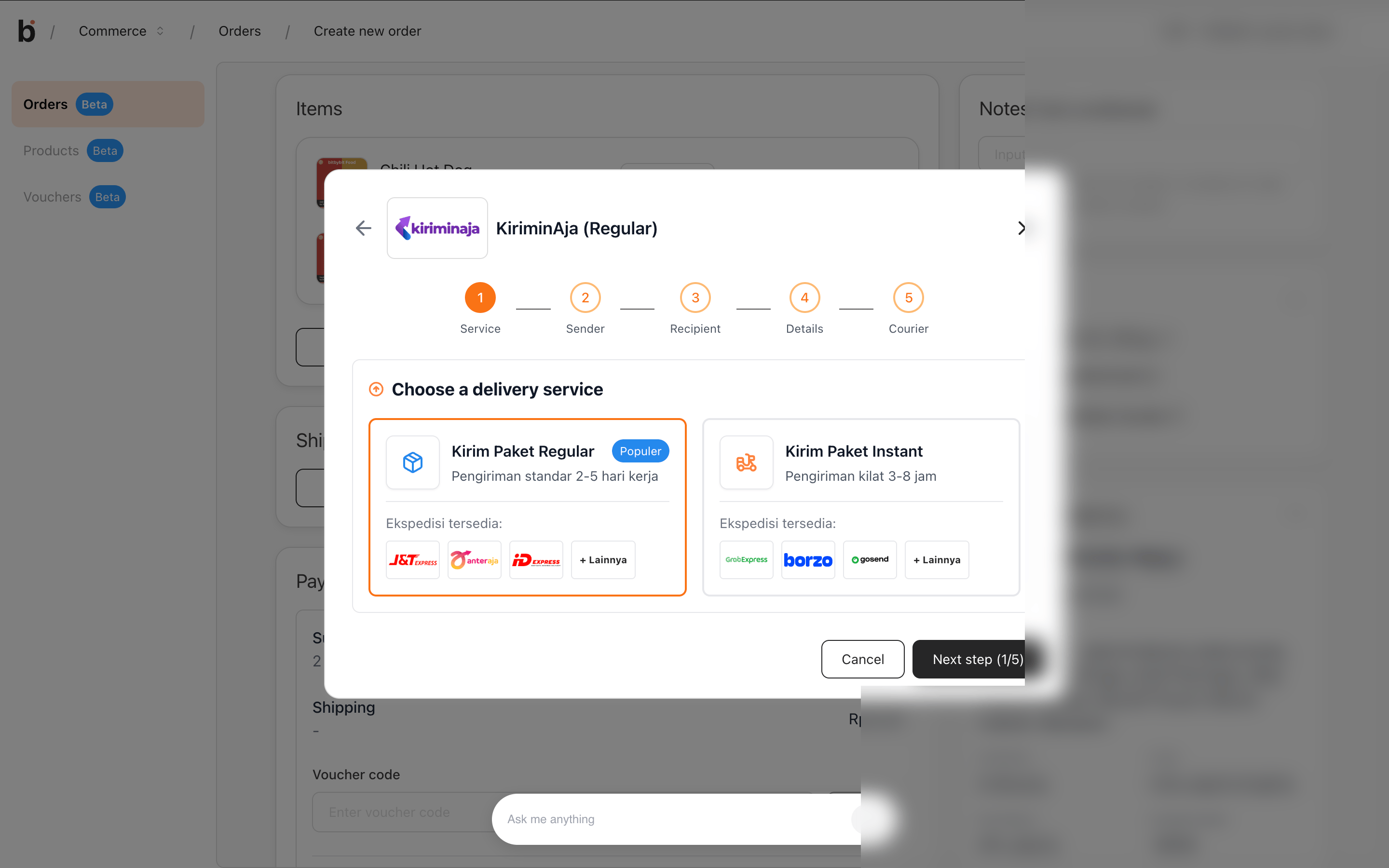
The KiriminAja (Regular) form has five steps: **Service**, **Sender**, **Recipient**, **Details**, and **Courier**.
### Service
Confirm **Kirim Paket Regular** is selected as the delivery service, then continue.
**Kirim Paket Instant** may show a **Coming soon** label and not be selectable yet. When it is available, the steps are slightly different — see [Instant delivery](#instant-delivery-coming-soon) below.
## Step 3: Fill in the shipping form
The KiriminAja (Regular) form has five steps: **Service**, **Sender**, **Recipient**, **Details**, and **Courier**.
### Service
Confirm **Kirim Paket Regular** is selected as the delivery service, then continue.
 ### Sender
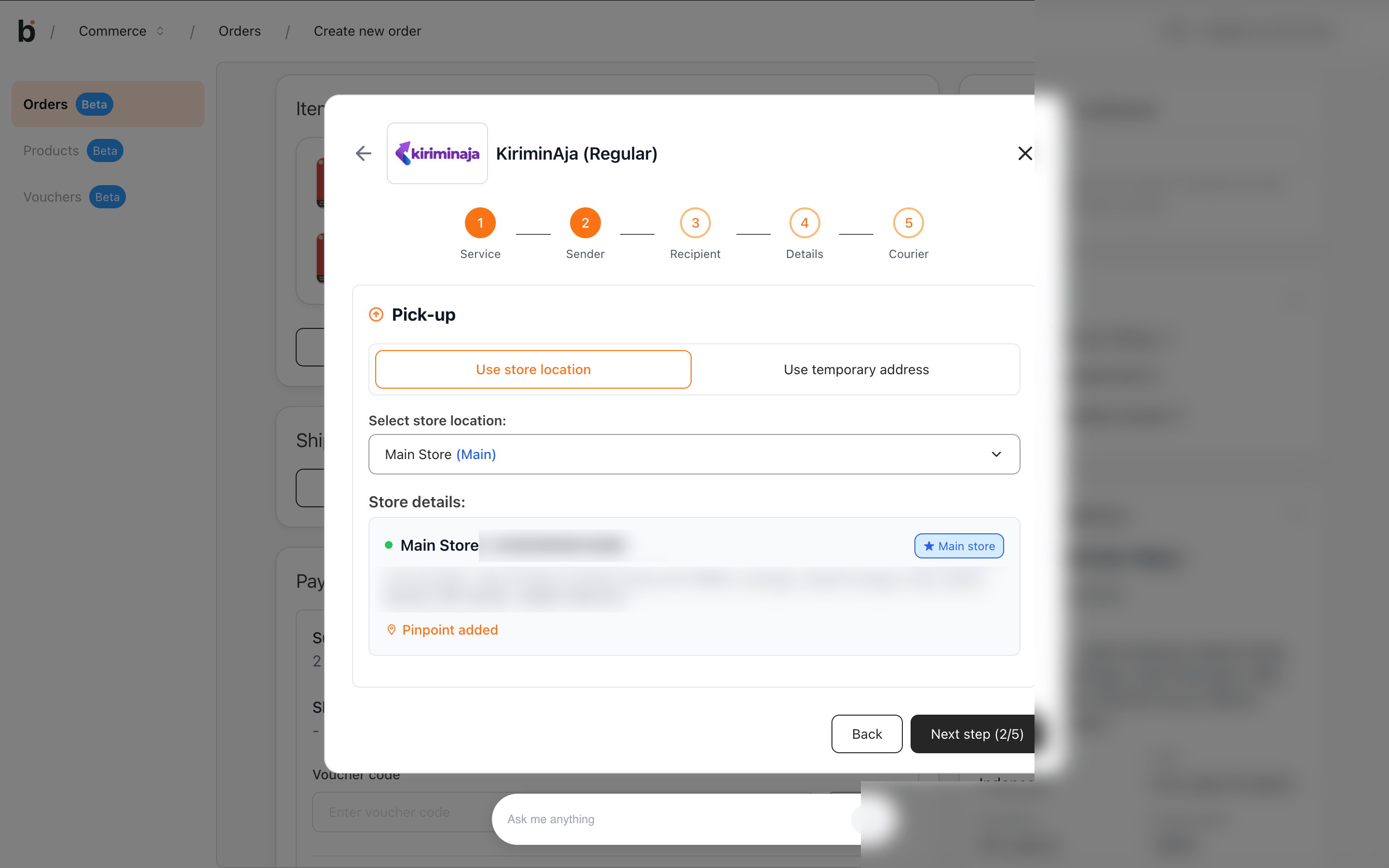
Set the pickup (sender) address. Choose **Use store location** to pick a saved store, or **Use temporary address** to type an address for this order only.
Under **Select store location**, pick the store. Your main store is marked with a star and a blue **(Main)** label.
### Sender
Set the pickup (sender) address. Choose **Use store location** to pick a saved store, or **Use temporary address** to type an address for this order only.
Under **Select store location**, pick the store. Your main store is marked with a star and a blue **(Main)** label.
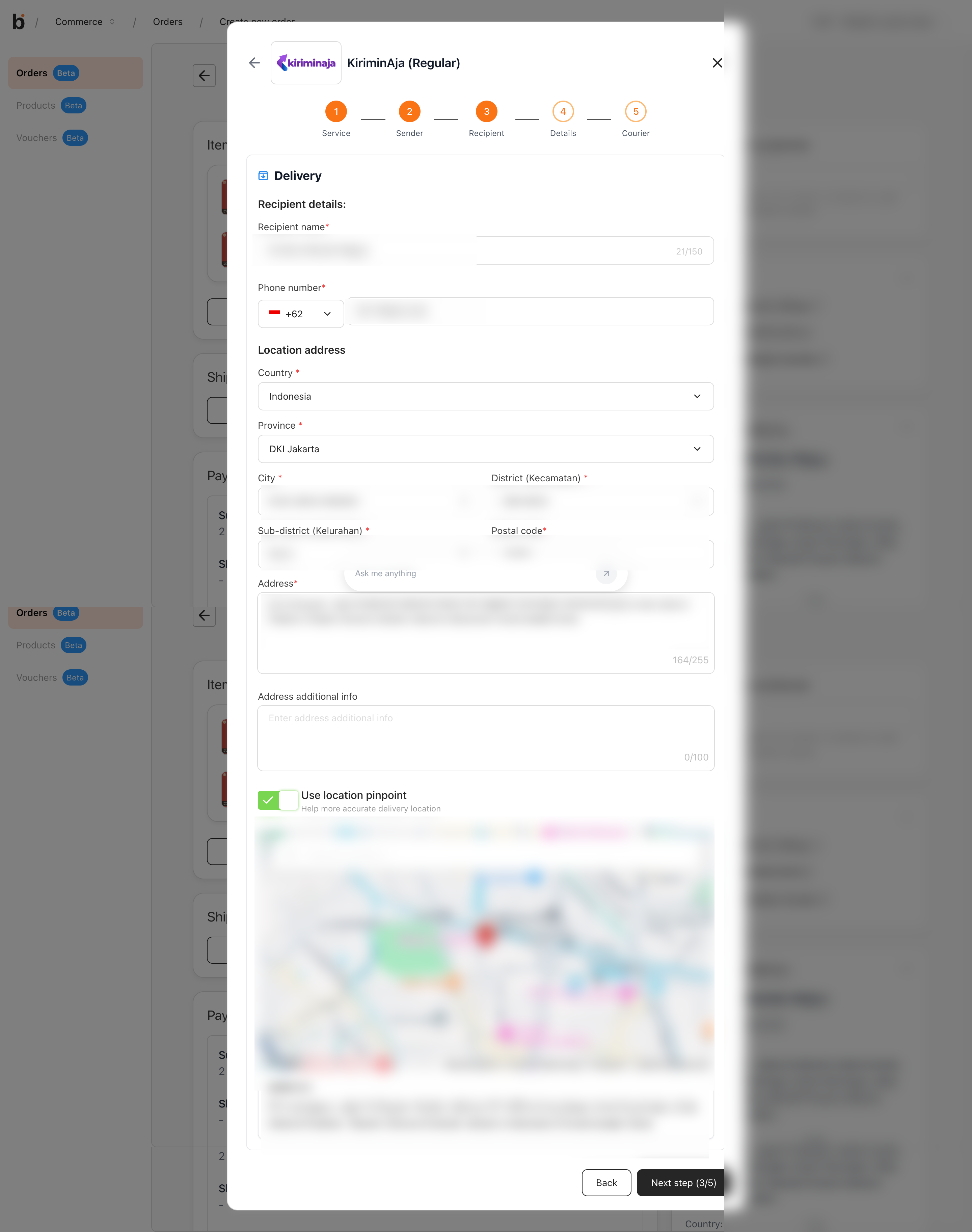
 ### Recipient
Enter the recipient's name, phone number, and full address. Turn on **Use location pinpoint** to set an exact delivery point on the map.
### Recipient
Enter the recipient's name, phone number, and full address. Turn on **Use location pinpoint** to set an exact delivery point on the map.
 ### Details
Fill in the **Package details** so the courier can handle the package: item name, item type, item value, quantity, weight, and dimensions (length, width, height). Enter the dimensions **after** the package is wrapped. You can add optional **Shipping notes**.
### Details
Fill in the **Package details** so the courier can handle the package: item name, item type, item value, quantity, weight, and dimensions (length, width, height). Enter the dimensions **after** the package is wrapped. You can add optional **Shipping notes**.
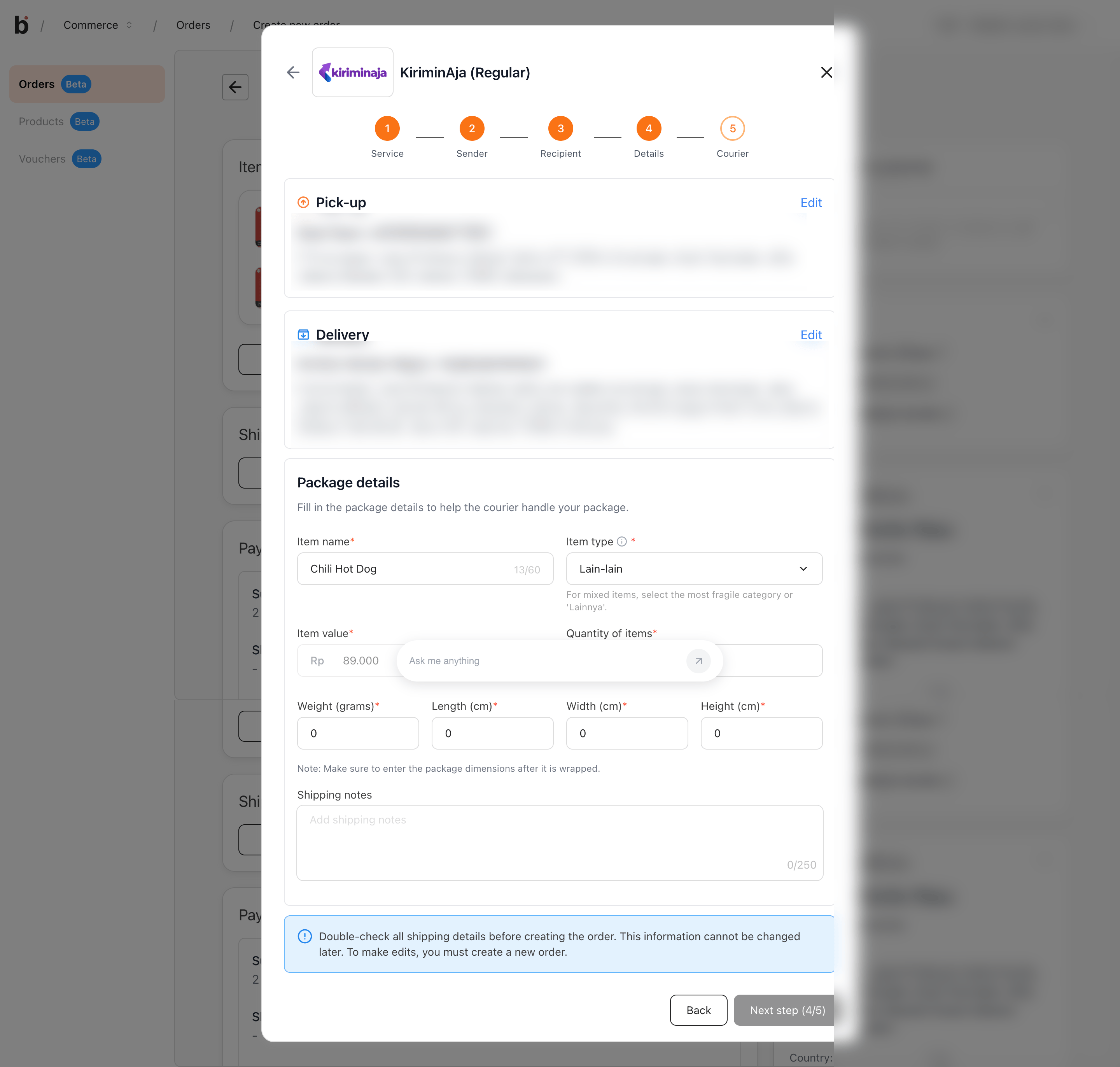 Double-check all shipping details before creating the order. This information **cannot be changed later** — to make edits, you must create a new order.
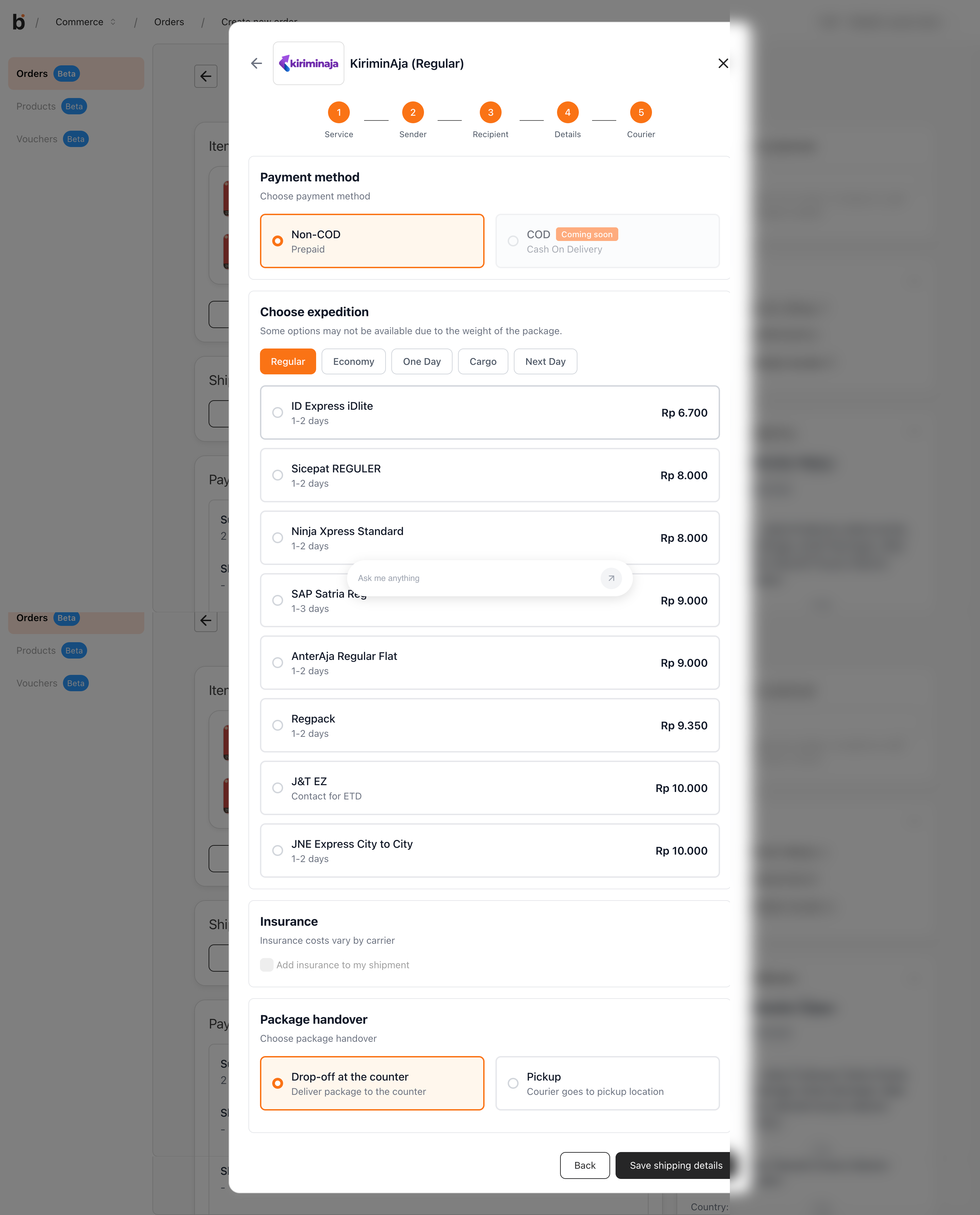
### Courier
1. Choose the **Payment method**. **Non-COD (Prepaid)** is available now; **COD** is coming soon.
2. Under **Choose expedition**, pick a courier and service. Prices and delivery estimates are shown per courier. Some options may be unavailable depending on the package weight.
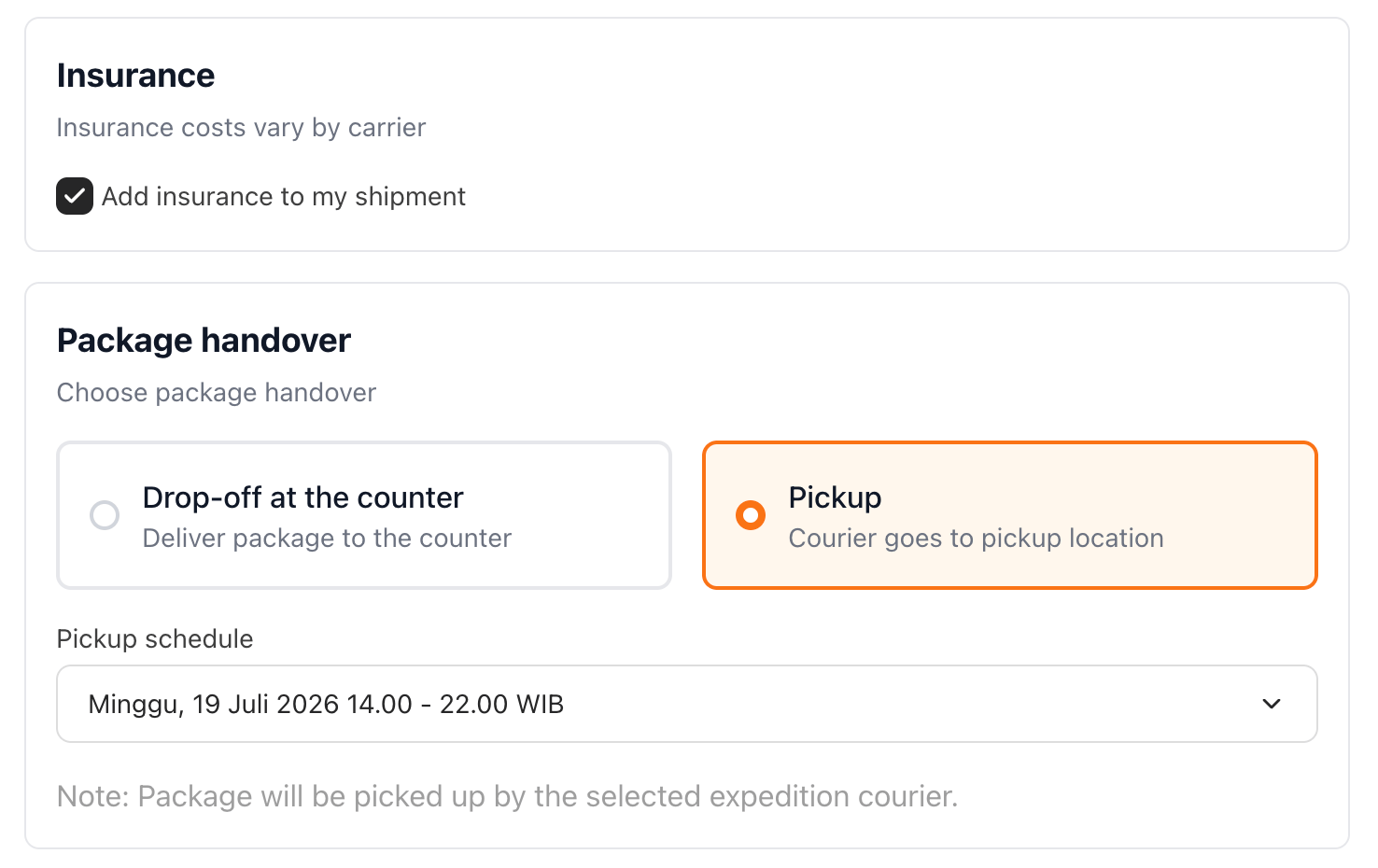
3. Optionally tick **Add insurance to my shipment**. Insurance costs vary by carrier.
4. Under **Package handover**, choose **Drop-off at the counter** or **Pickup**. If you choose **Pickup**, select a **Pickup schedule** — the package is collected by the selected courier.
Double-check all shipping details before creating the order. This information **cannot be changed later** — to make edits, you must create a new order.
### Courier
1. Choose the **Payment method**. **Non-COD (Prepaid)** is available now; **COD** is coming soon.
2. Under **Choose expedition**, pick a courier and service. Prices and delivery estimates are shown per courier. Some options may be unavailable depending on the package weight.
3. Optionally tick **Add insurance to my shipment**. Insurance costs vary by carrier.
4. Under **Package handover**, choose **Drop-off at the counter** or **Pickup**. If you choose **Pickup**, select a **Pickup schedule** — the package is collected by the selected courier.
 When everything is set, click **Save shipping details**.
## Step 4: Review the shipment and order total
Back on the order, the **Shipping method** card shows the KiriminAja shipment, and the **Payment** card breaks down the order total: **Subtotal**, **Shipping**, **Shipping insurance fees** (if added), and **Total**.
You can still click **Change shipping method** here — but not after the order is created.
When everything is set, click **Save shipping details**.
## Step 4: Review the shipment and order total
Back on the order, the **Shipping method** card shows the KiriminAja shipment, and the **Payment** card breaks down the order total: **Subtotal**, **Shipping**, **Shipping insurance fees** (if added), and **Total**.
You can still click **Change shipping method** here — but not after the order is created.
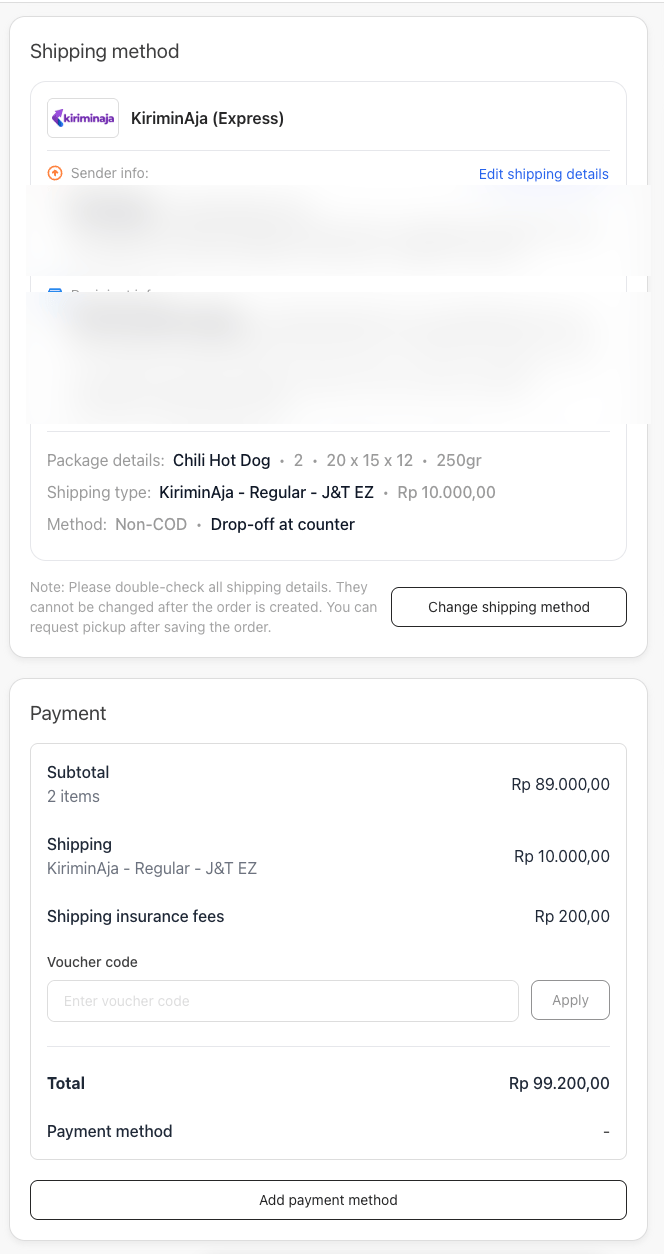 The **Payment** card here is how your **customer** pays for the order (products + shipping + insurance). Set it with **Add payment method** — see [Choose a payment method for orders](/whatsapp-commerce/how-to-choose-a-payment-method-for-orders). Paying **KiriminAja** for the shipment is a separate step, below.
## Step 5: Pay for the shipment through KiriminAja
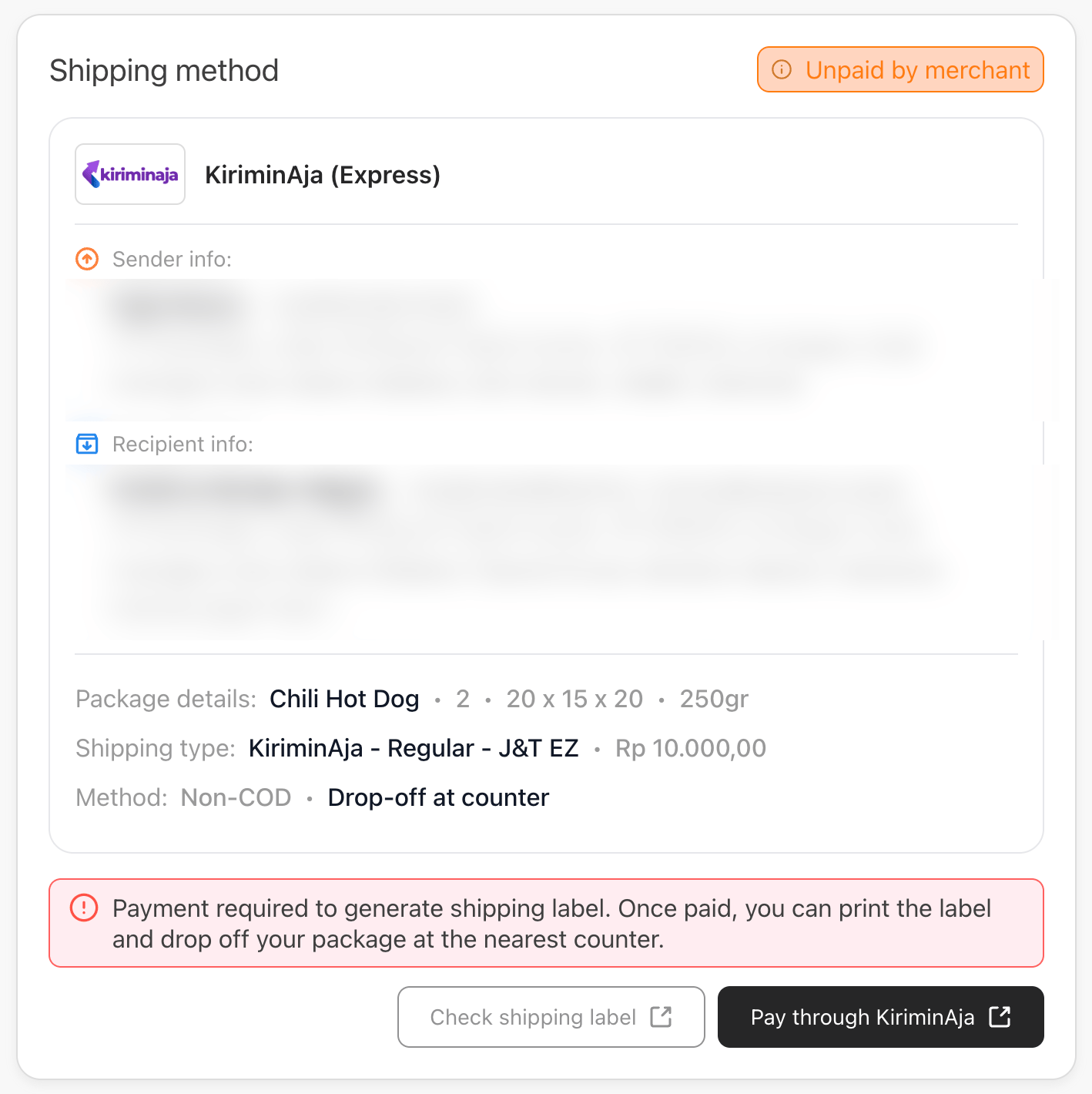
After the order is created, open its **Shipping method** card. While it shows **Unpaid by merchant**, the shipping label is not generated yet.
Click **Pay through KiriminAja** and complete payment in KiriminAja using your KiriminAja balance (deposit), Virtual Account, or QRIS.
The **Payment** card here is how your **customer** pays for the order (products + shipping + insurance). Set it with **Add payment method** — see [Choose a payment method for orders](/whatsapp-commerce/how-to-choose-a-payment-method-for-orders). Paying **KiriminAja** for the shipment is a separate step, below.
## Step 5: Pay for the shipment through KiriminAja
After the order is created, open its **Shipping method** card. While it shows **Unpaid by merchant**, the shipping label is not generated yet.
Click **Pay through KiriminAja** and complete payment in KiriminAja using your KiriminAja balance (deposit), Virtual Account, or QRIS.
 ## Step 6: Track the shipment and print the label
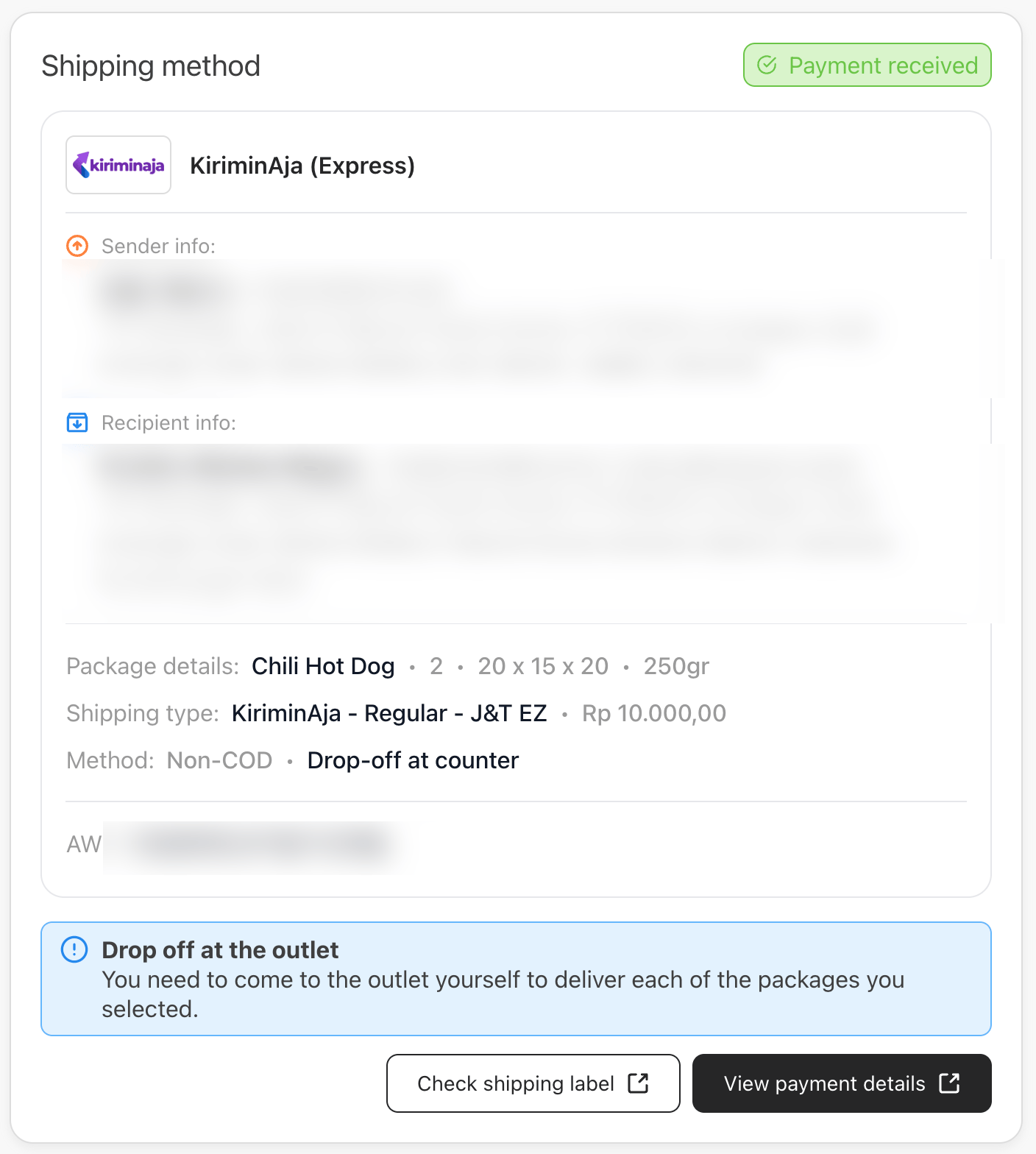
Once payment is received, the card shows **Payment received** and the tracking number (**AWB**). Click **Check shipping label** to print it, then drop off the package at the outlet, or wait for pickup if you scheduled one.
## Step 6: Track the shipment and print the label
Once payment is received, the card shows **Payment received** and the tracking number (**AWB**). Click **Check shipping label** to print it, then drop off the package at the outlet, or wait for pickup if you scheduled one.
 ## Instant delivery (coming soon)
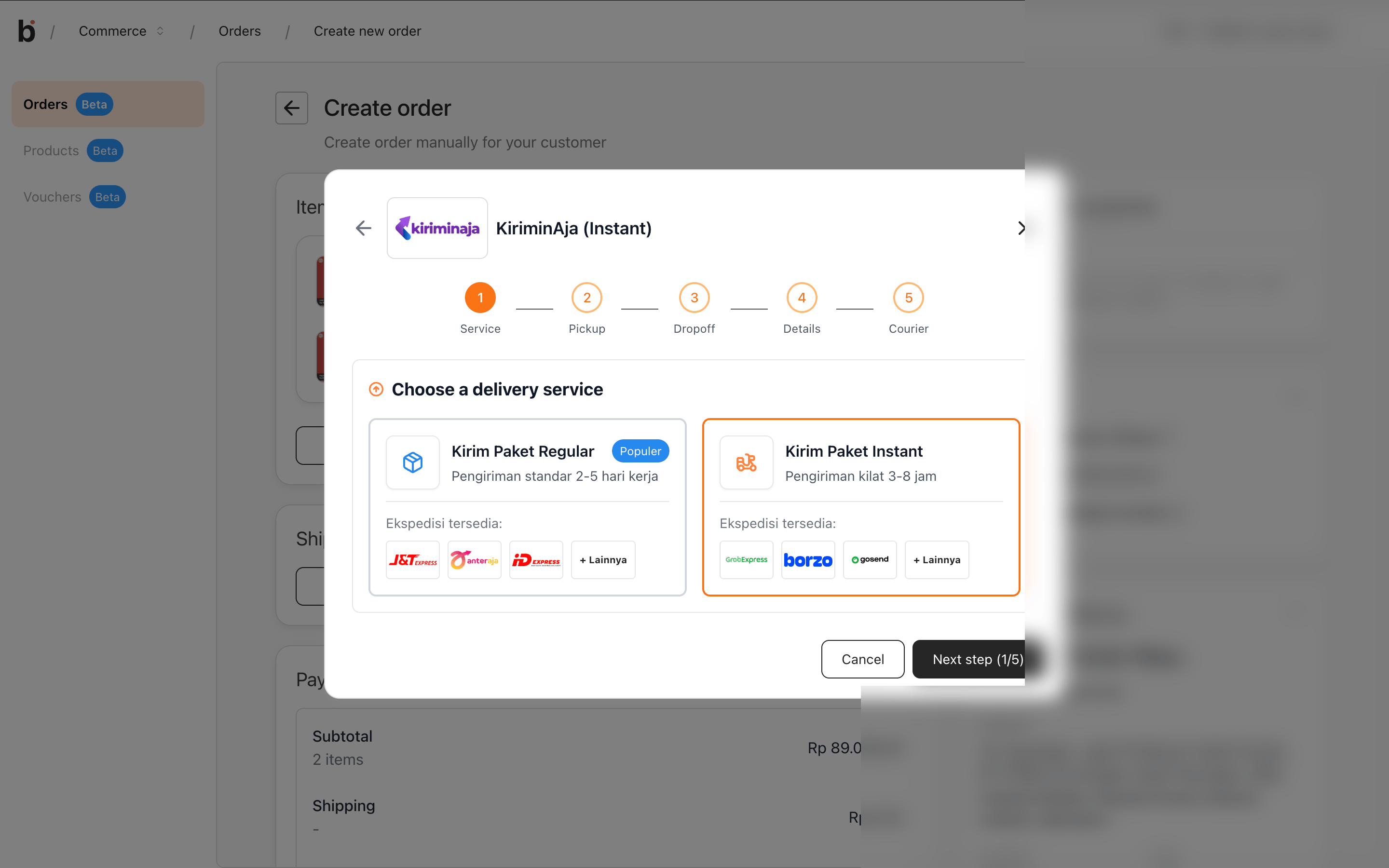
**Kirim Paket Instant** may not be available yet. The steps below show the Instant flow so you can prepare for when it launches.
The Instant form also has five steps, but two differ from Regular: **Pickup** and **Dropoff** replace Sender and Recipient, and the **Courier** step starts with a vehicle type.
### Service
Select **Kirim Paket Instant** as the delivery service.
## Instant delivery (coming soon)
**Kirim Paket Instant** may not be available yet. The steps below show the Instant flow so you can prepare for when it launches.
The Instant form also has five steps, but two differ from Regular: **Pickup** and **Dropoff** replace Sender and Recipient, and the **Courier** step starts with a vehicle type.
### Service
Select **Kirim Paket Instant** as the delivery service.
 ### Pickup
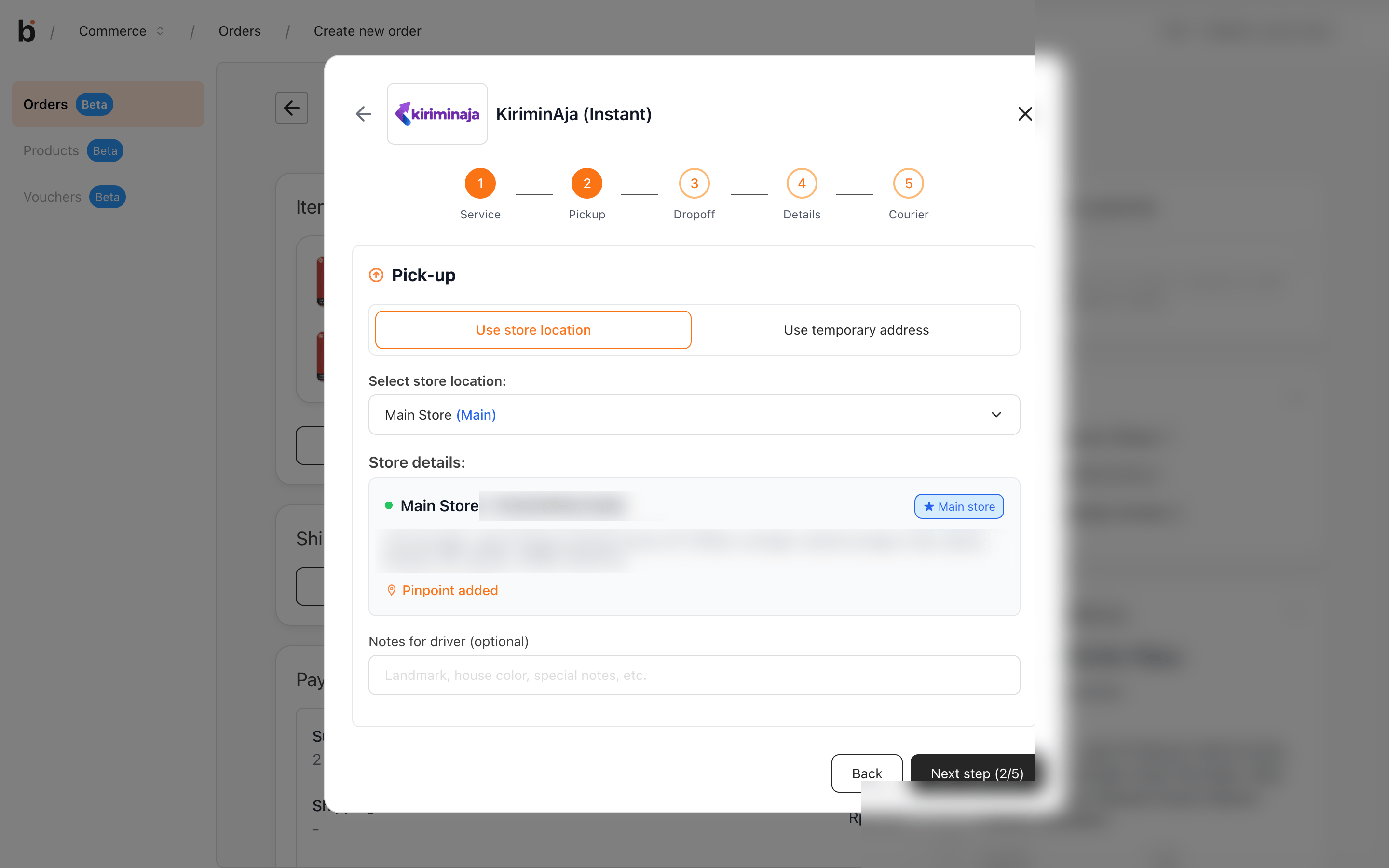
Set the pickup address using **Use store location** or **Use temporary address**. You can add **Notes for driver**.
### Pickup
Set the pickup address using **Use store location** or **Use temporary address**. You can add **Notes for driver**.
 ### Dropoff
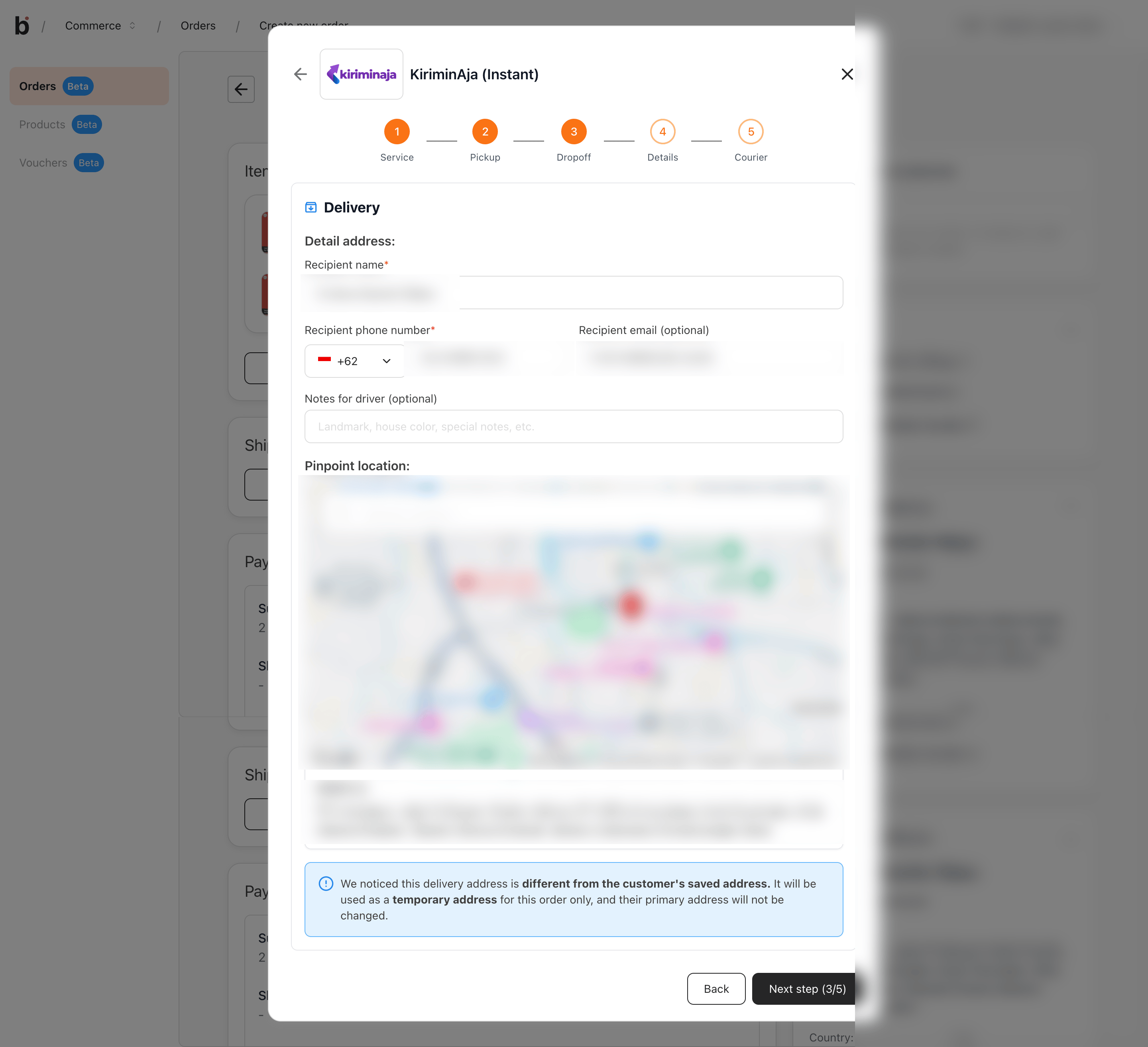
Enter the recipient's name, phone, and optional email, add any driver notes, and set the **Pinpoint location** on the map.
### Dropoff
Enter the recipient's name, phone, and optional email, add any driver notes, and set the **Pinpoint location** on the map.
 ### Details
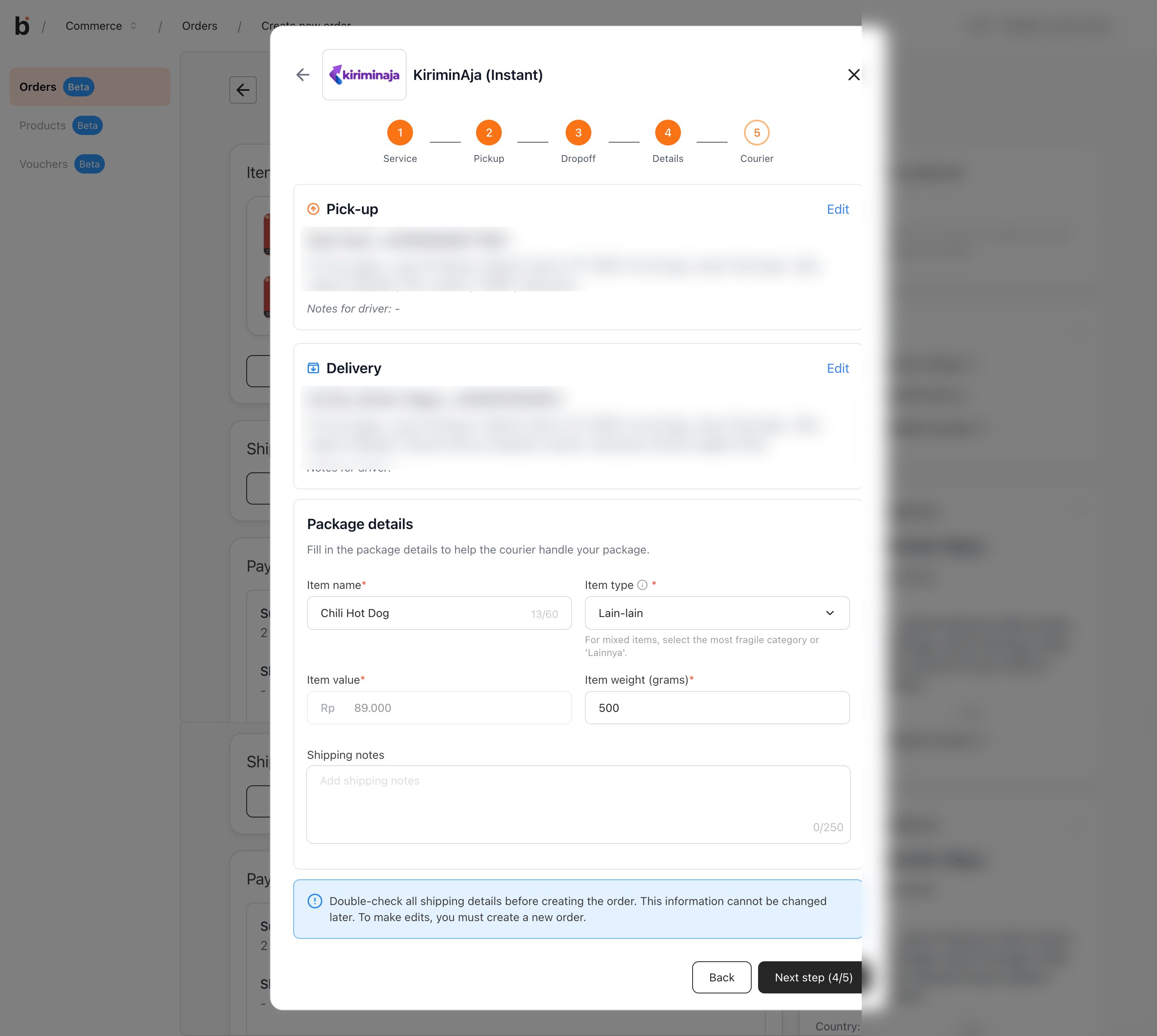
Fill in the **Package details**: item name, item type, item value, and item weight, plus optional shipping notes.
### Details
Fill in the **Package details**: item name, item type, item value, and item weight, plus optional shipping notes.
 ### Courier
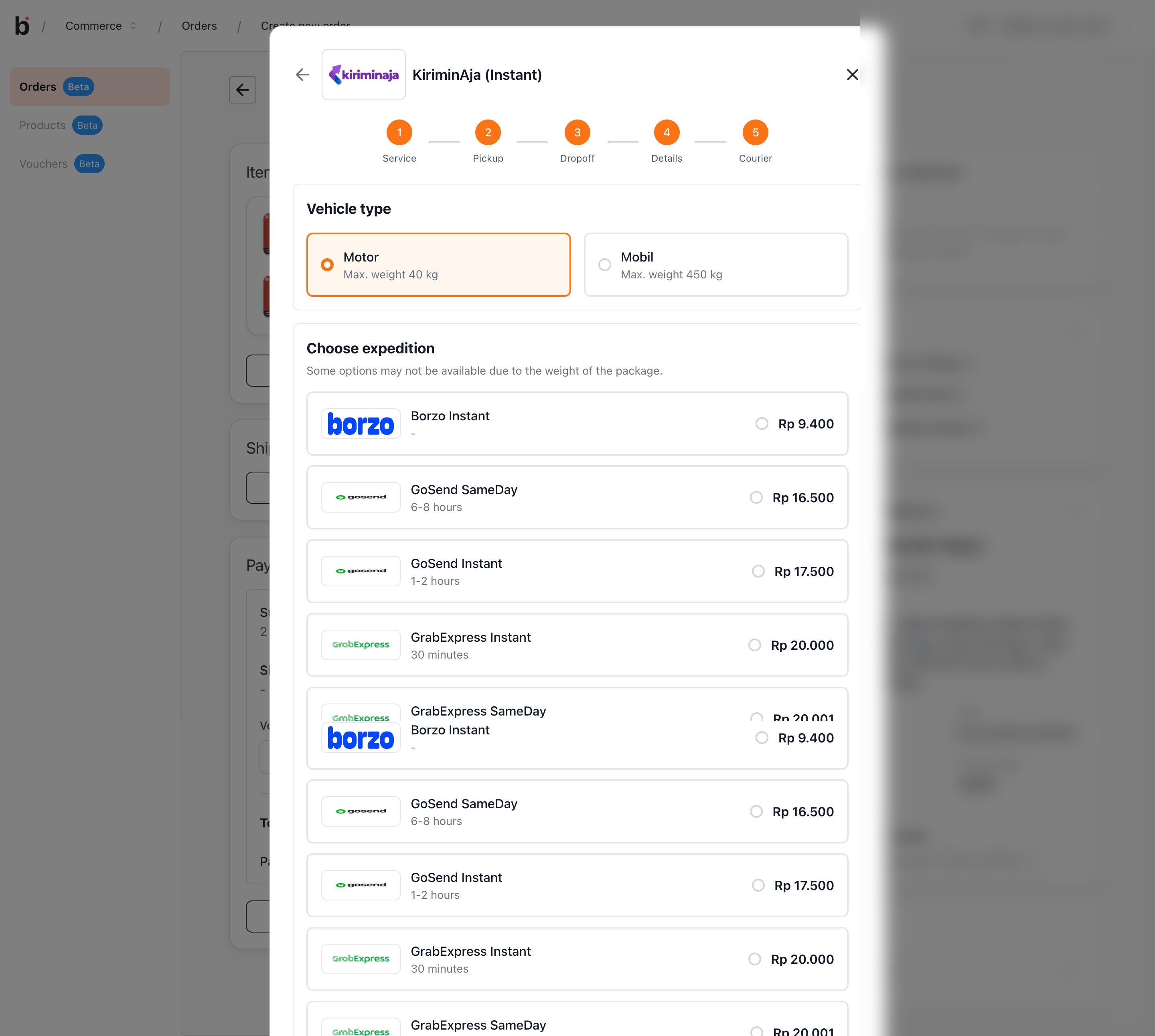
Choose the **Vehicle type** (**Motor**, max 40 kg, or **Mobil**, max 450 kg), then pick an expedition from the list. Prices and delivery estimates are shown per courier.
### Courier
Choose the **Vehicle type** (**Motor**, max 40 kg, or **Mobil**, max 450 kg), then pick an expedition from the list. Prices and delivery estimates are shown per courier.
 ## Related
* [How to integrate KiriminAja with bitbybit](/whatsapp-commerce/how-to-integrate-kiriminaja-with-bitbybit)
* [How to create an order](/whatsapp-commerce/how-to-create-an-order)
* [How to fulfill a Commerce order](/whatsapp-commerce/how-to-fulfill-an-order)
* [Choose a payment method for orders](/whatsapp-commerce/how-to-choose-a-payment-method-for-orders)
## Related
* [How to integrate KiriminAja with bitbybit](/whatsapp-commerce/how-to-integrate-kiriminaja-with-bitbybit)
* [How to create an order](/whatsapp-commerce/how-to-create-an-order)
* [How to fulfill a Commerce order](/whatsapp-commerce/how-to-fulfill-an-order)
* [Choose a payment method for orders](/whatsapp-commerce/how-to-choose-a-payment-method-for-orders)