

This integration requires a B2B Gojek Enterprise account. It cannot be connected using a personal Gojek app account.
Step 1: Locate GoSend in Integrations
Log in to bitbybit, go to Integrations, find the GoSend card, and click Connect to open the setup modal.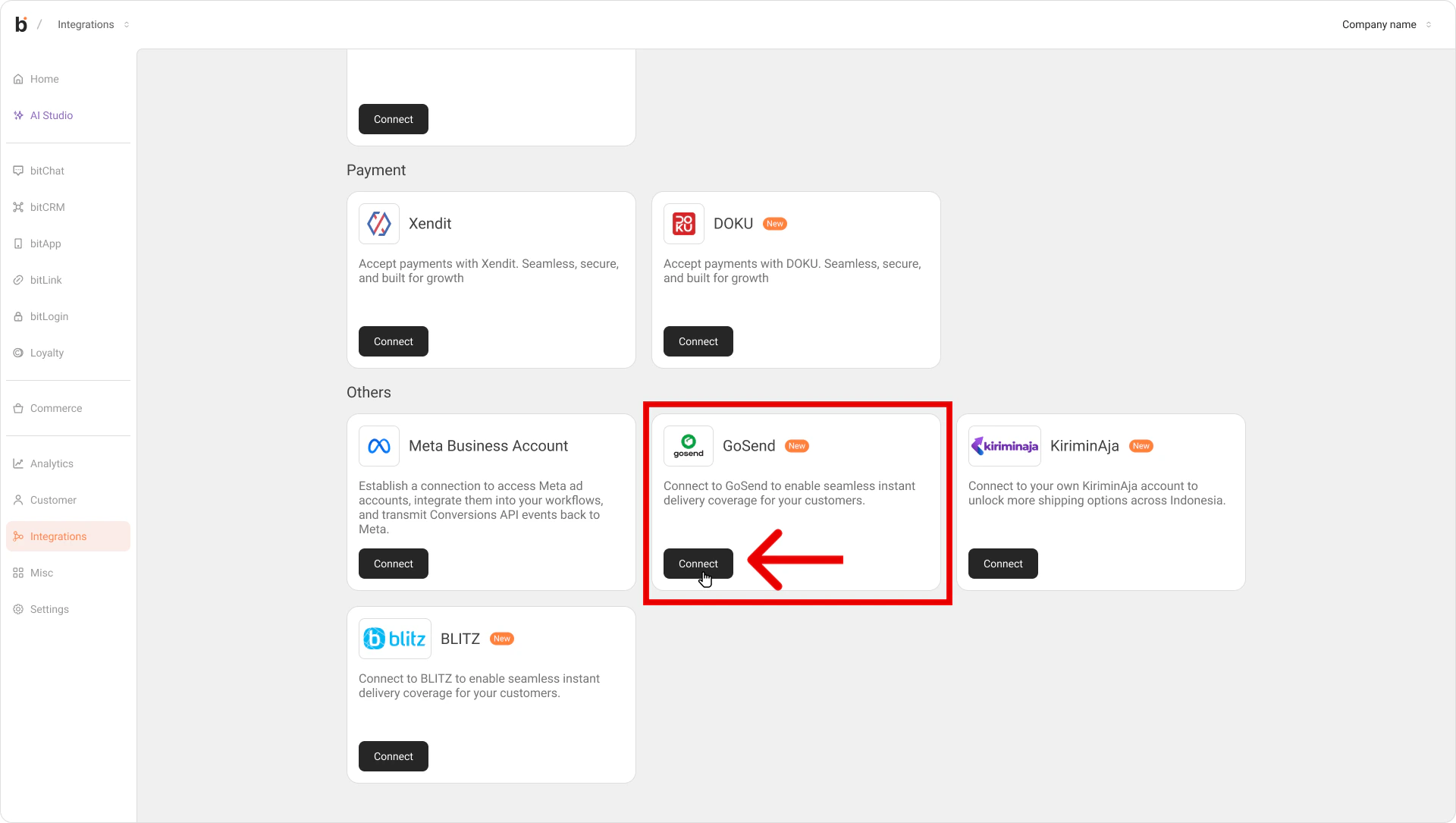
Step 2: Register for a Gojek Corporate account
If you don’t already have a Gojek Enterprise account, learn more at Gojek GoSend API. Complete Gojek’s verification steps and wait for them to approve your business account.Step 3: Copy your GoSend API keys
Once Gojek approves your corporate account, copy your Client ID and API Key (or Passkey).Step 4: Connect GoSend on bitbybit
Return to the GoSend modal in your bitbybit dashboard and paste the Client ID and API Key into their fields.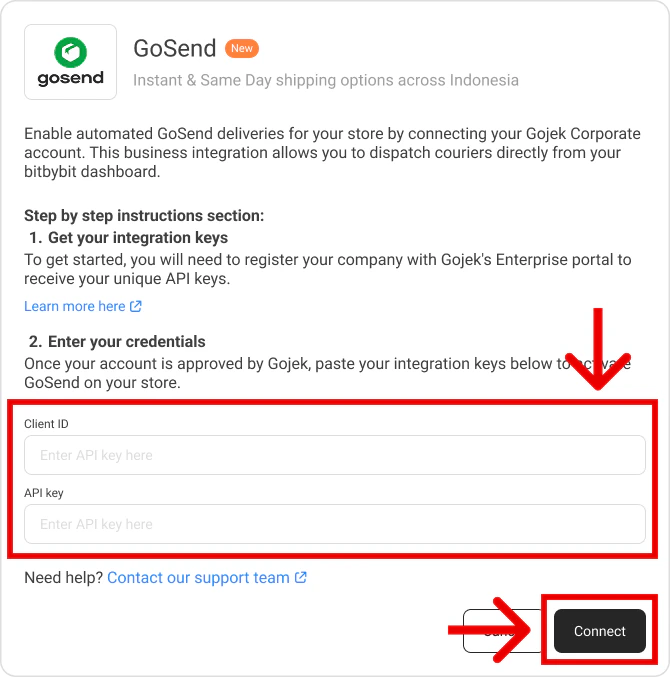
Step 5: Save and complete the connection
Click Connect at the bottom of the modal. Once your keys are validated, the GoSend card status changes to Connected.Your GoSend corporate account is now synced. You can manage GoSend deliveries directly from bitbybit.