

Before you start
- Your Shopify store is connected to bitLoyalty. If it isn’t connected, open bitLoyalty > Landing page and click Connect to Shopify.
- To start giving customers points, turn on the loyalty program in bitLoyalty > Earn points. See the Quickstart if you haven’t done this yet.
Step 1: Find your page link
- The first time you turn on bitLoyalty, the Your bitLoyalty page is live! pop-up appears on Earn points. Click See landing page settings.
- Select Don’t show this again if you don’t want the pop-up to appear next time.
- Any other time: sidebar > bitLoyalty > Landing page.
- Or from Earn points: Enable loyalty program card > here in Your landing page is live. Manage it here.
- In the Your landing page is live card, copy the page link, for example
https://your-store.com/apps/bitloyalty. - Copy icon > paste the link into Shopify. Open icon (↗) > view the page in a new tab.
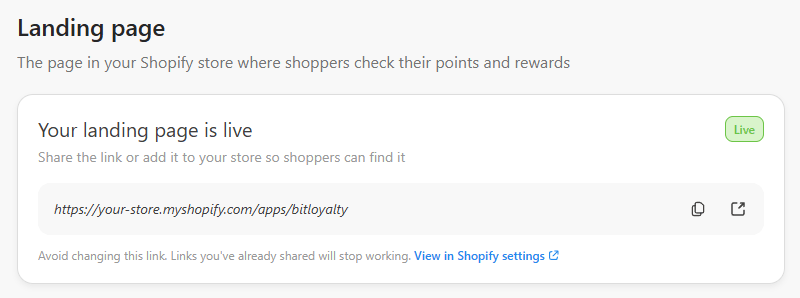
If you see Make sure to enable bitLoyalty in the settings to start giving customer points, bitLoyalty is off. Your page still works and shoppers can check their points, but new orders don’t earn points. Click Activate loyalty to go to Earn points and switch it on.
Step 2: Add the page to your store menu
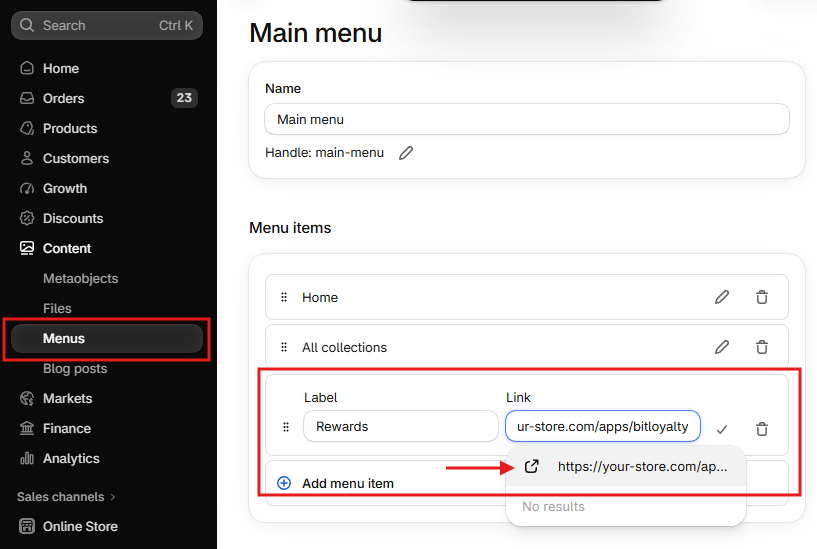
Right now, nothing in your store links to the page, so shoppers won’t find it on their own. Add it to your store’s main menu:- Landing page > Help shoppers find it > Open Shopify menu. Your Shopify admin opens in a new tab.
- Or in Shopify: Content > Menus > Main menu.
- Click Add menu item.
- In Label, enter what shoppers will see, for example
Rewards. - In Link, paste the page URL > wait for the suggested link row > click the row with the external-link icon and your URL.
- Don’t press Enter; clicking the suggested link row adds the destination.
- Click Add menu item > Save the menu.
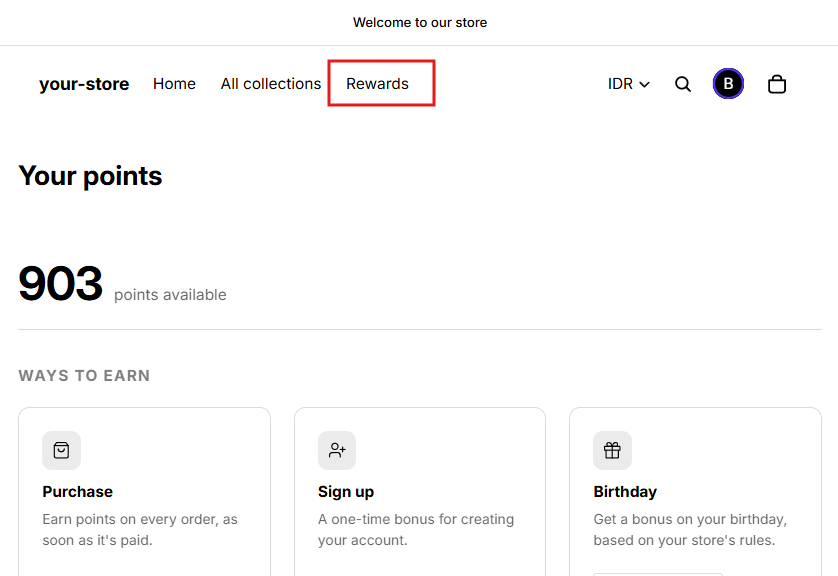
- Open your storefront > confirm the new
Rewardsmenu item opens the loyalty page.
Step 3: Add a button to your homepage
A homepage button makes the loyalty page easier for shoppers to find:- Landing page > Help shoppers find it > Open theme editor. Shopify’s theme editor opens in a new tab on your live theme.
- Left sidebar > Add section > choose a section with a button, such as Image banner or Rich text.
- You can also use a section that’s already on your homepage if it has a button.
- Select the section’s Button block. If it doesn’t have one: Add block > Button.
- Button label > enter text such as
Check my points. - Button link > paste the page URL > click the matching URL in the dropdown.
- Click Save in the top right.
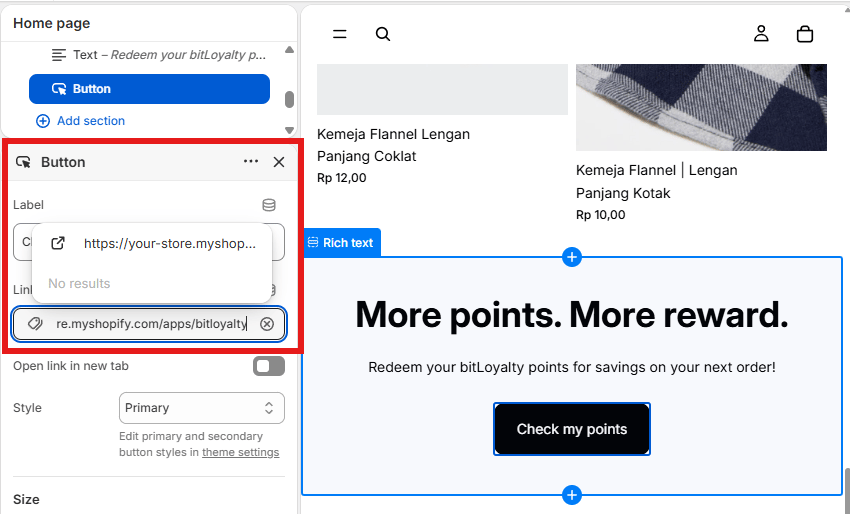
Section and field names can differ slightly between themes. Most current Shopify themes, such as Dawn, work as described. Older themes may not have a button block; if yours doesn’t, use the store menu link instead.
Step 4: Change your page link
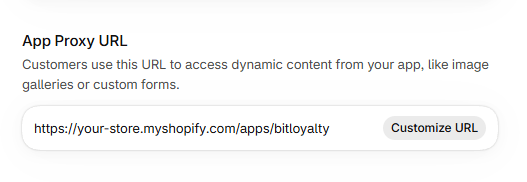
Your page link is set in Shopify, not in bitbybit. We recommend keeping the default link. If you still want to change it:- Landing page > View in Shopify settings. The bitLoyalty app settings open in Shopify in a new tab.
- Or in Shopify: Settings > Apps > bitLoyalty.
- App proxy > Customize URL.
- Enter the new address > Save.
- The address must start with
/apps,/a,/community, or/tools. - Pick an address no other app uses. Other loyalty apps often use
/apps/loyalty.
- The address must start with
- Update your store menu item and homepage button with the new link.
Step 5: Show points in the Chat Widget
Shoppers can also see their points from the chat widget on your store and ask the chat for their rewards without opening the landing page. Landing page > Set up in chat widget > in the new tab, turn on Loyalty points.What’s next
- Quickstart: turn on bitLoyalty, set an earning rate, and create your first reward.
- Reward options: learn what each reward field and metric means.