

Step 1: Access the AI Agent Dashboard
Navigate to your AI Studio and select the AI Agent menu at https://app.bitbybit.studio/ai-studio/ai-agent/.Step 2: Build Your Ordering Flow
You can tailor the AI’s behavior to match your specific business requirements. If you need advanced assistance in building complex prompts, feel free to contact bitbybit support. Example Prompt for Ordering Use a structured prompt like the one below to ensure your AI Agent collects all necessary information before finalizing a sale: “Verify these steps when a customer wants to make an order:- Verify order items
- Recipient name
- Detailed address
- Shipping method
- Notes for the order (if any) > Example: Confirm the level of spiciness for burgers and hotdogs
- Confirmation - Confirm all previous steps with the customer”
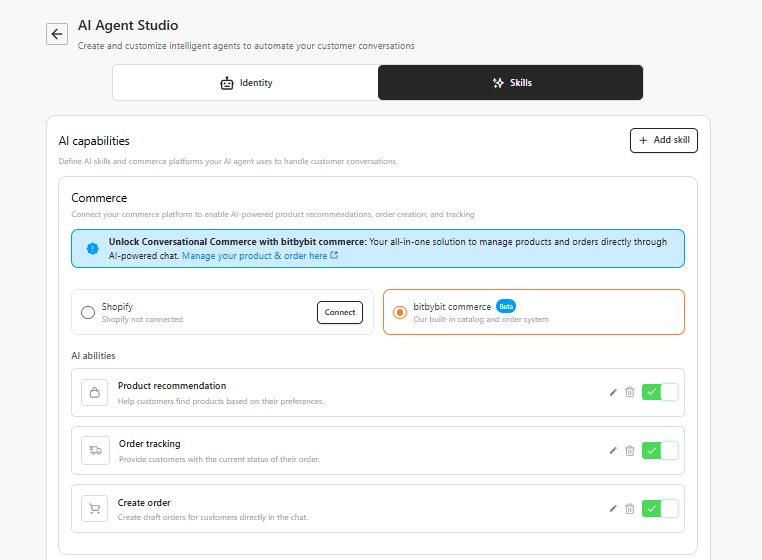
Step 3: Enable Relevant Skillsets
To make your AI even more effective, ensure you have enabled the necessary skills in the AI settings:- Product Recommendations: To help customers find the right items.
- Order Tracking: To answer post-purchase inquiries.
- FAQs: To handle common questions about shipping or payments.
Step 4: Save and Activate
Click Save changes to apply your new persona and prompt settings.
Step 5: Your Job is Simplified!
Congrats! You have optimized the AI to handle the heavy lifting of information gathering. Now, your task is only to:- Click Fulfill: Update the shipment details once the order is ready.
- Request Order/Pick Up: Directly call a driver to deliver the order to the customer once payment is confirmed.