
The media upload field lets customers attach images or documents when filling out a WhatsApp form. Submitted files appear as thumbnails or download links in the form response panel.

Add a media upload field to a form

Step 1: Open your WhatsApp form

Go to the bitChat WhatsApp Form dashboard and open an existing form, or create a new one.

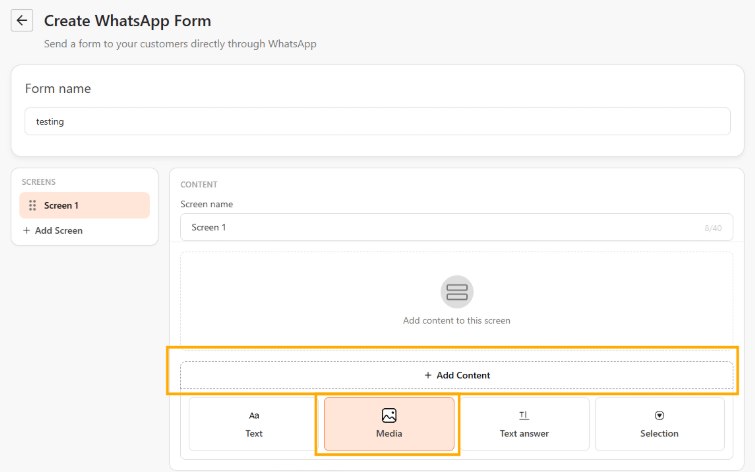
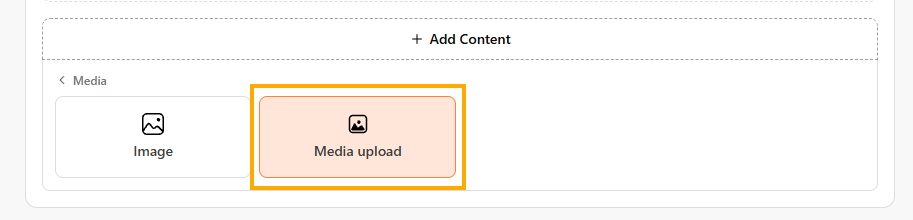
Step 2: Add a section and select “Media upload”

Click Add section, then choose Media upload from the field type options. Form builder with the Add section panel open, Media upload option highlighted

Step 3: Configure the field

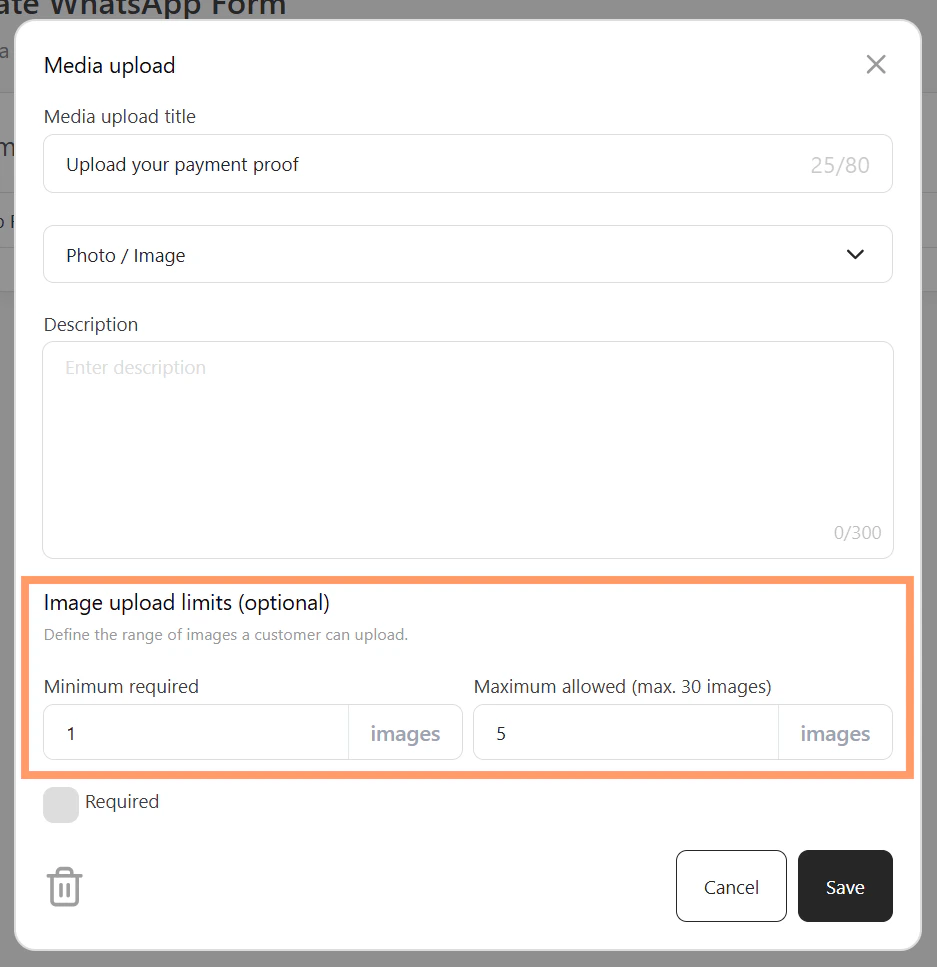
Fill in the configuration panel:
  • Media upload title — the label customers see on the form (for example, “Upload your payment proof”).
  • File type — choose the type of file customers can submit (for example, Photo / Image).
  • Description — optional helper text displayed below the field.
  • Image upload limits — optionally set a minimum and maximum number of files a customer can attach (maximum allowed is 30).
Media upload field configuration panel showing the title input, upload limits, and Save button

Step 4: Mark as required (optional) and save

Toggle Required if the field must be filled before the customer can submit the form. Click Save when done.

View submitted media in form responses

Step 1: Open the form response panel

From the WhatsApp Form dashboard, select your form and go to the Response tab.

Step 2: Browse responses

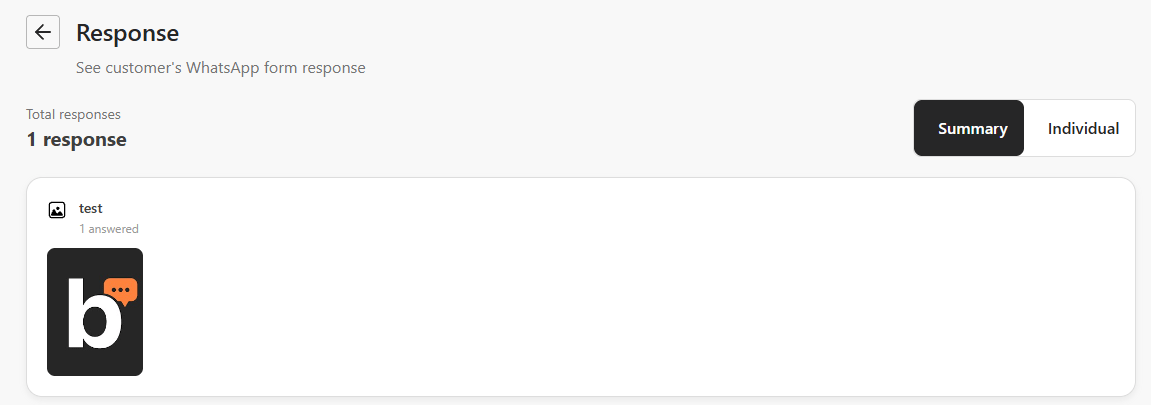
Use the arrow controls to move between responses. The media upload field displays submitted images as thumbnails and submitted documents as file names. Response tab showing a customer's submitted image thumbnail in the media upload field

Step 3: Preview an image in full

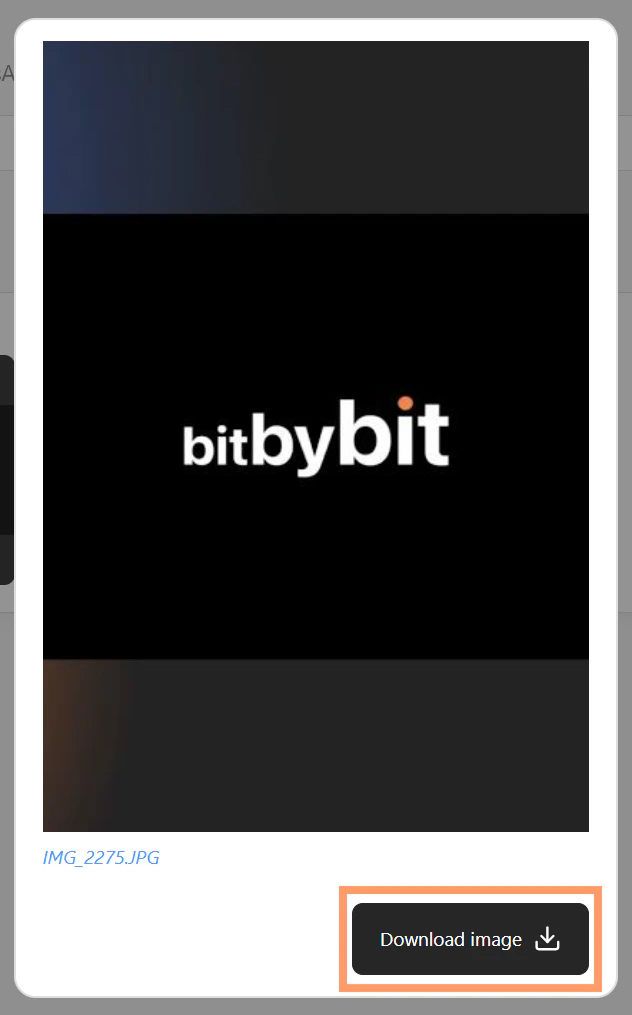
Click an image thumbnail to open it in the lightbox. The full-size image loads with a loading indicator while it fetches. Click outside the lightbox to close it.

Download submitted media

Image: Open the image in the lightbox, then click Download image. The button shows a loading indicator while the file processes and is disabled until the download completes. Lightbox showing the full-size submitted image with the Download image button highlighted Document: Click the document file name in the response card to download it directly.