

The WhatsApp Form list shows each form’s status in its own Status column. You can select several forms and use Bulk actions to edit draft forms one after another, publish them, duplicate them, or delete them together. Some actions depend on status. Edit selected and Publish selected work only when every selected form is a Draft. Duplicate selected and Delete selected work for Draft and Published forms.

Prerequisites

Step 1: Check a form’s status

  • Open the WhatsApp Form list. It shows Form name, Status, Sent, Responses, Last updated, and Action for each form.
  • Read the Status column. Each form shows Draft or Published.
  • Use the sort arrows in the Status column header to group drafts and published forms together.
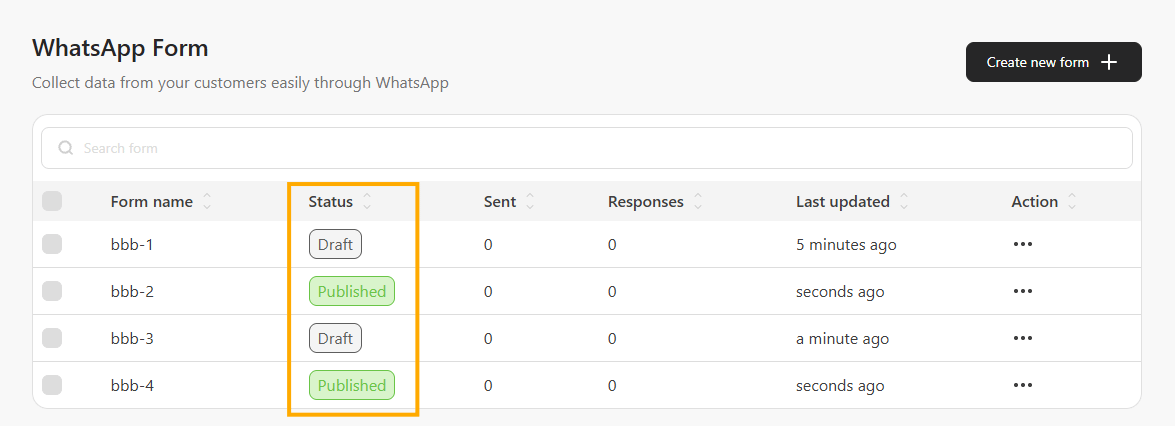
The Form name column shows only the name you saved. If a name includes text such as “[Draft]”, that text is part of the name and doesn’t change the Status column. Click a Draft to open the editor. Click a Published form to open its responses. WhatsApp Form list with the Status column highlighted, showing Draft and Published labels

Step 2: Select forms

  • Tick the checkbox on each form you want.
  • Tick the select-all checkbox in the header to select every form in the current results.
  • A selected count appears above the list, and the Bulk actions button next to Search form shows how many forms you selected, for example Bulk actions (2).
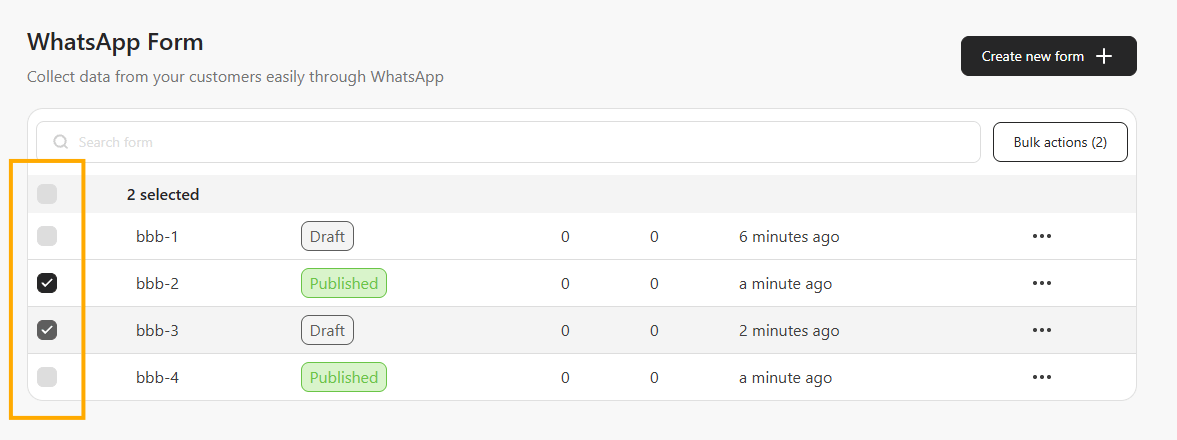
WhatsApp Form list with two forms selected and the Bulk actions (2) button next to the search field

Step 3: Choose a bulk action

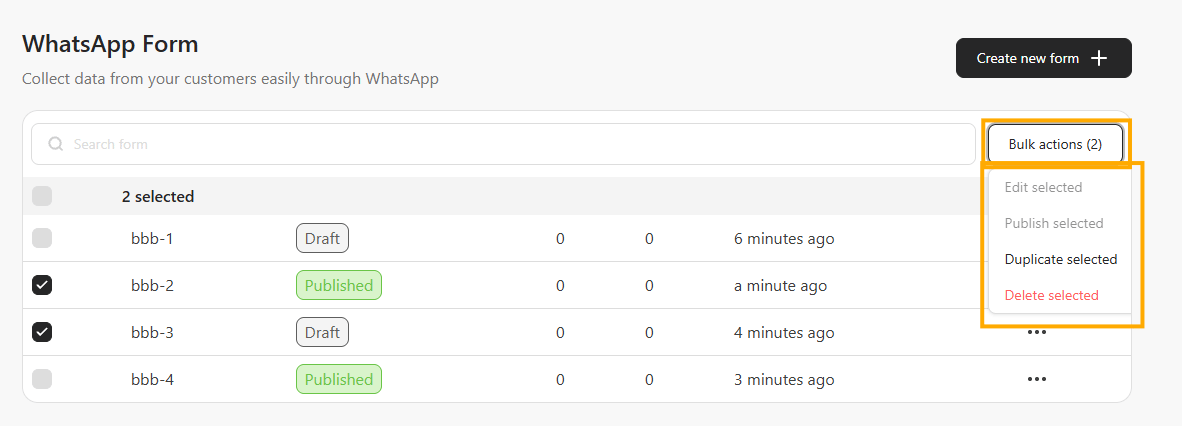
Click Bulk actions and choose one of the actions below. If your selection includes a Published form, Edit selected and Publish selected are greyed out. You can still duplicate or delete a mixed selection. Bulk actions menu for a mixed selection, with Edit selected and Publish selected greyed out and Duplicate selected and Delete selected available
Edit selected drafts

  • Choose Bulk actions > Edit selected.
  • The first draft opens with your progress, for example Editing 1 of 4.
  • Make your changes, then choose Save & next to continue. Choose Skip to move on without saving.
  • Choose Exit bulk edit to stop at any time.
  • After the last form, a result summary shows which drafts were saved, skipped, or couldn’t be saved.
Each draft is edited on its own, because different forms have different questions and screens. A change you make in one draft isn’t applied to the others. If you leave a draft with unsaved changes, you’re asked whether to save or discard them.

Publish selected drafts

  • Choose Bulk actions > Publish selected.
  • Read the confirmation. It reminds you that publishing locks each form’s content from further edits.
  • Confirm to publish.

Duplicate selected forms

  • Choose Bulk actions > Duplicate selected.
  • Each selected form is copied into its own new Draft. The original forms stay untouched.

Delete selected forms

  • Choose Bulk actions > Delete selected.
  • Read the confirmation. It lists how many forms will be deleted and warns that their saved responses and connected response destinations may no longer be available.
  • Confirm to delete. If you cancel, nothing changes.
Deleted forms can’t be restored from the WhatsApp Form list. Download any responses you need before you delete a published form.

Step 4: Check the result

When a bulk action finishes, the list refreshes and a message shows how many forms succeeded and which forms, if any, couldn’t be completed.

One-form actions

The action menu on each row still works for a single form. It includes Publish, See response, Save to Google Sheets or Open in Google Sheets, Download CSV, Duplicate, and Delete.

FAQ

Why is Edit selected greyed out?

At least one selected form is Published. Published forms can’t be edited, so deselect them to edit the drafts.

Can I change the same question in several forms at once?

No. Bulk edit opens each draft one at a time so you can change its own content.

Can I bulk edit a published form?

No. Duplicate the published form, then edit the new Draft copy.