

Before you begin
Make sure you have the following ready:- A Google account that can edit the destination spreadsheet.
- A destination Google Sheet and a worksheet intended for this form’s responses.
- A Published WhatsApp Form in the correct workspace.
- Permission to send the form’s customer names, phone numbers, and answers to that Google account and spreadsheet. Check who can access the destination before continuing.
Open Save to Google Sheets
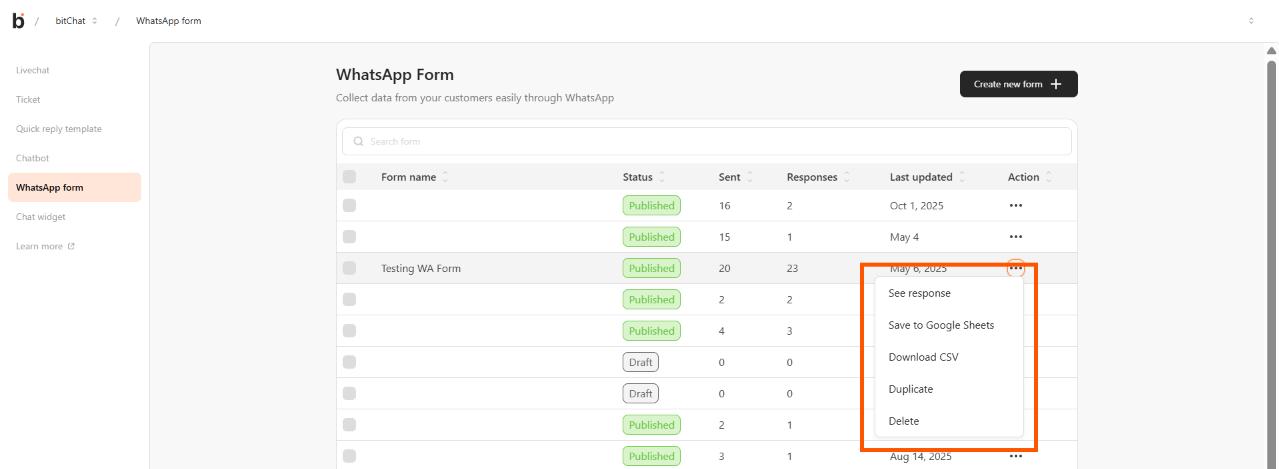
- Open bitChat > WhatsApp form.
- Find the intended form and check that its status is Published.
- Open the form’s row menu and select Save to Google Sheets.
Authorize your Google account
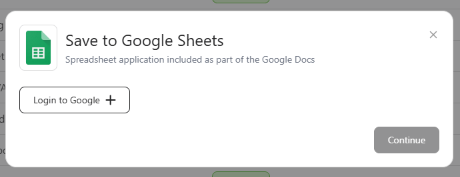
- Select Login to Google and sign in with the account that can edit the destination spreadsheet.
- Review the requested access and authorize it only if you are permitted to connect that account.
- Back in bitbybit, check the email shown beside Connected to. Use Switch account if it is not the intended account.
Choose the spreadsheet and worksheet
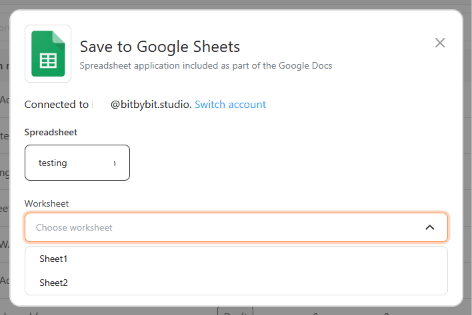
- Select Choose spreadsheet, then choose the destination in the Google file picker.
- Under Worksheet, choose the tab where this form’s responses should be saved.
- Check the selected spreadsheet and worksheet carefully before continuing.
Review the columns and save the destination
bitbybit builds the export columns automatically: customer number, customer name, the form’s input fields in form order, and the submission time. You do not map individual columns or add general customer-event fields in this setup.Select Continue to save the destination for this form and queue its existing responses for export. Later submissions use the saved destination as well.
Verify the connection
Check the destination before relying on it. A successful setup does not establish that every response has synchronized.
- Open the intended spreadsheet and worksheet. Compare existing rows with the form’s responses in bitChat.
- Check that the columns and answer values match the form.
- When an authorized new submission is available, confirm that it appears in the same worksheet. Use test data only if you have permission to submit and export it.