

Shopify condition: Custom field matches
Custom field matches allows you to create flexible conditions using data from your Shopify order payload.What Is Custom Field Matches?
Custom Field Matches is a condition type exclusive to Shopify-triggered automations. Instead of relying solely on predefined fields, it lets you define your own condition by specifying three things:- Field Path — the specific data point from the Shopify order you want to check
- Operator — how the value should be compared
- Value — what the field should be compared against
Note: The Custom Field Matches condition type will only appear when the selected automation trigger is a Shopify trigger.
How to Set Up a Custom Field Matches Condition
Prerequisites
- Your automation must use one of the following Shopify triggers: Order Created, Order Paid, or Order Fulfilled.
Steps
- In your automation flow, select a Shopify trigger such as Order Created, Order Paid, or Order Fulfilled.
- Open the Condition modal and select a field from the Data field dropdown.
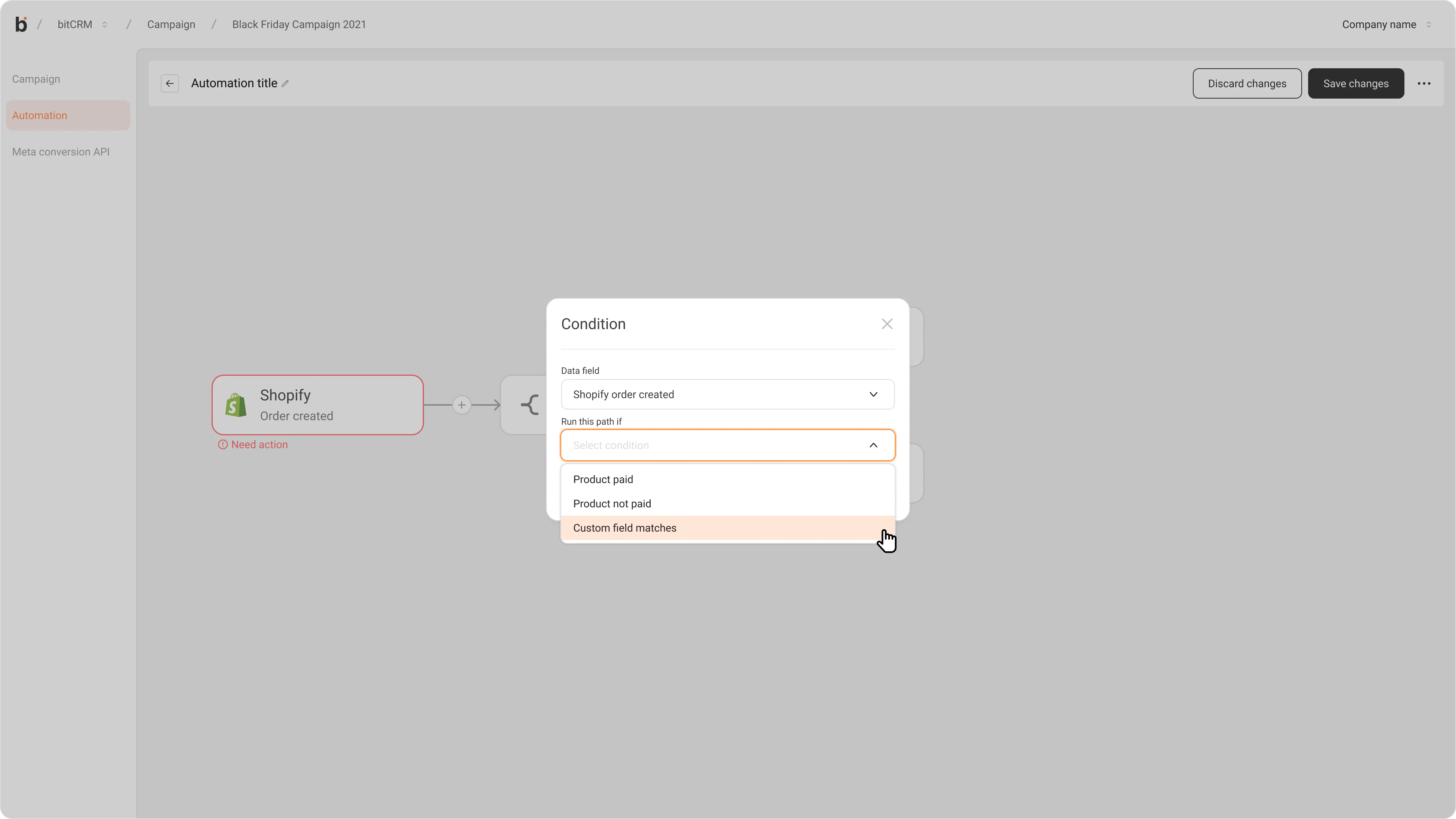
- In the Run if this matches field, select Custom field matches from the list of available option
- In the Field Path field, type the field you want to evaluate (e.g.,
customer.email,customer.tags). Refer to the Supported Field Paths section for the full list of available values.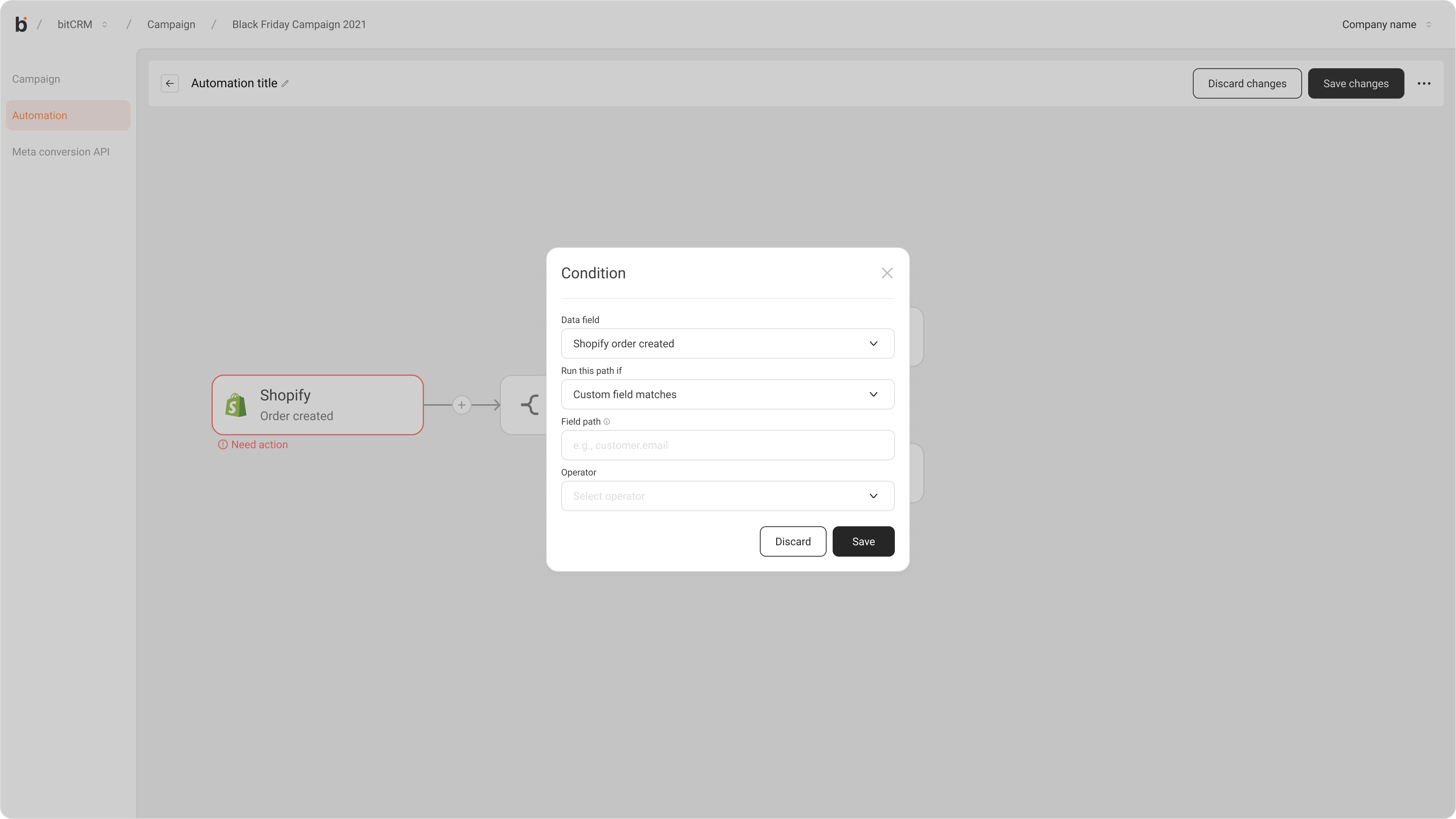
- Open the Operator dropdown and select how the field should be evaluated — Equals, Contains, Does not equal, or Exists.
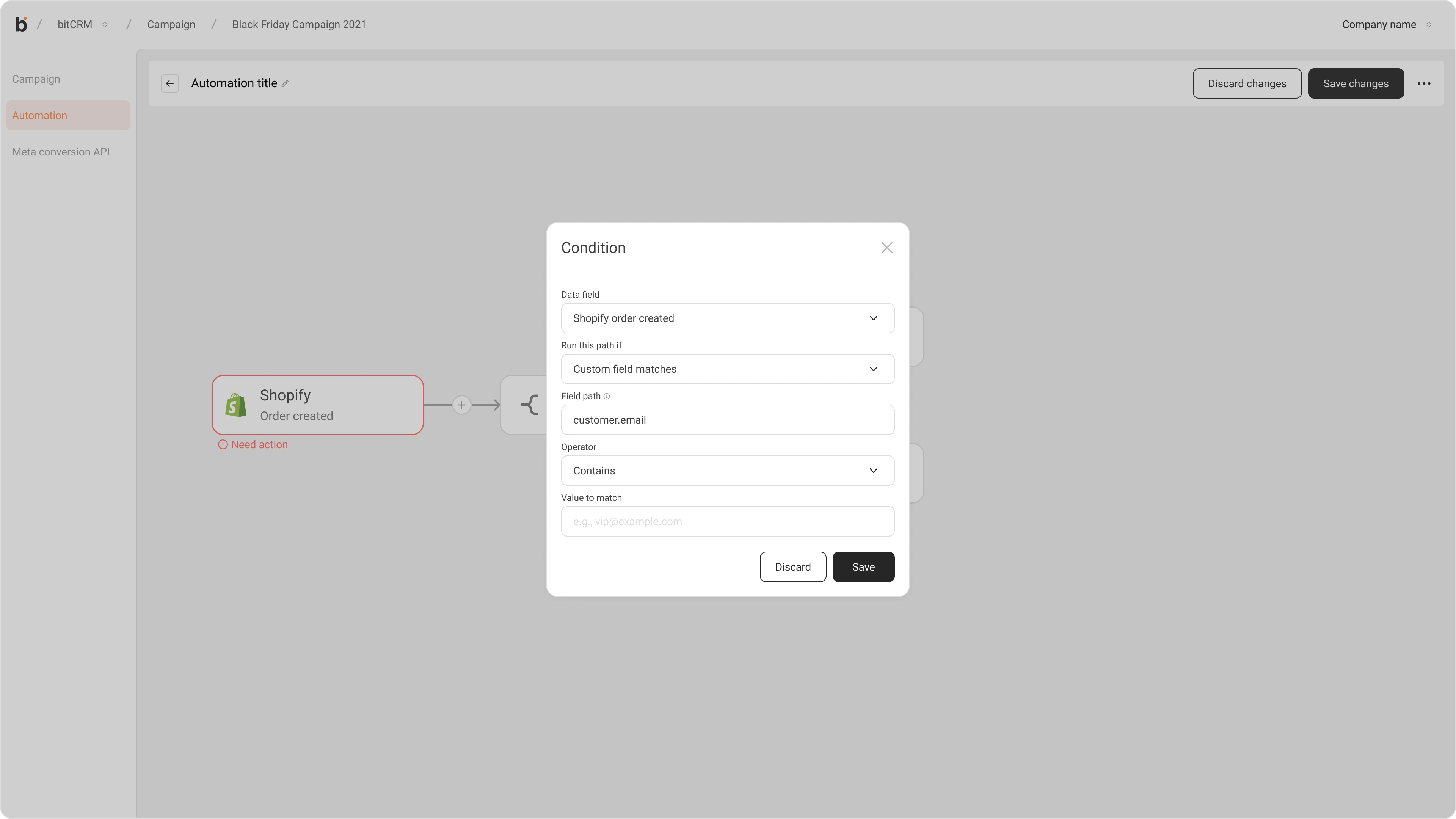
- Enter a value in the Value to match field.
- If you selected Exists, this field is not required and will be hidden automatically.
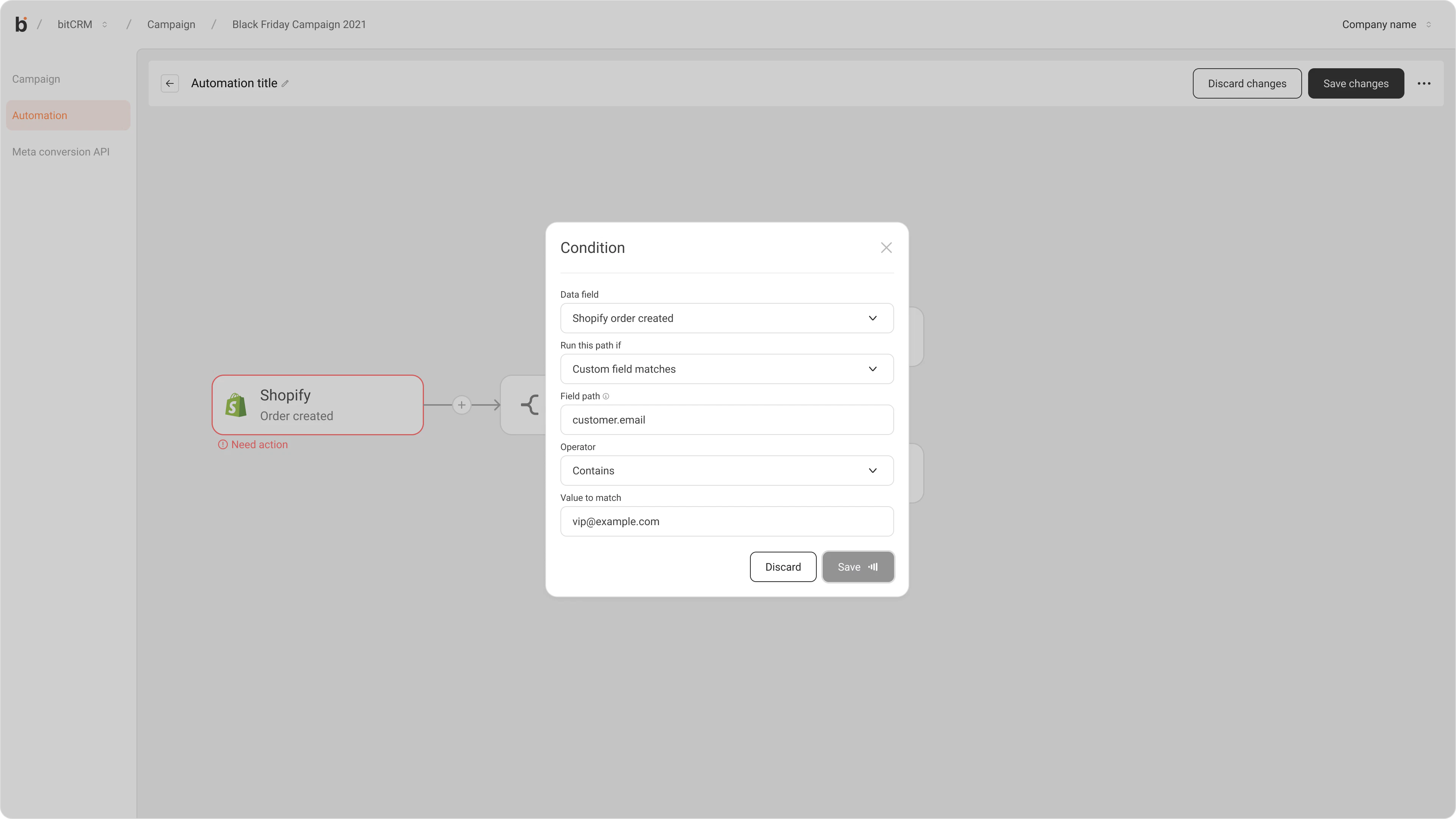
- Click Save. The system will validate the field path and save the condition if it is valid.
Result
Once saved, your automation will only proceed past this condition when the specified field meets the criteria you defined.Supported field paths
The following values are supported in Field path:Operator definitions
Here is what each operator means:
Note: When you use Exists, Value to match is not required.
Important Notes
- Custom Field Matches is only available when the automation trigger is a Shopify trigger. It will not appear for other trigger types.
- The Equals operator is case-sensitive. Ensure that the value you enter matches the exact casing used in your Shopify data.
- When using Exists, the condition will be met as long as the field is present and contains any value — even a single character.
- Field paths must be entered exactly as listed. Unsupported or misspelled paths may cause the condition to behave unexpectedly.