

Overview
The Schedule trigger fires based on a repeat cadence you configure for a selected customer segment. Unlike event-based triggers, it is not tied to a customer action — it runs at the time and cadence you set. Two of the repeat options are anchored to a date on each customer’s own profile rather than a fixed calendar date: Yearly on birthday uses the customer’s date of birth, and Yearly on custom date uses a date field from the customer’s additional data.Before you start
- Open Automation.
- Click Create new scenario.
- Have a customer segment ready to target, or create one first.
- To use Yearly on custom date, make sure your customers have at least one additional data field with the Date type — either a bitbybit field or one synced from Shopify. Only date fields appear in the picker.
Steps
1
Choose the schedule audience
- Click Trigger.
- Choose Schedule.
- In the Send to field, select the customer segment you want to target.
2
Set the repeat pattern and timing
- In the Repeat field, choose the cadence. No option is selected by default — the field shows Select frequency until you pick one, and the remaining fields stay hidden until then.
- Does not repeat — runs once at the scheduled time
- Daily — runs every day, minus any days you exclude
- Weekly — runs on the days you pick, every 1 to 4 weeks
- Monthly — runs once a month, on a date or on a weekday position
- Annually — runs once a year on the configured date
- Yearly on custom date — runs each year on a date field from the customer’s additional data
- Yearly on birthday — runs each year on the customer’s date of birth
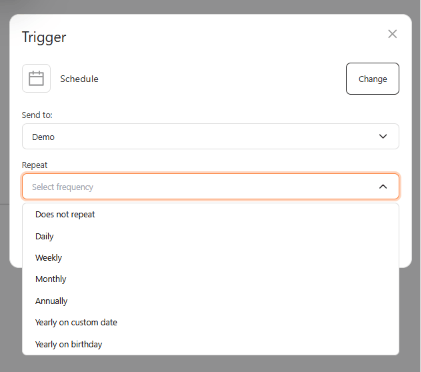
- Fill in the fields that appear for your chosen cadence. See Fields by repeat option below for the full list.
3
Add optional timing and end date
- (Optional) For Yearly on custom date or Yearly on birthday, check Advanced timing to send the message relative to the date instead of on the day itself. Under Timing offset, set a number from 1 to 31, a unit (days, weeks, or months), and a direction (before or after).
- (Optional) Check Add an end date, then set an End date to stop the schedule after that day.
4
Save and build the scenario
- Click Save.
- Add the next step in the scenario.
- Click Save automation.
Anchor a schedule to a custom date field
Choose Yearly on custom date when you want the send date to come from each customer’s own profile — a membership renewal date, a policy expiry, or a purchase anniversary — rather than one fixed date for everyone.1
Choose the custom date cadence
Set Repeat to Yearly on custom date.
2
Select the date field
In the Date field picker, choose the additional data field to anchor the schedule to. The field shows Select date field until you pick one, and is disabled while the list loads.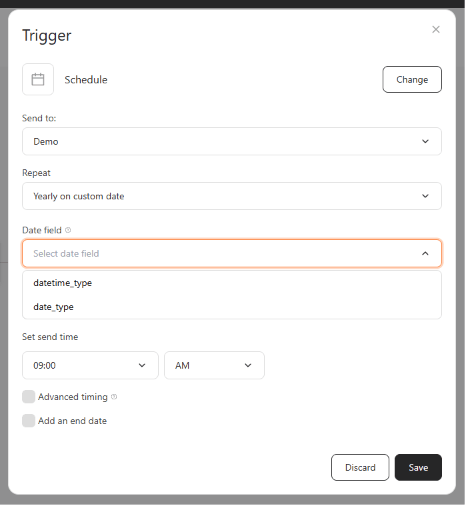
3
Finish the timing setup
Set Begin automation on and Set send time, then add an optional timing offset or end date.
Only additional data fields with the Date type appear in the Date field picker. If the list is empty, add a date field to your customer profiles first, then reopen the trigger.Date fields synced from Shopify appear here too, listed alongside your bitbybit fields.
Fields by repeat option
Notes on individual fields:
- Set send time uses 15-minute increments with an AM/PM selector.
- Exclude days (Daily) lets you skip specific weekdays, such as weekends.
- Repeat every (Weekly) runs the schedule every 1, 2, 3, or 4 weeks, and On day selects which weekdays it sends on.
- Repeat on (Monthly) sends either On date — a fixed date each month — or On the — a weekday position such as the first Monday.
When to use each option
- Use Does not repeat for a one-time scheduled send to a segment.
- Use Daily, Weekly, or Monthly for regular recurring messages such as digests or promotional reminders.
- Use Annually for yearly campaigns on a fixed calendar date, such as a store anniversary.
- Use Yearly on birthday to send an automated birthday message to each customer on their own birthday. For a faster setup, start from the prebuilt birthday template instead.
- Use Yearly on custom date when the send date differs per customer and is stored as a date field in their additional data.
If the Save button stays disabled
The trigger can’t be saved while any field fails validation. Check for these messages:- Start date can’t be in the past — pick today or a later date.
- End date must be after the start date — move the end date later, or clear Add an end date.
- Please leave at least one day to send on (Daily) — you’ve excluded all seven days.
- Please select at least one day (Weekly) — pick at least one weekday under On day.
On Does not repeat, Yearly on custom date, and Yearly on birthday, an end date set before the start date disables Save without showing a message. If Save is greyed out on these options and no error is visible, check your End date first.