

Overview
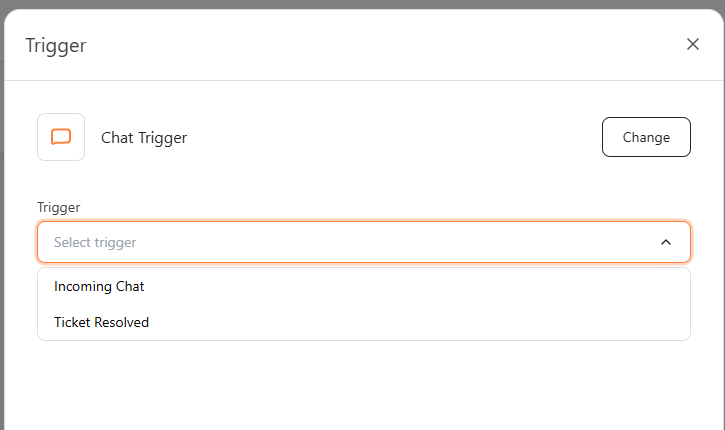
The current Chat Trigger family includes these trigger options:- Incoming Chat — fires when a new inbound message arrives on a connected channel
- Ticket Resolved — fires when a support ticket is marked as resolved in bitChat
Before you start
- Open Automation.
- Click Create new scenario.
- Make sure the channel you want to monitor is connected under Integrations.
Steps
1
Choose the chat event
- Click Trigger.
- Choose Chat Trigger.
- Select the trigger option:
- Incoming Chat — proceeds to step 4.
- Ticket Resolved — skip to step 5.
- If you selected Incoming Chat, choose the Incoming chat source from the available channels:
- WhatsApp Cloud API
- WhatsApp Business App
- WhatsApp Sandbox
- TikTok
2
Save and build the scenario
- Save the trigger.
- Add the next step in the scenario.
- Click Save automation.
When to use each option
- Use Incoming Chat when you want to automatically respond to or route new inbound messages from a specific channel.
- Use Ticket Resolved when you want to follow up with a customer after their support issue has been closed, such as sending a satisfaction survey or a thank-you message.