

Overview
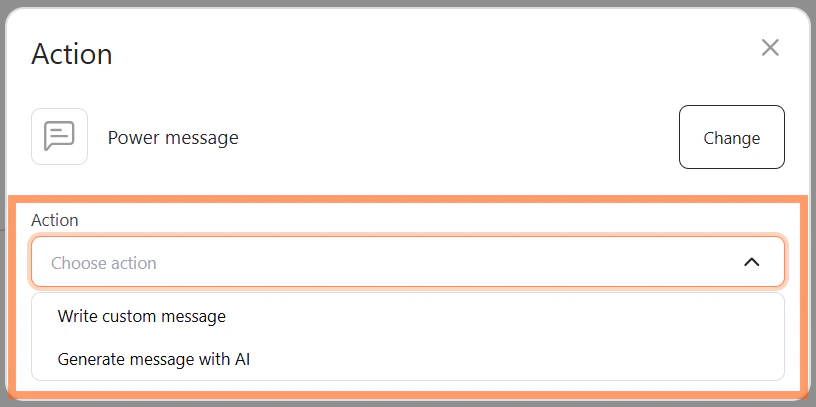
The Send Power Message step in an automation has two action options:- Write custom message — you write the header and body manually.
- Generate message with AI — AI generates the header and body at trigger time based on the customer’s web activity and the goal you set.
Before you start
- Open Automation.
- Make sure the automation already has a Shopify Web Activity trigger set. The Generate message with AI action is only available for Shopify Web Activity triggers.
- The AI Studio brand voice settings apply globally. Configure them in AI Studio before saving if you want a consistent tone.
Steps
1
Choose Generate message with AI
- In your automation scenario, click the + button to add a step after the trigger.
- Select Communication channel, then choose the connected channel.
- From the Action dropdown, select Generate message with AI.
2
Set the timing and message goal
- In the Display after (In seconds) field, enter how many seconds to wait before the Power Message appears. Enter
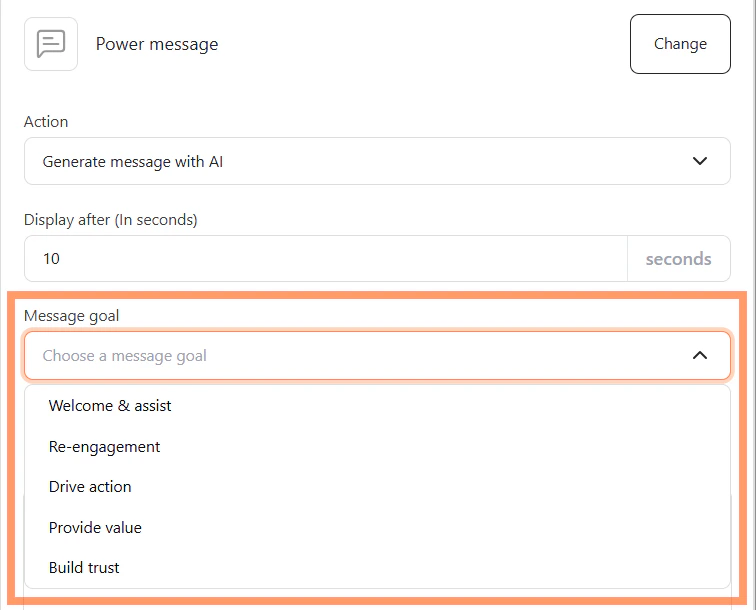
0or a positive number. Negative values are not accepted. - Open the Message goal dropdown and select the goal that best fits your trigger. Available options are: Welcome & assist, Re-engagement, Drive action, Provide value, and Build trust.
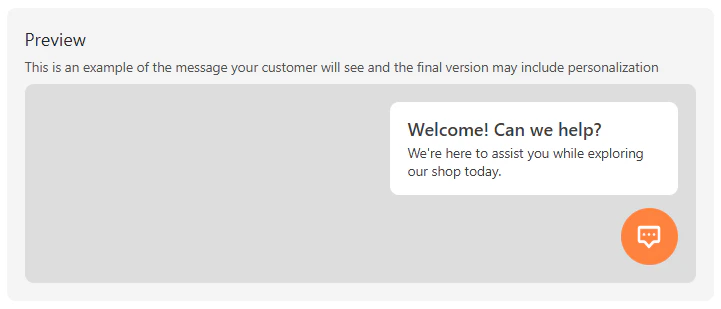
- Wait for the AI preview to generate. The preview appears automatically once a Message goal is selected — there is no Generate button.
3
Add optional replies and instructions
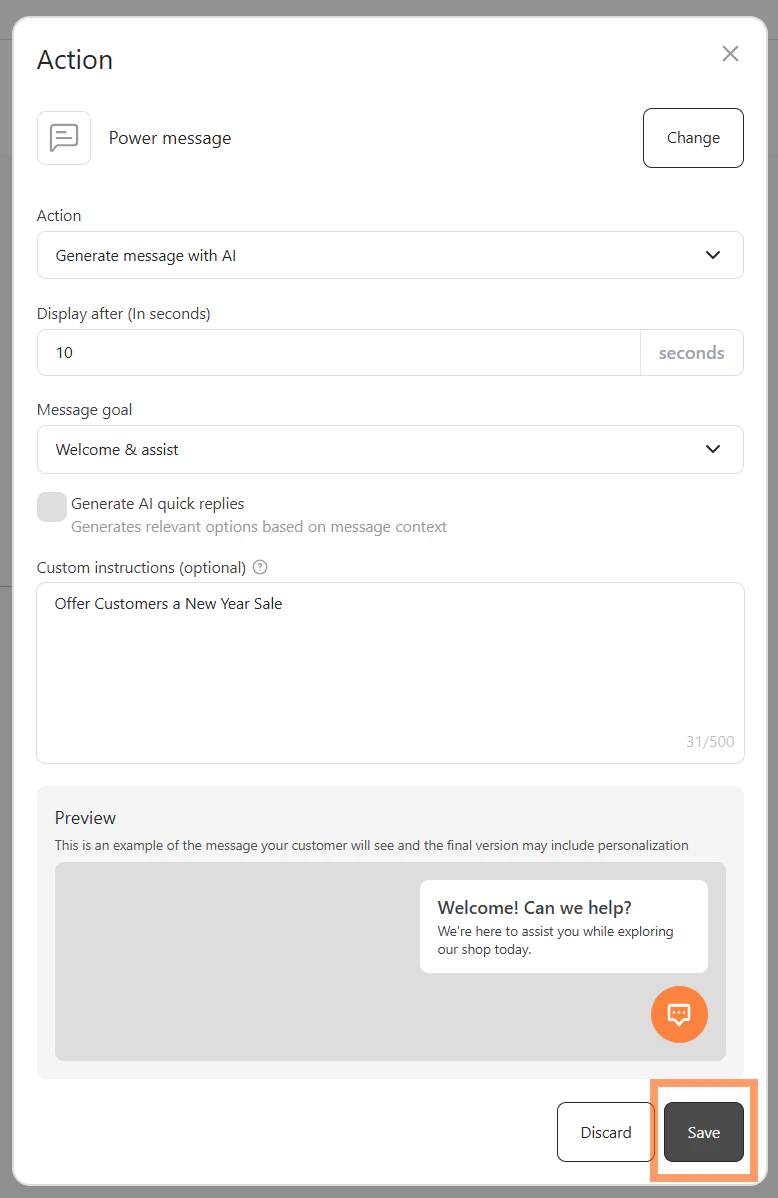
- (Optional) Toggle Generate AI quick replies on if you want the Power Message to include relevant reply options based on the message context.
- (Optional) Enter additional context in the Custom instructions field (up to 500 characters). Instructions are applied when the automation fires in production and do not change the preview.
4
Review and save
- Review the preview, then click Save.
- Click Save automation.
How AI generates the message
When the automation triggers in production, AI generates the Power Message in real time using:- The Shopify Web Activity trigger type and context (e.g., the specific product or page visited)
- Product catalog data — names, descriptions, prices, and URLs
- The Message goal you selected
- The customer’s browsing context, if they are logged in
Limitations
- This action only works with Shopify Web Activity triggers. It is not available for other trigger types.
- You cannot edit the AI-generated content. Control the output through Message goal and Custom instructions only.
- The preview is a sample, not the exact production output. Actual content varies based on real-time context.
- Custom instructions are guidelines, not hard rules. The AI may not always apply them verbatim.
- Brand voice must be set in AI Studio (global setting). It cannot be configured per automation.