

Overview
The Automation page includes a ready-made template, “Send a special offer on a customer’s birthday,” in its Explore templates section. Using it opens the automation builder with a Schedule trigger and a WhatsApp Cloud API message step already connected — you only need to review each step and save.Before you start
- Open Automation.
- Have a messaging channel connected (WhatsApp Cloud API, WhatsApp Business Coexistence, WhatsApp Business App, Instagram, or Facebook) if you want the message step ready to send right away. The template auto-selects a channel from whichever you have connected, in that priority order.
Steps
- Go to Automation.
- In Explore templates, find the card titled “Send a special offer on a customer’s birthday.”
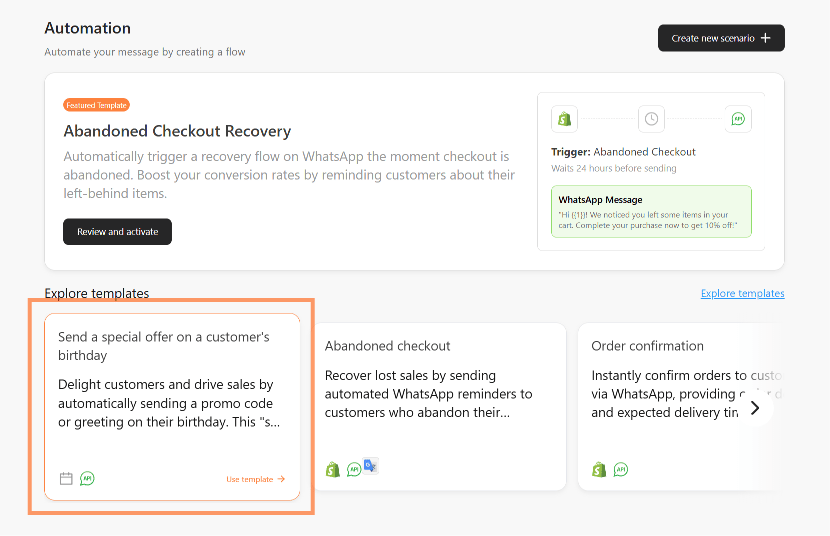
- Click Use template. The builder opens with two steps already placed and connected: a Schedule trigger (Date-of-birth) and a WhatsApp Cloud API action (Send a message).
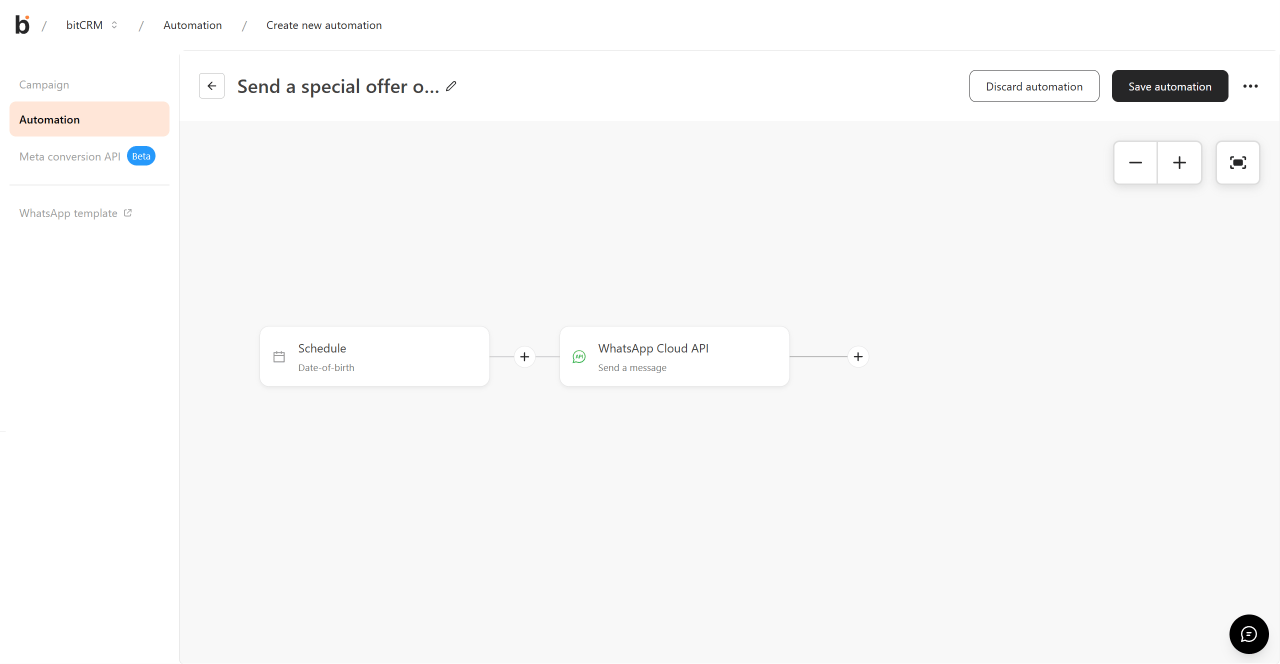
- Click the Schedule node to review the pre-filled trigger:
- Send to: All
- Repeat: Yearly on birthday — fires once a year on each customer’s date of birth
- Begin schedule on: today’s date
- Set send time: 09:00 AM
- Advanced timing and Add an end date are unchecked by default
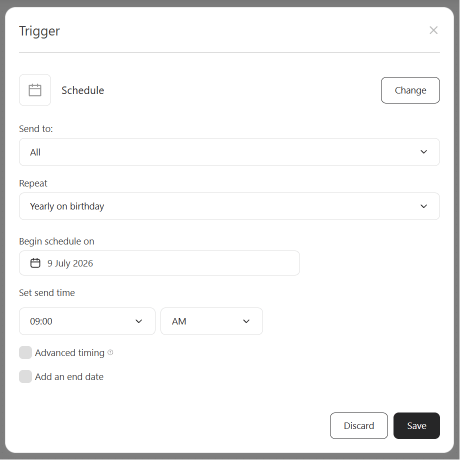
- Click Save to close the trigger, then click the WhatsApp Cloud API node to review the pre-filled action:
- Action: Send a message
- Message template: the field tries to auto-select an approved WhatsApp template whose name starts with
birthday_, and shows a Message preview of that template’s content - Variable 1: mapped to Customer name
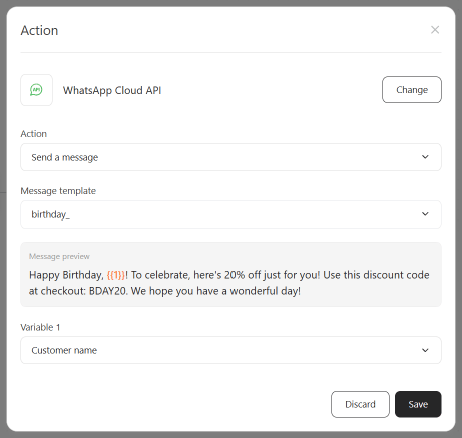
If you don’t have an approved
birthday_ template yet, the Message template field won’t auto-select one. Choose or create one from the same field — see Choose a message template for WhatsApp Cloud API automation.- Click Save, then click Save automation in the top right of the builder.
If no channel is connected
If you use the template before connecting any messaging channel, the action step can’t auto-select a channel and shows a warning until you connect one from Integrations.Customize the template
- To send the message before or after the birthday instead of on the day, check Advanced timing and set the number of days, weeks, or months and the direction (before or after).
- To limit which customers receive the message, change Send to from All to a specific customer segment.
- To stop the automation after a certain date, check Add an end date.
- If your connected channel is WhatsApp Business App, Instagram, or Facebook instead of WhatsApp Cloud API or Coexistence, the action step uses an editable free-text message instead of an approved template — edit it to add your discount code or offer.