

Getting your first segments
This applies once, the first time your workspace has zero segments — it re-checks automatically as your data changes, but stops offering suggestions as soon as you’ve created at least one segment (predefined templates or AI-generated).If you have enough synced customer data
Once you have at least a few dozen synced customers, bitbybit analyzes your store’s real purchase and engagement data and creates up to three segments automatically — no click-to-accept needed, they’re ready to use right away in Segments.- Each generated segment is checked against your real data before it’s created: it has to match at least 10 customers, and no more than 70% of your customer base, so you won’t see a segment that’s really “everyone” or a segment too small to be useful.
- You may see fewer than three if your store’s data doesn’t support that many good candidates — that’s expected, not an error.
- Each generated segment shows a Needs review badge and “AI” in the Created by column.
- “AI” stays permanently, so you always know a segment’s origin.
- Needs review clears the first time you open the segment and save it — reviewing is just opening the generated segment, checking (or adjusting) its filters, and saving, the same as editing any other segment.
- A generated segment is usable everywhere immediately — as a campaign audience, an automation trigger, in exports — even before you’ve reviewed it.
- You’ll see a one-time toast confirming how many segments were created, for example: “3 new customer segments are ready for your campaigns and automations.”
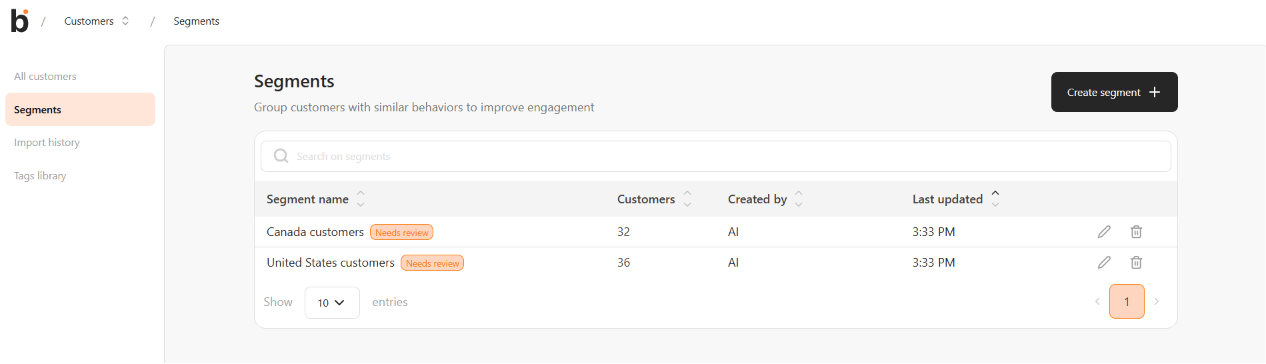
- Generated segments show Needs review and AI in the segments list
If you don’t have enough data yet
If you have no synced customers, or not enough for a reliable AI analysis, you’ll see three ready-made segments instead: VIP customers, Repeat customers, and Win-back customers. Open one in the segment builder, adjust the filters to fit your store, and save it like any other segment.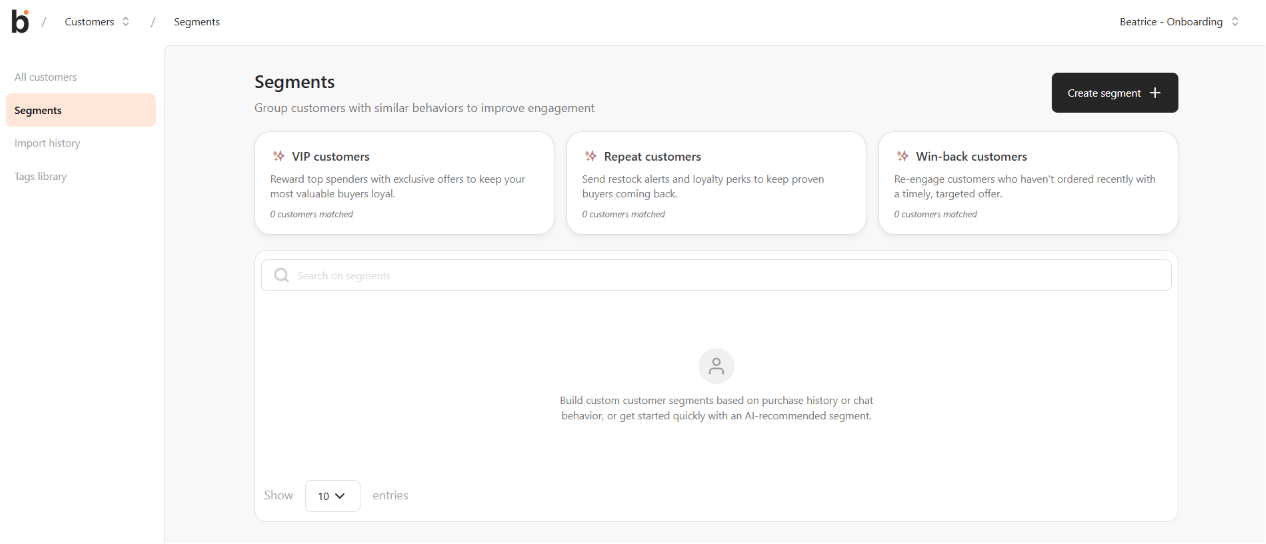
- The predefined templates, each with the AI-recommended sparkle icon
Describe a segment in plain language
Inside the segment builder (Customers → Segments → Create new segmentation), click Build segment with AI above Segment details.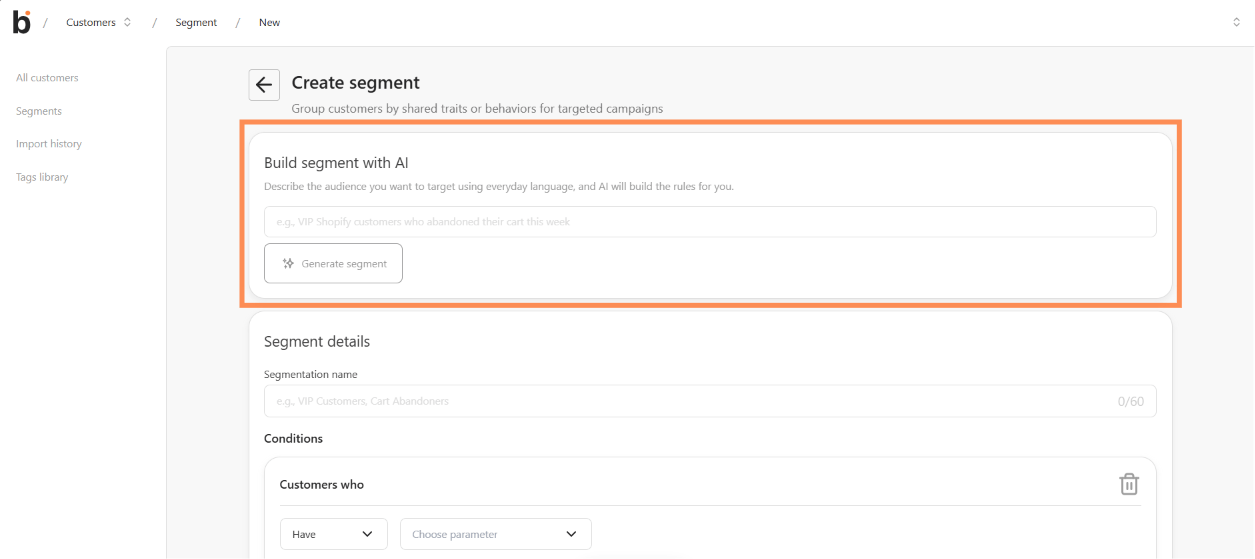
- The Build segment with AI panel, above Segment details
- Type what you’re looking for in your own words — for example “VIP Shopify customers who abandoned their cart this week.”
- Click Generate segment. bitbybit turns your description into the same kind of filters you’d set up manually, and pre-fills the builder with a name and conditions.
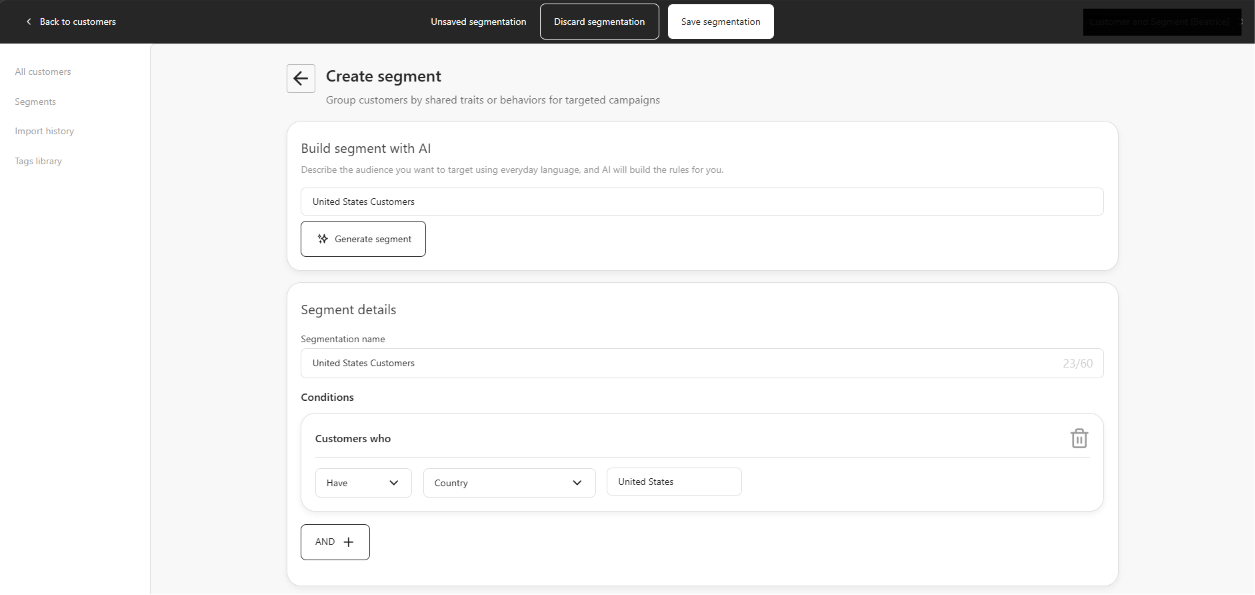
- The builder pre-filled with a segmentation name and conditions
- Review the filters (edit them like any other segment condition), then save. Nothing is created until you explicitly save.
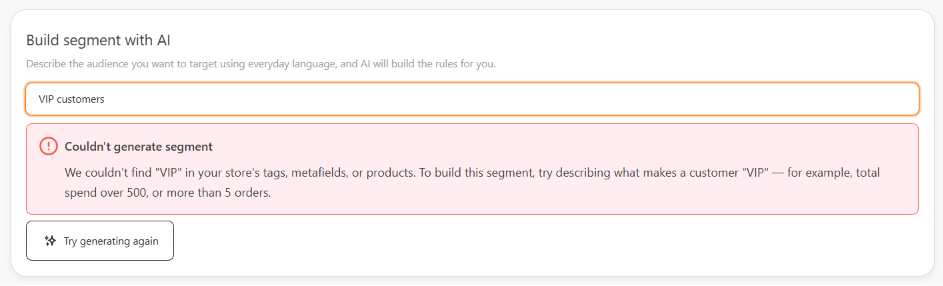
- The Couldn’t generate segment alert
Building a segment with AI doesn’t use your AI credit balance — it’s included at no extra cost.
Connecting Shopify during onboarding
If you’re setting up bitCRM for the first time, the onboarding checklist includes a Shopify step that covers both connecting your store and starting the customer sync in one place:- Connecting Shopify unlocks the sync action underneath it.
- Starting the sync runs in the background — onboarding shows a simple Syncing / Synced status, without blocking you from finishing the rest of the checklist.
- Once the sync completes, segment suggestions (above) become available for your data.