

Prerequisites
- A published WhatsApp Form. See How to create a WhatsApp form.
- At least one customer submission. Until a customer submits the form, Summary shows an empty state instead of results.
Step 1: Open the form’s responses
- Go to bitChat > WhatsApp Form.
- Click a Published form in the list, or open its row menu and choose See response.
Step 2: Read the Summary
Summary shows Total responses and a card for every question in form order. Each card shows the question and how many customers answered it. For a form with more than one screen, questions are grouped under their screen. How each question type is summarized:- Single choice and dropdown — the count and percentage for each option.
- Multiple choice — how many customers selected each option.
- Short and paragraph answers — a readable list of the submitted answers.
- Date, opt-in, image, and document answers — a summary that suits the content, with Answered and Skipped counts.
Customers can select more than one option in a multiple-choice question. The option counts can add up to more than the number of responses, so don’t read them as shares of 100%.
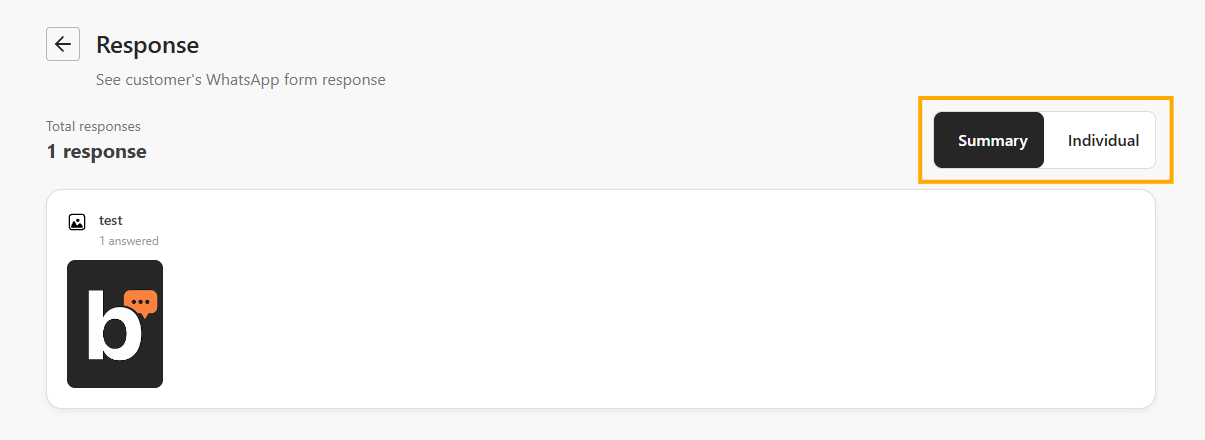
Step 3: Review one customer at a time
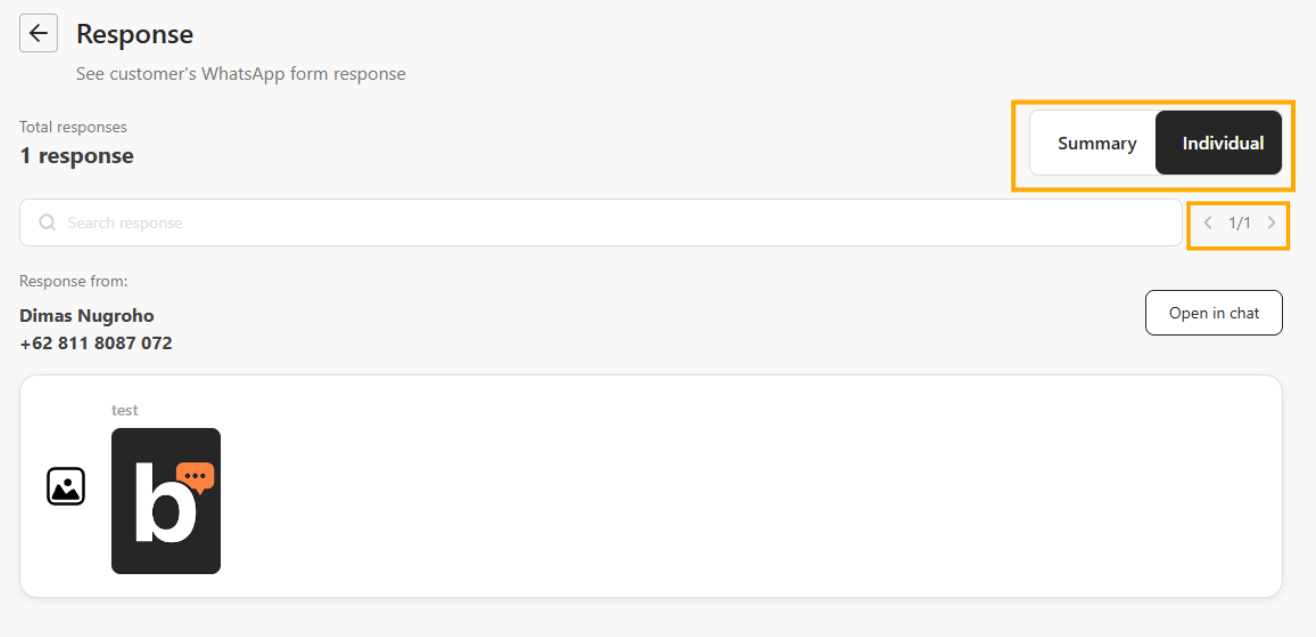
- Select Individual at the top right of the page.
- Under Response from, you see the respondent’s name and phone number, followed by all of their answers.
- Use the previous and next arrows next to the counter to move between respondents. On a touch device, you can also swipe left or right.
- Check the counter, for example 1/24, to see where you are.
Step 4: Find a response
- Use the Search response field to find a response.
- When you change the search, the view returns to the first matching response.
Step 5: Open the customer’s chat or files
- Click Open in chat to open the related WhatsApp chat, when the option is available.
- Click an uploaded image to preview it, or click an uploaded document to download it. See How to add a media upload field to a WhatsApp form.