

Connect only the card you need. Reviews and Loyalty are independent; connecting one does not connect the other.
Connect Stamped for product reviews
Step 1: Access the Integrations dashboard
Go to the Integrations dashboard and click “Connect” on Stamped.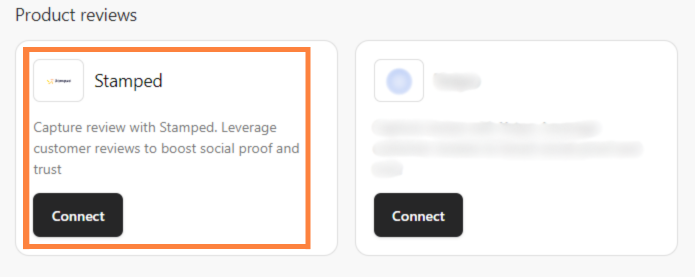
Step 2: Enter your credentials
Enter your “API Public Key”, “API Private Key”, and “Store Hash”, then click “Continue”. Stamped is then integrated directly into your Shopify store.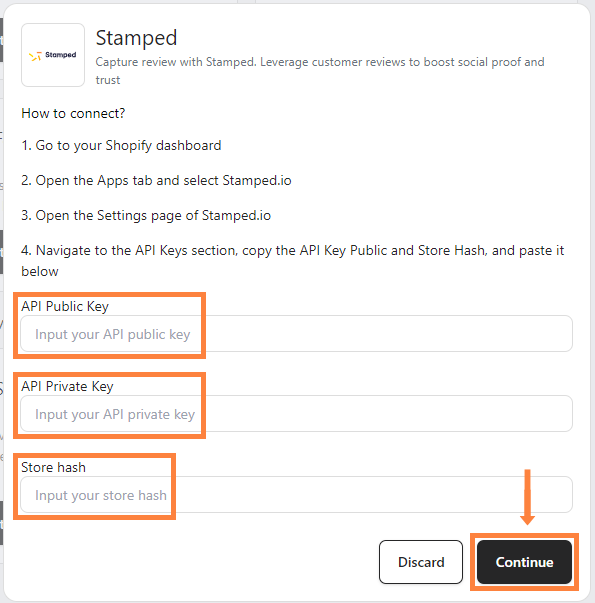
Find your review API keys
- Go to your Shopify admin, click “Apps” in the sidebar, then select “Stamped”.

- Click “Open Stamped App”.

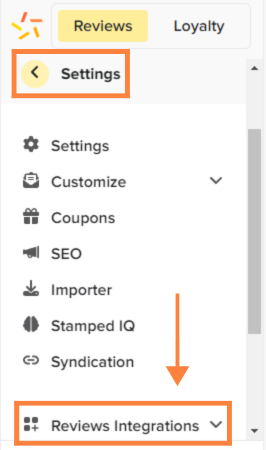
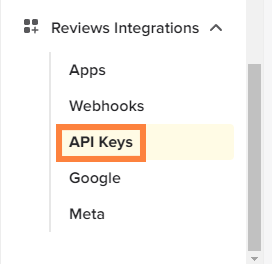
- Click “Settings”, scroll down, click “Reviews Integrations”, and select “API Keys”.
Connect Stamped Loyalty
Connecting Stamped Loyalty synchronizes your store with your loyalty program.Step 1: Open Stamped in Shopify
Go to your Shopify admin dashboard and click “Apps” in the sidebar.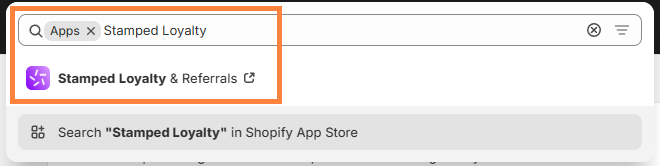
Step 2: Switch to the Loyalty tab
Inside Stamped, click the “Loyalty” tab.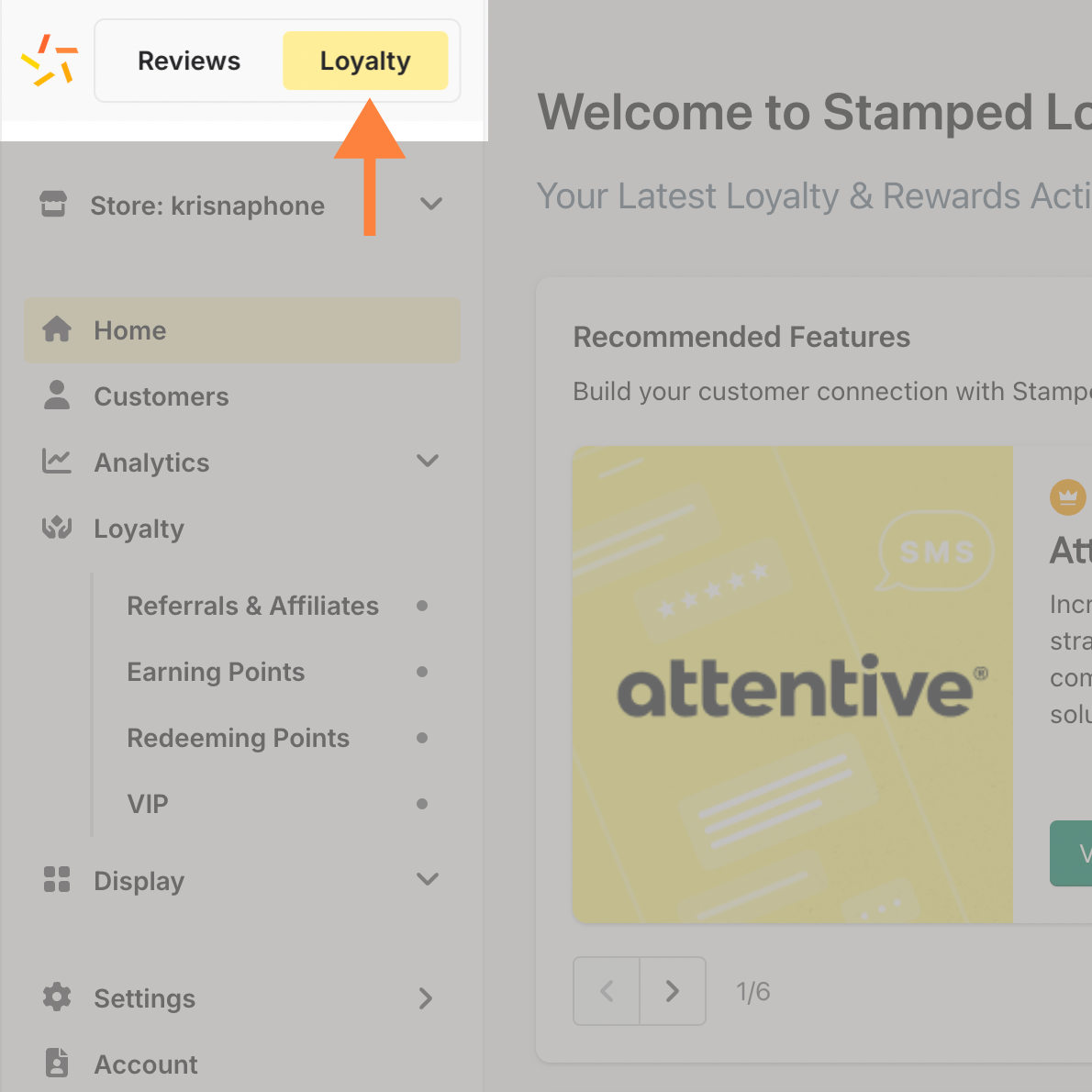
Step 3: Open the loyalty API keys
Go to the “Settings” menu, select “Loyalty Integrations”, and click “API Keys”.
Step 4: Copy your credentials
Copy your API Public Key, API Private Key, and Store Hash.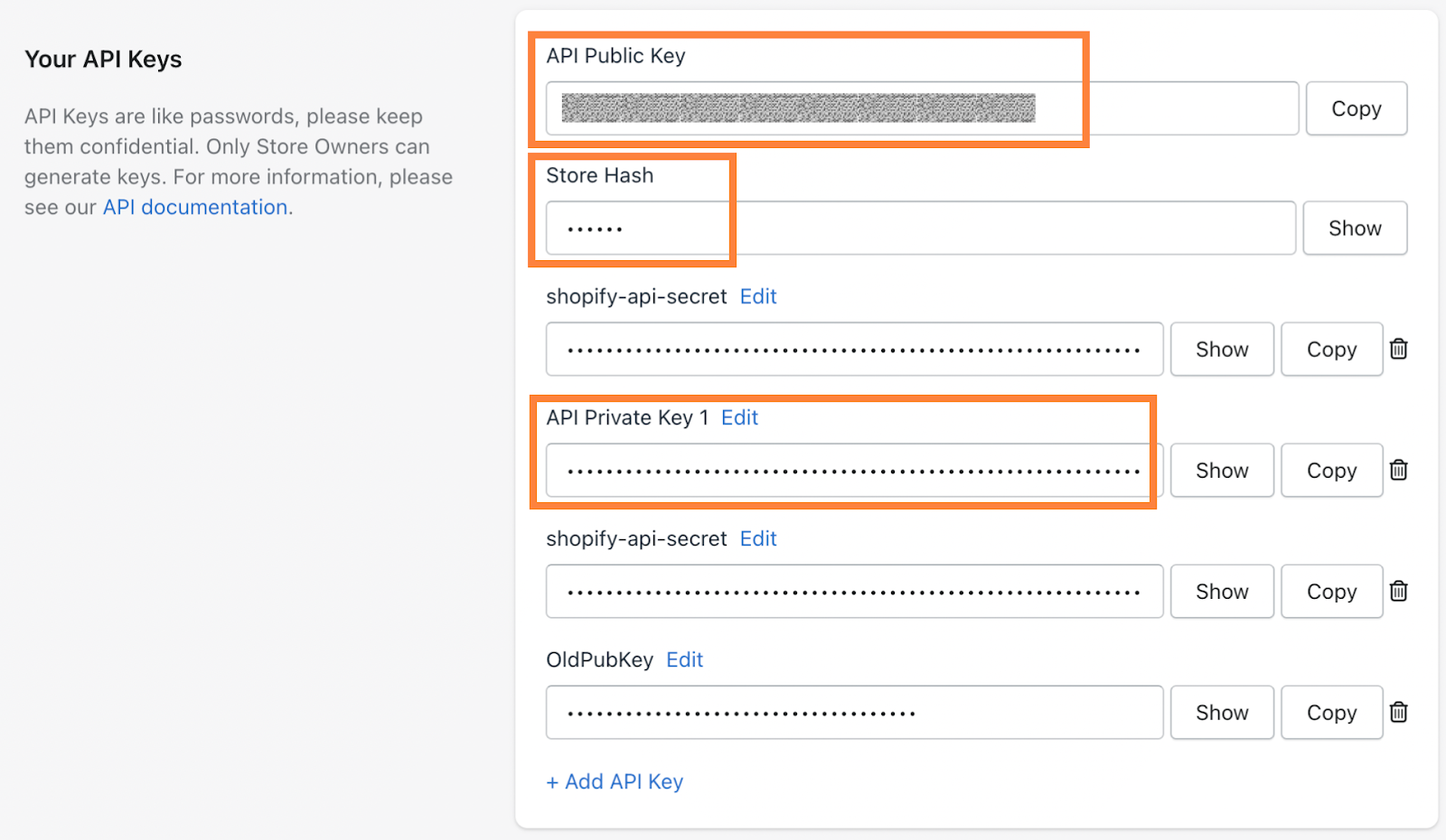
Step 5: Connect Stamped Loyalty in bitbybit
Go to the Integrations dashboard and click “Connect” on Stamped Loyalty.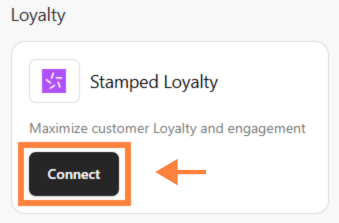 Paste the credentials into the fields.
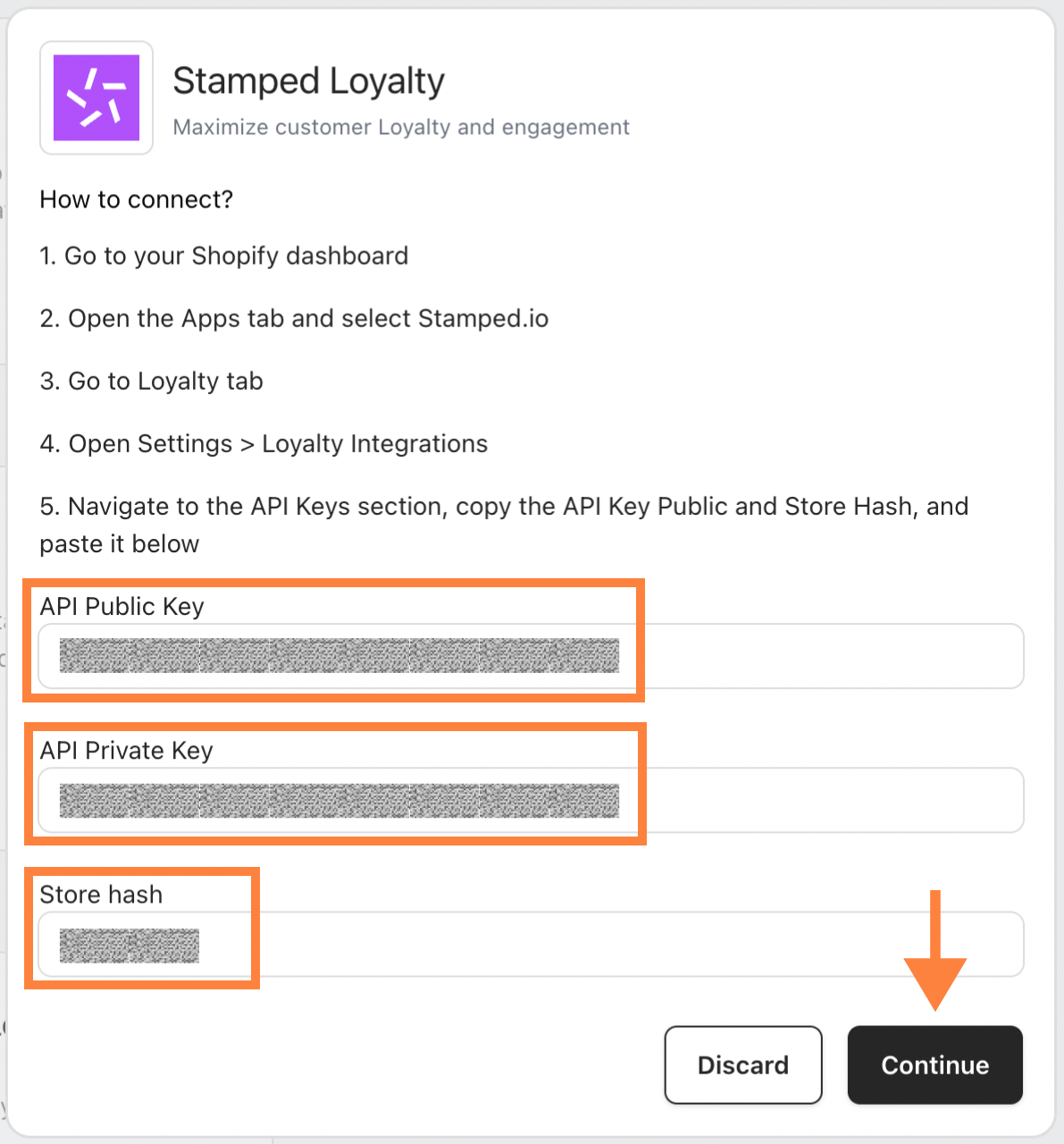
Your Stamped Loyalty account is now connected to your store.
Related
- Set up Stamped loyalty Triggers in Automation
- Yotpo — the other supported product review provider
- Shopify