

Before you start
- A points source is connected: either your store connected to bitbybit via bitLogin, or bitbybit Commerce with at least one product and one connected chat channel. The Points expiry card and its dropdown stay disabled until a source is connected, the same as Earning rate.
- Your loyalty program is enabled. See Loyalty quickstart if you haven’t set one up yet. While the program is switched off, nothing expires even if a period is set.
How points expiry works
- Each customer has their own countdown, and it covers their whole balance, not individual batches of points.
- When the countdown runs out, the whole balance goes to zero. The drop appears in the customer’s Points history as Points expired after 1 year with no activity, naming whichever period you chose, so a balance never falls without a reason you can show the customer.
- These restart the countdown: purchases (including orders that earn 0 points), redemptions, refunds, cancellations, and points you add or deduct by hand.
- Scheduled points don’t restart a running countdown, for example birthday rewards or a scheduled bonus for a segment. Otherwise a yearly birthday reward would stop points from ever expiring. They do start a countdown for a customer who doesn’t have one yet.
- Only available points expire. Points already held for a reward the customer is claiming are left alone.
- Expired points don’t count as redeemed. The customer’s Redeemed total stays the same when a balance expires, so expiry never inflates your redemption figures.
- A balance that has expired starts fresh. The next points the customer earns begin a whole new countdown rather than expiring again straight away.
- Balances are swept every few minutes, so a balance disappears shortly after its date passes rather than at a fixed time of day.
Step 1: Open the setting
- In the sidebar, open bitLoyalty > Earn points.
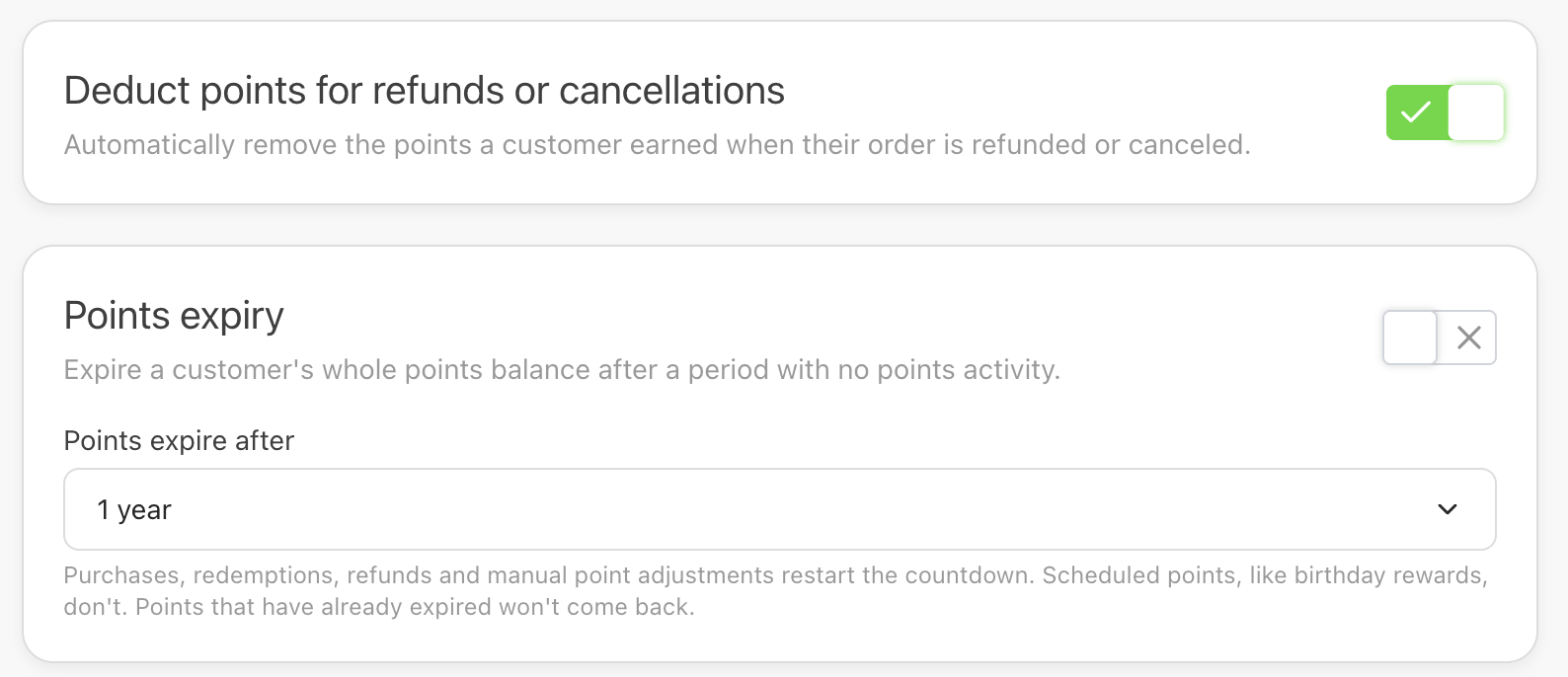
- Scroll to the Points expiry card, below the Deduct points for refunds or cancellations card.
Step 2: Choose the period and turn expiry on
- Under Points expire after, pick 7 days, 30 days, 90 days, or 1 year. 1 year is selected by default. You can pick the period while the switch is still off.
- Turn on the switch on the right of the card.
- In the Points won’t expire right away window, check the date shown, then click Turn on expiry. The change saves immediately and you’ll see the toast
Points expiry updated.
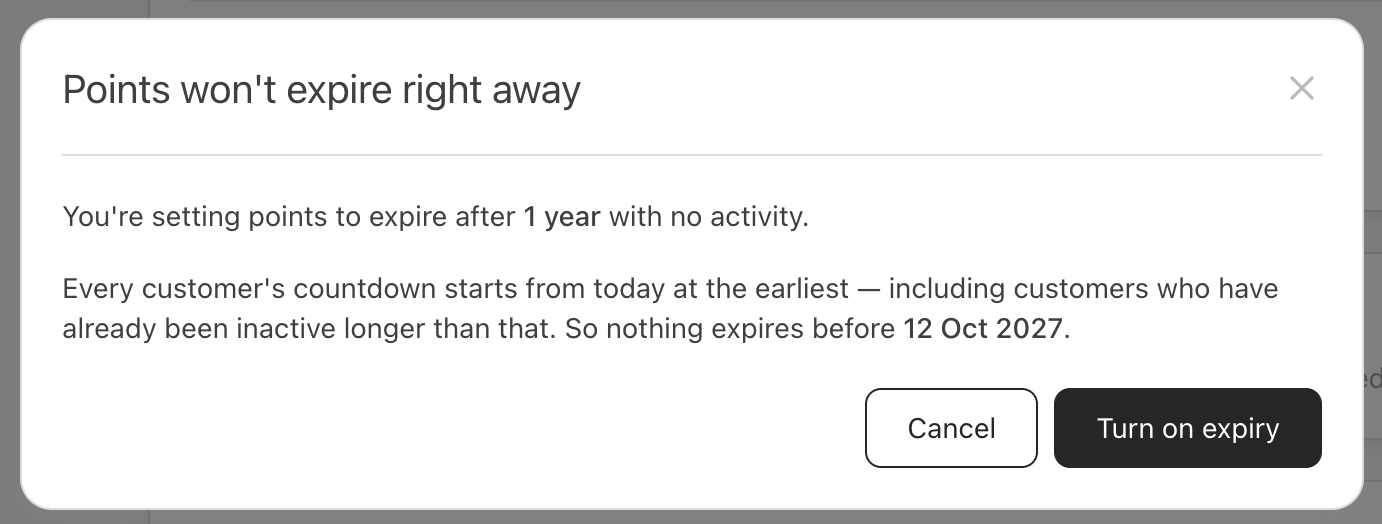
Turning expiry on never takes points straight away. Every customer’s countdown starts from today at the earliest, including customers who have already been inactive for longer than the period. With 30 days chosen today, nothing expires for at least 30 days. The same applies if you choose a period while your loyalty program is switched off and enable the program later — the countdown starts when you enable it, not before.
Change or turn off points expiry
- Shorten the period (for example 1 year to 30 days): a Points will expire sooner window shows the old and new period. Click Save change. No one loses points before today plus the new period.
- Lengthen the period: it applies straight away. Expiry dates only move later.
- Turn expiry off: use the switch. It applies straight away and points stop expiring.
See when a customer’s points expire
When points expiry is on, Expires on and the date appear under the points balance:- On the customer’s profile in Customers.
- In live chat, in the customer info panel under the Loyalty tab.
- On the loyalty page in your Shopify storefront, where the customer sees their own date alongside the hint Make a purchase before then to keep your points. An expired balance shows there as a Points expired row in their history.