

Prerequisites
- Referral is on and Ready. See Set up referral.
- WhatsApp Cloud API is connected. For Shopify links, the referral script is also active.
- A customer segment to send to. See How to create a customer segment.
Referral link variables work only with Marketing templates, not Utility templates.
1
Create a Marketing template with a parameter
- Create a WhatsApp Cloud API template with Message category set to Marketing.
- In Message content, click Add variable + where the link goes, for example:
Invite a friend and you both earn points. Your link: {{1}} - Click Add sample values, fill them in, and submit the template to Meta for approval.
2
Create the campaign
- Open bitCRM > Campaign, click Create new campaign, and choose WhatsApp Cloud API.
- Enter a Campaign name and select the segment in Send to.
- Choose Send immediately or Schedule send.
3
Map the parameter to a referral link
- In Message template, select your Marketing template.
-
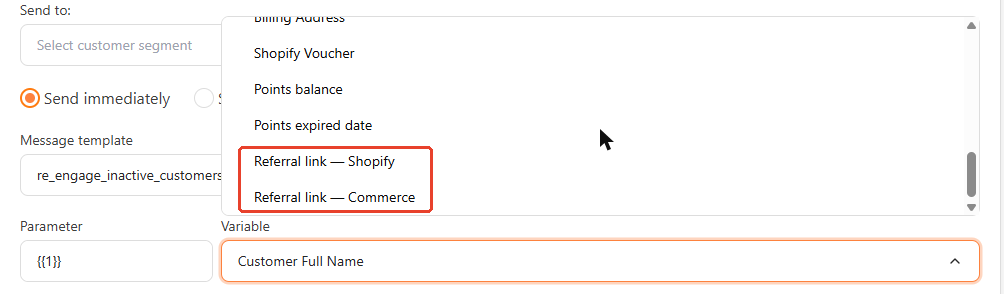
In the Variable dropdown next to the parameter, scroll to the end of Built-in variables and pick Referral link — Shopify or Referral link — Commerce.

4
Review and send
- Click Review, check the details, then confirm.
FAQ
Why don't I see the Referral link variables?
Why don't I see the Referral link variables?
Check that the template category is Marketing, bitLoyalty is on, and referral is Ready.
Does every recipient get the same link?
Does every recipient get the same link?
No. Each customer gets their own link, so each referral is credited to the right person.