

Before you start
Connect the WhatsApp or Instagram channel you want the chatbot to use.1
Start a new chatbot
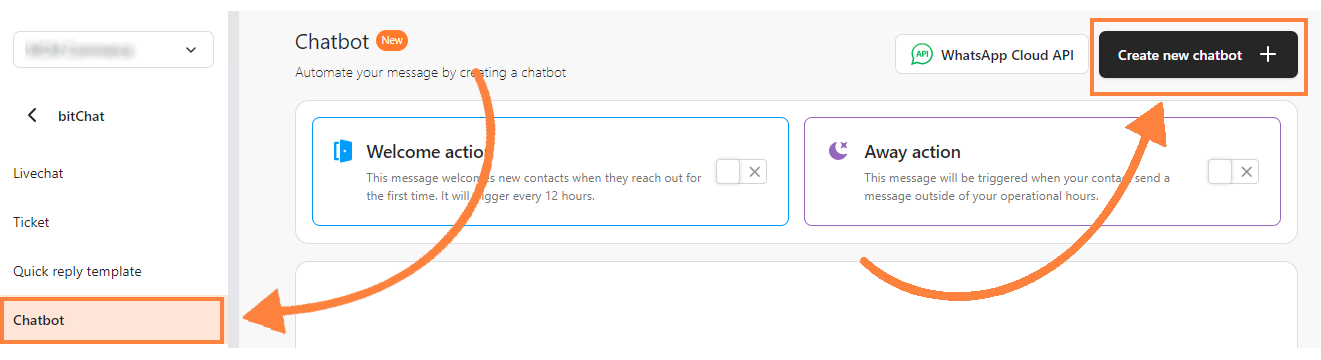
- Go to bitChat > Chatbot.
- Click Create new chatbot.
- Select WhatsApp Business App, WhatsApp Cloud API, or Instagram.

2
Configure the trigger
- Select a Fallback message.
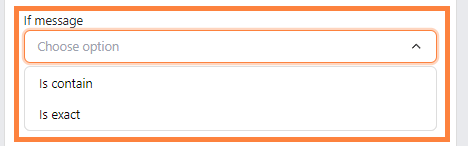
- Set the message condition to Is contain or Is exact.
- Enter at least one keyword. Press Enter after each keyword.
- Add a ticket category, customer tag, or media if needed.
- Write the message customers receive.

3
Add response options
- WhatsApp Business App or Instagram
- WhatsApp Cloud API
Add the reply options customers can choose.

4
Build the next steps
From a reply option, add the next item: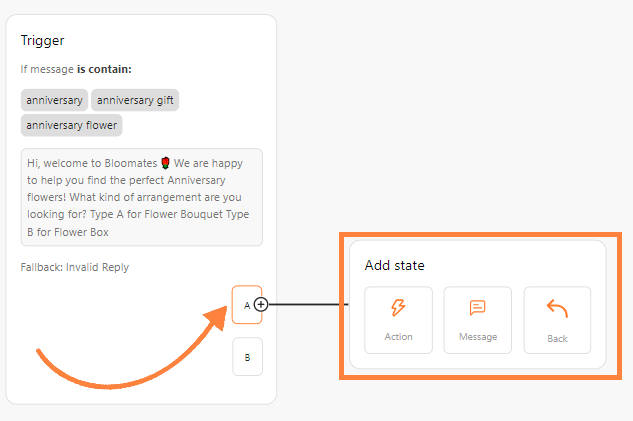
- Message sends another message and can add more reply options.
- Action performs a task, such as adding a customer tag.
- Back returns the customer to the previous message when that option is available.
5
Save and activate the chatbot
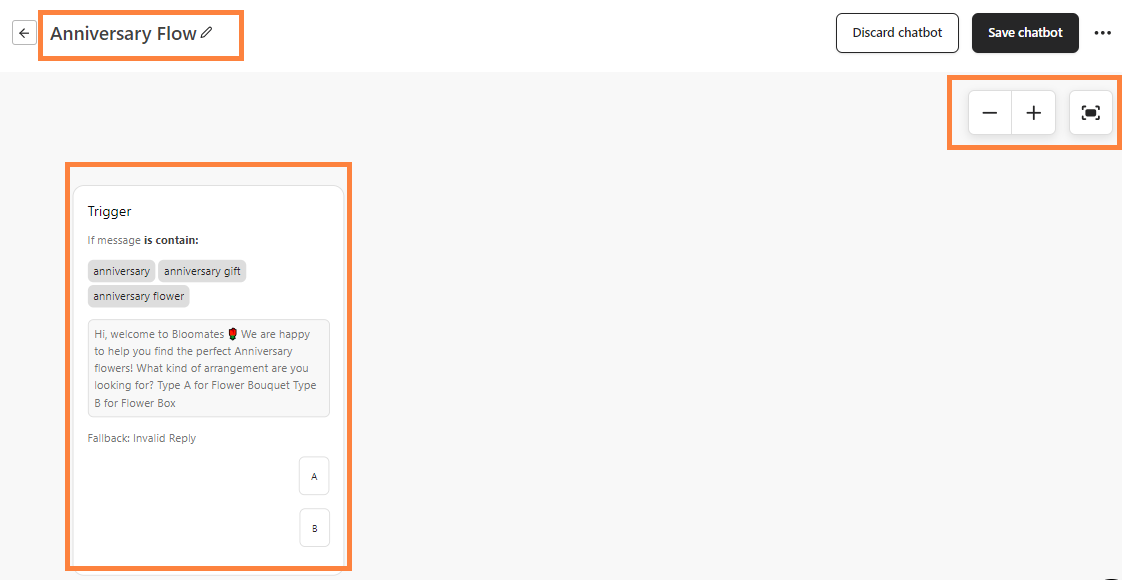
- Enter a clear chatbot name.
- Click Save chatbot.
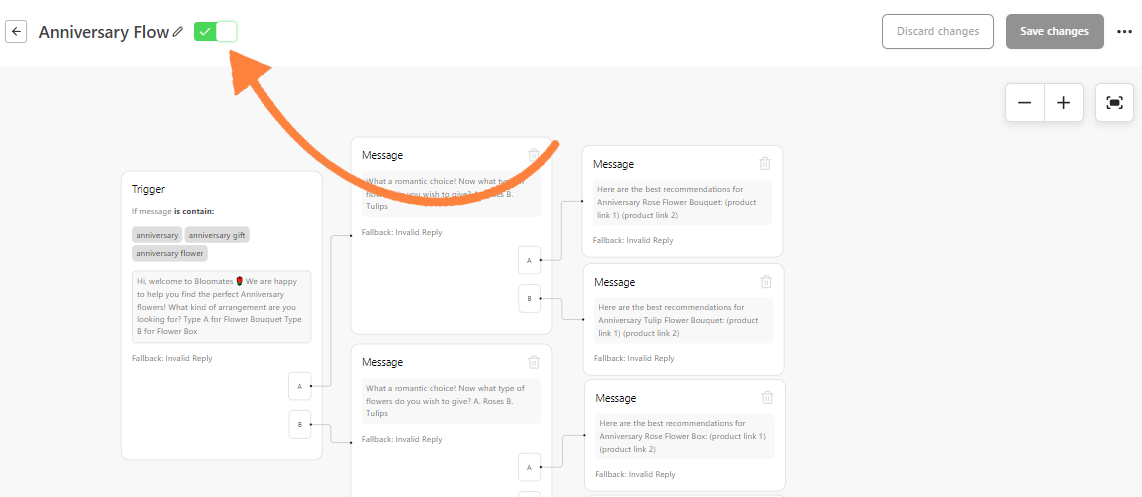
- Turn on the switch beside the chatbot in the list.
Route a conversation to the AI agent
Route a conversation to the AI agent
Select Assign to AI Agent where the chatbot offers an agent fallback or routing action. This hands the conversation to the AI agent configured for the selected channel.
Watch the video walkthrough
Watch the video walkthrough