

Prerequisites
- You created an AI agent in AI Studio. If not, start with Set up your AI agent in AI Studio.
- WhatsApp is connected and the conversation is handled by the AI agent.
- You know the Skills tab basics (adding a skill and using its card).
1
Open the Follow-up skill
- Go to AI Studio and open the AI agent you want to configure.
- Open the Skills tab.
- In the Engagement section, add Follow-up if it is not there yet (Add skill → Follow-up → Add).
- Use the switch on the Follow-up card to turn the skill on.
-
Open the card to configure its settings.
2
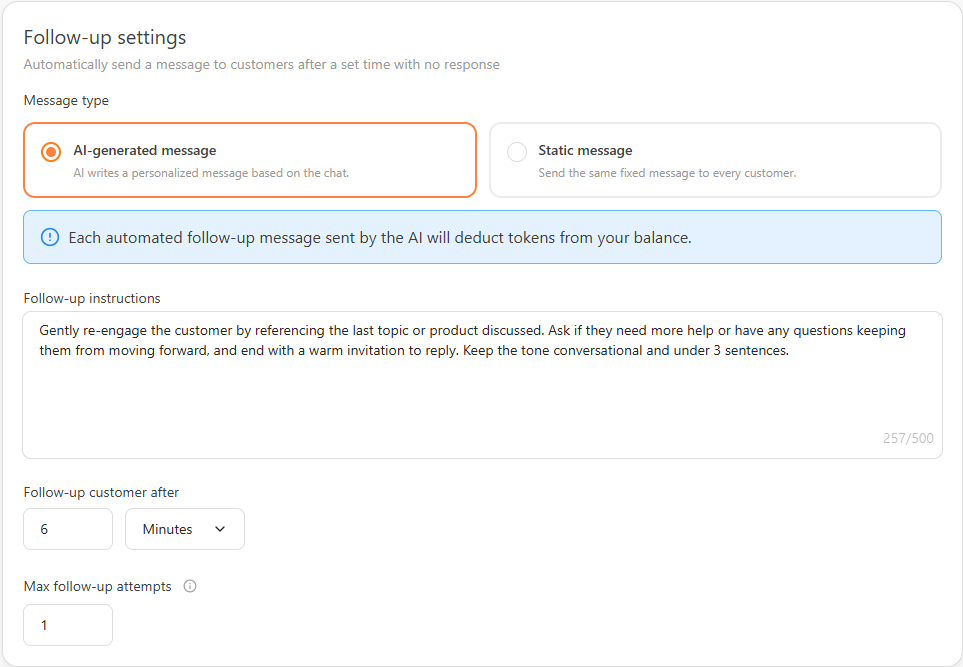
Choose the message type
Under Message type, choose how the follow-up is written:
- AI-generated message writes a personalized message from the conversation. Enter Follow-up instructions of up to 500 characters. Each sent message deducts tokens from your balance.
- Static message sends the same saved Follow-up message to every customer without rewriting it.
3
Set the delay and attempts
Follow-up customer after controls how long the agent waits with no reply between attempts.
- Enter a number, then choose the unit: Minutes or Hours.
- The supported range is
1–1380minutes or1–23hours. - Under Max follow-up attempts, enter a value from
1to5. - New settings default to
2hours and2attempts.
Keep the complete follow-up sequence within WhatsApp’s 24-hour window.
4
Save the skill
- After any change, an Unsaved skillset banner appears at the top of the page.
- Click Save skillset to apply your settings, or Discard skillset to revert.
Follow-up is active once the switch is on and your settings are saved.
How AI follow-up works
The timer counts from the customer’s last message. After each delay, the agent sends another follow-up until the customer replies or the configured maximum is reached. A reply stops the sequence and resets the counter for the next quiet period. An AI-generated follow-up uses the conversation and your instructions. A static follow-up sends the saved message exactly as written. The pending follow-up is cancelled if the ticket is resolved manually, closed by Auto-resolve, or handed to a human agent.Stay within WhatsApp’s 24-hour window
WhatsApp lets businesses send free-form (non-template) messages only within 24 hours of the customer’s last message — this is Meta’s customer care window. Follow-up messages are free-form messages, so they follow the same rule.- If your wait time pushes the send moment past the 24-hour window, WhatsApp does not deliver the free-form follow-up and it is skipped.
- Keep the delay and all configured attempts well under 24 hours so the complete sequence lands inside the window.
Use Follow-up with Auto-resolve
Follow-up and Auto-resolve are separate skills. A common setup uses both: nudge the customer first, then close the ticket if they still do not reply.- Set the Auto-resolve wait longer than the Follow-up wait. This gives the follow-up time to send before the ticket closes.
- When a ticket auto-resolves, any pending follow-up is cancelled, so the customer never gets a follow-up after the conversation has already closed.
FAQ
Why didn't my follow-up send?
Why didn't my follow-up send?
Check whether the customer replied, the ticket was resolved, the conversation was handed to a human, or the wait exceeded WhatsApp’s 24-hour window.
Can a customer receive another follow-up?
Can a customer receive another follow-up?
Yes. The agent can send up to the configured Max follow-up attempts while the customer remains quiet. A new customer reply stops the sequence and resets the counter.