

Prerequisites
- Access: Logged in to AI Studio.
- Supported Files: PDF, CSV, XLSX, DOCX, TXT (Max 10MB).
- Supported Images: JPG, PNG (Max 5MB).
Why use diverse data sources?
Your AI Agent needs different types of “brain food” to be effective. While a PDF might contain your return policy, a CSV might hold your pricing list, and an Image acts as a visual menu to send to customers. Combining these sources creates a robust, expert agent.Data Source Types
Understand which source fits your content.Configuration steps
You add data sources from the Add Knowledge button. The Knowledge Base list shows the sources already added for reference — it’s a view, not an upload area.
1
Navigate to Knowledge Base
- Open your AI Studio dashboard.
- Click on Knowledge Base in the side menu.
-
Click the Add Knowledge button in the top right.
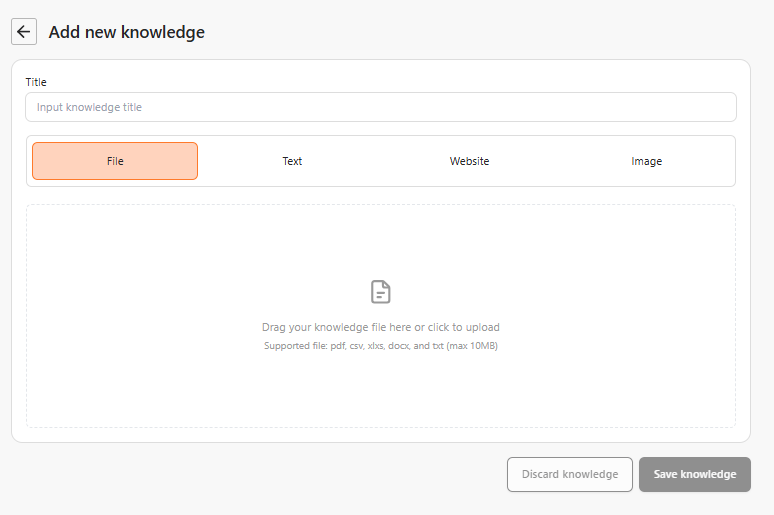
2
Select and Configure Source
Choose the tab that matches your data type.
Option A: File (Docs & Data)
Option A: File (Docs & Data)
Upload documents directly.
- Select the File tab.
- Drag and drop your file (Max 10MB).
- Give it a clear Title (e.g., “Return Policy 2025”).
- Click Save knowledge.
Option B: Website (Crawl)
Option B: Website (Crawl)
Connect your live web content.
- Select the Website tab.
- Enter the Website URL.
- Choose your crawl method below.
- What it does: Indexes only the specific article or page you provide.
- When to use: For a specific blog post, product page, or news article.
- Example:
https://yourwebsite.com/blog/latest-feature(Unchecked box).
- What it does: Looks for the sitemap and systematically indexes all connected pages.
- When to use: To teach the AI about your entire company, products, and services.
- Example:
https://yourwebsite.com(Checked box).
Option C: Image (Visual Assets)
Option C: Image (Visual Assets)
Teach the AI to send images.
- Select the Image tab.
- Upload your JPG/PNG.
- Critical: In the “When should the AI send this image?” field, type the trigger prompt (e.g., “Send this when user asks for the dinner menu”).
Next steps
Once your data is uploaded, verify that the agent is reading it correctly.Test in Playground
Ask questions related to your uploaded PDF or Website to test accuracy.
Configure Skillsets
Enable “Product Recommendations” if you uploaded a product catalog CSV.