

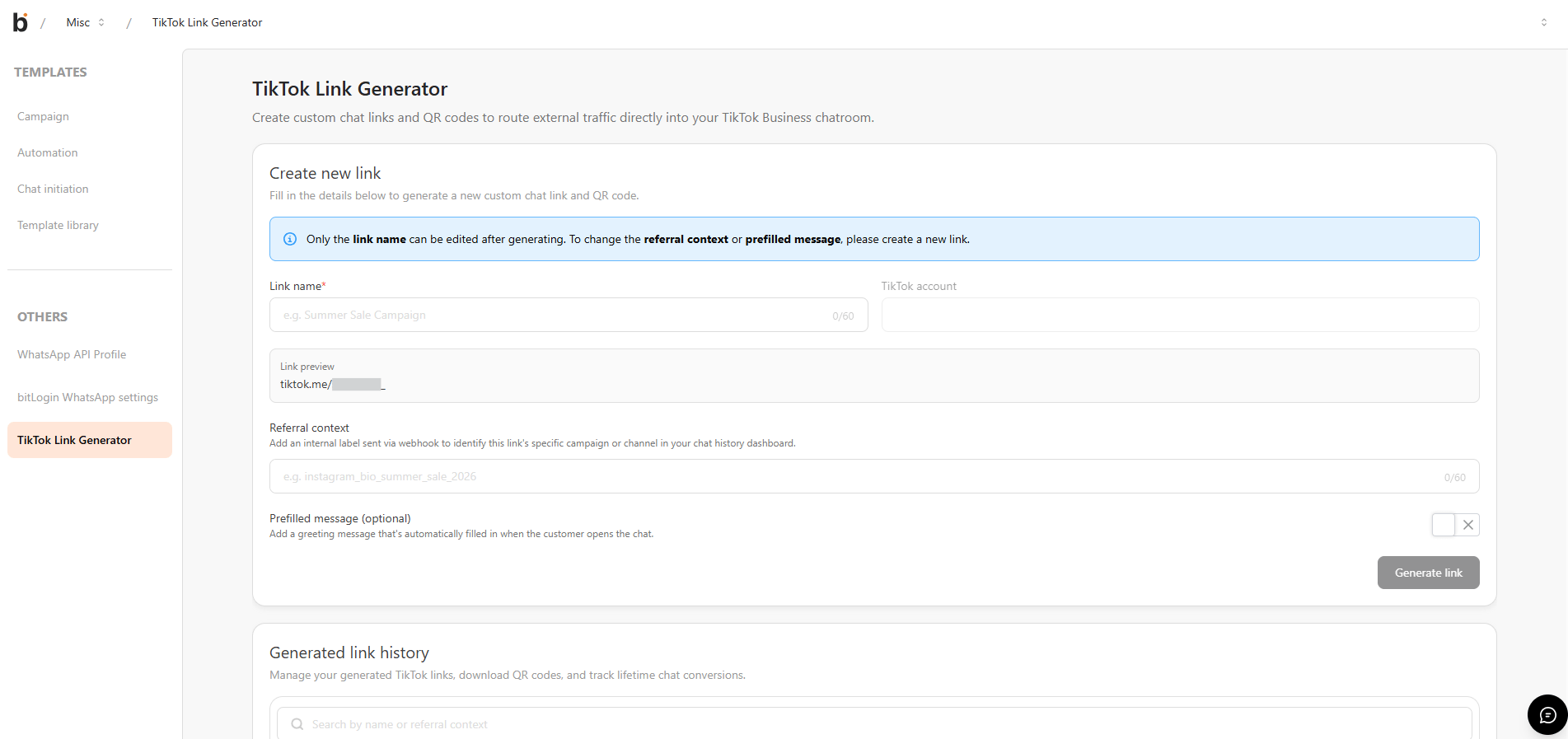
Prerequisites
- You can open the Miscellaneous menu.
- Your TikTok business account is connected to bitbybit. If it is not, the generator is disabled and a Connect to TikTok banner appears — connect your account first, then return to this page.
Step 1: Open the TikTok.me link generator
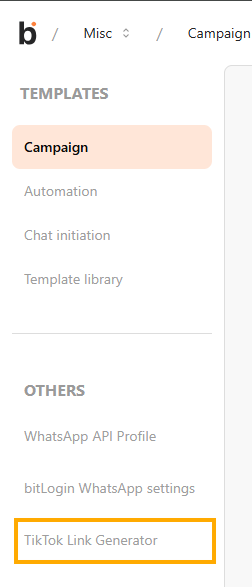
- Open the Miscellaneous menu.
- In the Others section, open TikTok.me link generator.
Step 2: Generate a link
-
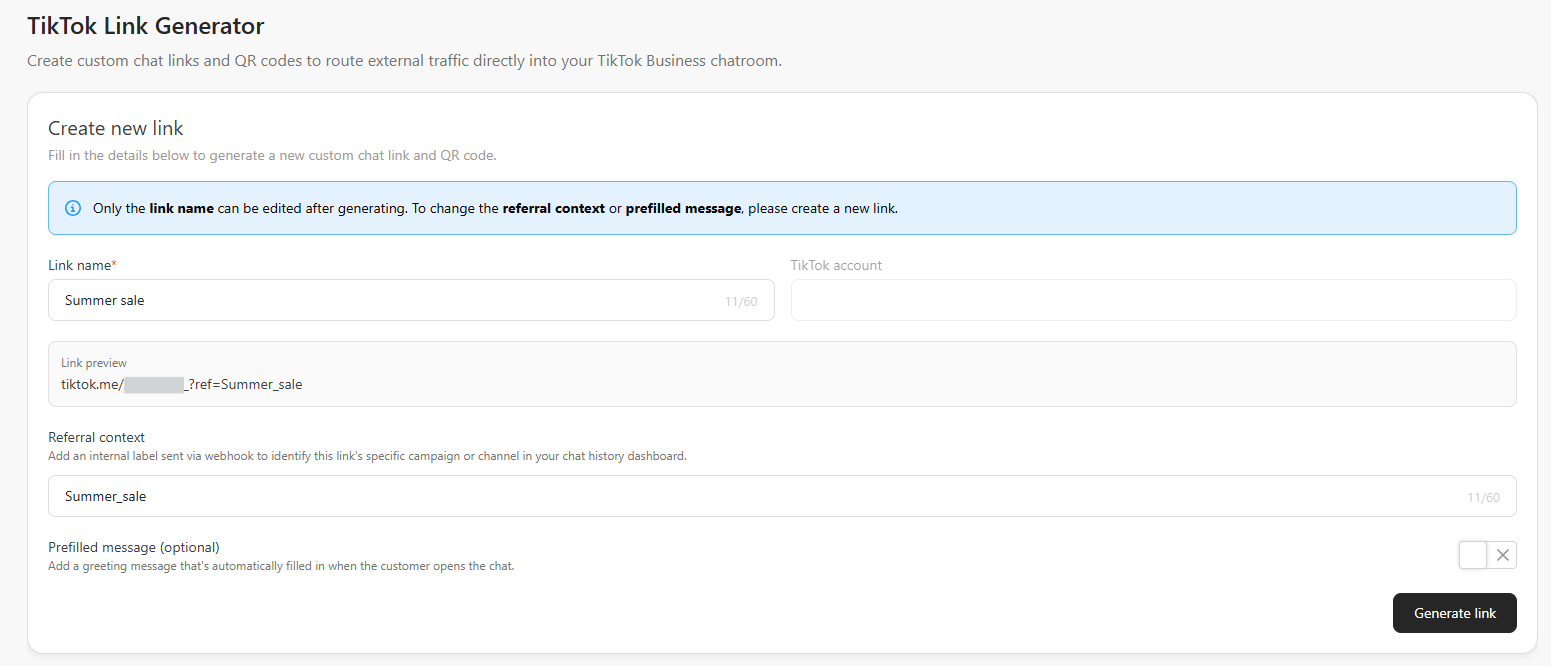
Fill in the required fields:
- Link name — a label that helps you find the link in the history table.
- Referral context — the tracking value appended to the link.
- Prefilled message — the message that opens in the TikTok chat.
-
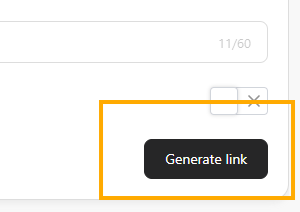
Click Generate link.
Input limits:
- Link name accepts letters, numbers,
-,_, and. - Referral context accepts letters, numbers,
-,_, and= - Both fields have a maximum of 60 characters.
Step 3: Copy or download the QR code
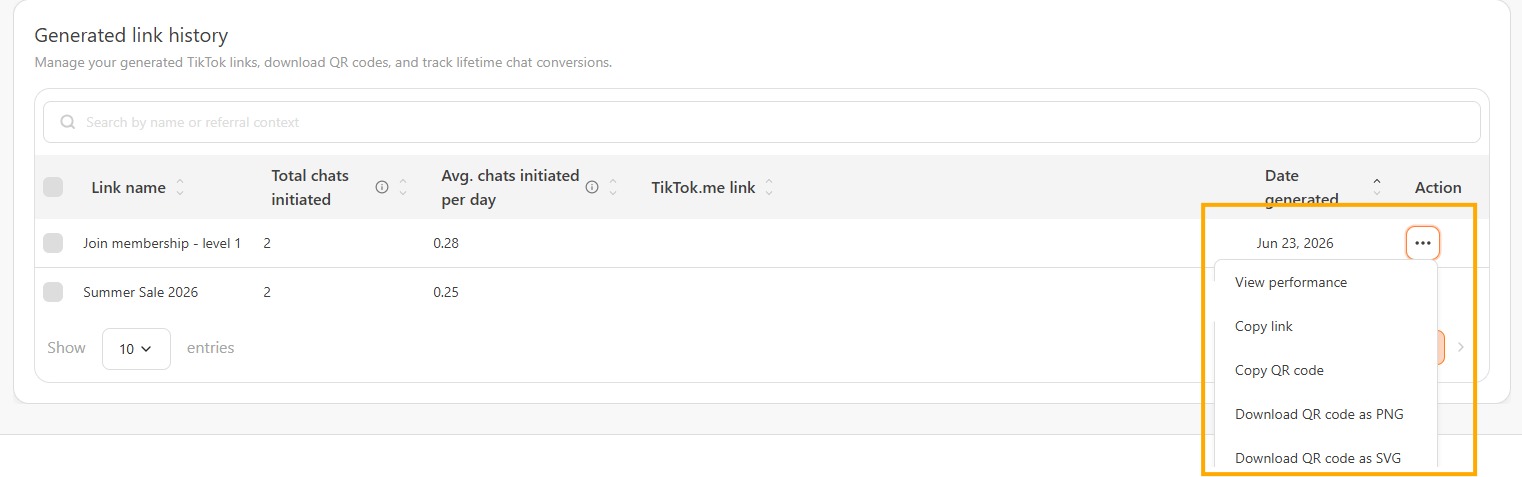
- In the history table, find the link you want.
- Open the Action menu.
- Copy the QR code, or download it as PNG or SVG.
Step 4: View link details and performance
Select a link in the history table to open its details, which include the link name, the TikTok.me link, the QR code, and the link’s analytics.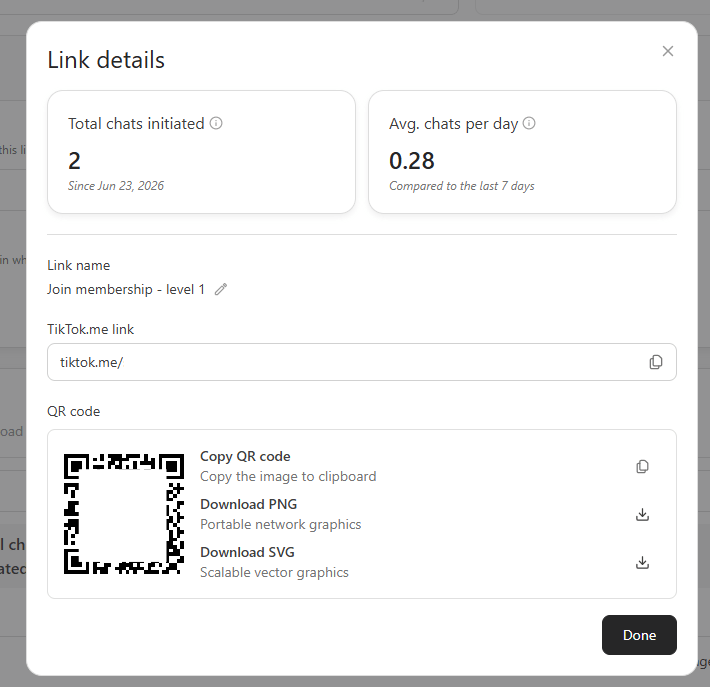
- Link name — your label for the link (edit it with the inline edit icon).
- Total chats initiated — the number of chat sessions started through that link.
- Average chats per day — total chats initiated divided by the number of days since the link was generated.
Delete a link
- In the history table, select the link you want to remove.
- Click Delete.
- Confirm the action in the modal.