

1
Open Orders
Open Orders.
2
Select orders if needed
Select the order rows you want to export if you plan to use Selected orders.
3
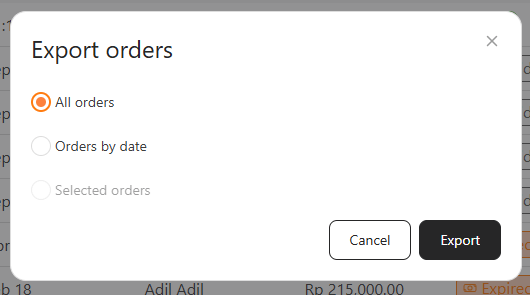
Choose the export scope
- Click Export.
- In Export orders, choose one option:
- All orders
- Orders by date, then select the date range
- Selected orders
4
Export the file
Click Export, then save the downloaded file to your device.