

Overview
A draft order is an order with no payment link generated and nothing sent to the customer yet. Drafts exist so a person can check an order before it goes any further — useful when your AI agent takes orders over WhatsApp and you want a human check before a payment link goes out. A draft can come from two places, and each has different actions available:- Your AI agent, if you turn on Draft-first review for the Create order skill in AI Studio — see Set up your AI agent to create draft orders. These drafts are Approved or Rejected.
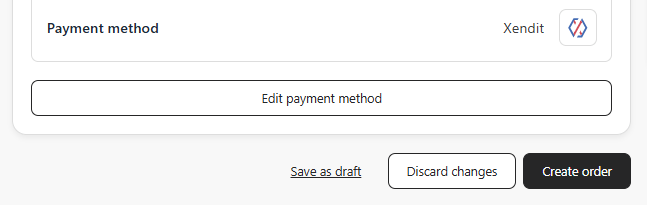
- A CS agent, by choosing Save as draft instead of Create order on the order form. These drafts are saved as an actual order or discarded.
Before you start
- Open Orders under Commerce.
- Make sure the products, customer, and shipping details you need are already available, the same as for a regular order.
Create a draft manually
- Start a new order from Commerce > Orders.
- Fill in items, customer, address, shipping, payment method, notes, and tags, the same as creating a regular order.
- Click Save as draft instead of Create order.
Find your drafts
Open Commerce > Orders and select the Draft tab. It lists both draft and rejected orders. Each row shows a Draft or Rejected status badge, plus an origin chip — AI or Manual — showing who created it and which actions you’ll see on that draft.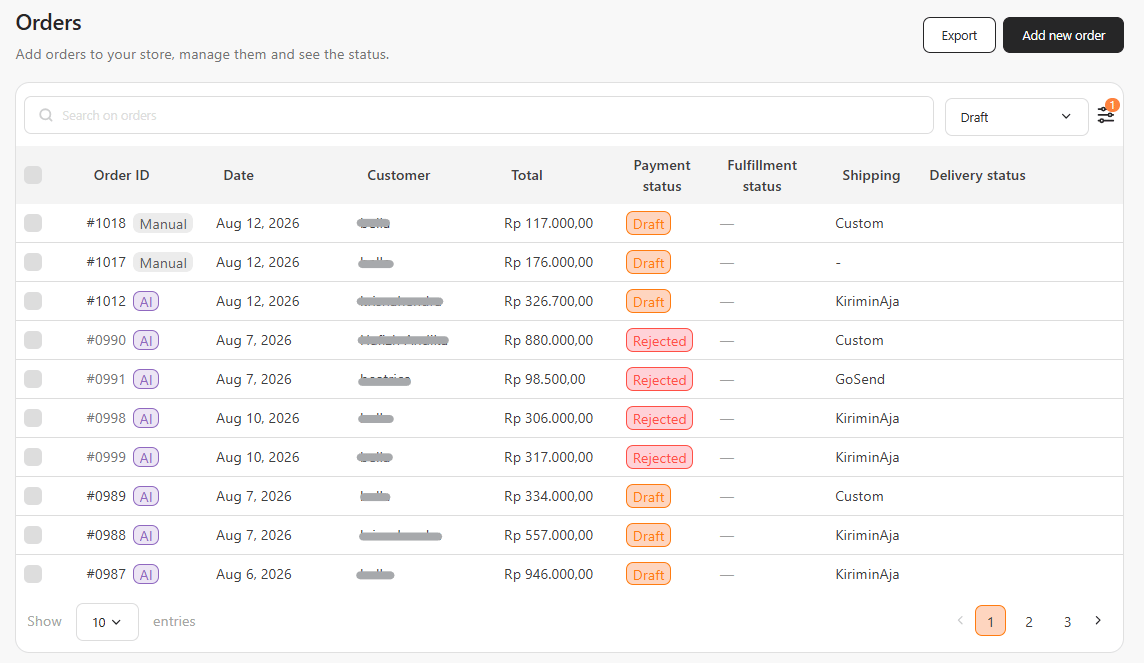
Review and edit a draft
Open a draft from the Draft tab. Unlike a placed order, a draft’s items, customer, address, shipping, payment method, notes, and tags are all still editable directly on the page — update anything that needs correcting before you act on it. A Rejected draft is read-only — once rejected, its items, customer, address, and notes can no longer be edited, since there’s nothing left to act on.AI-created drafts: approve or reject
Drafts your AI agent created (origin chip AI) are reviewed with Approve or Reject.Approve
- Click Approve order.
- Confirm in the Approve order dialog. If the order uses a real-time courier — GoSend or Blitz — the shipping fee is re-quoted here before you confirm.
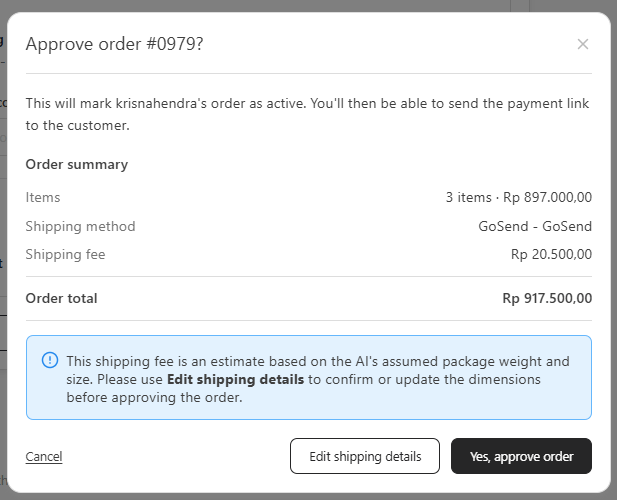
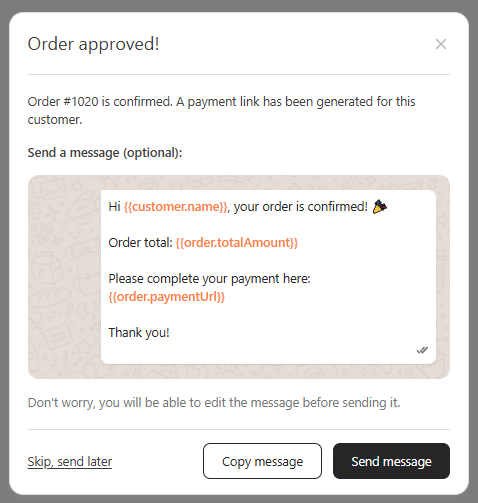
- If the order uses a payment method that needs a link (for example Xendit or Doku), an Order approved! screen opens with an editable WhatsApp message that includes the payment link — edit it if needed, then Copy message, Skip, send later, or Send message to open the conversation with the customer. Otherwise you’re taken straight to the order, and you can send the payment link from there.
Reject
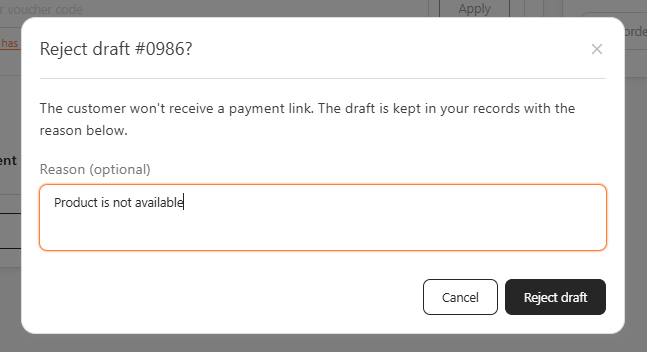
- Click Reject.
- Optionally enter a reason (for example, “Item is out of stock”).
- Click Reject draft to confirm.
Manual drafts: save as an actual order or discard
Drafts a CS agent parked (origin chip Manual) are handled with Save as actual order or Discard.Save as actual order
- Click Save as actual order.
- Confirm in the Save this as an actual order? dialog. As with Approve, the shipping fee is re-quoted here for real-time couriers (GoSend, Blitz).
- If a payment method needing a link is used, an Order created! screen opens with the same editable WhatsApp message options (Copy message, Skip, send later, Send message) as approving an AI draft. Otherwise you’re taken straight to the new order.
Discard
- Click Discard.
- Confirm in the Discard this draft? dialog.
What happens next
- Approved or saved-as-actual drafts become real orders — track them like any other order, including payment and fulfillment status.
- Rejected AI drafts stay visible under the Draft tab with a Rejected badge, for reference.
- Discarded manual drafts are removed and won’t appear anywhere.