

Before you start
- You are the admin of the connected Meta Business Account (MBA) and can access WhatsApp Manager.
- Your WhatsApp number is already connected to bitbybit through the WhatsApp Business App (via Coexistence). See Connect WhatsApp Business App with Coexistence.
- You have at least one product ready in Commerce → Products.
- Know your Company ID — find it at Settings → Company. You will use it to identify the correct catalog in Step 3.
Step 1: Confirm no catalog is connected on your WhatsApp number
The WhatsApp number can only be linked to one catalog at a time. Before linking the bitbybit catalog, clear both places where a catalog might already be attached.- On mobile, open the WhatsApp Business app and confirm no catalog is set under Settings → Business tools → Catalog. If a catalog exists there, remove it.
- Open WhatsApp Manager and go to Account tools → Catalogue.
- In the top-right business selector, choose the Meta Business Account connected to bitbybit.
- In the phone number selector inside the Catalogue card, choose the WhatsApp number connected to bitbybit.
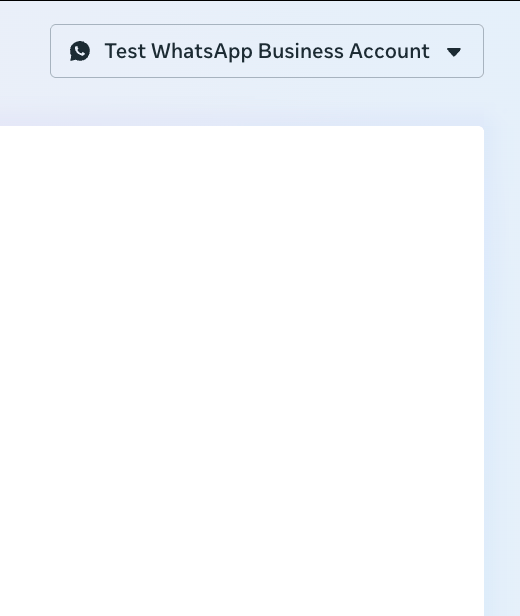
WhatsApp Manager top-right business selector — confirm it matches the account connected to bitbybit
- If a catalog is already connected, click Disconnect.
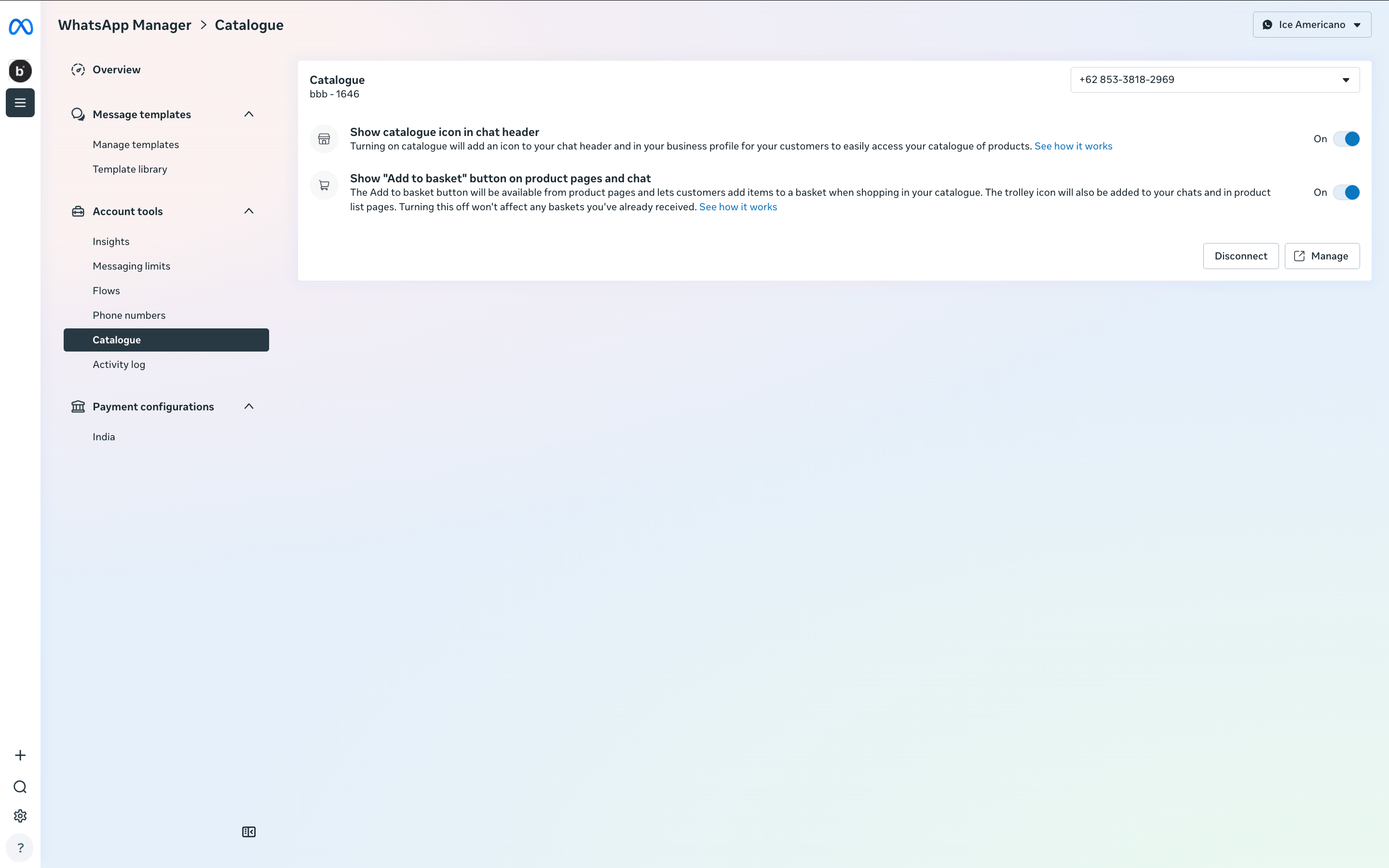
WhatsApp Manager Catalogue page with an existing catalog connected and the Disconnect button visible
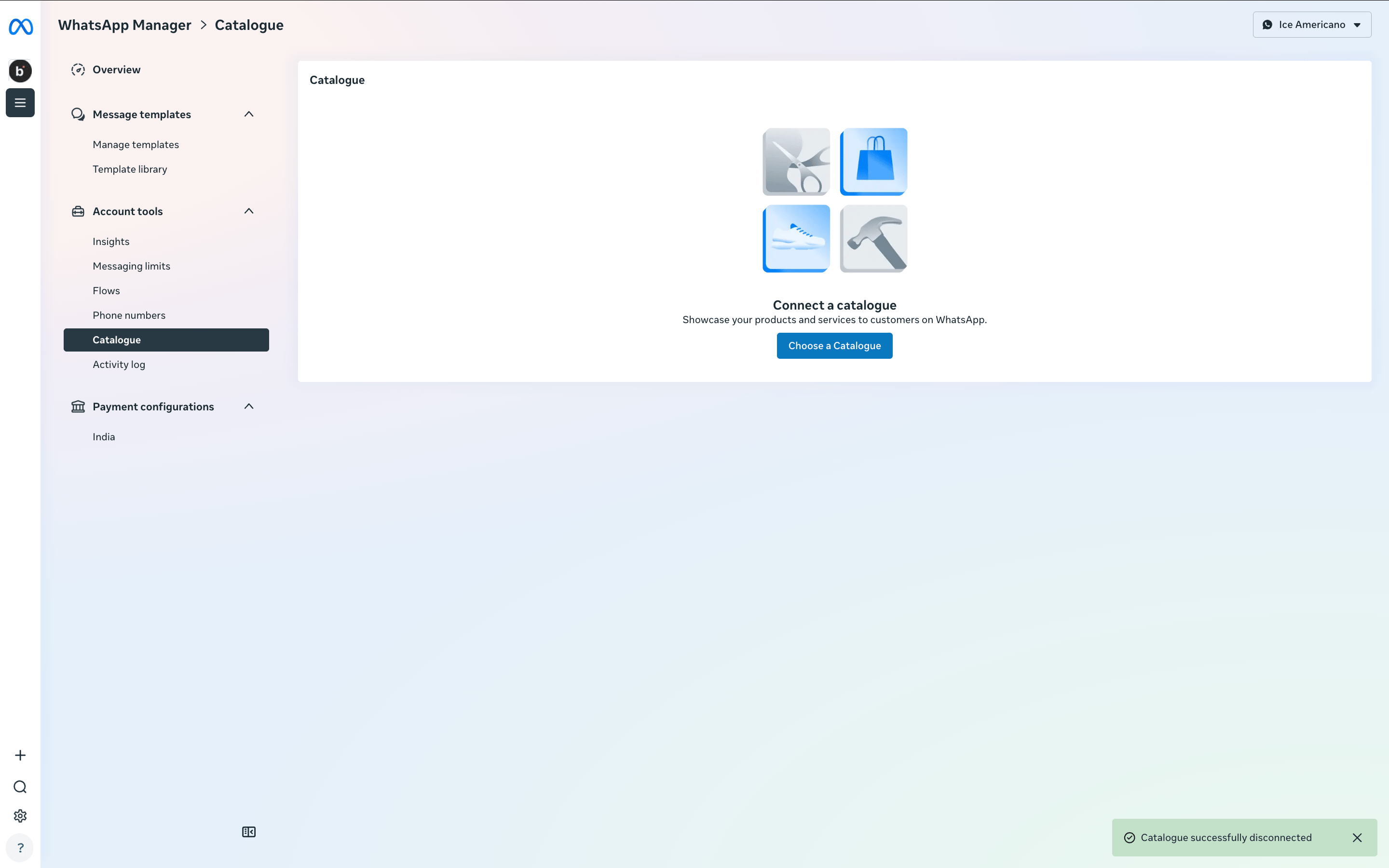
WhatsApp Manager Catalogue page after disconnect, showing the Connect a catalogue empty state
Step 2: Enable the product catalog from bitbybit Commerce
- Open Commerce → Products.
- Toggle the WhatsApp Catalog switch ON for one product to start.
- Confirm any prompts to activate the catalog.
bbb - <your Company ID> (for example, bbb - 1646). A green Catalog active banner appears once the catalog is provisioned in Meta.
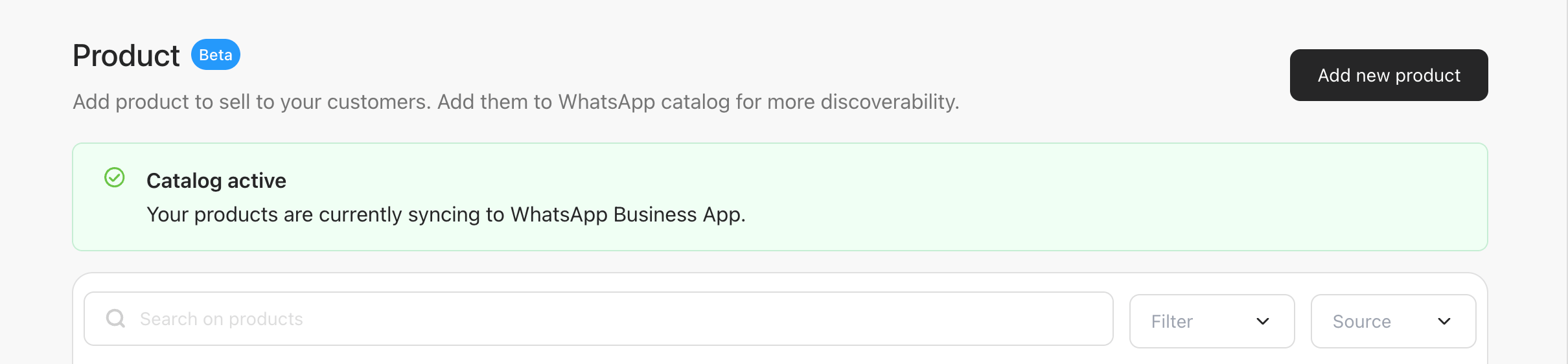
bitbybit Commerce Product page with the green Catalog active banner
Step 3: Link the bitbybit catalog in WhatsApp Manager
- Open WhatsApp Manager → Catalogue. Confirm the business (top right) and the phone number in the Catalogue card still match the bitbybit-connected account before continuing.
- Click Connect a catalogue (or Choose a Catalogue from the empty state).
-
In the picker, search for
bbb - <your Company ID>and select the match. This is the catalog bitbybit created in Step 2.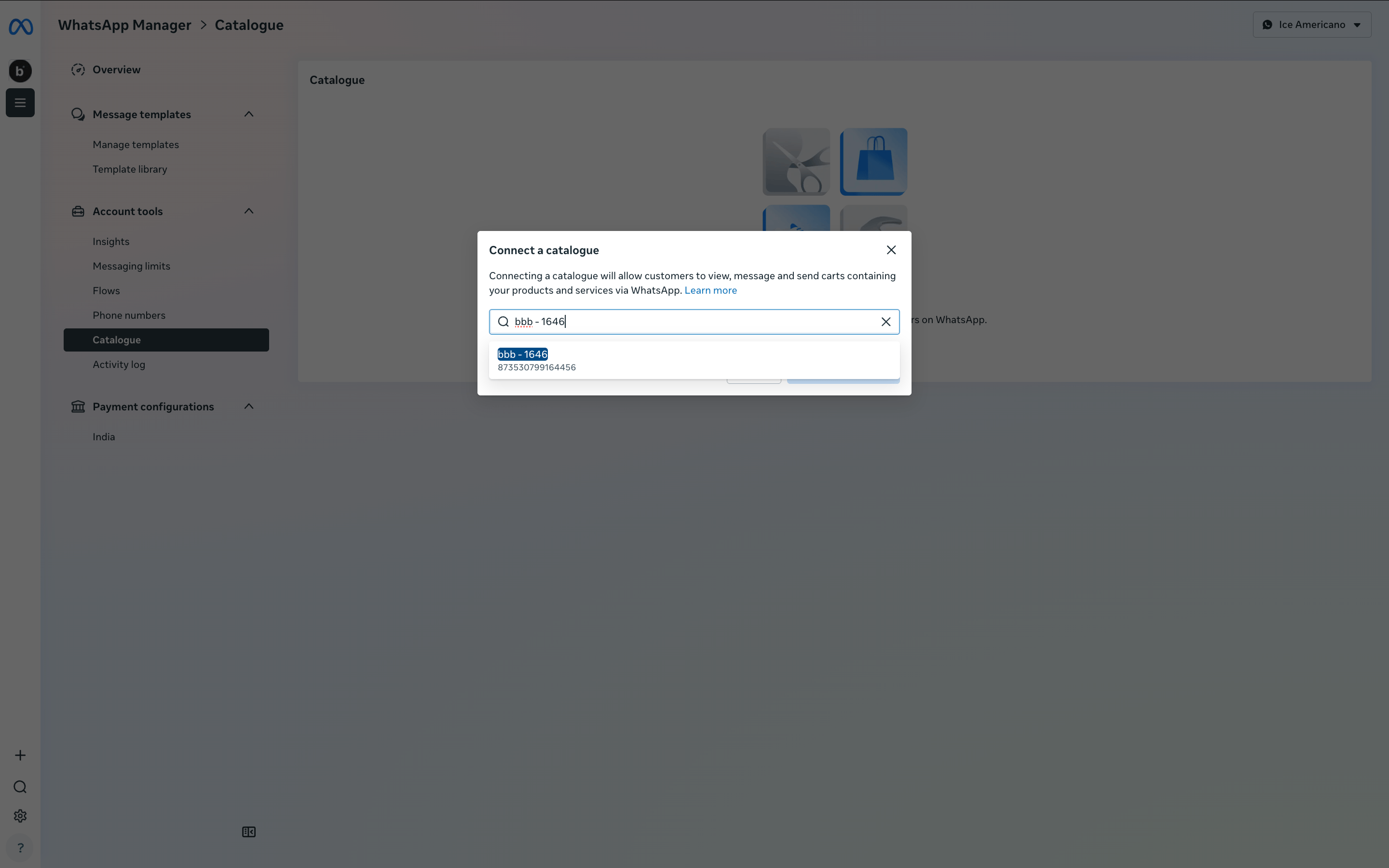
Connect a catalogue picker with bbb - Company ID typed and the matching catalog highlighted
- Confirm the connection.
Step 4: Verify the sync
- Return to Commerce → Products.
- Confirm that products with the WhatsApp Catalog toggle ON appear in the catalog under WhatsApp Manager.
- Wait a few minutes — Meta reviews each item before it becomes visible in WhatsApp. Products stay in Pending until they move to Published.
Important notes
- The link is one-way. Products created directly in Meta Catalogue Manager do not sync back to bitbybit Commerce. Manage your catalog from bitbybit to avoid drift.
- Approval delay is normal. Meta usually publishes products within a few minutes. If a product stays Pending for hours, open it in Catalogue Manager to check for rejection reasons.
- One catalog per phone number. WhatsApp allows only one catalog per number. Disconnecting in Step 1 is required before linking the bitbybit catalog.
- Keep the MBA connected. If your Meta Business Account is unlinked from bitbybit, the sync stops and the toggle in Commerce becomes unavailable.