

Before you start
- You have a Shopee Seller Center account with access to Mass Update.
- Your bitbybit workspace has Commerce enabled — open Products to confirm you can see the products list or the empty-state onboarding screen.
- The Basic Info file is the only file you must export. Sales Info (prices) and Media Info (photos) are optional but recommended.
Imported products go live for your AI Agent immediately. To also show them in your WhatsApp Catalog, they need photos, a description, and a price — the preview step in bitbybit tells you exactly which products are ready.
Step 1: Export your product files from Shopee
Open Shopee Seller Center and go to Produk Saya. In the top-right, open the Pengaturan Massal dropdown and choose Mass Update.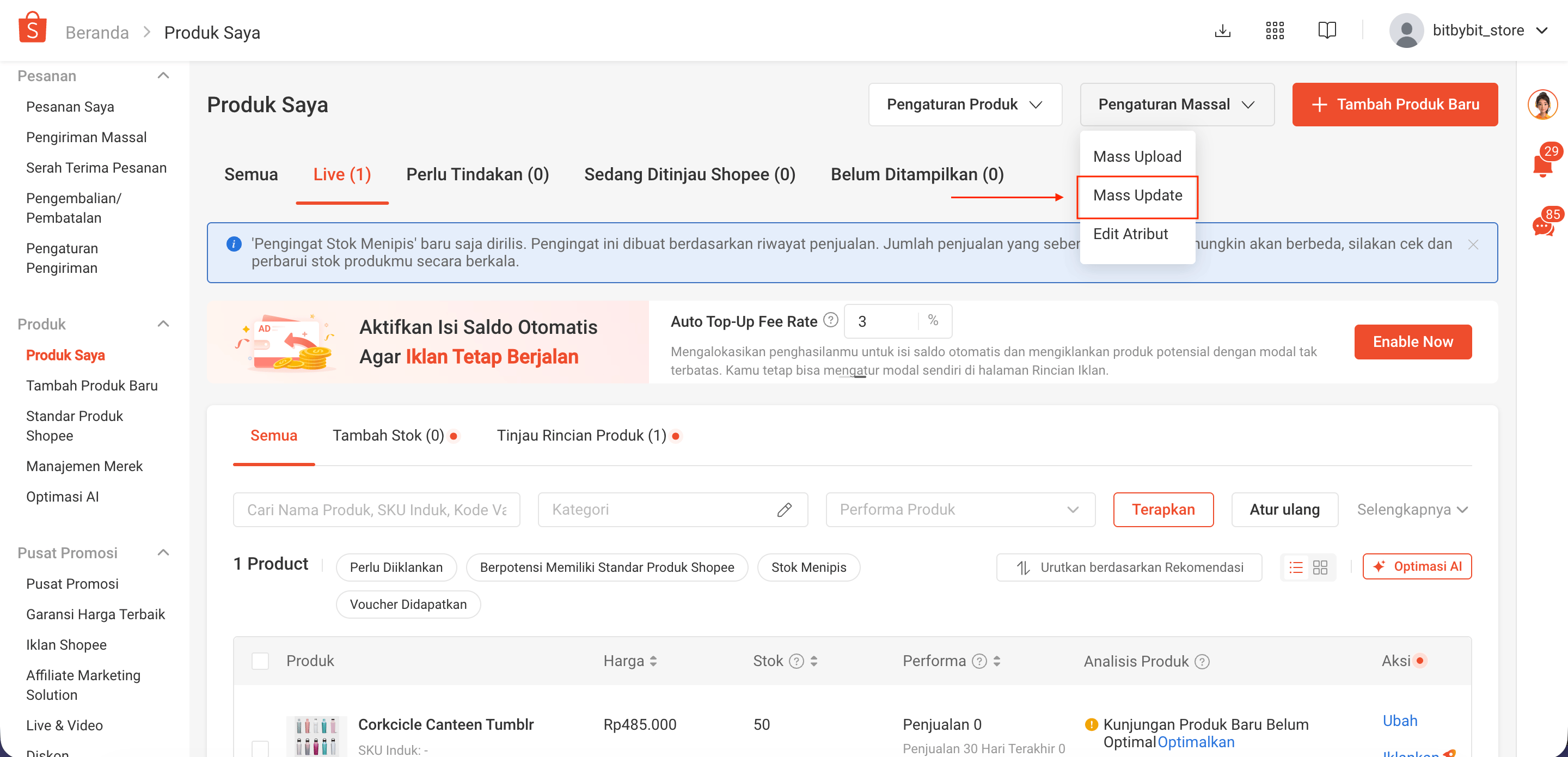
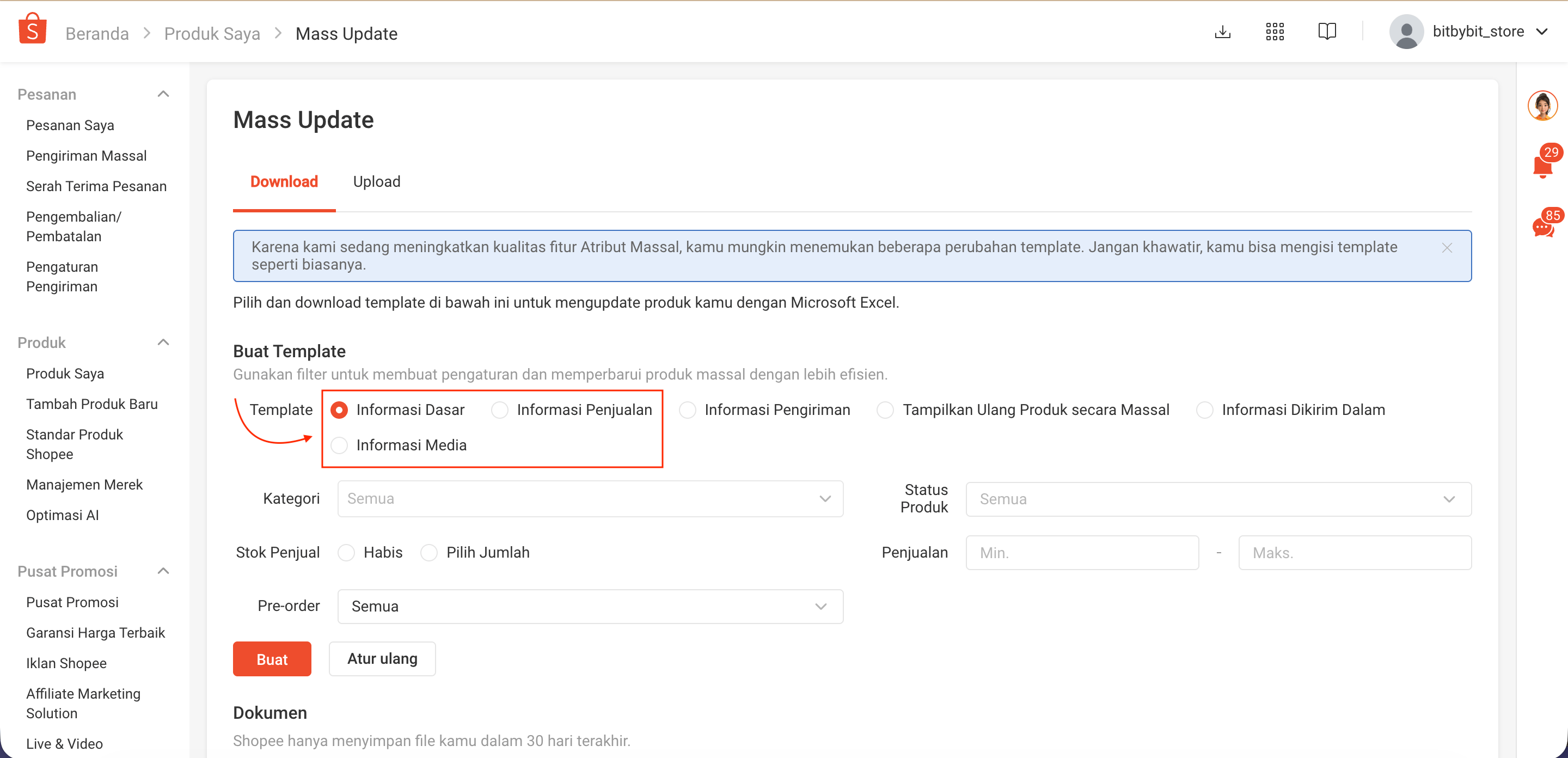
- Informasi Dasar (Basic Info) — required. Contains product names, variants, categories, and SKUs.
- Informasi Penjualan (Sales Info) — optional. Adds prices for each variant.
- Informasi Media (Media Info) — optional. Adds product photos, matched to products by Product Code.
.csv and .xlsx formats are supported.
Step 2: Open the Shopee import flow in bitbybit
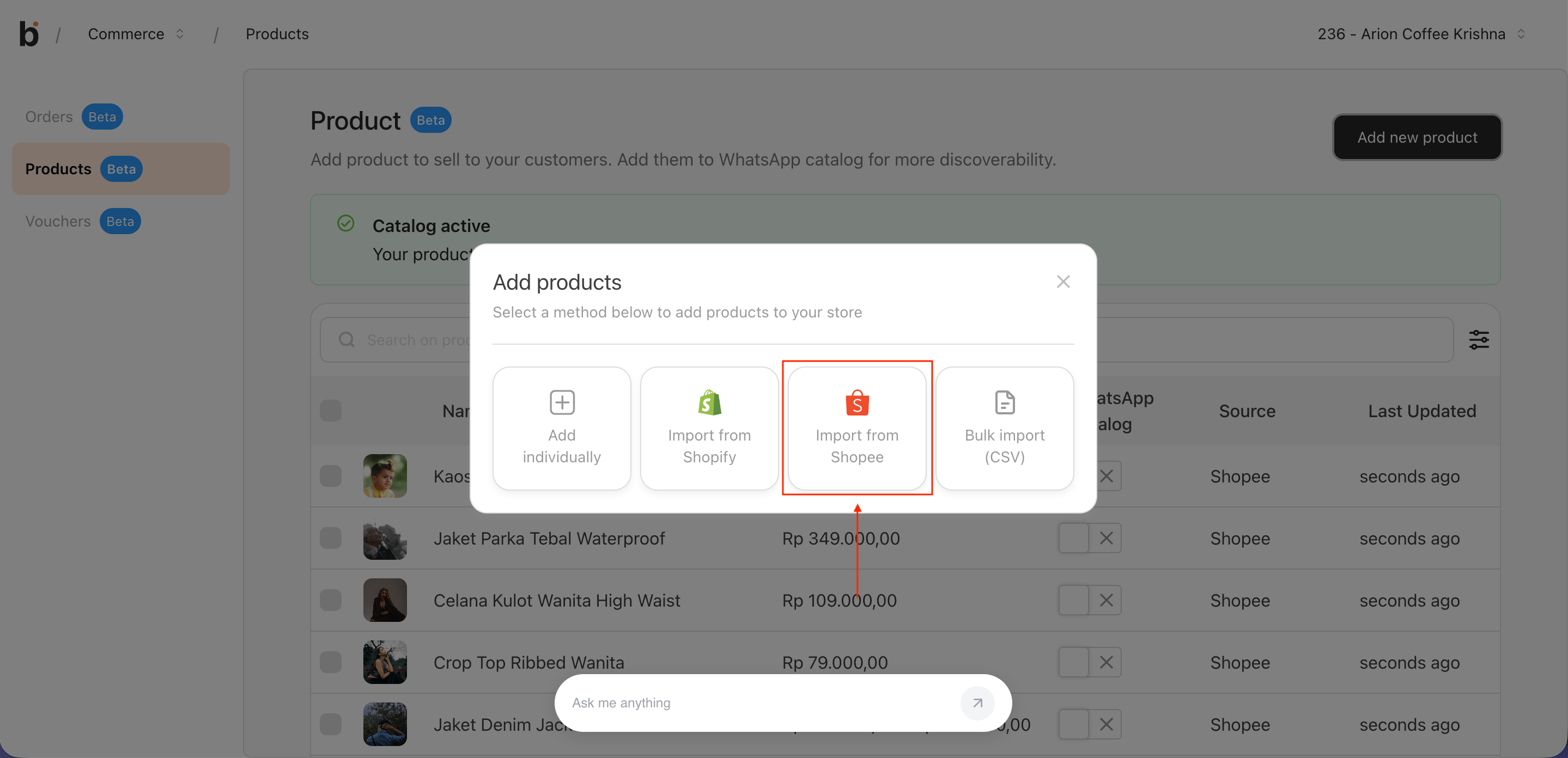
Go to Products in your bitbybit workspace. How you enter the Shopee flow depends on whether you already have products: First-time import (no products yet). The Products page opens straight into the Add your products view. In the Import your products panel, Shopee is auto-detected and pre-selected — the dropzone is already visible below.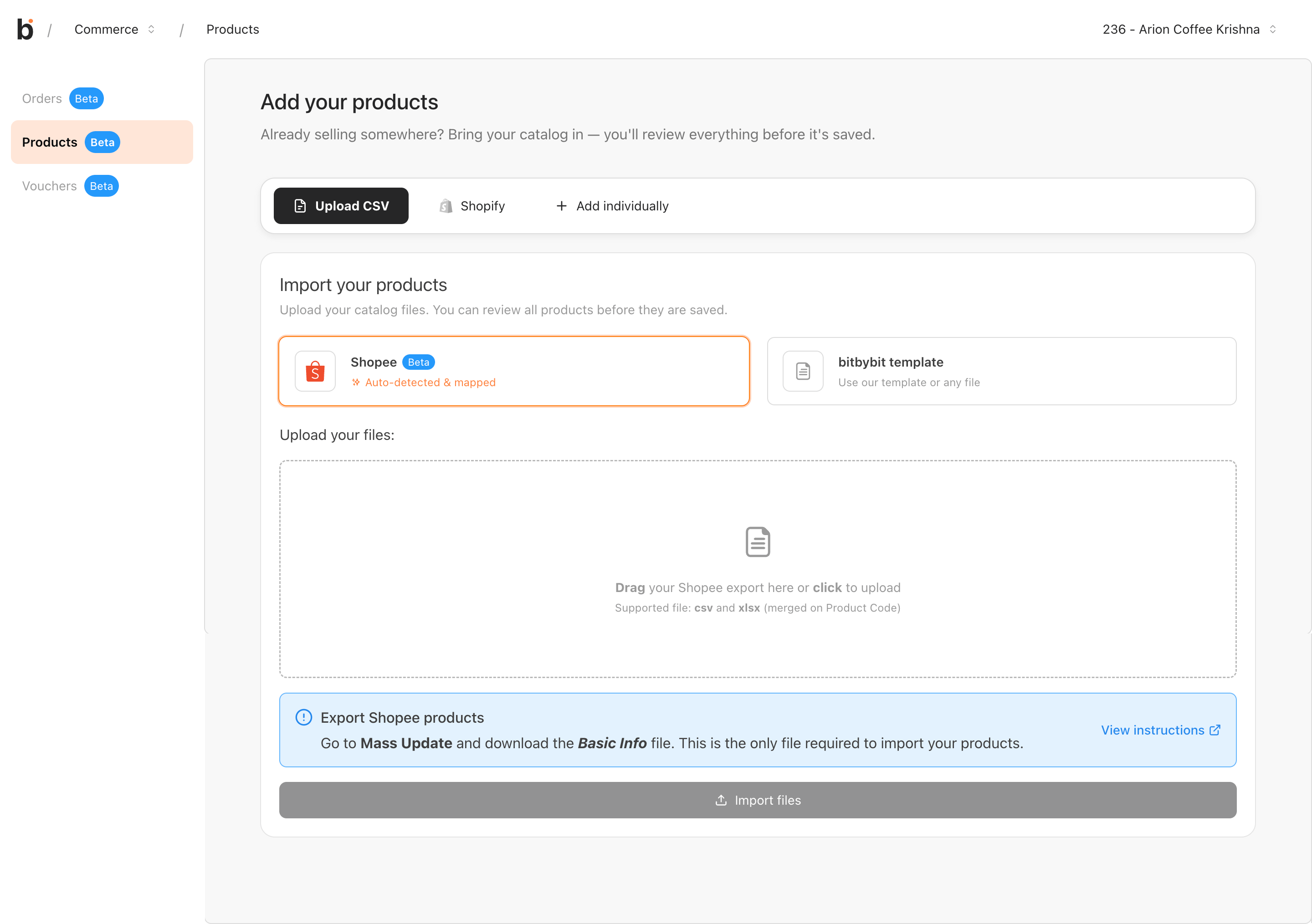
Step 3: Upload your Shopee files
Drag and drop the Shopee files into the dropzone, or click to browse. You can add multiple files at once, and add more with Add another file after your first upload.- On the empty upload state the alert tells you to grab the Basic Info file from Mass Update — that alone is enough to import your catalog.
- Once you add a file, the alert switches to a follow-up tip suggesting the optional Sales Info and Media Info files if you want prices and photos to come across too.
Step 4: Review the preview
bitbybit reads your files and shows a preview: total products, how many are WhatsApp-ready, how many need photos, and how many are missing a price. Below the stat cards is the full product list — with images and prices matched from your Sales Info and Media Info files where available.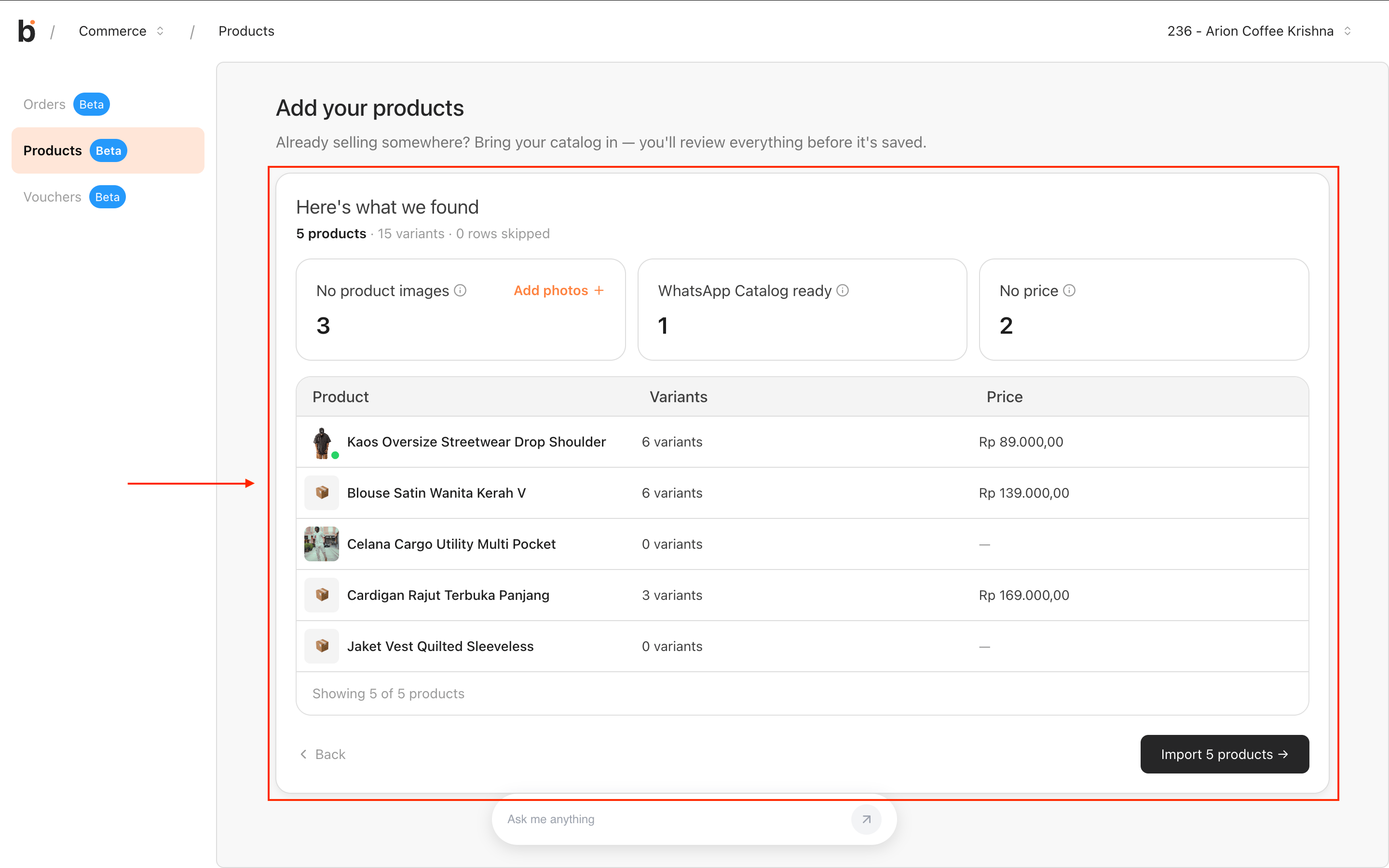
- Prices appear as a single value when all variants share the same price, or as a range when they differ.
- Photos matched from your Media Info file appear as thumbnails. Products with no matched photo show an emoji stand-in so you can still identify them at a glance.
- The WhatsApp ready count shows how many products already have everything they need (photo + description + price) to appear in your WhatsApp Catalog after import.
Step 5: Add product photos (optional)
This step is entirely optional. You can skip it and still import your catalog — photos only affect WhatsApp Catalog eligibility, and you can add or replace them any time after import.
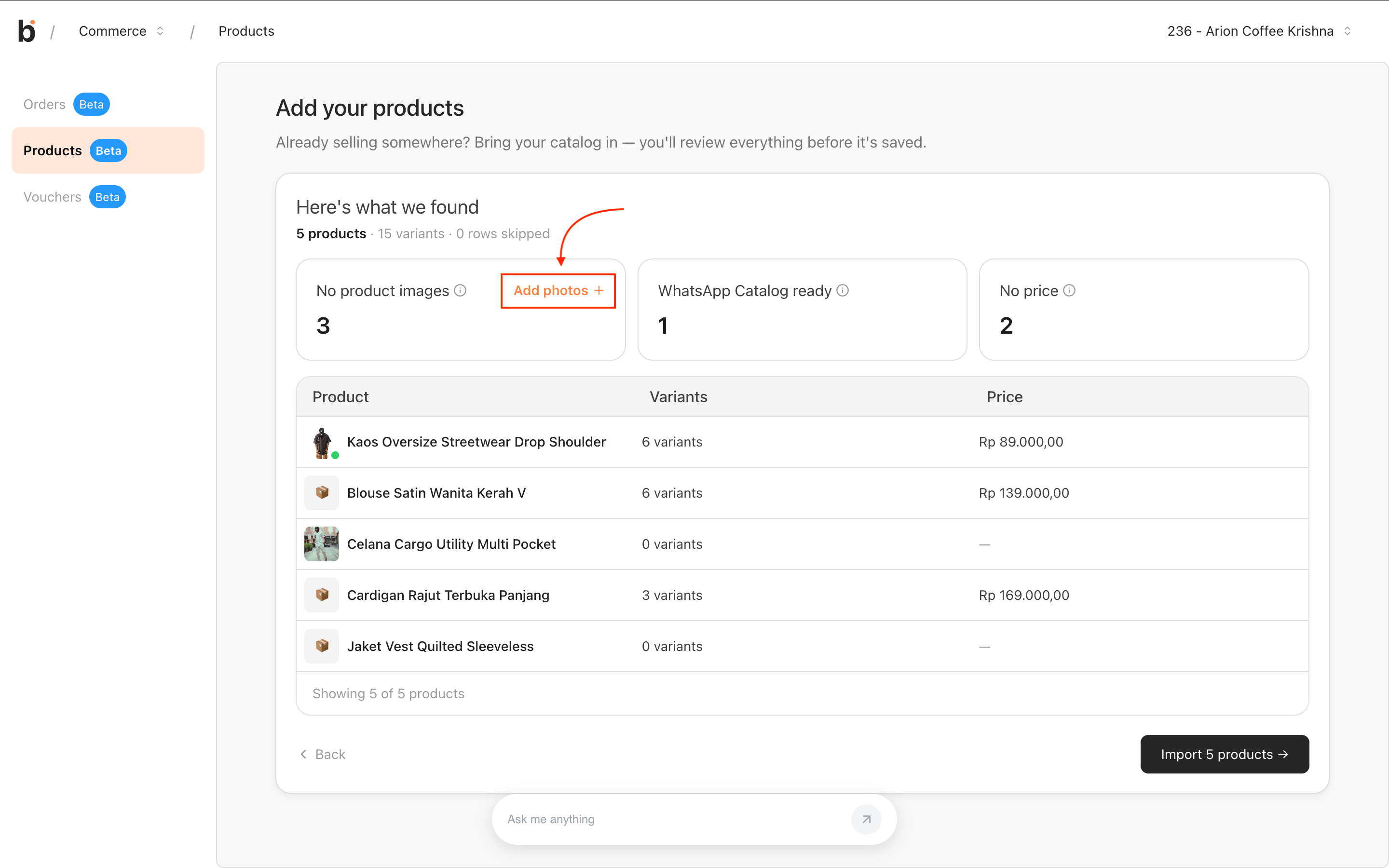
- Matched — a photo came from your Media Info file. Click Replace to swap it.
- Add photo — pick an image from your computer for products that weren’t matched.
- Products without photos are still live for your AI Agent.
Step 6: Confirm the import
From the preview, click Import X products (where X is the total detected) to start the import.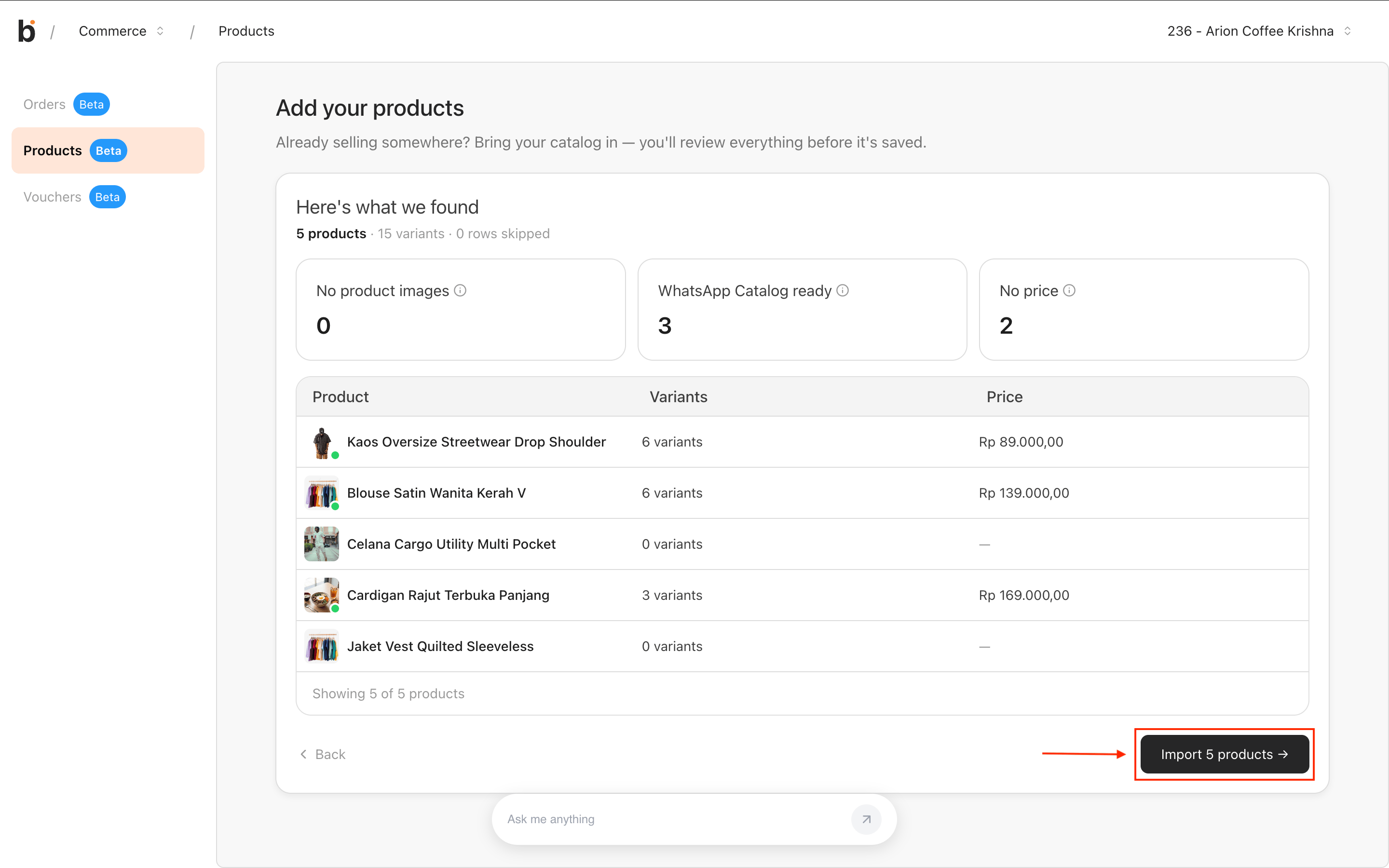
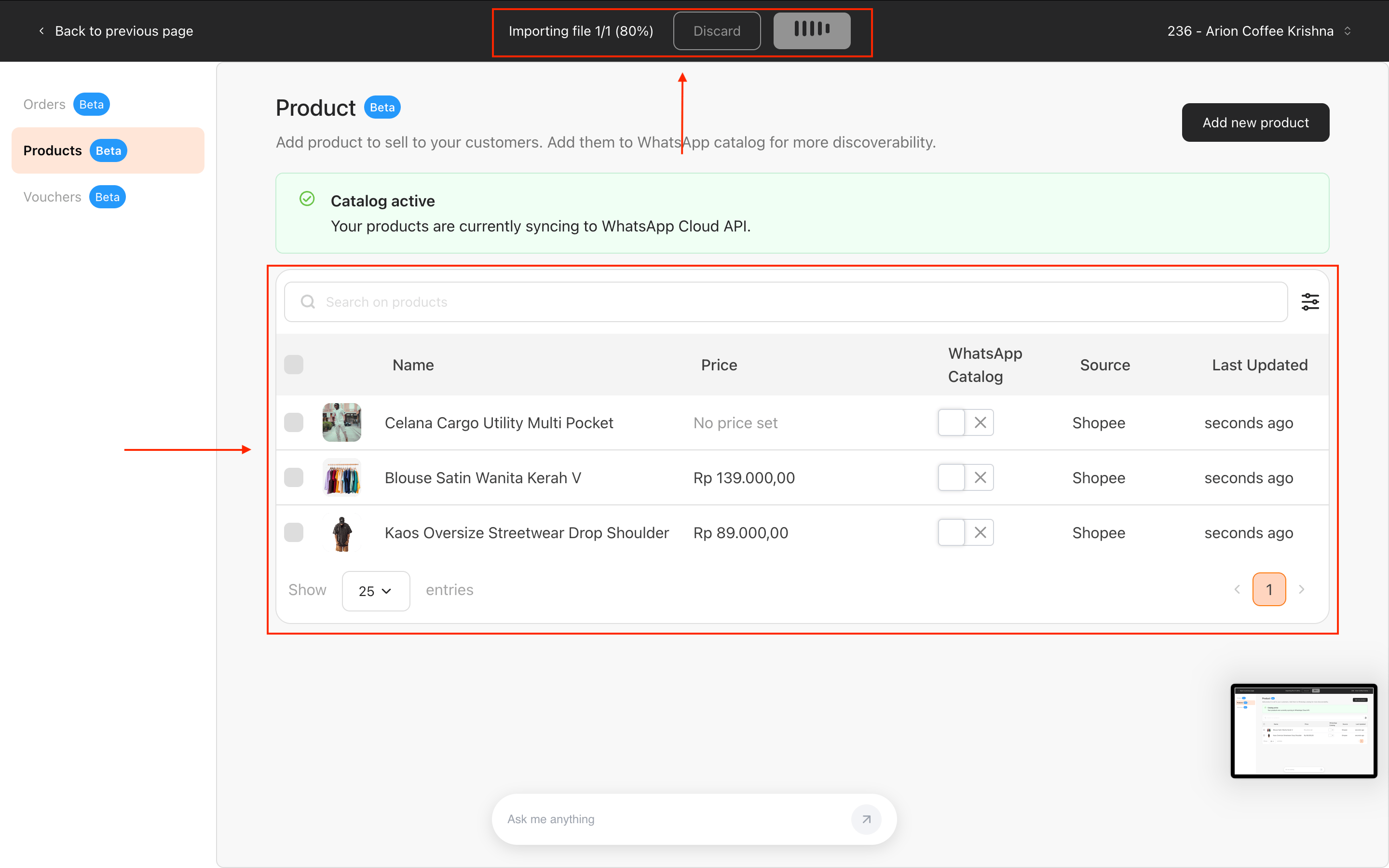
What happens next
- Products are live for your AI Agent immediately — the agent can recommend and quote them in customer chats.
- Products with a photo, description, and price will also sync to your WhatsApp Catalog. Meta reviews new catalog entries before they show up in WhatsApp — expect 15+ minutes before customers see them.
- You can re-run the Shopee import later to add or update products. Existing products are matched by SKU.