

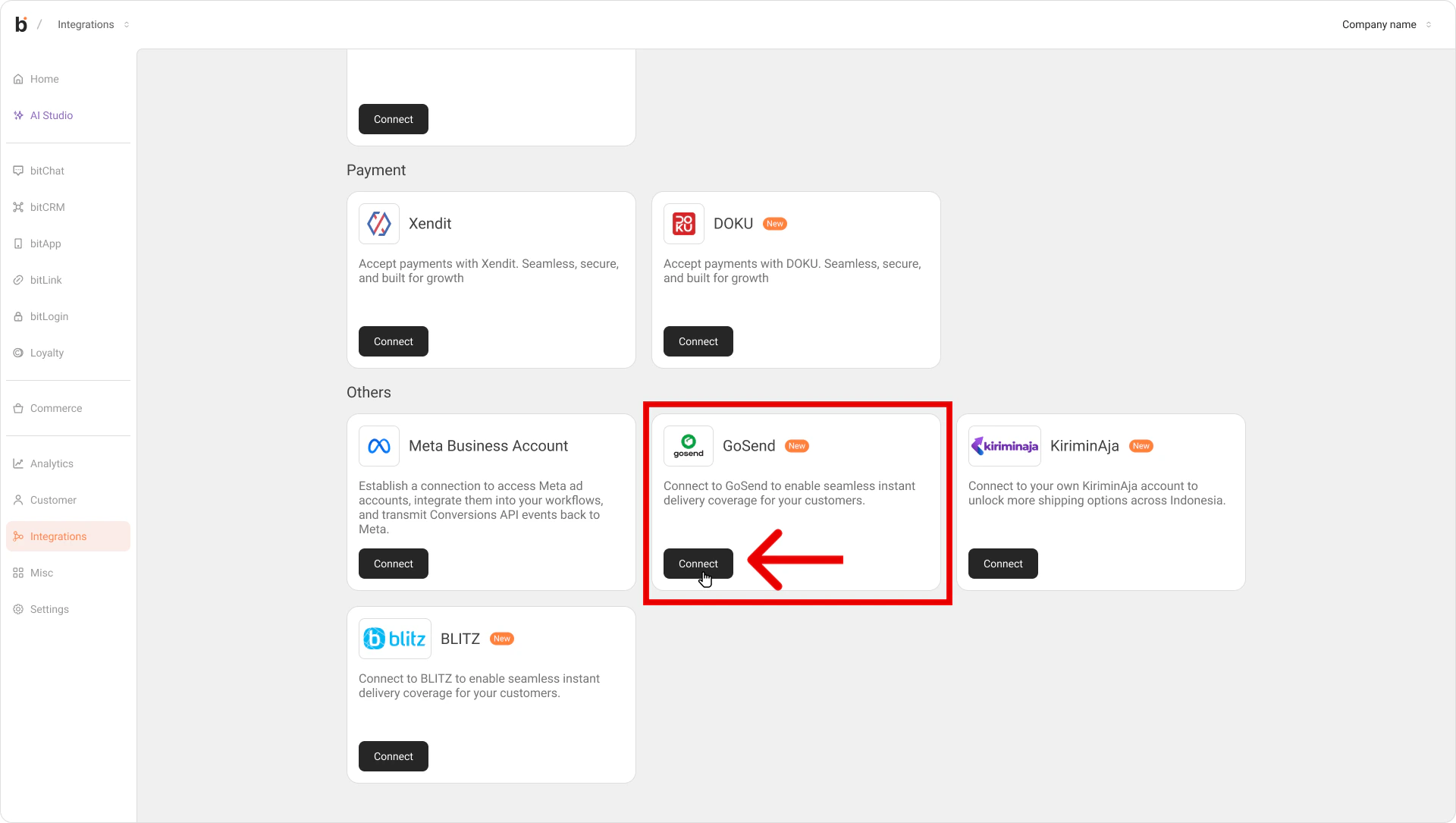
Step 1: Open the bitbybit Integrations Menu & Locate GoSend Configuration
- Log in to bitbybit.
- Navigate to the Integrations page from the side menu.
- Locate the GoSend integration card.
- Click Connect to open the setup modal.
Step 2: Register for a Gojek Corporate Account
- If you do not already have a Gojek Enterprise account, learn more here:
Gojek GoSend API - Complete Gojek’s required verification steps and wait for them to approve your business account.
Step 3: Copy Your GoSend API Keys
- Once Gojek approves your corporate account, copy your unique Client ID and API Key (or Passkey).
Step 4: Connect GoSend on bitbybit
- Return to the GoSend modal inside your bitbybit dashboard.
- Paste the Client ID and API Key into their respective fields.
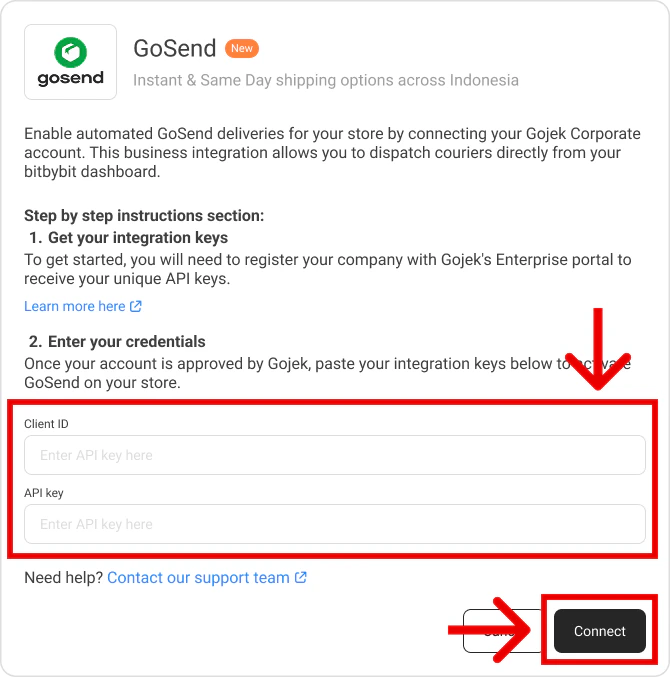
Step 5: Save and Complete the Connection
- Click the Connect button at the bottom of the modal.
- The system will validate your keys. Once successful, the GoSend card status will change to “Connected”.
🎉 Integration Complete! Your GoSend corporate account is now synced, and you can manage GoSend deliveries directly from bitbybit.