Prerequisites
- You created and saved an AI agent in AI Studio. If not, start with Set up your AI agent.
- You know the Skills tab basics, including adding a skill and opening its card.
1
Open Data collection
- Go to AI Studio and open the AI agent you want to configure.
- Open the Skills tab.
- Under Engagement, open Data collection. If it is not listed, use Add skill to select the data collection skill and confirm the addition.
- Open the Data collection card.
2
Choose customer fields
In Data to collect, select the checkboxes for the fields you need:
- Primary data includes fields such as Email and Phone number.
- Additional data lists the custom fields defined for your customers.
3
Write additional instructions
- Open a field’s card using Click to setup.
- Enter the guidance for that field in Additional Instruction. Describe when the information is needed, how to ask for it, and the format you expect.
- For an additional data field, use Data description to explain what the field represents.
- Select Save inside the field editor, then repeat for the other selected fields.
4
Save and check the result
- Select Save skillset when the unsaved-changes bar appears.
- Return to Skills and confirm that Data collection is enabled.
- Test with designated test details in the Playground. Try a conversation where the information is needed and another where it is unrelated, then check whether the agent follows your instructions.
- Review the actual customer profile as well as the reply.
For additional data, high-confidence values can be saved automatically and replace an existing value. Uncertain values appear as suggestions for review. See Review AI customer data to check saved values and approve or reject suggestions.
Use example instructions
These examples are instructions you can adapt to your business, rather than messages to send directly to a customer.Example: Collect an email address
Example: Collect an email address
Select Email under Primary data, then use this example for Additional Instruction:
When the customer asks to receive a quotation by email, ask which email address we should send it to. Ask for one complete email address, such as customer@example.com. If the customer already provided it in this conversation, do not ask again. Do not invent an address or send the quotation yourself.
Example: Collect a phone number
Example: Collect a phone number
Select Phone number under Primary data, then use this example for Additional Instruction:
When a customer requests a callback, ask for their preferred contact number, including the country code. Explain that the number is for the requested callback. If the country code is missing, ask the customer to clarify it rather than guessing. Do not promise a callback time that our team has not confirmed.
Example: Collect a preferred shoe size
Example: Collect a preferred shoe size
Create a custom field called Preferred shoe size and select it under Additional data. This is an example field you define, not a default field.Use this example for Data description:
The customer’s preferred shoe size, including the sizing system, such as EU 39 or US 8.Use this example for Additional Instruction:
When helping a customer choose shoes, ask for their usual shoe size and sizing system. If they only say “size 39”, ask which sizing system they mean. Do not infer their size from age, gender, or a previous purchase. Do not ask about shoe size when the conversation is unrelated to shoes.
Add a field that is not listed
Create the customer field before writing its instructions. Typing a field name in Additional Instruction does not create a new field.- Save any pending skill changes, then select Add more data to collect at the bottom of the page. If a guidance dialog appears, select Continue to open Customers. You can also use Manage in the banner about additional data fields.
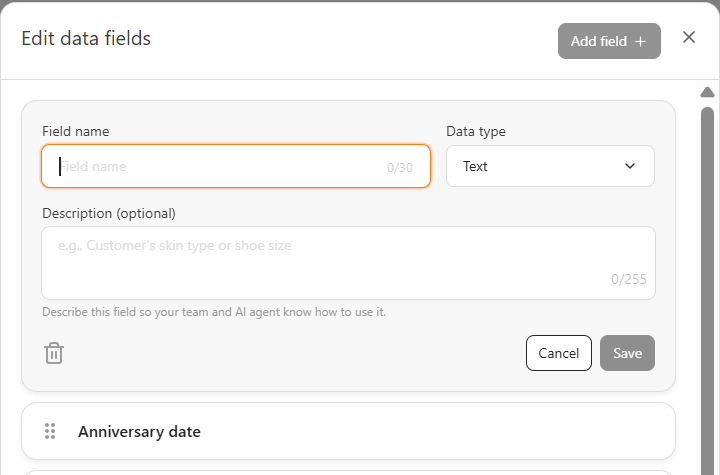
- Open a customer profile and add a field in Additional data. Give it a clear name, choose the appropriate data type, and describe what it should capture. See Review AI customer data for the field setup steps.
- Return to Data collection, select the new field under Additional data, and add its instructions. Save the field editor and the skillset.