

Prerequisites
- You have a saved AI agent and know how to add a skill.
- For automation actions, prepare an active automation that starts with an AI Custom Event trigger.
- For handoff, make sure the human agent is available in your workspace.
1
Add a custom skill
- Open your agent in AI Studio > AI agent studio, then select Skills.
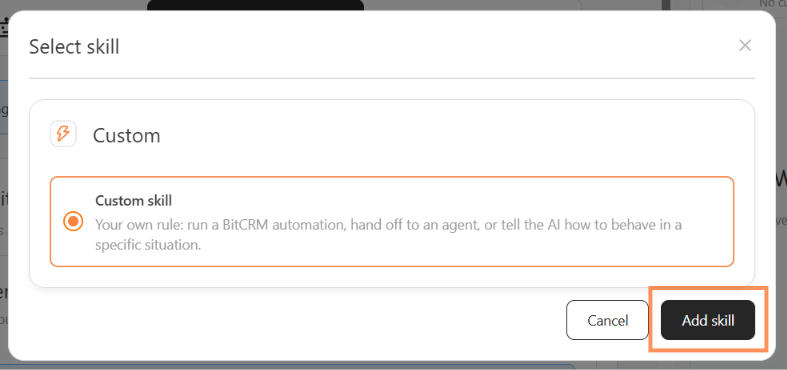
- Select Add skill, choose Custom skill, and confirm the addition.
-
Open the new skill to edit its details.
2
Describe the skill
In Details, fill in Name and Description. Use a name that identifies one task, such as Wholesale enquiry intake, and a description that explains when the skill is useful.For example: “Collects the product, quantity, and event date for a wholesale enquiry before sales handoff.”
3
Write the situation and action
- In Instructions, describe when the skill applies and what the AI agent should do.
- Type @ and use the picker to select an available automation or human agent when the action requires one.
-
Leave mentions out when you only want a behavior rule in the AI agent’s replies.
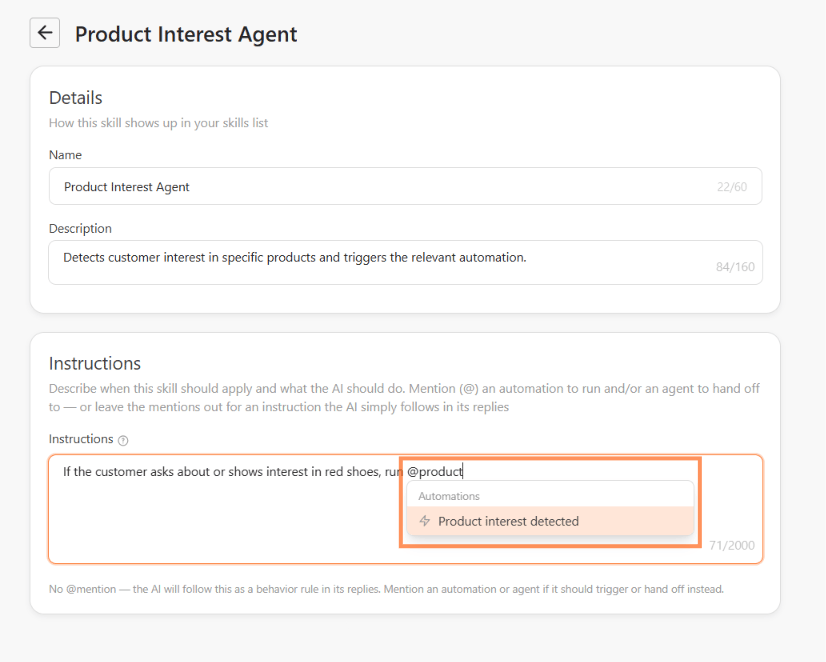
Mentioning an automation does not create its steps. Triggering it before handoff does not confirm that all downstream steps finished.
4
Save and test the skill
- Use the back arrow to return to Skills, then confirm that the skill is enabled in Custom.
- Reopen it and check the instructions and selected references.
- Test a matching request and an unrelated request in the Playground.
- For actual automation execution, follow the connected-channel test steps. Playground simulates the custom-skill automation call.
Example: Prepare a wholesale enquiry for sales
A customer asks, “Can I get a quote for 100 gift boxes for our company event?” Use a skill that gathers the details your sales team needs before taking over.When a customer asks for a wholesale quote, ask for the product, quantity, and event date. Once they provide those details, run @Wholesale enquiry intake, then hand off to @Wholesale sales. Do not promise that a quote has been created or sent unless the configured workflow confirms it.The automation and agent names are examples. Use the @ picker to select your actual active automation and human agent. Configure the intake steps in bitCRM before testing the full workflow.
Example: Create a behavior rule without an action
Example: Create a behavior rule without an action
When a customer says a purchase is a gift, ask whether they want a gift message. Explain only the gift options listed in our Knowledge Base. Do not promise free wrapping unless our policy includes it.This changes the reply. It does not create an order, run an automation, or transfer the conversation.
Troubleshooting
- The automation is missing from the picker: check that it is active and starts with AI Custom Event.
- The skill shows Needs attention: check which mentioned agent or automation is no longer available, then select an existing one or remove that part of the instruction.
- A test reply says the request was accepted: inspect the configured result before treating it as completed. For a Playground automation test, check the live execution separately.