

Prerequisites
- You have a saved AI agent and know how to add and enable a skill.
- The human agent you want to mention is available in your workspace.
- You know your team’s operational hours.
1
Open Escalation
- Open your agent in AI Studio > AI agent studio, then select Skills.
- Under Tool, add Escalation if it is not listed, then open its card.
-
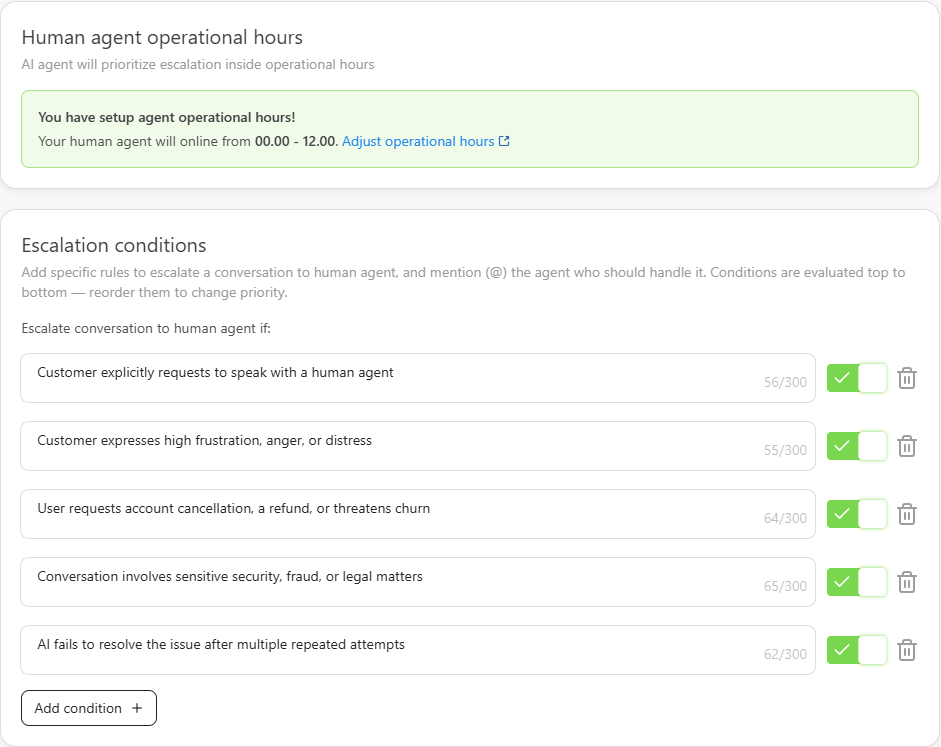
Review Human agent operational hours. Use Adjust operational hours or Setup operational hours when you need to change the support schedule.
2
Add and prioritize conditions
- Under Escalation conditions, select Add condition and describe when a person should take over.
- To choose a specific recipient, type @ and select the human agent from the picker.
- Keep the condition’s switch on if you want it checked.
- Put higher-priority conditions first. The page evaluates conditions from top to bottom.
3
Write guidance outside operational hours
When Outside operational hours instructions is shown, describe how the agent should respond when the team is unavailable. Use the actual schedule and your team’s agreed handoff process.Use Improve instructions to refine the wording or Revert instruction to original to restore the default text. Review it before saving, especially any promised response time.
4
Save and verify the handoff
- Select Save skillset when the unsaved-changes bar appears.
- Return to Skills and confirm that Escalation is enabled.
- In the Playground, test a request that should match, one that should stay with the AI, and the intended outside-hours response.
- Verify actual ticket assignment separately when testing a connected channel. A reply promising a transfer does not prove the intended person received the ticket.
Example: Escalate an unresolved complaint
A customer says, “I have contacted support twice about my damaged order. I want to speak to someone in charge.” Write a condition for that situation and mention the responsible support lead.If the customer expresses strong frustration about an unresolved complaint or asks for a manager, hand off to @Support lead.Support lead is an example name. Select your actual human agent with the @ picker. The handoff gives the complaint an owner; it does not resolve the complaint or approve a refund.
Example: Write an outside-hours response instruction
Example: Write an outside-hours response instruction
If a customer needs a human outside our configured operational hours, explain when our team is available. Ask whether they want the conversation handed to the team for review. Follow the configured handoff process and do not promise a response time that our team has not agreed to.
Troubleshooting
- A condition shows Needs attention: replace the unavailable mentioned agent or remove the condition.
- The wrong condition matches: review the wording, enabled switches, and top-to-bottom priority, then repeat the test.
- You need an automation before handoff: use a custom skill and configure the automation separately.