

1
Select the chats
- Go to the bitChat Livechat dashboard.
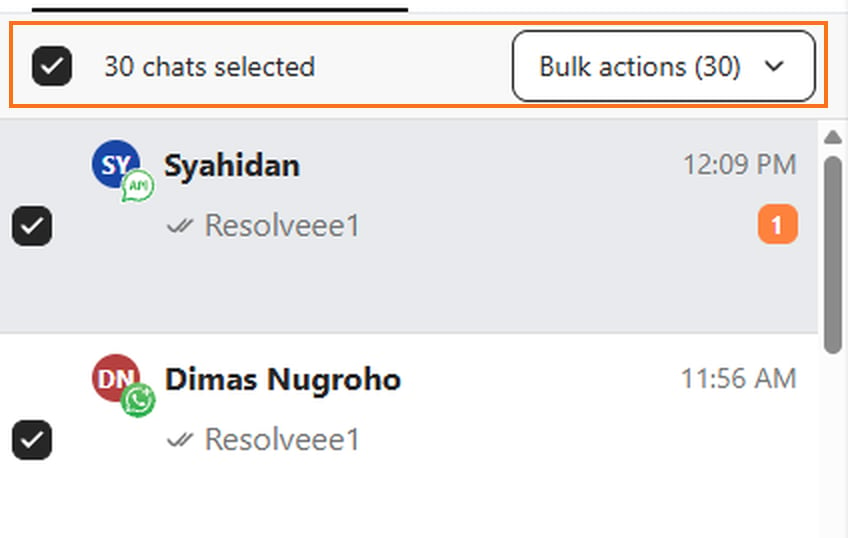
- Tick the checkbox on each chat you want to change.
- To select every chat loaded in the list, tick Select all at the top of the list.
2
Open the Bulk actions menu
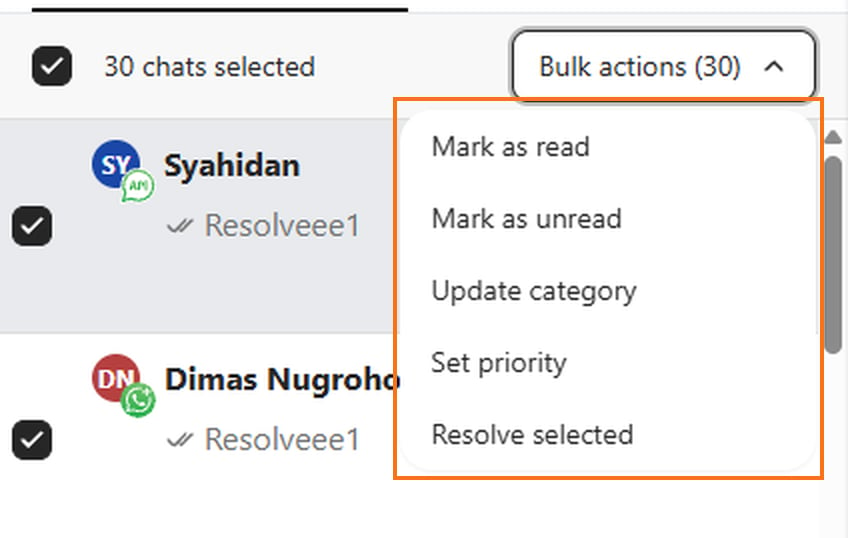
Click Bulk actions (N). The menu lists these actions, in this order:
- Mark as read
- Mark as unread
- Update category
- Set priority
-
Resolve selected
3
Choose an action
Click the action you want. Each action asks you to confirm before it runs — see below for what each one does.
4
Check the result
After the action finishes, a toast shows what happened:
- Green: every selected chat was updated.
- Blue: some chats were skipped, and the toast explains why. For example: 2 of 3 chats resolved. 1 skipped because it has no open ticket.
Mark chats as read or unread
Mark chats as read or unread
- Click Mark as read or Mark as unread.
- Confirm the action in the dialog, for example Mark 3 chats as read?
Update a category
Update a category
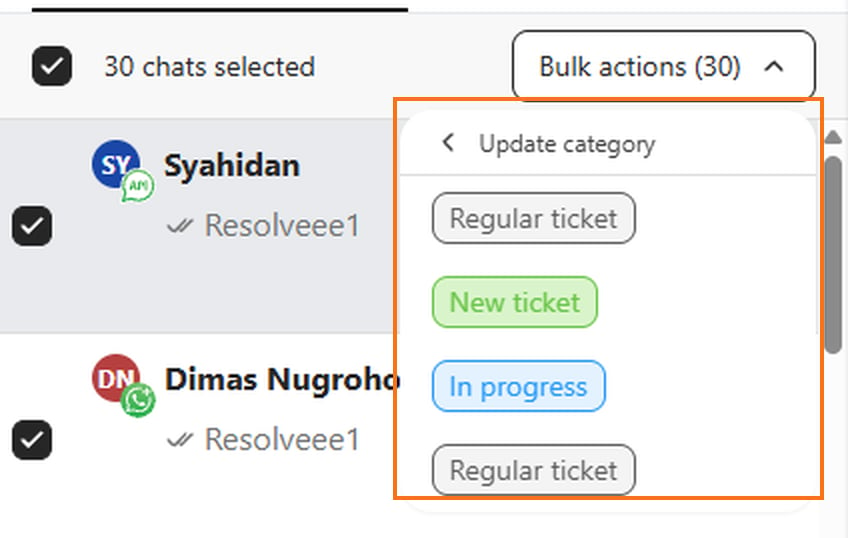
- Click Update category. The panel shows your company’s ticket categories as colored tags.
- Click the category you want to apply.
- Confirm the action in the dialog, for example Update category for 3 chats?
Set a priority
Set a priority
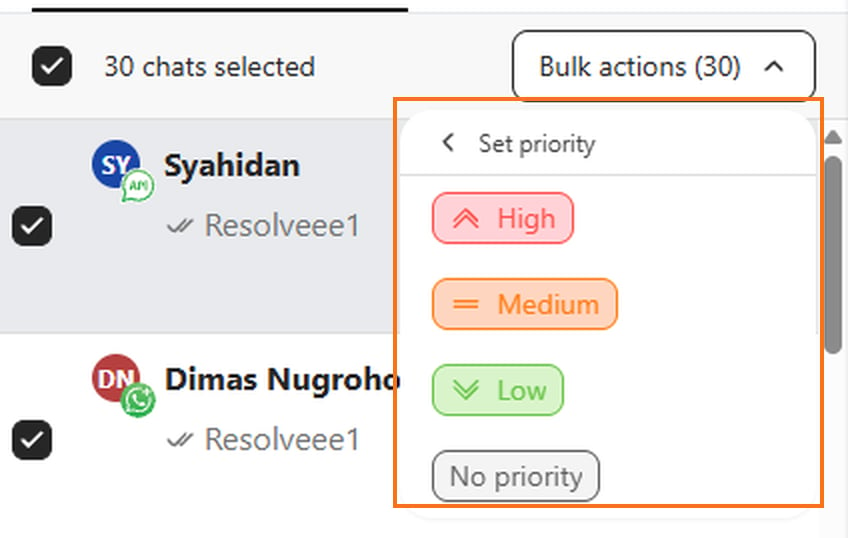
- Click Set priority.
- Choose High, Medium, Low, or No priority.
- Confirm the action in the dialog.
Resolve chats
Resolve chats
- Click Resolve selected.
- Confirm the action in the dialog, for example Resolve 3 chats?
FAQ
Can I undo a bulk action?
Can I undo a bulk action?
Only Resolve selected is permanent, and it cannot be undone. Category, priority, and read or unread changes can be made again on the individual chats.
Why was a chat skipped?
Why was a chat skipped?
A chat is skipped when it has no open ticket to apply the change to. The toast shows how many chats were skipped and the reason.