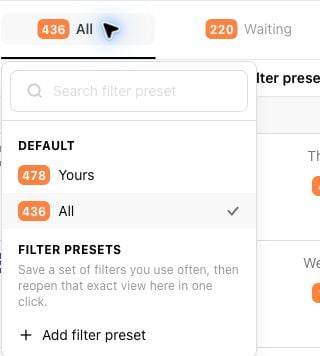
Filter presets save a combination of Livechat filters so you can return to the same inbox view without rebuilding it. Presets are shared with everyone in your company, while the preset you have open is remembered for you.

Step 1: Set up the filters for the view

For help choosing filters, see How to filter chat.

Step 2: Save a filter preset

  • Select Save as filter preset below the Livechat selectors.
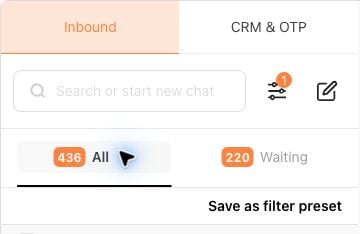
Livechat selectors with the Save as filter preset action below them
  • Enter a name for the preset, then select Save preset.
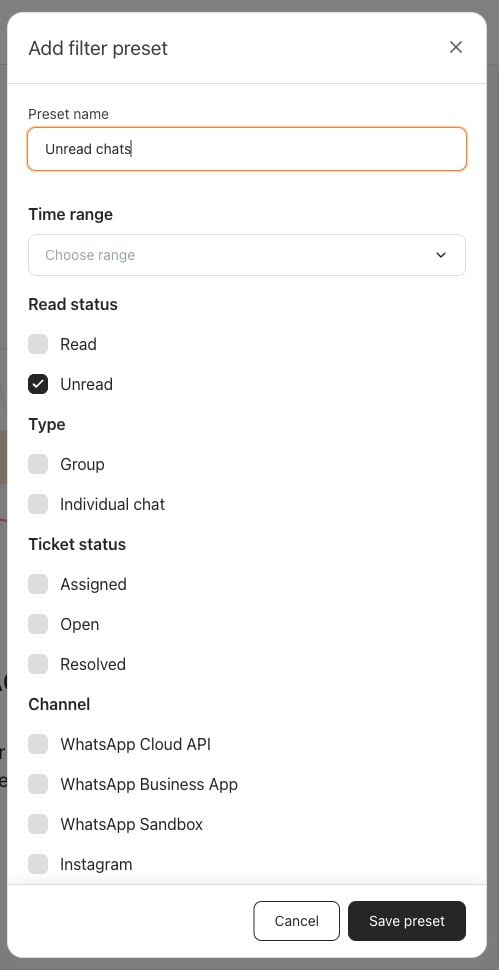
Add filter preset drawer with the name Unread chats and the Unread filter selected The preset is available to everyone in your company.

Step 3: Apply a filter preset

  • Open either selector in the Livechat header.
  • Choose a preset from Filter presets.
Livechat selector showing the Default and Filter presets groups Your saved filters are applied to the inbox. Livechat remembers the preset you have open the next time you return.

Step 4: Edit or remove a filter preset

  • Open the preset you want to change.
  • Select Edit filter preset to update its name or saved filters.
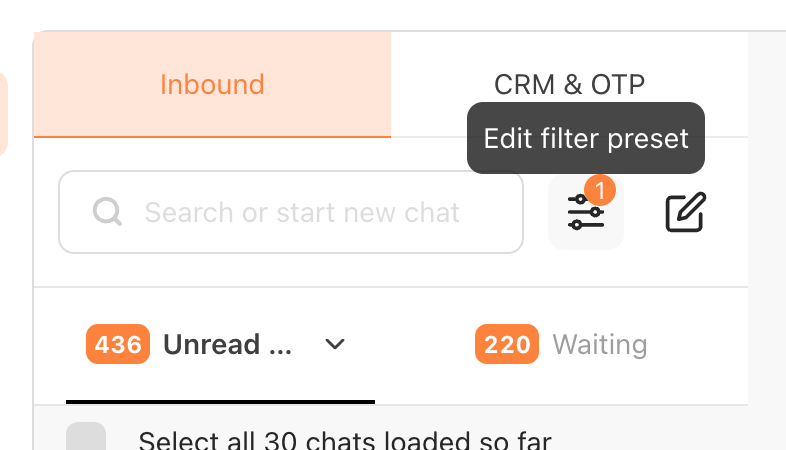
Livechat filter icon showing the Edit filter preset tooltip for an active preset
  • To remove a preset your team no longer needs, select Delete preset at the bottom of the drawer.
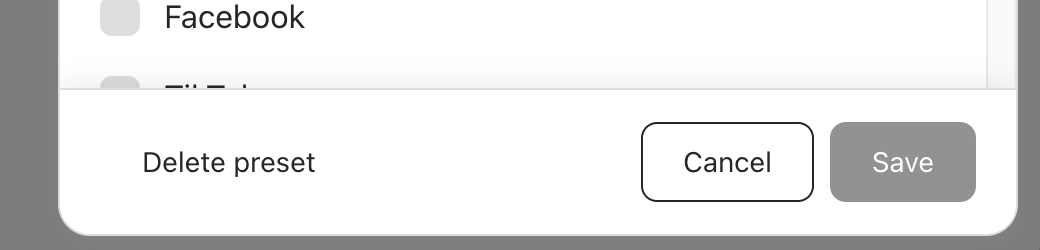
Filter preset drawer footer with Delete preset, Cancel, and Save controls Anyone in your company can edit or remove a shared preset. Changes and removals affect everyone who uses it.